How to Install Anaconda on Mac: A Clear Step-by-Step Guide
Quickly set up a Python data science environment on your Mac by learning how to install Anaconda with easy, step-by-step instructions.

You have a MacBook Pro or MacBook Air and need to set up a Python data science environment quickly. Maybe you want to manage packages and environments efficiently without complex configurations. Learning how to install Anaconda on Mac can streamline this process, whether you have an Intel-based Mac or an Apple Silicon model.
This guide walks you through several installation methods, including the graphical installer, terminal commands, and using Homebrew. It also explains key differences between Mac architectures and offers practical troubleshooting tips to help you avoid common pitfalls during installation.
Key takeaways
- Download the official Anaconda installer matching your Mac’s processor (Intel or Apple Silicon).
- The graphical installer suits most users, while terminal and Homebrew methods offer more control.
- Apple Silicon Macs require specific installer versions for compatibility.
- Installing pip with Anaconda is straightforward but requires activating the correct environment.
- Common issues include permission errors and PATH environment misconfigurations.
Before you start: what you need to install Anaconda on Mac
Preparing your Mac for Anaconda installation involves checking a few key system details to ensure compatibility and a smooth setup experience. First, identify your Mac’s processor type—whether it is an Intel-based Mac or one with Apple Silicon (M1 or M2). This distinction affects installation files and methods.
Next, verify your available disk space. Anaconda requires at least 3 GB of free space, though having more is recommended to accommodate environments and packages. Make sure your macOS version is compatible; Anaconda supports macOS Catalina (10.15) or later versions, including Big Sur and Monterey.
Decide on your preferred installation method. You can use the graphical installer for a simple point-and-click experience, the terminal for command-line control, or Homebrew if you prefer package management integration. Each method has subtle differences in setup and usage.
Finally, ensure a stable internet connection as you will need to download the installer and possibly additional packages during installation.
| Requirement | Intel Mac | Apple Silicon Mac (M1/M2) |
|---|---|---|
| Processor | Intel x86_64 | Apple Silicon ARM64 |
| Minimum macOS | Catalina (10.15) or later | Catalina (10.15) or later |
| Disk space | At least 3 GB free | At least 3 GB free |
| Recommended install method | Graphical installer or terminal | Graphical installer with ARM64 support or terminal |
- Check your Mac model: Click the Apple menu and select About This Mac. Confirm the processor is either Intel or Apple Silicon. You should see "Intel" or "Apple M1/M2" listed.
- Verify disk space: Open Finder, select your startup disk, and press Command+I to view available space. Ensure you have at least 3 GB free.
- Confirm macOS version: From the Apple menu, choose About This Mac and check the version number is Catalina (10.15) or later.
- Choose your installation method: Decide whether you want to use the graphical installer, terminal commands, or Homebrew for installation, based on your comfort level and workflow.
- Ensure internet access: Test that your Mac can connect to the internet reliably, as the installer and some packages require downloading from online sources.
Download the official Anaconda installer for Mac
To start installing Anaconda on your Mac, you need to download the appropriate installer from the official Anaconda website. This ensures you get a secure, up-to-date version compatible with your hardware.
- Open a web browser and navigate to https://www.anaconda.com/products/distribution. You should see the Anaconda Distribution page with download options.
- Scroll to the section labeled “Anaconda Installers.” Here, you will find separate installers for macOS. Confirm you are viewing the macOS installers specifically.
- Choose between the graphical installer and the command line installer. The graphical installer has a .pkg file extension and provides a user-friendly installation wizard. The command line installer is a .sh shell script, suitable for terminal-based installation.
- Identify your Mac’s processor architecture. For Intel-based Macs, select the installer labeled for "Intel 64-bit." For Macs with Apple Silicon (M1, M2 chips), select the installer labeled "Apple Silicon 64-bit." Using the correct installer ensures compatibility and optimal performance.
- Note the file size listed next to each installer. The graphical.pkg installer is usually around 600 to 700 MB, while the.sh installer is typically slightly smaller. This helps verify the download completes fully.
- Click the appropriate installer link to download. After download completes, verify the file is in your Downloads folder or your browser’s default location.
The official download page clearly distinguishes between Intel and Apple Silicon installers and between.pkg and.sh files, helping you select the best option for your installation preferences and Mac model.
How to install Anaconda on MacBook using the graphical installer
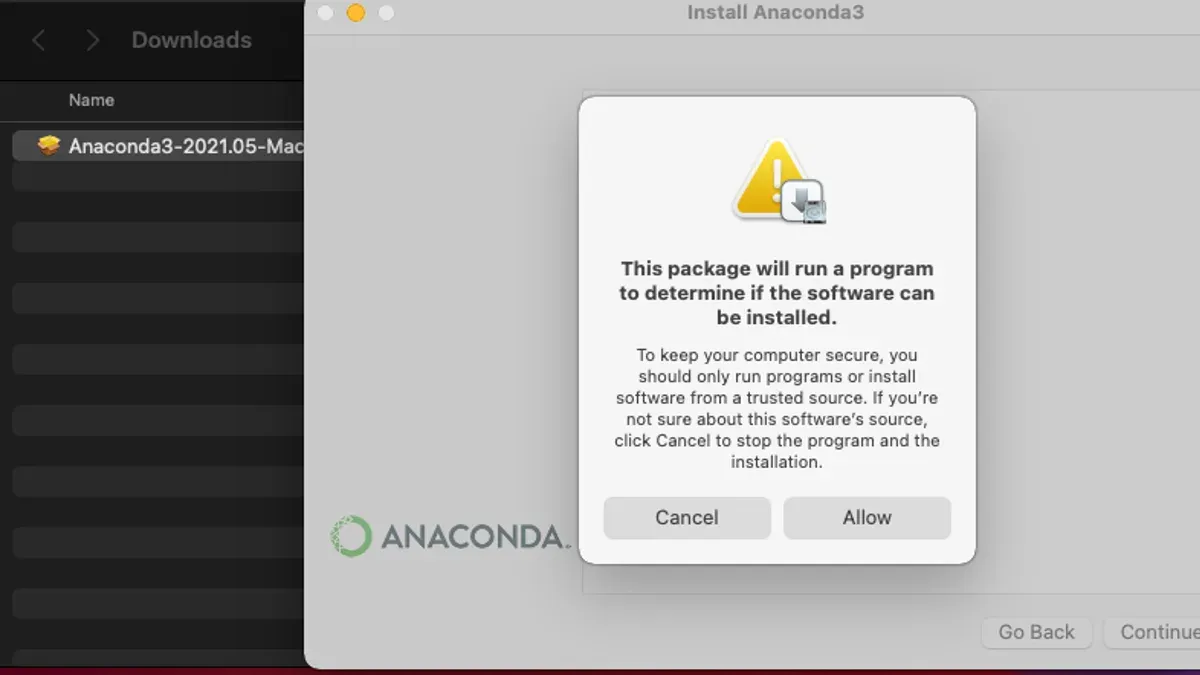
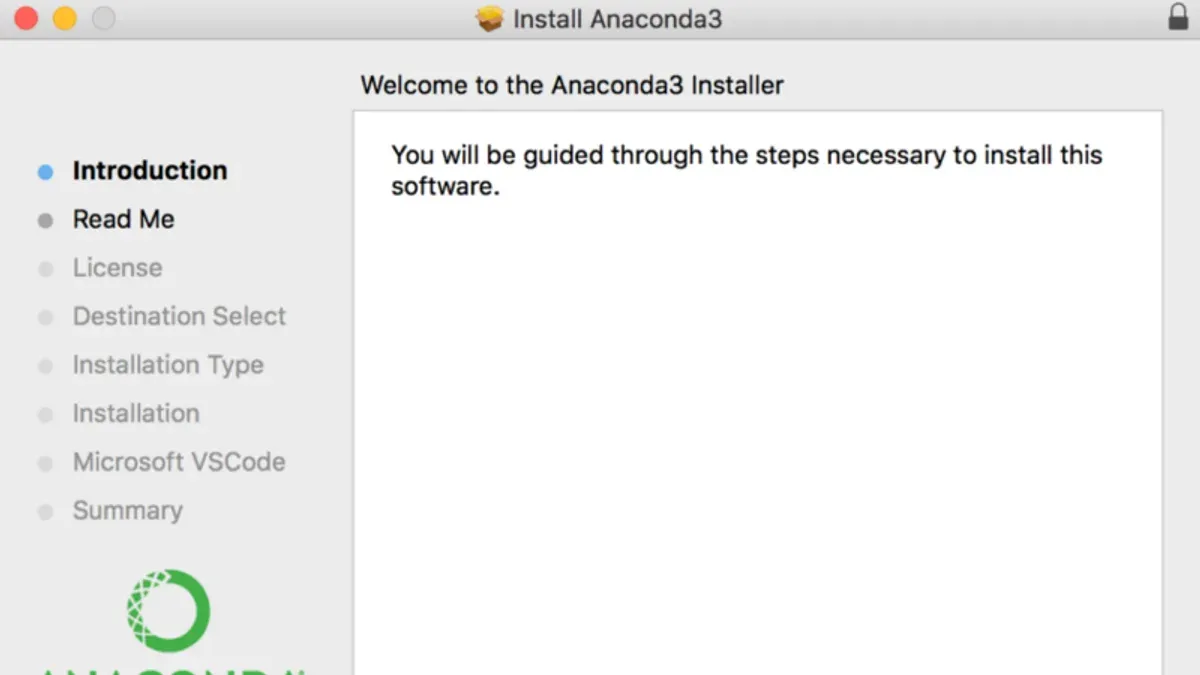
- Locate the downloaded .pkg file, usually in your Downloads folder. Double-click the file to launch the macOS installer. You should see the Anaconda installer welcome screen.
- Click Continue to proceed. The installer will display the software license agreement. Read through it, then click Continue again and select Agree to accept the terms.
- Next, the installer asks you to select the installation destination. Choose your main hard drive (often named "Macintosh HD") and click Continue. This ensures Anaconda installs in your user directory.
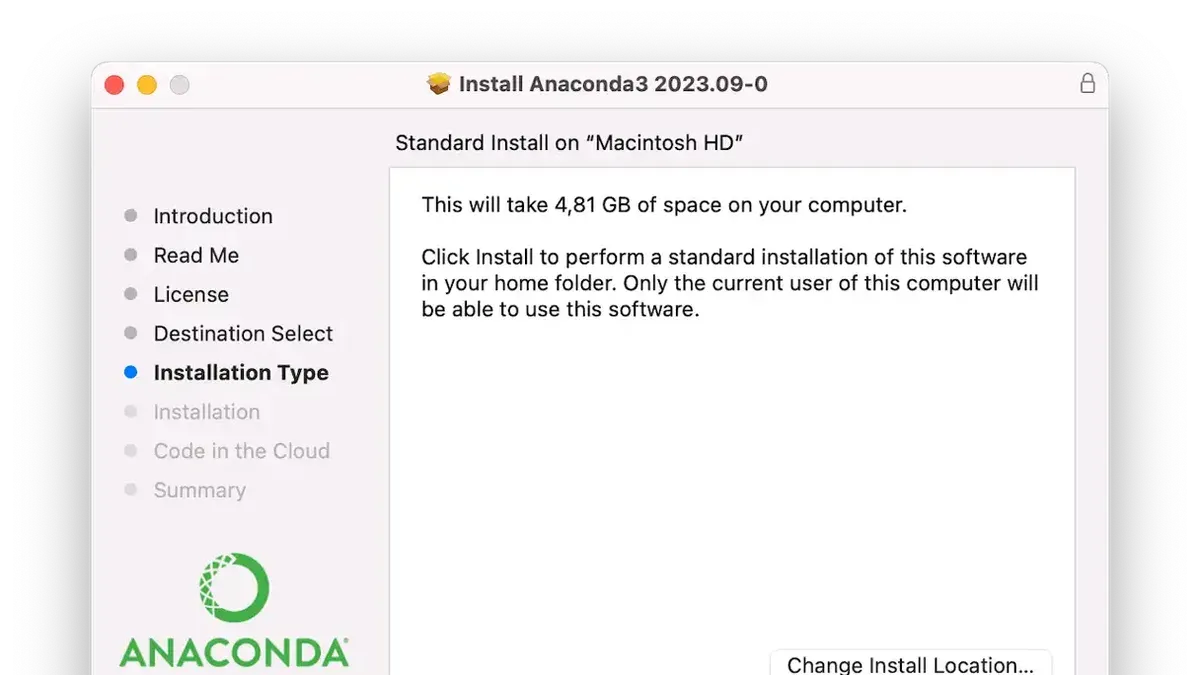
- On the installation type screen, click Install to begin. You may be prompted to enter your Mac user password to authorize the installation. Enter it and press Install Software.
- Wait while the installer copies the necessary files. You will see a progress bar indicating the status. Once complete, the installer shows a confirmation screen stating "The installation was successful."
- Click Close to exit the installer. It may offer to move the installer to the trash; you can do so to save space.
- To verify the installation, open the Terminal app and type
conda --version. A version number confirms Anaconda is installed correctly.
How to install Anaconda on Mac using the terminal
- Open the Terminal app from your Applications > Utilities folder or use Spotlight search. You should see a command prompt ready to accept commands.
- Navigate to the directory where you downloaded the Anaconda installer script, typically the Downloads folder, by typing cd ~/Downloads and pressing Enter. The prompt should update to show you are now inside the Downloads folder.
- Make the installer executable if needed using chmod +x./Anaconda3-*.sh. This ensures the script can run.
- Run the installer by entering bash./Anaconda3-*.sh. The terminal will display the Anaconda license agreement and prompt you to review and accept it by typing yes.
- Follow the on-screen prompts to confirm the installation location, usually your home directory, and wait for the installation process to complete. The terminal will show progress and success messages.
- After installation, update your shell environment by running source ~/.bash_profile or source ~/.zshrc, depending on your shell. This step adds Anaconda to your PATH.
- Verify the installation by typing conda --version. You should see the installed conda version number, confirming a successful installation.
How to install Anaconda on Mac using Homebrew
If you prefer using package managers, Homebrew offers a convenient way to install Anaconda or Miniconda on your Mac. First, check if Homebrew is installed by running brew --version in the terminal. If Homebrew is not installed, install it by executing /bin/bash -c "$(curl -fsSL https://raw.githubusercontent.com/Homebrew/install/HEAD/install.sh)". You should see a message confirming the installation upon success.
With Homebrew ready, you can install Anaconda or Miniconda. Miniconda is a minimal installer for Conda, providing a smaller download and installation size, while Anaconda includes a large collection of preinstalled packages for data science and machine learning.
- Open the terminal and update Homebrew with
brew update. You should see a message indicating the update process completed. - To install the full Anaconda distribution, run
brew install --cask anaconda. After installation, verify by typingconda --version, which should display the Conda version. - Alternatively, to install Miniconda, execute
brew install --cask miniconda. Confirm the installation similarly withconda --version. - After installation, add Conda to your shell profile by running
echo 'export PATH="/usr/local/anaconda3/bin:$PATH"' >> ~/.zshrcfor Anaconda or the appropriate path for Miniconda, then reload your shell withsource ~/.zshrc. This ensures Conda commands are recognized.
Below is a comparison of Anaconda and Miniconda to help you decide:
| Anaconda | Miniconda | |
|---|---|---|
| Installation Size | Approximately 3 GB | Less than 500 MB |
| Preinstalled Packages | Over 150 data science packages | Only Conda and its dependencies |
| Flexibility | Ready-to-use environment | Customizable; install packages as needed |
How to install Anaconda on Mac M1 and Intel: key differences
Installing Anaconda on Mac depends on whether your Mac uses an Intel or Apple Silicon (M1/M2) processor, as this affects the installer choice and performance. Anaconda provides separate installers optimized for each architecture. Using the native Apple Silicon installer on M1 Macs offers better performance and efficiency compared to running the Intel version via Rosetta 2, Apple's translation layer.
Intel-based Macs require the Intel x86_64 Anaconda installer. On Apple Silicon Macs, you can choose the native ARM64 installer or run the Intel installer under Rosetta 2. While Rosetta 2 enables compatibility with Intel apps, it may introduce some performance overhead and occasional compatibility quirks.
Official guidance from Anaconda recommends using the native Apple Silicon installer when possible to benefit from optimized libraries and faster execution. Benchmarks from user communities indicate that native ARM64 installations typically run data science workflows faster and with lower energy consumption than Intel versions under Rosetta 2.
When installing on M1 Macs, ensure you download the ARM64 installer from Anaconda's website. If you need to run Intel-only packages, Rosetta 2 can be installed via terminal with softwareupdate --install-rosetta. However, native ARM64 support is expanding, reducing reliance on Rosetta.
In summary, choose the installer matching your Mac's processor: Intel x86_64 for Intel Macs, and ARM64 for Apple Silicon. This approach maximizes compatibility and performance for your Anaconda environment.
How to install pip on Mac with Anaconda
When you install Anaconda on your Mac, pip is included by default within each conda environment. This means you don’t need to install pip separately to manage Python packages.
To check that pip is available inside your active conda environment, open the Terminal and run:
pip --version
You should see output indicating the pip version and the Python path associated with your conda environment.- To install a package using pip, enter a command like
pip install requests. Successful installation will end with "Successfully installed requests" or similar confirmation. - If you want to update pip to the latest version inside the conda environment, run
pip install --upgrade pip. Keeping pip updated can resolve compatibility issues with newer packages.
Common pip issues after installing Anaconda on Mac may include using pip outside the intended conda environment or path conflicts. Always activate your target conda environment first with conda activate <env-name> before running pip commands.
If you encounter permission errors, avoid using sudo with pip inside conda. Instead, ensure your environment is activated and try upgrading pip or reinstalling the package.
Troubleshooting common Anaconda installation issues on Mac
If your Anaconda installation fails or stalls, first check your internet connection and disk space. A common error is a timeout during package download. Restart the installer or try the terminal method if the graphical installer hangs.
If the conda command is not found after installation, your shell may not have the Anaconda path set correctly. Open Terminal and run echo $PATH to verify if Anaconda's bin directory is included. If not, add export PATH="~/anaconda3/bin:$PATH" to your ~/.zshrc or ~/.bash_profile and restart the terminal.
Conflicts with existing Python installations can cause unexpected behavior. Ensure that Anaconda's Python takes precedence in your PATH and avoid mixing system Python with conda environments. Use which python and conda info to confirm.
Permission or security settings sometimes block installation. If you see messages about blocked system extensions or “unidentified developer,” go to System Preferences > Security & Privacy > General and click "Allow" for the installer. Running the installer with sudo is generally not recommended and can cause issues.
Apple Silicon Macs may encounter Rosetta translation issues. If you installed the Intel version under Rosetta, ensure Terminal runs with Rosetta enabled by right-clicking Terminal in Applications > Utilities > Get Info and checking "Open using Rosetta." Alternatively, use the native Apple Silicon installer for best compatibility.
For persistent issues, consult the official Anaconda troubleshooting guide and the Conda troubleshooting documentation for detailed solutions.
- How to Install Python 3.13 with Pyenv on Mac: A Step-by-Step Guide
- How to Install Docker on Mac: A Clear Step-by-Step Guide
- How to Install GitHub CLI on Mac: A Complete Step-by-Step Guide
- How to Install Git on Mac: Step-by-Step Guide for Every Setup
Frequently asked questions
How to download anaconda on mac?
Visit the official Anaconda website and navigate to the Mac installer download page. Choose the appropriate installer for your Mac’s architecture (Intel or Apple Silicon) and click the download button. The installer will be saved to your Downloads folder by default.
How to install anaconda on linux?
Download the Linux installer script from Anaconda’s official site. Open a terminal, navigate to the download location, and run bash Anaconda3-*.sh. Follow the on-screen prompts to complete installation, then initialize Anaconda by running source ~/.bashrc or restarting the terminal.
How to install Anaconda on MacBook Pro?
Download the graphical installer for Mac from the official Anaconda site. Open the downloaded.pkg file and follow the installer’s instructions. Alternatively, you can install via terminal commands or Homebrew, depending on your preference and system setup.
How to download Anaconda on Mac?
Go to the official Anaconda website and select the Mac version installer matching your hardware. Download the graphical installer or the command-line installer, which will appear in your Downloads folder once complete.
How to install Anaconda on Mac using brew?
First, ensure Homebrew is installed on your Mac. Open Terminal and run brew install --cask anaconda. After installation, you may need to add Anaconda to your PATH by following Homebrew’s post-install instructions, typically by adding export PATH="/usr/local/anaconda3/bin:$PATH" to your shell profile.
What this guide does not cover and who should look elsewhere
This guide does not cover installing Anaconda on iOS devices, as Anaconda is not supported on iOS. Advanced users who require highly customized Python environments or need to integrate with the system Python installation should consider Miniconda or manual virtual environments instead. Performance and compatibility of Anaconda may vary depending on your macOS version and hardware configuration; it is always best to consult the official Anaconda documentation for the latest updates and compatibility notes.
The most useful next step after installing Anaconda is to open your terminal or Anaconda Navigator and create a new conda environment tailored to your projects. This ensures your packages and dependencies remain organized and isolated, reducing conflicts. Use the command conda create -n myenv python=3.x, replacing myenv with your environment name and 3.x with the Python version you require. Activating this environment with conda activate myenv helps maintain clean workflows as you begin your data science or development work on your Mac.