
How to Install GitHub CLI on Mac: A Complete Step-by-Step Guide
This guide shows you how to install GitHub CLI on Mac with simple steps, covering Homebrew and alternative methods for all Mac models.

You're ready to streamline your GitHub workflow directly from your Mac, but you're unsure of the best way to install the GitHub CLI. Whether you have the latest Mac models with Apple Silicon or an older Intel-based Mac, choosing the right installation method can save you time and avoid compatibility issues.
This guide explains how to install GitHub CLI on Mac with detailed, step-by-step instructions. It covers multiple installation options, including Homebrew and alternative methods suited for newer Mac architectures. You'll also get clarity on how GitHub CLI differs from Git and Git Bash, helping you decide which tool fits your needs.
Key takeaways
- Homebrew is the simplest method for most Mac users to install GitHub CLI.
- Alternative installation options exist for Macs without Homebrew or with Apple Silicon (M1/M2/M3 chips).
- GitHub CLI is different from Git and Git Bash; each serves distinct purposes.
- Setting up GitHub CLI requires authentication to connect with your GitHub account.
- Troubleshooting installation issues often involves checking system architecture and PATH settings.
Before you start: what you need to install GitHub CLI on Mac
The GitHub CLI is a command line tool designed to interact specifically with GitHub services, enabling you to manage repositories, pull requests, issues, and workflows directly from your terminal. It differs from Git, which is a version control system used for tracking changes in source code, and from Git Bash, which is a Windows-based terminal emulator providing a Unix-like environment for Git commands. Understanding these distinctions helps you choose the right tool for your needs.
To install GitHub CLI on your Mac, ensure your system meets the requirements. Official documentation states the CLI supports macOS versions 10.15 (Catalina) and later, including the latest architectures like Apple Silicon (M1, M2, M3). You will also need the Xcode Command Line Tools installed, which provide essential compilers and Git, even if you only intend to use GitHub CLI.
Before installation, decide whether to use Homebrew, the popular package manager for macOS, or alternative methods. Homebrew simplifies installation and updates but may not be pre-installed on your machine. Non-Homebrew options include downloading precompiled binaries or using package managers compatible with Apple Silicon Macs. Prepare accordingly by ensuring you have permissions to install software and access to the terminal.
How to install GitHub CLI on macOS using Homebrew
Homebrew is the most popular package manager for macOS, enabling you to install and manage software efficiently from the command line. It handles dependencies and updates, making it the preferred method for installing GitHub CLI on a Mac.
- Check if Homebrew is installed by opening Terminal and running brew --version. If installed, you will see output like Homebrew 4.0.0 or similar.
- If Homebrew is not installed, install it by running:
/bin/bash -c "$(curl -fsSL https://raw.githubusercontent.com/Homebrew/install/HEAD/install.sh)"
Once complete, verify the installation with brew --version. - Install GitHub CLI by running brew install gh. You should see output showing the download, installation progress, and completion.
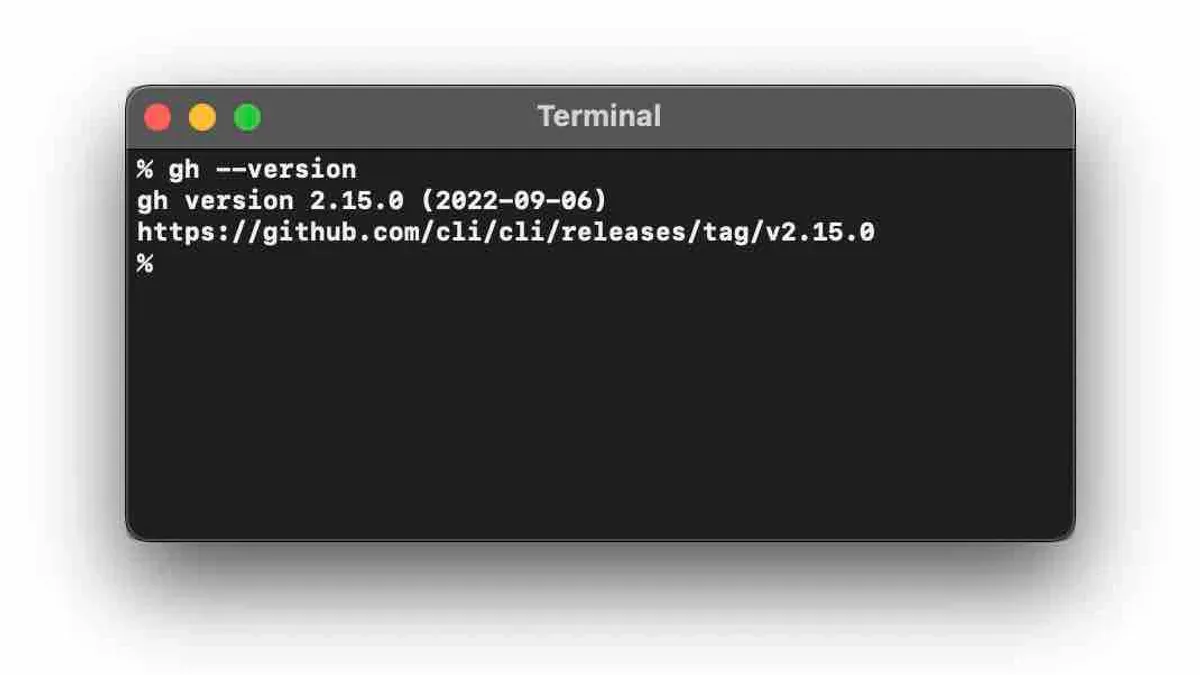
- Verify the GitHub CLI installation by running gh --version. A successful installation outputs the GitHub CLI version, for example:
gh version 2.30.0 (2023-05-01) - To keep GitHub CLI updated, periodically run brew update followed by brew upgrade gh, which handles updates and ensures you have the latest features and security fixes.
Using Homebrew simplifies installation and maintenance of GitHub CLI, especially for users who manage multiple command-line tools. It automates dependencies and provides an easy update path compared to manual installation methods.
How to install GitHub CLI on Mac without Homebrew, including M3 Macs
If you prefer not to use Homebrew or are running on newer Mac architectures like M3, manual installation is a reliable alternative. This method suits situations with corporate restrictions or when you want direct control over the installation files.
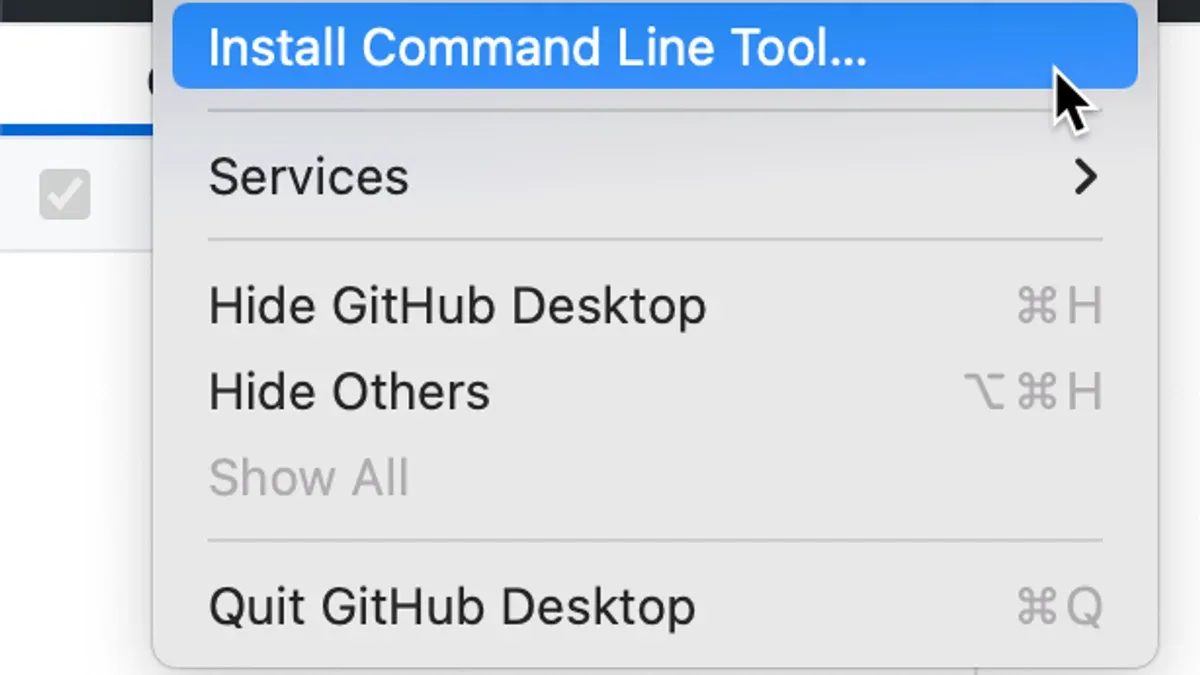
Follow these steps to install GitHub CLI manually:
- Visit the official GitHub CLI releases page and download the latest macOS binary, choosing either the .pkg installer or the tar.gz archive.
- If you downloaded the .pkg file, double-click it and follow the installer prompts. Upon completion, GitHub CLI will be installed in
/usr/local/bin/ghor an equivalent system path accessible by default. - If you downloaded the tar.gz file, open Terminal and extract it using
tar -xzf gh_*_macOS.tar.gz. Then move the extractedghbinary to a directory in your PATH, for example,/usr/local/bin/, withsudo mv gh /usr/local/bin/. - Confirm that
/usr/local/binis in your PATH by runningecho $PATH. If it is not, add it by editing your shell profile file (e.g.,~/.zshrcor~/.bash_profile) and appendingexport PATH=/usr/local/bin:$PATH. Then reload the profile withsource ~/.zshrcorsource ~/.bash_profile. - Verify the installation by running
gh --versionin Terminal. You should see the installed GitHub CLI version displayed. - Test basic functionality by running
gh auth login, which will guide you through authenticating your GitHub account.
Manual installation grants flexibility for different Mac architectures and environments, though you will need to manage updates yourself. This method ensures GitHub CLI runs natively and independently of Homebrew.
How to setup GitHub CLI on Mac after installation
After installing GitHub CLI, the next step is to authenticate it with your GitHub account and configure it for seamless use. Authentication allows the CLI to interact with your repositories securely.
- Open Terminal and run gh auth login. This command initiates the authentication process.
- You will be prompted to choose an authentication method: Web browser or Paste an authentication token. Selecting Web browser opens a GitHub login page to authorize the CLI.
- Once authorized, the terminal will display a message confirming successful authentication, like "Logged in as <your-username>".
- Verify your authentication status anytime by running gh auth status, which shows the currently logged-in user and scopes granted.
- Set your default GitHub repository and user settings to streamline commands. For example, configure the default Git protocol (HTTPS or SSH) with gh config set git_protocol ssh.
- Integrate GitHub CLI with your existing Git workflows by using commands such as gh repo clone <owner/repo> to clone repositories or gh pr create to create pull requests directly from the terminal.
- Try basic commands like gh repo view to see repository details or gh issue list to view issues. Successful command outputs confirm your setup is working.
Following these steps configures GitHub CLI for efficient use on your Mac, blending it smoothly with your development environment.
How to install GitHub CLI on Linux and Windows: quick overview
Installing GitHub CLI on Linux and Windows involves platform-specific package managers and installers, offering options that parallel Mac methods but with some differences.
Linux installation
On Linux, you can install GitHub CLI using native package managers or by downloading binaries. For Debian-based systems like Ubuntu, use apt with commands like sudo apt install gh. Fedora users can install via dnf, using sudo dnf install gh. Alternatively, you can download the latest.rpm or.deb binaries directly from GitHub releases and install them manually. This approach is similar to manual Mac installation without Homebrew, requiring you to verify the binary location and PATH environment.
Windows installation
Windows users have multiple options: the official MSI installer provides a graphical setup; package managers such as winget and scoop offer command-line installation. For example, with winget, you run winget install --id GitHub.cli. Scoop users can run scoop install gh. These methods install GitHub CLI into system paths and handle updates, akin to Homebrew on Mac but adapted to Windows environments.
The main differences from Mac installations stem from system architectures and package ecosystems. Windows relies on installers or Windows-specific package managers, while Linux uses various package managers depending on the distribution. Manual binary installation is common across all platforms for users wanting more control.
| Operating System | Package Manager / Method | Installation Command / Method |
|---|---|---|
| macOS | Homebrew | brew install gh |
| macOS | Manual Binary | Download from GitHub releases and move to PATH |
| Linux (Debian/Ubuntu) | apt | sudo apt install gh |
| Linux (Fedora) | dnf | sudo dnf install gh |
| Linux | Manual Binary | Download.deb or.rpm and install manually |
| Windows | MSI Installer | Download and run installer |
| Windows | winget | winget install --id GitHub.cli |
| Windows | scoop | scoop install gh |
For detailed instructions and platform-specific nuances, visit the official GitHub CLI documentation at https://github.com/cli/cli#installation.
Common confusions: installing Git CLI vs GitHub CLI vs Git Bash on Mac
Understanding the difference between Git CLI, GitHub CLI, and Git Bash helps you pick the right tool for your workflow on Mac.
| Tool | Description | Primary Use | Mac Compatibility |
|---|---|---|---|
| Git CLI | The core command-line interface for Git version control. | Managing local repositories, commits, branches, merges, and syncing with remote Git servers. | Native and essential on Mac; typically pre-installed or available via Xcode Command Line Tools. |
| GitHub CLI (gh) | An extension to Git CLI that provides GitHub-specific commands. | Interacting with GitHub features like pull requests, issues, releases, and authentication directly from the terminal. | Fully supported on Mac; install separately to add GitHub integration. |
| Git Bash | A Windows-specific terminal emulator providing Git and Bash shell environment. | Offers Git commands and a Unix-like shell on Windows. | Not used on Mac since macOS has native Terminal and Bash/Zsh shells. |
On Mac, you do not need Git Bash because the Terminal app already provides a powerful shell environment with native Git support.
Choose Git CLI if your work revolves around standard version control operations on any Git repository.
Use GitHub CLI when you want streamlined access to GitHub features without leaving the command line.
You only need Git Bash if you are on Windows and want a Unix-like shell experience with Git bundled.
Troubleshooting common issues when installing GitHub CLI on Mac
If the gh command is not found after installation, it usually means your PATH environment variable does not include the directory where GitHub CLI is installed. To check your PATH, run echo $PATH in Terminal. Ensure it contains the directory with the gh binary, typically /usr/local/bin or /opt/homebrew/bin for Homebrew installations.
- Run
which gh. If no path appears, you need to add the directory to your PATH. - Edit your shell profile file (
~/.zshrcor~/.bash_profile) and addexport PATH=$PATH:/usr/local/bin(adjust path accordingly). - Reload the profile with
source ~/.zshrcor open a new Terminal window. - Run
gh --versionto confirm the command is now recognized.
Permission errors during installation can occur if you lack write access to the installation directory. For example, an error like “Permission denied” when copying files suggests you should use sudo with caution or choose a directory within your user space. Avoid running Homebrew commands with sudo.
Conflicts with older versions of GitHub CLI or Git can cause unexpected behavior. To check installed versions, run gh --version and git --version. If multiple versions exist, uninstall older ones using Homebrew (brew uninstall gh) or manually remove binaries (rm /usr/local/bin/gh), then reinstall.
If authentication fails, ensure you have an active internet connection and that your GitHub credentials are correct. Run gh auth login to re-authenticate. If errors like “Authentication failed” persist, check for firewall or VPN restrictions blocking GitHub.
To uninstall GitHub CLI cleanly, use Homebrew with brew uninstall gh if installed via Homebrew. For manual installs, delete the gh binary from the installation directory and remove related configuration files from ~/.config/gh. Reinstall by following the installation steps to ensure a fresh setup.
- How to Install AWS CLI on Mac: A Clear Step-by-Step Guide
- How to Install Docker on Mac: A Clear Step-by-Step Guide
- How to Install Kubernetes Minikube on Mac: A Step-by-Step Guide
- How to Install Google Cloud SDK on Mac: A Clear Step-by-Step Guide
Frequently asked questions
How to install github cli on windows?
To install GitHub CLI on Windows, download the installer from the official GitHub CLI releases page. Run the.msi file and follow the setup wizard. Alternatively, you can use package managers like Scoop or Chocolatey by running scoop install gh or choco install gh in PowerShell with administrator privileges. After installation, open Command Prompt or PowerShell and type gh --version to verify.
How to install git cli on mac?
Git CLI is commonly installed on Mac using Homebrew with the command brew install git. If you don’t have Homebrew, you can install Git by downloading the official installer from git-scm.com or by installing Xcode Command Line Tools via xcode-select --install in Terminal. Verify installation by running git --version.
How to install git cli on macos?
Installing Git CLI on macOS follows the same process as on Mac. Use Homebrew with brew install git for the easiest method. Alternatively, run xcode-select --install to get the Command Line Tools that include Git or download the installer from the official Git website. Check installation with git --version.
How to install git bash on mac?
Git Bash is a Windows-specific terminal emulator bundled with Git for Windows and does not have a native macOS version. On Mac, the Terminal app already supports Bash and other shells natively. To get similar functionality, install Git via Homebrew or the official installer and use the built-in Terminal or alternative terminals like iTerm2.
How to install git bash on macos?
There is no Git Bash application for macOS because the Terminal app provides Bash and other shells by default. Instead, install Git CLI using Homebrew or the official installer for Git, then run Git commands directly from Terminal. For enhanced terminal experience, consider third-party terminals such as iTerm2.
What this article does not cover
This article does not cover advanced GitHub CLI scripting or integration with CI/CD pipelines, which require additional configuration beyond initial installation. If you need to automate workflows or connect GitHub CLI with continuous integration systems, you should refer to specialized documentation and resources focused on those topics.
The guidance here is focused solely on installing and setting up GitHub CLI on Mac systems, including options for new Mac architectures. For users seeking deep customization, plugin development, or enterprise deployment strategies, more targeted advice is recommended.
To get the most out of your GitHub CLI experience after installation, your next step should be to authenticate your CLI with your GitHub account by running gh auth login. This ensures you can interact securely with repositories, manage issues, and perform other GitHub tasks directly from your terminal.



