How to Install Python 3.13 with Pyenv on Mac: A Step-by-Step Guide
This guide shows how to install Python 3.13 with pyenv on Mac, manage multiple versions, and troubleshoot common installation issues.

You want to try Python 3.13 on your Mac but aren't sure how to manage multiple Python versions smoothly. Installing Python directly can cause conflicts with system tools or other projects, making version management essential.
This guide explains how to install Python 3.13 with pyenv on Mac, a popular tool for flexible Python version control. You will learn practical steps to set up pyenv, install Python 3.13, and avoid common pitfalls often missing from generic guides. The article also covers managing multiple Python versions and troubleshooting installation issues using real command outputs.
Key takeaways
- Pyenv isolates Python versions, preventing conflicts with macOS system Python.
- Installing Python 3.13 requires dependencies like OpenSSL and readline installed via Homebrew.
- Common errors include build failures due to missing libraries—ensuring correct environment variables fixes most issues.
- Switching between Python versions is simple with pyenv commands like pyenv global and pyenv local.
- Installing multiple Python versions alongside 3.13 helps maintain compatibility for different projects.
Before you start: what you need to install Python 3.13 with pyenv on Mac
To install Python 3.13 using pyenv on your Mac, ensure your system meets the necessary requirements. You need macOS version 10.14 (Mojave) or later for smooth compatibility. The Xcode Command Line Tools must be installed, as they provide essential compilers and libraries.
Homebrew is the recommended package manager to install pyenv and its dependencies. If you don’t have Homebrew, you’ll need to install it first. Pyenv helps you manage multiple Python versions side-by-side, avoiding conflicts and simplifying version switching.
Pyenv requires several dependencies like openssl, readline, and sqlite to build Python versions correctly. These can be installed via Homebrew.
- Open Terminal and verify macOS version with
sw_vers -productVersion. You should see output like 10.14.6 or higher. - Check if Xcode Command Line Tools are installed by running
xcode-select -p. If it returns a valid path (e.g.,/Library/Developer/CommandLineTools), you are set; otherwise, install it withxcode-select --install. - Check if Homebrew is installed by running
brew --version. If not installed, get it from https://brew.sh. - Install pyenv dependencies with Homebrew:
brew install openssl readline sqlite xz zlib. Successful installation will show messages ending with already installed or installed.
Completing these steps prepares your Mac for a reliable Python 3.13 installation using pyenv.
How to install pyenv on Mac
- Open your Terminal app and run
brew updateto ensure Homebrew is up to date. You should see messages indicating the update process completed successfully. - Install pyenv by running
brew install pyenv. The output will show Homebrew fetching and installing pyenv along with any dependencies. - Add pyenv initialization to your shell environment. For example, if you use bash, run
echo 'eval "$(pyenv init --path)"' >> ~/.bash_profileandecho 'eval "$(pyenv init -)"' >> ~/.bashrc. For zsh, replace~/.bash_profileand~/.bashrcwith~/.zprofileand~/.zshrcrespectively. - Restart your terminal or run
source ~/.bash_profileandsource ~/.bashrc(or the equivalent for your shell) to apply changes. No errors should occur after sourcing. - Verify pyenv installation by running
pyenv --version. You should see a version string likepyenv 2.3.20confirming a successful install.
Setting the shell environment is crucial; missing this step often leads to pyenv commands not being recognized. The install via Homebrew ensures dependencies are handled cleanly, making pyenv ready for managing Python versions.
How to install Python 3.13 using pyenv
- Check available Python versions by running
pyenv install --list. This lists all installable versions; look for entries starting with3.13to confirm availability. - Install Python 3.13 by executing
pyenv install 3.13.0(replace with the exact patch version if newer ones appear). Successful installation ends with a message like "Installed Python-3.13.0". - Set Python 3.13 as the global default with
pyenv global 3.13.0. This configures your shell to use this version by default. - Verify the active Python version by running
python --version. You should see Python 3.13.0 confirming the global version is set. - If you encounter build issues, consider using build flags such as
CONFIGURE_OPTS="--enable-shared"before installation to address common compilation problems on Mac.
Example output snippets during installation include:
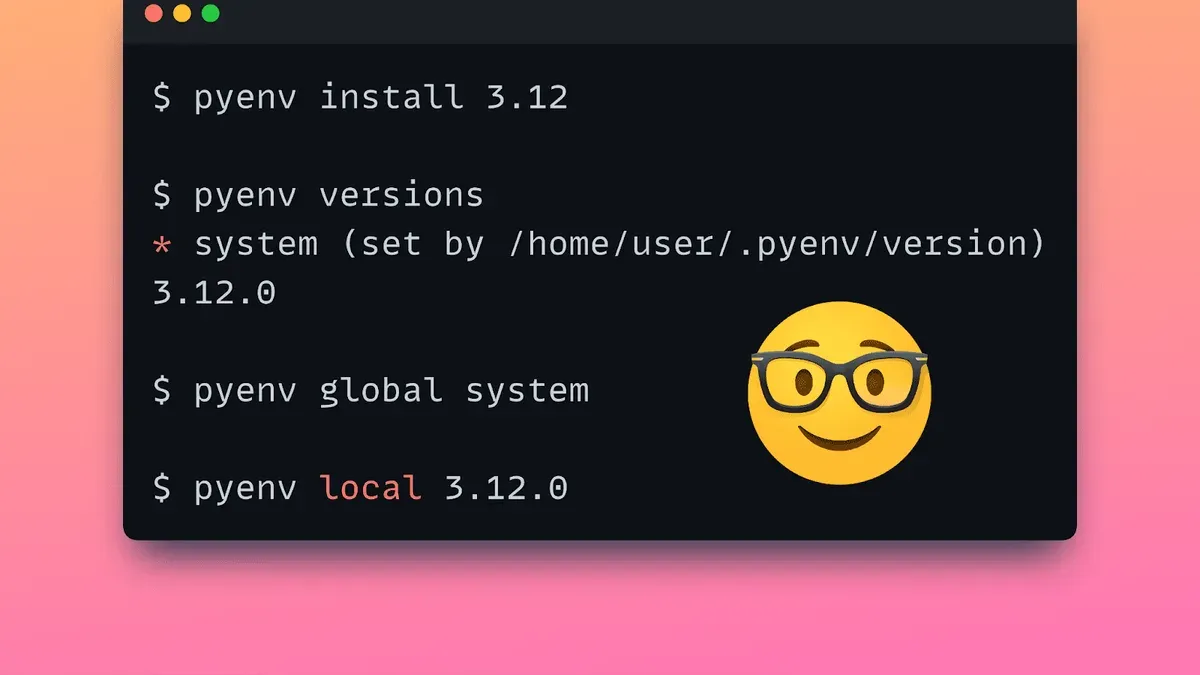
$ pyenv install 3.13.0
Downloading Python-3.13.0.tar.xz...
Installing Python-3.13.0...
Installed Python-3.13.0
$ pyenv global 3.13.0$ python --version
Python 3.13.0
Using pyenv in this way keeps your system Python untouched and allows easy switching between versions when needed.
How to install Python 3.11 and 3.12 on Mac with pyenv
Installing Python 3.11 and 3.12 with pyenv follows a similar process to Python 3.13, allowing you to maintain multiple Python versions on your Mac efficiently. This is particularly useful if you work on projects that require different Python environments.
- Run pyenv install 3.11.0 to install Python 3.11. You should see a progress output indicating the build process has started and completed without errors.
- Run pyenv install 3.12.0 to install Python 3.12. The terminal will display similar build steps and success messages.
- Use cases for managing multiple Python versions include isolating dependencies per project or testing compatibility without affecting your system Python or other environments.
Switch between installed versions with pyenv global 3.11.0 or pyenv global 3.12.0. After switching, running python --version will reflect the change, for example:
$ python --version
Python 3.11.0
List installed versions using pyenv versions. This command outputs all installed Python versions, showing which is currently active, for example:
| Version | Status |
|---|---|
| 3.11.0 | installed |
| 3.12.0 | installed |
| 3.13.0 | global |
Troubleshooting common pyenv and Python installation issues on Mac
Installation problems with pyenv and Python on Mac often stem from missing dependencies or misconfigured environments.
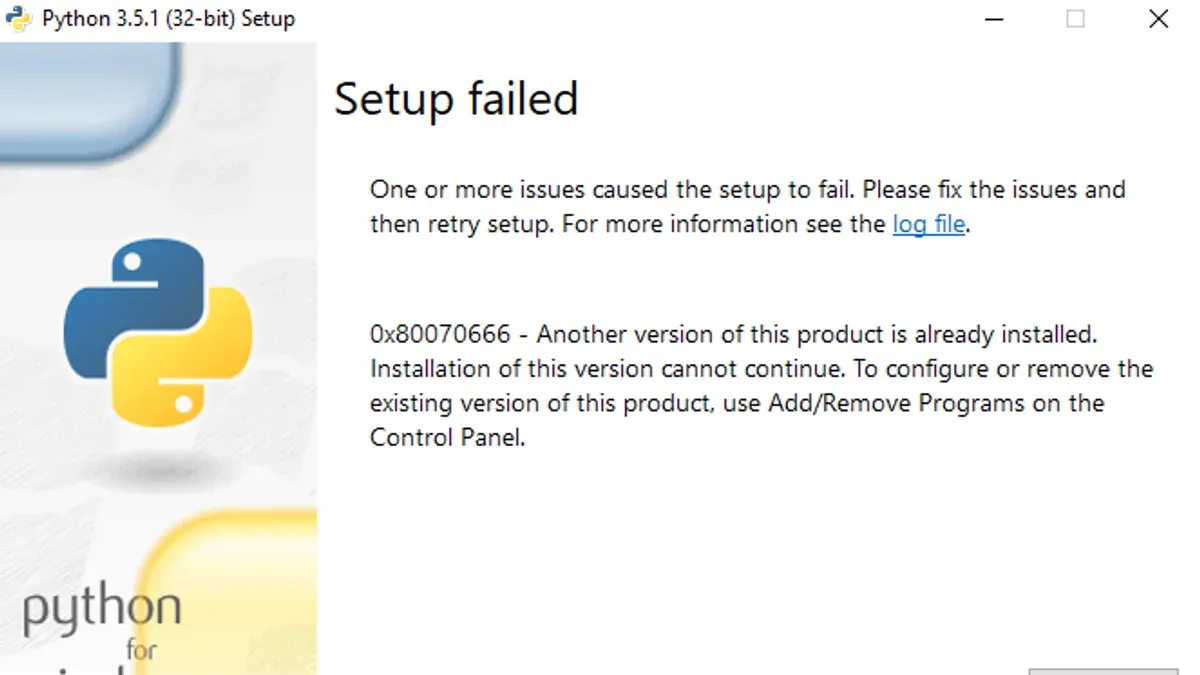
Fixing build failures due to missing dependencies or outdated tools
You might see errors like "xcrun: error: invalid active developer path" or "clang: command not found". Run xcode-select --install to install or update Xcode Command Line Tools. Also, outdated Homebrew packages can cause build failures. Update Homebrew with brew update and upgrade essential libraries such as openssl and readline.
Resolving shell environment misconfiguration
If pyenv commands show "command not found", your shell may not be properly configured. Ensure you added eval "$(pyenv init --path)" to your shell profile (.zprofile or .bash_profile). After editing, restart the terminal or run exec $SHELL. Confirm by running pyenv versions—you should see installed Python versions listed.
Handling SSL and OpenSSL related errors
Errors like "Failed to establish a new connection: SSL: CERTIFICATE_VERIFY_FAILED" during package installs indicate OpenSSL issues. Make sure pyenv uses Homebrew OpenSSL by setting environment variables before installation: export LDFLAGS="-L/usr/local/opt/openssl@3/lib" and export CPPFLAGS="-I/usr/local/opt/openssl@3/include". Reinstall Python 3.13 after that.
Dealing with pyenv commands not switching Python versions
If pyenv global 3.13.0 runs without error but python --version still shows a different version, your shell might be overriding pyenv. Check for other Python installations earlier in your PATH. Running which python should point to ~/.pyenv/shims/python. If not, reorder your PATH to prioritize pyenv's shims directory.
For persistent or complex issues, consult the official pyenv GitHub issues page or community forums for solutions and updates.
Managing Python versions with pyenv effectively
Keeping your Python environment organized with pyenv ensures smooth development across projects. Start by listing all installed Python versions to see what’s currently available.
- Switching versions with pyenv local avoids conflicts when working on multiple projects requiring different Python versions, while pyenv global sets the fallback default.
For project-specific Python versions, navigate to your project folder and run pyenv local <version>. This creates a .python-version file locking the Python version for that directory. Verify with:
pyenv local 3.12.0
python --version
Python 3.12.0
Use pyenv global <version> to set the default Python version system-wide. Confirm the change with python --version. Example:
pyenv global 3.13.0
python --version
Python 3.13.0
To remove an unused Python version, execute pyenv uninstall <version>. For example:
pyenv uninstall 3.11.5
Uninstalling Python 3.11.5... done
Run pyenv versions. You should see output similar to:
3.11.5
3.12.0
3.13.0 (set by /Users/you/.pyenv/version)
Regularly cleaning up old versions and clearly assigning versions per project keeps your Python environment manageable and prevents version conflicts.
Frequently asked questions
How to install python 3.12 on mac?
To install Python 3.12 on Mac, you can use pyenv by running pyenv install 3.12.0 in your terminal. Before this, ensure you have the required build dependencies like openssl and readline installed via Homebrew. After installation, set it globally or locally with pyenv global 3.12.0 or pyenv local 3.12.0.
How to install python 3 on mac?
Installing Python 3 on Mac is easiest with pyenv or Homebrew. With pyenv, install the latest stable version by running pyenv install 3.x.x, replacing with the desired version number. Alternatively, use brew install python for the Homebrew-managed version, but pyenv offers more flexibility managing multiple versions.
How to install python 3.11 on mac?
Install Python 3.11 on Mac using pyenv by executing pyenv install 3.11.0. Make sure your system has build tools and libraries like zlib and openssl installed. After the installation completes, activate the version with pyenv global 3.11.0 or within a project folder using pyenv local 3.11.0.
How to install python 3.12 on Mac
This is the same as installing Python 3.12 on mac. Use pyenv install 3.12.0 after ensuring dependencies are met. Confirm the version is installed by running pyenv versions and switch as needed.
How to install python 3 on Mac
To install Python 3 on Mac, pyenv is recommended for managing versions. Start by installing pyenv, then run pyenv install 3.x.x with the specific version you want. Set the active version with pyenv global or pyenv local, avoiding conflicts with the system Python.
What this guide does not cover and when to seek other solutions
This guide does not cover Python installation on Windows or Linux systems, nor does it address advanced Python environment setups such as virtual environments, conda, or containerized deployments. If you require isolated project environments or need to manage packages alongside Python versions, consider using tools like virtualenv or conda in addition to pyenv. Users who prefer graphical installers or integrated development environments might find alternative methods more straightforward.
The single most useful next step is to verify your Python 3.13 installation by running python --version in a new terminal session and testing your setup with a simple script. This ensures your shell’s environment is correctly configured and pyenv is managing your Python versions as expected.