
How to Install Apache on Mac: A Clear Step-by-Step Guide
This guide provides a clear, step-by-step process to install and configure Apache on your Mac for local web development and testing.

You want to run a local web server on your Mac for development or testing, but the variety of Apache projects and related tools can make the installation process confusing. Whether you are evaluating Apache against other web servers or just need the core Apache HTTP Server, knowing exactly how to install Apache on Mac is essential.
This article guides you through a clear, step-by-step installation of the Apache HTTP Server on macOS. It covers prerequisites, using Homebrew for installation, starting and verifying the server, configuring it for basic web hosting, and clarifies how Apache Maven and Apache Kafka differ and how to install them if needed. You will also find solutions to common installation problems to ensure a smooth setup.
Key takeaways
- macOS includes a built-in Apache version, but using Homebrew provides the latest release and easier management.
- Starting Apache requires the correct terminal commands: 'sudo apachectl start' and verifying with 'curl localhost'.
- Basic configuration involves editing the '/usr/local/etc/httpd/httpd.conf' file to set your DocumentRoot and enable modules.
- Apache Maven and Apache Kafka are separate projects and require different installation steps if needed.
- Common issues often relate to permissions, port conflicts, or outdated configurations—check logs in '/usr/local/var/log/httpd/'.
Before you start: What you need to install Apache on Mac
The Apache HTTP Server is a widely used open-source web server software that allows you to host websites locally or serve web applications. On Mac, Apache acts as a reliable platform for web development and testing, supporting HTTP, HTTPS, and various modules for extended functionality.
macOS includes a pre-installed version of Apache, but its version might be outdated or lack certain features. Starting with macOS Catalina, changes in system security and file system structure have affected the ease of using this built-in Apache. Installing Apache via Homebrew provides a more current, customizable, and manageable version that coexists alongside the system's native Apache.
This guide focuses exclusively on installing and configuring the core Apache HTTP Server. It does not cover other Apache Software Foundation projects like Apache Maven or Apache Kafka, which serve different purposes.
Before installing Apache, ensure your Mac meets these prerequisites:
- Check your macOS version. While Apache is available on most recent versions, Homebrew supports macOS Mojave and later for easier installation and maintenance.
- Install Apple's Command Line Tools. You can do this by running xcode-select --install in Terminal. This provides essential developer utilities required by Homebrew and Apache.
- Install Homebrew if you don’t have it. Homebrew simplifies package management on Mac and enables easy installation of the latest Apache version. Visit https://brew.sh for installation instructions.
- Decide if you want to use the built-in Apache or the Homebrew version. The built-in version requires manual configuration and may have restrictions, while Homebrew's Apache is more flexible and easier to update.
Having these components ready will streamline the Apache installation and configuration process on your Mac.
How to install Apache on macOS using Homebrew
- Check if Homebrew is installed by opening Terminal and entering brew --version. If installed, you’ll see the version number. If not, install Homebrew by running /bin/bash -c "$(curl -fsSL https://raw.githubusercontent.com/Homebrew/install/HEAD/install.sh)". Upon success, Terminal will display messages confirming the installation.
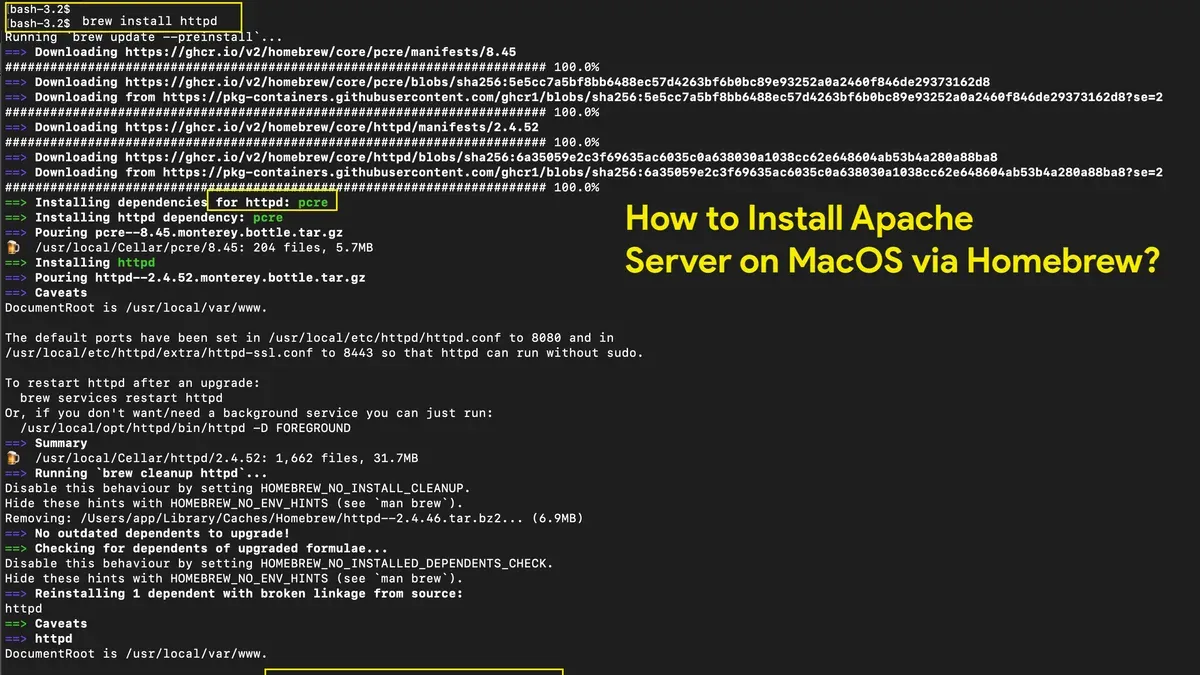
- Install Apache HTTP Server by running brew install httpd. Terminal will show progress logs and end with a message like "==> Summary" confirming httpd has been installed.
- Verify Apache installation by typing httpd -v. A successful output displays the Apache version, for example, "Server version: Apache/2.4.54 (Unix)".
- Start Apache service using Homebrew’s service manager with brew services start httpd. Terminal confirms the service is started with a message such as "Service `httpd` started successfully.".
- Confirm Apache is running by visiting http://localhost:8080 in your browser. By default, Homebrew’s Apache listens on port 8080. You should see the “It works!” page indicating the server is active.
This method installs the latest stable Apache version managed independently from the macOS built-in Apache, providing easier updates and control. Remember to check the /usr/local/etc/httpd/httpd.conf file for configuration changes.
How to start Apache2 on Mac and verify it is running
- Open the Terminal app on your Mac.
- Start Apache by entering the command sudo apachectl start. You will be prompted to enter your administrator password. If Apache starts successfully, the Terminal will return to the command prompt without error.
- To verify Apache is running, enter sudo apachectl status. This command will display the current status of the Apache server. Alternatively, use ps aux | grep httpd to check if Apache processes are active.
- Test Apache by opening a web browser and navigating to http://localhost. A default Apache welcome page or a directory listing should appear, confirming the server is operational.
- To stop Apache, run sudo apachectl stop. To restart the server after configuration changes, use sudo apachectl restart.
- If Apache does not start, check for common issues such as port conflicts (another service using port 80). Use sudo lsof -i:80 to see which process is occupying the port.
- Verify permissions on Apache configuration and web root directories. Incorrect permissions may prevent Apache from launching or serving pages correctly. Use ls -l to check ownership and access rights.
Example Terminal output after starting Apache:
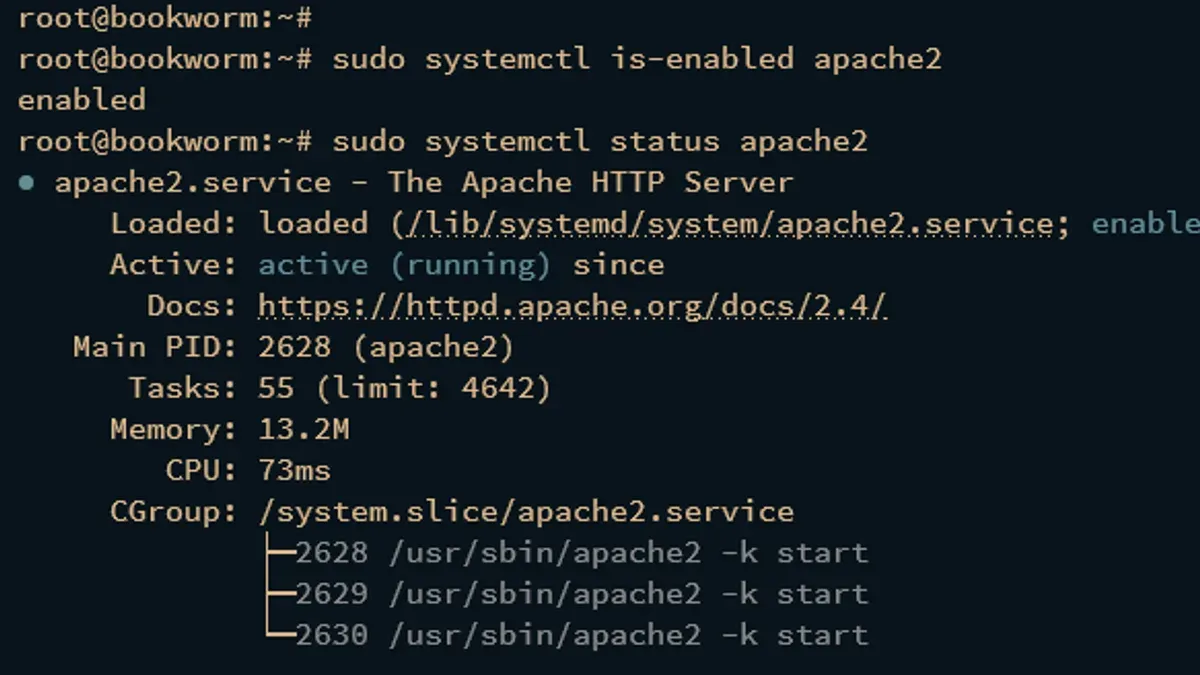
$ sudo apachectl start
Password:
$ sudo apachectl status
Apache Server Status for localhost
Server uptime: 1 minute
Example browser screenshot: The Apache welcome page at http://localhost typically states "It works!" or displays the macOS default Apache landing page.
How to configure Apache on Mac for basic web hosting
To serve local web content, you need to modify Apache's configuration files on your Mac. The main configuration file is located at /usr/local/etc/httpd/httpd.conf if installed via Homebrew, or /etc/apache2/httpd.conf for the system Apache.
- Open the
httpd.conffile in a text editor with sudo privileges, for example,sudo nano /usr/local/etc/httpd/httpd.conf. You should see a variety of directives controlling Apache's behavior. - Locate the
DocumentRootdirective. It specifies the folder Apache serves files from, e.g.,DocumentRoot "/usr/local/var/www". Change this path to your preferred local folder, such as/Users/yourusername/Sites. Directly below it, update the corresponding<Directory>block to match the new path, ensuring Apache has correct permissions. - Enable useful modules like
mod_rewriteby finding the line#LoadModule rewrite_module lib/httpd/modules/mod_rewrite.soand removing the leading#. This activates URL rewriting capabilities often required by web applications. - To allow access to user directories, ensure the
UserDirdirective is enabled by uncommentingUserDir Sites. This lets you accesshttp://localhost/~yourusername/to serve files from your Sites folder. - Save the changes and exit the editor. Restart Apache with
sudo apachectl restartto apply your configuration. - Test by placing an
index.htmlfile in your chosen document root and navigating tohttp://localhost/or your user directory URL. The page should display your content instead of the default Apache welcome page.
These configuration steps let you serve local web content securely and flexibly. Adjusting module loading and directories tailors Apache to your development needs while maintaining control over permissions and paths.
How to install Apache Maven on Mac
Apache Maven is a build automation tool primarily used for Java projects, distinct from the Apache HTTP Server, which serves web content. Installing Maven on your Mac allows you to manage project builds, dependencies, and documentation efficiently.
- Open Terminal on your Mac.
- Ensure Homebrew is installed, then run brew install maven. You should see output indicating that Maven is being downloaded and installed.
- Once installation completes, verify it by typing mvn -v. The output should display Maven version information, Java version, and the operating system details, confirming a successful install.
- Test basic Maven usage by creating a simple project or running mvn help:effective-pom in any directory. This command outputs the effective Project Object Model (POM), demonstrating Maven’s functionality.
Using Homebrew simplifies Maven installation and management, keeping it updated alongside other packages. Remember, Apache Maven serves a different purpose from Apache HTTP Server, so installing both tools supports distinct development workflows.
How to install Apache Kafka on Mac
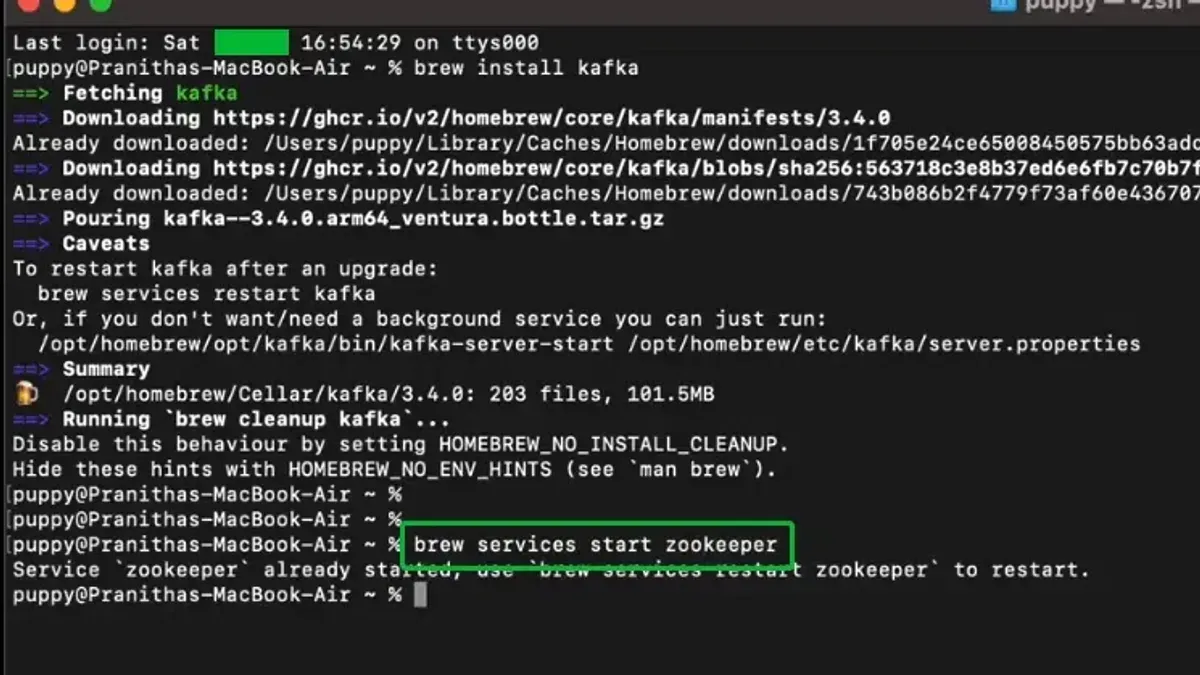
Apache Kafka is a distinct project from the Apache HTTP Server; it is a distributed event streaming platform used for building real-time data pipelines and streaming applications. To install Kafka on your Mac, you first need Java, as Kafka runs on the Java Virtual Machine.
- Ensure Java is installed by running java -version in Terminal. You should see a Java version output. If not, install the latest Java Development Kit (JDK) from OpenJDK or Oracle.
- Download the latest Kafka binary release from the official Apache Kafka website. Extract the archive to a directory of your choice, such as ~/kafka. When successfully extracted, you will see folders like bin, config, and libs.
- Open two Terminal windows. In the first, start Zookeeper (which Kafka requires) by running bin/zookeeper-server-start.sh config/zookeeper.properties from the Kafka directory. You should see logs indicating Zookeeper is running.
- In the second Terminal window, start the Kafka server by running bin/kafka-server-start.sh config/server.properties. Kafka startup messages confirm it is active.
- To test Kafka, create a topic with bin/kafka-topics.sh --create --topic test-topic --bootstrap-server localhost:9092 --partitions 1 --replication-factor 1. Successful creation will be acknowledged.
- Produce a message by running bin/kafka-console-producer.sh --topic test-topic --bootstrap-server localhost:9092 and typing a message. Press Enter to send.
- Consume the message in another Terminal window with bin/kafka-console-consumer.sh --topic test-topic --from-beginning --bootstrap-server localhost:9092. Your message should appear, confirming Kafka is working locally.
This setup lets you run Kafka locally for development or learning. Remember, Kafka focuses on streaming data, unlike Apache HTTP Server which handles web requests.
Troubleshooting common Apache installation issues on Mac
When installing Apache on Mac, you may face a few common issues. Understanding these and their fixes helps ensure a smooth setup.
Port 80 conflicts
Apache defaults to listening on port 80, which may already be in use by another service. If you see an error like "(98)Address already in use: AH00072: make_sock: could not bind to address [::]:80", change Apache's listening port:
- Open the Apache configuration file with
sudo nano /usr/local/etc/httpd/httpd.conf. - Find the line
Listen 80and change it to a different port, for exampleListen 8080. - Save the file and exit the editor.
- Restart Apache with
brew services restart httpd. - Verify Apache is running on the new port by visiting
http://localhost:8080in your browser.
Permission denied errors
Errors such as "(13)Permission denied: AH00072: make_sock: could not bind to address" occur when Apache lacks rights to bind ports below 1024 or access certain files.
- Use elevated privileges to start Apache, or change the listening port to above 1024, such as 8080, as described above.
- Ensure the Apache user has read access to your web root directory and config files.
- Adjust permissions with
sudo chown -R $(whoami):admin /usr/local/var/wwwandchmod -R 755 /usr/local/var/wwwto grant appropriate access. - Restart Apache and test access again.
Conflicts with pre-installed Apache versions
macOS includes a built-in Apache version that can conflict with the Homebrew-installed Apache. You might see errors or unexpected behavior if both run simultaneously.
- Stop the built-in Apache using
sudo apachectl stop. - Disable automatic start of the system Apache by unloading it:
sudo launchctl unload -w /System/Library/LaunchDaemons/org.apache.httpd.plist. - Start the Homebrew Apache with
brew services start httpd. - Confirm that only Homebrew Apache is running by checking listening ports:
sudo lsof -i:80.
Apache logs and interpreting errors
Apache logs provide clues about configuration and runtime issues. Homebrew Apache logs are typically in /usr/local/var/log/httpd/.
- error_log: Shows startup errors, permission issues, or misconfigurations.
- access_log: Records incoming requests, useful for verifying server responses.
Check logs after Apache fails to start or behaves unexpectedly by running tail -n 50 /usr/local/var/log/httpd/error_log. Look for specific error messages and line numbers in config files to resolve issues.
- How to Install MAMP on Mac: A Clear Step-by-Step Guide
- How to Install XAMPP on Mac: A Clear Step-by-Step Guide
- How to Install PHP on Mac: A Clear Step-by-Step Guide
- How to Install Node.js with NVM on Mac: A Clear Step-by-Step Guide
Frequently asked questions
How to install apache ignite on mac?
Apache Ignite is a separate project from the Apache HTTP Server and requires different steps. To install Apache Ignite on Mac, you typically download the binary distribution from the official Apache Ignite website, extract it, and configure the environment variables like IGNITE_HOME. You then start Ignite nodes using the provided scripts in the bin directory, such as ignite.sh. Using Homebrew for Ignite is less common, so manual setup is preferred.
How to install apache on windows server?
On Windows Server, you can install Apache HTTP Server by downloading the official Windows binaries from the Apache Lounge or Apache Haus. After running the installer, configure it via the httpd.conf file located in the Apache installation folder. You may also need to open port 80 in the Windows Firewall to allow incoming HTTP traffic. Running Apache as a Windows service simplifies starting and stopping the server.
How to install apache on windows?
For general Windows systems, installing Apache involves downloading the correct binary version for your system architecture from trusted sources like Apache Lounge. Extract the files to a desired location and configure the httpd.conf file as needed. Starting Apache can be done via the command line or by installing it as a service. Ensure that no other application uses port 80 to avoid conflicts.
How to install apache on linux?
Most Linux distributions include Apache HTTP Server in their package repositories. You can install it using your package manager, such as sudo apt install apache2 on Ubuntu/Debian or sudo yum install httpd on CentOS/Fedora. After installation, start and enable the service with systemctl commands. Configuration files are usually found under /etc/apache2/ or /etc/httpd/, depending on the distro.
How to install apache on macbook?
On a MacBook, you can install Apache using Homebrew by running brew install httpd. This installs the latest Apache HTTP Server version, separate from the macOS built-in Apache. After installation, start Apache with brew services start httpd and verify it by visiting http://localhost in your browser. Configuration files are located in /usr/local/etc/httpd/ by default.
What this guide does not cover and who should look elsewhere
This guide focuses on installing and configuring the Apache HTTP Server on Mac for local development and basic hosting; it does not cover advanced production server setups, security hardening, or in-depth configurations of other Apache projects such as HTTP/2 tuning or module development. If you need a robust, secure, and highly scalable web server for production, consider professional documentation or dedicated server management services. For managing complex Apache ecosystems or integrating with enterprise tools, specialized resources or consulting may be more appropriate.
The most useful next step is to familiarize yourself with the Apache httpd.conf file located at /usr/local/etc/httpd/httpd.conf (when installed via Homebrew). Understanding how to enable and configure modules, set directory permissions, and customize virtual hosts here will give you control over your local server environment and prepare you for more advanced Apache tasks.



