How to Install MAMP on Mac: A Clear Step-by-Step Guide
Discover a clear step-by-step guide to install MAMP on Mac and set up a local web development environment with Apache, MySQL, and PHP.

You want to set up a local web development environment on your Mac but feel overwhelmed by options and technical jargon. Installing MAMP is a straightforward way to get Apache, MySQL, and PHP running locally without complex configuration. This article explains how to install MAMP on Mac, guiding you through downloading, installing, configuring, and using it effectively for projects like WordPress.
You will also learn how MAMP differs from similar tools, common issues during setup, and the benefits of MAMP Pro if you need advanced features. By the end, you will have a practical understanding of running a local server environment tailored to your development needs.
Key takeaways
- Download MAMP from the official website to avoid confusion with MAME or Windows versions.
- Use the default installation path (/Applications/MAMP) for easy access and updates.
- Configure Apache and MySQL ports carefully to prevent conflicts with other services.
- MAMP Pro offers additional tools for managing multiple hosts and SSL settings.
- Common startup issues often relate to port conflicts or missing permissions and can be fixed via system preferences or log checks.
Before you start: What you need to install MAMP on Mac
To install MAMP on your Mac smoothly, ensure your system meets the official requirements. MAMP supports macOS versions from 10.15 (Catalina) onward and requires at least 2 GB of RAM, though 4 GB or more is recommended for better performance. Your Mac should have sufficient disk space; the MAMP installer is roughly 500 MB in size, with additional space needed for web projects.
Download the MAMP installer only from the official website (mamp.info) to avoid compromised versions. The downloadable file is a single package that includes both Apache, MySQL, and PHP configured for local web development.
Understand the difference between MAMP and MAMP Pro before proceeding. MAMP is the free version providing basic features to run a local server environment. MAMP Pro is a paid upgrade offering advanced options like virtual hosts, dynamic DNS, and easier server management. Below is a comparison table summarizing key features:
| Feature | MAMP | MAMP Pro |
|---|---|---|
| Apache, MySQL, PHP included | Yes | Yes |
| Virtual hosts configuration | No | Yes |
| Dynamic DNS support | No | Yes |
| Cloud sync | No | Yes |
| Price | Free | Paid |
Do not confuse MAMP for Mac with MAMP for Windows; while the core functionality is similar, the installers and some configurations differ due to OS architecture. Download the Mac-specific installer to avoid compatibility issues.
If you have existing local servers or development environments on your Mac, back up relevant files and databases before installing MAMP. This precaution prevents accidental data loss or conflicts from overlapping ports or configurations.
- Verify your Mac runs macOS 10.15 or later and has adequate RAM and disk space; you should see your system info in the “About This Mac” menu.
- Visit the official MAMP website and download the Mac installer; the downloaded file should be around 500 MB.
- Review the MAMP vs MAMP Pro features to decide which version suits your needs; the free version is sufficient for basic local development.
- If you have other local servers, create backups of your web files and databases using tools like Time Machine or manual copy; confirm files are safely stored.
- Ensure you are downloading the Mac version, not the Windows installer, by checking the download page and file extension (.pkg or.dmg for Mac).
Step 1: Downloading and installing MAMP on your Mac
Begin by visiting the official MAMP website at https://www.mamp.info/en/ to ensure you download a safe and legitimate installer. Avoid third-party sites to prevent corrupted or outdated files. The download should be a.pkg file clearly labeled with the current MAMP version.
- Click the "Download" button on the MAMP homepage and wait for the.pkg file to download fully. The file size is typically around 500MB, so it may take a few minutes depending on your internet speed. Once complete, locate the file in your Downloads folder.
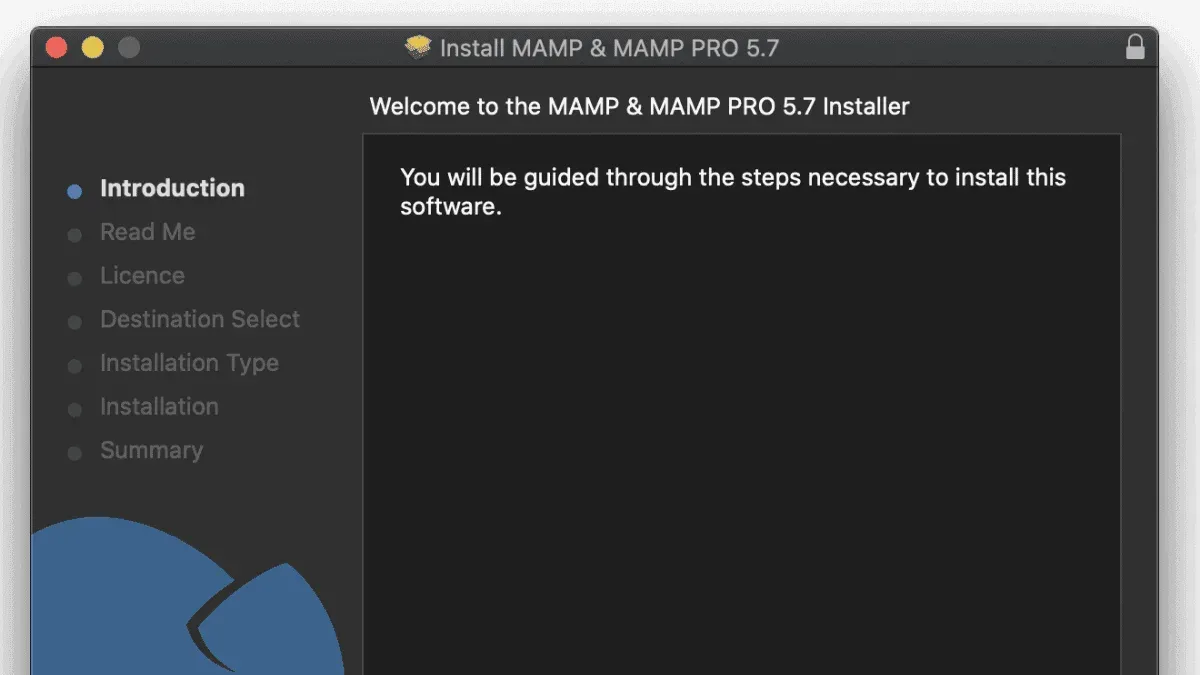
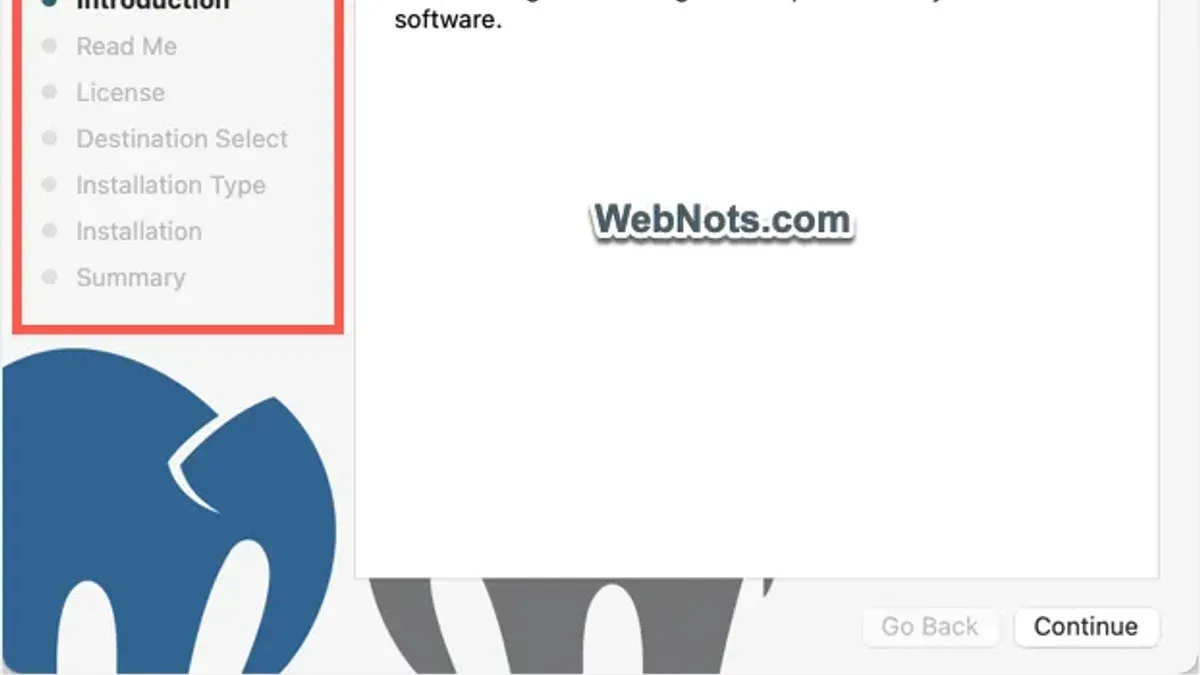
- Double-click the.pkg file to launch the MAMP installer. You will see a welcome screen prompting you to continue. Click "Continue" to proceed.
- Read and accept the software license agreement by clicking "Agree". This step is mandatory to continue.
- Choose the installation destination, usually your main system drive (Macintosh HD). Click "Continue" and then "Install" to begin the installation process. You may be asked to enter your Mac’s administrator password to authorize installation.
- During installation, you might encounter options to install both MAMP and MAMP Pro. If you do not have a license for MAMP Pro, uncheck its box unless you plan to evaluate it. Proceed only with the MAMP standard installation.
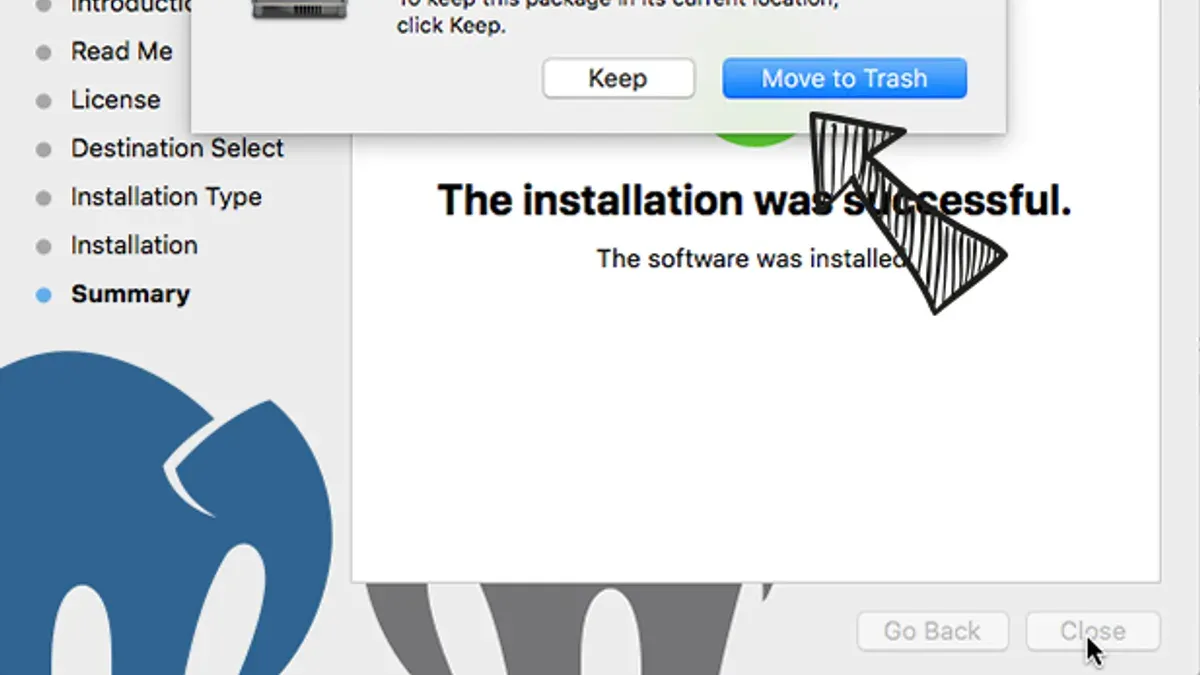
- After the installer completes, you should see a confirmation message saying "The installation was successful." Click "Close" to finish.
- To verify the installation, open your Applications folder and locate the MAMP folder. Launch the MAMP application and check that both the Apache and MySQL servers can start without errors.
Common pitfalls include accidentally downloading MAMP versions intended for Windows or confusing MAMP with similarly named programs like MAME. Additionally, some users overlook unchecking MAMP Pro if they only want the free version, which can lead to incomplete installations. Following the steps above ensures a clean, successful setup.
Step 2: Configuring MAMP for the first time
- Open the MAMP application on your Mac. You should see the main window with options to configure ports and document root.
- Set the Apache and MySQL ports by clicking on Preferences > Ports. The default ports are 8888 for Apache and 8889 for MySQL. These defaults avoid conflicts with other local servers using standard ports 80 and 3306. If you prefer using the standard ports, set Apache to 80 and MySQL to 3306, but be aware this may interfere with other services.
- Choose your document root folder by going to Preferences > Web Server. Click Select and pick the folder where your web projects will reside. For example, a typical path might be /Users/yourusername/Sites or /Users/yourusername/Documents/WebProjects. This folder is where you will place your WordPress or other web development files.
- Save your preferences and return to the main window. Click the Start Servers button. The light indicators next to Apache and MySQL should turn green, confirming both servers are running.
- Open your web browser and go to http://localhost:8888/MAMP/ (replace 8888 with your Apache port if changed). This loads the MAMP start page, confirming your local server is correctly configured and accessible.
Correctly setting ports and document root is critical to avoid conflicts and ensure your projects load smoothly. Using the default non-standard ports helps you run MAMP alongside other local services without interruption.
Step 3: Using MAMP to run WordPress locally
- Download the latest WordPress package from the official WordPress.org site and unzip it.
Once unzipped, place the entire WordPress folder into the MAMP document root directory, typically located at /Applications/MAMP/htdocs. You should now see a folder named "wordpress" inside htdocs. - Open your browser and navigate to http://localhost:8888/phpMyAdmin to access phpMyAdmin, the database management tool included with MAMP.
In phpMyAdmin, select the "Databases" tab, enter a new database name (e.g., "wordpress_local"), and click "Create". You will see the new database listed in the sidebar once created. - Inside the WordPress folder in htdocs, locate the wp-config-sample.php file and duplicate it with the name wp-config.php. Open this new file in a text editor.
Edit the database settings:
- SetDB_NAMEto the database you created (e.g., 'wordpress_local').
- SetDB_USERandDB_PASSWORDto MAMP’s default MySQL username and password, which are both "root" by default.
- EnsureDB_HOSTis set tolocalhost. - Save the
wp-config.phpfile and open your browser at http://localhost:8888/wordpress.
You should see the WordPress installation screen prompting you to select your language, site title, admin username, and password. - Complete the WordPress installation form and submit.
Upon success, you will be redirected to the WordPress dashboard, confirming that WordPress is running locally through MAMP.
Step 4: Managing MAMP settings and understanding MAMP Pro benefits
You can change PHP versions within MAMP to match your project’s requirements. To do this, open MAMP, go to Preferences > PHP, and select the desired PHP version from the dropdown. When successful, MAMP restarts its servers using that PHP version, which you can verify via the MAMP start page showing the PHP info.
Setting custom local domains involves editing your Mac’s /etc/hosts file. Add an entry like 127.0.0.1 myproject.local to map your local IP to a friendly domain. Then, configure MAMP’s Apache document root to serve your project folder. This setup lets you access your site via http://myproject.local in the browser instead of localhost:8888.
MAMP provides basic backup and restore options by allowing you to manually archive your /Applications/MAMP/db/mysql folder and your htdocs directory. Restoring involves replacing these folders with your backups. Automated backup features, however, are not included in the free version.
MAMP Pro features and who benefits
MAMP Pro is a paid upgrade designed for professional developers or users managing multiple projects. It offers:
- Easy creation and management of multiple hosts without manual hosts file editing.
- Built-in SSL support for local HTTPS development.
- Dynamic DNS and remote server management.
- Ability to switch between different PHP versions per host.
- Mail server integration for testing email functionality.
Developers running complex setups, needing SSL locally, or managing several sites will find MAMP Pro’s automation and convenience valuable. In contrast, casual or single-project users often find the basic MAMP sufficient.
Step 5: Troubleshooting common MAMP installation and startup problems
When MAMP fails to start or run smoothly, common issues include port conflicts, MySQL server errors, permission problems, and corrupted preferences. Addressing these systematically can restore your local environment.
Port conflicts with other local servers
MAMP uses default ports 8888 for Apache and 8889 for MySQL. If you see an error like "Apache could not be started because port 8888 is already in use", another application or service is occupying that port.
- Open MAMP and go to Preferences > Ports.
- Change Apache’s port from 8888 to a free port, such as 8080.
- Change MySQL’s port from 8889 to 3307 or another unused port.
- Click OK and restart servers.
- Verify by visiting
http://localhost:8080/MAMP/in your browser.
If the problem persists, check for other software using these ports (e.g., Skype, Docker) and close or reconfigure them.
MySQL server not starting
A common sign is the error "MySQL server did not start properly" in the MAMP start page. Causes include corrupted database files or port conflicts.
- Stop all MAMP servers.
- Navigate to
/Applications/MAMP/db/mysqland back up this folder. - Delete the contents of the
mysqlfolder to reset the database. - Restart MAMP and start servers again.
- Confirm MySQL is running by accessing phpMyAdmin from the MAMP start page.
Note that deleting database files removes local data, so back up before proceeding.
Permission issues accessing document root
If you receive errors like "403 Forbidden" or cannot write files to your document root, permissions are likely misconfigured.
- In Finder, right-click your document root folder and select Get Info.
- Expand Sharing & Permissions and ensure your user has Read & Write access.
- If needed, click the lock icon, authenticate, and set permissions appropriately.
- Apply changes to enclosed items if prompted.
- Restart MAMP servers and retry loading your site.
Clearing caches and resetting MAMP preferences
If problems continue, resetting MAMP’s preferences and clearing caches can help.
- Quit MAMP completely.
- Delete the preference file located at
~/Library/Preferences/de.appsolute.mamp.plist. - Clear browser caches or try a different browser to rule out caching issues.
- Relaunch MAMP; preferences will reset to defaults.
- Reconfigure necessary settings and start servers.
Check MAMP’s logs in /Applications/MAMP/logs/ for specific error messages if issues persist, focusing on apache_error.log and mysql_error.log.
How to use MAMP on Mac for ongoing development
Efficiently managing MAMP during daily development helps maintain a smooth workflow and prevents data loss. Start and stop Apache and MySQL servers using the MAMP control panel. When servers are running, the control panel will show green indicators; stopping them turns these off.
Organize multiple projects by storing each site's files in separate folders within your designated document root (e.g., /Applications/MAMP/htdocs/). Access each project via its folder name in the local URL, such as http://localhost/project1. This keeps your work structured and easily accessible.
Regular backups safeguard your data. Export your MySQL databases weekly or after major changes using phpMyAdmin’s export feature. Also, copy project folders to an external drive or cloud service to preserve your files. This minimizes risk from accidental deletions or system failures.
For deploying projects remotely, use an FTP client configured with your hosting credentials. Transfer updated files from your local MAMP project folder to your live server. Always test changes locally before uploading to avoid downtime on your production site.
- Open the MAMP application and click Start Servers. Confirm both Apache and MySQL indicators turn green.
- Navigate to your document root and create a new folder for your project. Place your site files inside this folder.
- In your browser, go to http://localhost/your-project-folder. Verify the site loads correctly.
- Access phpMyAdmin via the MAMP start page to export your database by selecting Export. Save this file to your backup location.
- Use an FTP client like FileZilla to connect to your remote server. Upload your project files from the local folder to the server directory.
- After updates, stop servers in MAMP using Stop Servers to free system resources.
- How to Install XAMPP on Mac: A Clear Step-by-Step Guide
- How to Install MongoDB on Mac: A Clear Step-by-Step Guide
- How to Install PHP on Mac: A Clear Step-by-Step Guide
- How to Install Node.js with NVM on Mac: A Clear Step-by-Step Guide
Frequently asked questions
How to install mame on pc?
To install MAME on a PC, first download the latest version from the official MAME website. Extract the ZIP file to a folder of your choice. There is no traditional installation process; you simply run the executable file (mame.exe) from that folder. You may want to create shortcuts for easier access.
How to install mame?
MAME installation typically involves downloading the emulator package and extracting it. Unlike other software, MAME does not require an installer. After extraction, you can run the main executable directly. Make sure to place your ROM files in the designated ROMs folder within the MAME directory.
How to setup mame on pc?
Setting up MAME involves configuring the emulator settings before running games. Launch MAME and access the settings menu to configure controls, video, and audio options. You should also verify that your ROMs are correctly placed in the ROMs folder and are compatible with your MAME version.
How to set up mam?
If you meant MAMP, setting it up on a Mac involves downloading the MAMP package and installing it by dragging the folder to your Applications directory. After launching MAMP, set the ports under Preferences to default or custom values if needed. Start the servers, and you’re ready to use it for local development.
How to install mame roms?
To install MAME ROMs, download the ROM files ensuring they match your MAME version. Place the ROM ZIP files (do not extract) into the "roms" folder inside your MAME installation directory. Launch MAME and refresh the game list; MAME will detect the ROMs automatically.
What this guide does not cover and who should do something else
This guide focuses exclusively on installing and configuring MAMP on Mac for local web development. It does not cover MAME emulation software, which is unrelated and often confused due to the similar name. Additionally, detailed instructions for installing MAMP on Windows are not included here; Windows users should refer to dedicated Windows installation resources.
If you need a more advanced local development setup involving multiple PHP versions, complex database management, or team collaboration features, exploring MAMP Pro or other solutions like Docker might be more appropriate. Similarly, if you prefer a cloud-based or remote development environment, MAMP’s local focus may not meet your needs.
The single most useful next step after installing and configuring MAMP is to start creating your WordPress site by importing a fresh WordPress installation into the MAMP document root. This practical exercise helps solidify your understanding of how MAMP serves as a local server environment and prepares you for ongoing development and testing without affecting live sites.