
How to Install Google Cloud SDK on Mac: A Clear Step-by-Step Guide
This guide provides clear, practical steps to install Google Cloud SDK on Mac, covering multiple methods and common macOS issues.

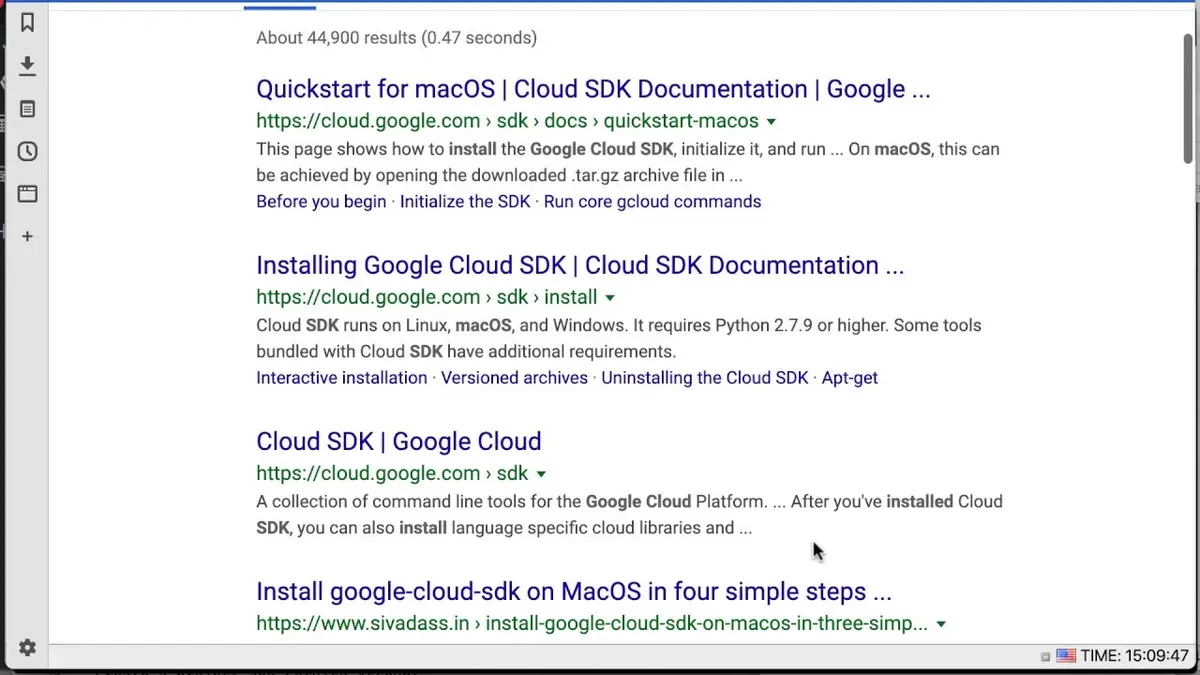
Setting up tools to manage your Google Cloud resources on a Mac can feel overwhelming if you're unsure where to start. Whether you're configuring a new development environment or updating your existing setup, knowing how to install Google Cloud SDK on Mac is essential for efficient cloud management.
This guide walks you through practical installation methods tailored specifically for Mac users. It covers the interactive installer, Homebrew installation, and manual downloads for offline or custom setups. Additionally, you’ll find solutions to common macOS-specific issues that may arise during the process.
Key takeaways
- The interactive installer provides a guided setup with recommended defaults for most users.
- Homebrew offers a quick installation method, suitable if you already use this package manager.
- Manual downloads enable offline or customized installations when internet access is limited.
- Common issues include PATH configuration and permissions, which can be resolved with specific terminal commands.
- Choosing the right method depends on your system setup and preferences for ease versus customization.
Before you start: What you need to install Google Cloud SDK on Mac
The Google Cloud SDK is a set of tools that allows you to manage Google Cloud resources and services from your Mac’s command line. To ensure a smooth installation, it’s essential to meet certain system requirements and prepare your environment.
- Check macOS version compatibility. The SDK supports macOS 10.12 (Sierra) and later. You can verify your macOS version by clicking the Apple menu and selecting About This Mac. Your system should meet this minimum to avoid compatibility issues.
- Confirm sufficient disk space. Allocate at least 500 MB of free space to accommodate the SDK, its components, and future updates.
- Ensure Python availability. The SDK requires Python 3. While recent macOS versions include Python 3, you can check by running python3 --version in Terminal. If Python is missing, you will need to install it separately.
- Install command line tools. Open Terminal and run xcode-select --install to install Apple's command line developer tools if they are not already present. This step is necessary for compiling some components and using Git.
- Consider Homebrew for optional management. Homebrew is a popular package manager for macOS that can simplify SDK installation and maintenance. To check if Homebrew is installed, run brew --version. If missing, visit brew.sh for installation instructions.
- Check network and permissions. A stable internet connection is required for downloading SDK components. Ensure you have administrator privileges on your Mac or the ability to enter your password when prompted.
Following these preparatory steps will help you avoid common pitfalls and set the stage for a successful Google Cloud SDK installation on your Mac.
How to install Google Cloud SDK on Mac using the interactive installer
- Open your preferred terminal application on your Mac.
- Download the interactive installer script by running:
curl https://sdk.cloud.google.com | bash
You should see messages indicating that the installer is downloading and extracting the SDK components. - When prompted, press Enter to proceed with the default installation path (
~/google-cloud-sdk), or specify a different directory if needed. - The installer will ask if you want to modify your shell profile to update the
PATHvariable. Type Y to allow automatic path updates, which enable easy access to SDK commands. - Once installation completes, restart your terminal or run
source ~/.bash_profile(or the appropriate profile file for your shell) to refresh environment variables. - Verify the installation by running
gcloud --version. You should see output listing the installed Google Cloud SDK version and components. - Initialize the SDK by executing
gcloud init. Follow the interactive prompts to log in to your Google account, set your default project, and configure default settings.
Successful initialization ends with a confirmation message like "Your Google Cloud SDK is configured and ready to use!"
How to install Google Cloud SDK on Mac using Homebrew
Using Homebrew offers a popular alternative to the interactive installer for setting up Google Cloud SDK on Mac, favored for its convenience and straightforward update process.
- Check if Homebrew is installed: Open Terminal and type
brew --version. If Homebrew is installed, you will see the version number. If not, proceed to the next step. - Install Homebrew: Paste the official installation command from brew.sh into Terminal. Once complete, verify by running
brew --versionagain. - Install Google Cloud SDK via Homebrew: Run
brew install --cask google-cloud-sdkin Terminal. Successful output will confirm installation and the path where Google Cloud SDK is installed, typically under/usr/local/Caskroom/google-cloud-sdkor/opt/homebrew/Caskroom/google-cloud-sdkdepending on your Mac architecture. - Configure your shell environment: Add the SDK path to your shell profile (
~/.zshrcor~/.bash_profile) by appendingsource $(brew --prefix)/Caskroom/google-cloud-sdk/latest/google-cloud-sdk/path.zsh.inc(adjust extension for your shell). Reload your terminal or runsource ~/.zshrc. - Initialize the SDK: Run
gcloud initto authenticate and set up your configuration.
Pros of Homebrew: Faster installation (usually under a minute), easier updates via brew upgrade, and seamless integration with macOS package management.
Cons: Slightly less control over installation options compared to the interactive installer and dependency on Homebrew's package availability and update schedule.
How to download Google Cloud SDK manually for offline or custom installation
If you need to install Google Cloud SDK on a Mac without internet access or require a custom setup, downloading the SDK package manually is the best approach. This method lets you control the installation files and configure the SDK to your preferences.
- Visit the Google Cloud SDK archive page. You should see a list of available versions and platform-specific packages.
- Select the latest or required SDK version for macOS by downloading the tar.gz file labeled for Darwin (macOS). This file contains the full SDK bundle.
- Open the Terminal app and navigate to the folder where you saved the tar.gz file. For example, if it is in Downloads, run
cd ~/Downloads. - Extract the archive by running
tar -xzf google-cloud-sdk-VERSION-darwin-x86_64.tar.gz, replacing VERSION with the downloaded version number. This creates agoogle-cloud-sdkdirectory. - Run the installation script inside the extracted folder with
./google-cloud-sdk/install.sh. Follow prompts to customize components and update your shell profile. - Once installed, initialize the SDK by running
./google-cloud-sdk/bin/gcloud initto configure authentication and default project settings.
This manual method is preferred when working in offline environments, deploying on systems with restricted network access, or when you want full control over SDK components and installation paths.
Troubleshooting common issues when installing Google Cloud SDK on Mac
During or after installation, you may encounter permission errors like "Permission denied". Fix this by running the installer or commands with sudo or adjusting folder permissions using chmod and chown. For example, sudo chown -R $(whoami) /usr/local/google-cloud-sdk ensures you have ownership.
If gcloud commands return "command not found", your PATH environment variable likely wasn’t updated. Add the Cloud SDK path by running echo 'source /usr/local/google-cloud-sdk/path.bash.inc' >> ~/.bash_profile and then source ~/.bash_profile. You should then be able to run gcloud --version and see the installed version.
Conflicts with existing Python installations can cause errors like "Unable to find Python executable" or version mismatches. Google Cloud SDK uses its bundled Python; ensure your system PATH doesn’t prioritize incompatible Python versions. Consider temporarily modifying PATH or using virtual environments.
If you suspect incomplete installation or version issues, verify the SDK version with gcloud --version. To reinstall, remove the directory with rm -rf /usr/local/google-cloud-sdk and reinstall using your preferred method.
- How to Install AWS CLI on Mac: A Clear Step-by-Step Guide
- How to Install Terraform on Mac: A Step-by-Step Guide
- How to Install Kubernetes Minikube on Mac: A Step-by-Step Guide
- How to Install Docker on Mac: A Clear Step-by-Step Guide
Frequently asked questions
How to install gcloud sdk on mac?
You can install the Google Cloud SDK on Mac either by using the interactive installer downloaded from Google's official site or via Homebrew. The interactive installer guides you through setup, including initializing the SDK, while Homebrew provides a quick command-line installation. Choose the method that best fits your familiarity with terminal commands and system preferences.
How to install gcloud SDK on Mac without Homebrew?
To install without Homebrew, download the interactive installer package directly from Google's Cloud SDK page. Run the script in your terminal, which will extract the files and prompt you to initialize the SDK. This method is suitable if you prefer not to use package managers or need a custom installation location.
Can I install Google Cloud SDK on Mac M1 or M2 chips?
Yes, Google Cloud SDK supports installation on Mac computers with M1 or M2 chips. Ensure you use a terminal session running under the appropriate architecture—Rosetta 2 may be necessary for some components. The interactive installer and Homebrew both work, but checking for updated SDK versions compatible with Apple Silicon is recommended.
How to update Google Cloud SDK after installation on Mac?
After installation, update the SDK by running gcloud components update in your terminal. This command fetches the latest updates and patches. Keep your SDK current to access new features and maintain compatibility with Google Cloud services.
What to do if 'gcloud' command is not found after installation?
If the 'gcloud' command is not recognized, verify that the Cloud SDK's bin directory is added to your shell’s PATH environment variable. You can add it by editing your shell profile file (like .zshrc or .bash_profile) with the line source /path-to-google-cloud-sdk/completion.zsh.inc or the appropriate path. Restart your terminal or run source ~/.zshrc to apply changes.
What this guide does not cover
This guide does not cover setting up Google Cloud SDK on Windows or Linux systems, nor does it delve into configuring advanced Google Cloud services after the installation is complete. Users looking for instructions on integrating Google Cloud SDK with specific development environments or automating cloud workflows should consult specialized resources tailored to those topics. Additionally, if you require enterprise-level management or multi-user configurations, consider official Google Cloud documentation or professional support.
The most useful next step is to verify your installation by running gcloud version in your Mac’s Terminal. This confirms that the SDK is properly installed and accessible. From there, initializing the SDK with gcloud init sets up your Google Cloud account and default project, enabling you to begin managing resources immediately. Regularly updating the SDK using gcloud components update ensures you have the latest features and fixes tailored for macOS.



