
How to Install Lightroom on Mac: A Step-by-Step Expert Guide
Follow this expert guide to confidently install Adobe Lightroom on your MacBook, covering setup, version choices, and troubleshooting tips.

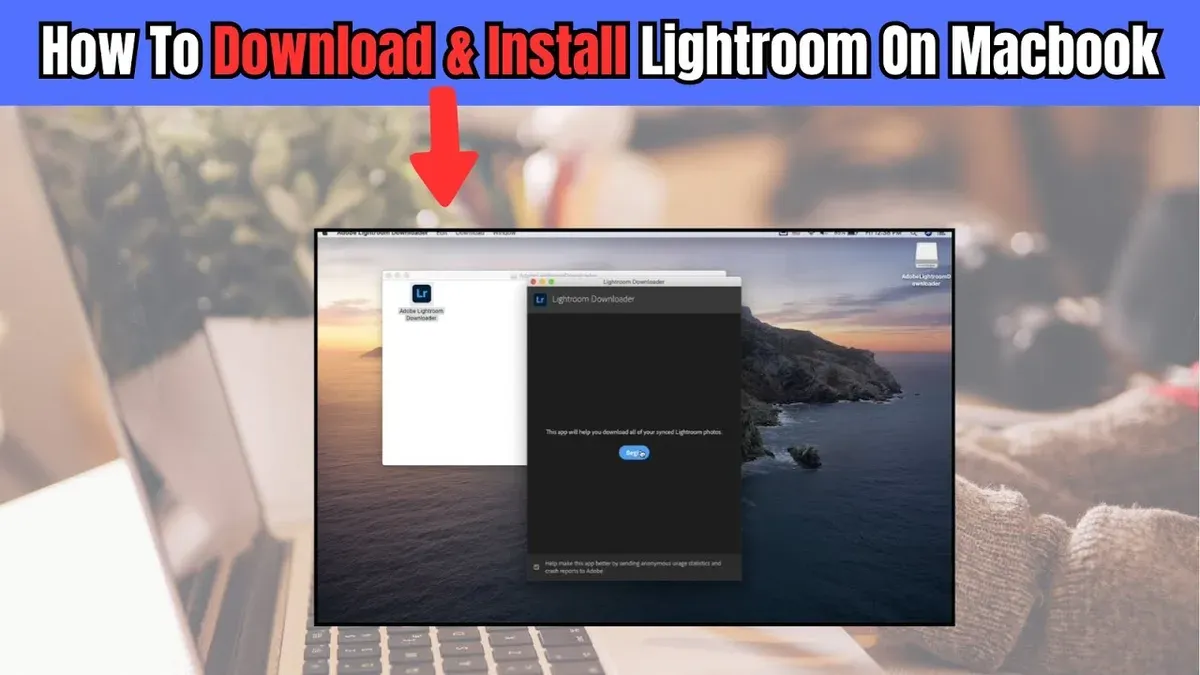
Short answer: To install Lightroom on Mac, start by downloading the Adobe Creative Cloud app from Adobe’s official website. Then, through Creative Cloud, choose the Lightroom version that fits your needs and install it directly on your MacBook.
This guide covers everything you need to confidently install Adobe Lightroom on your MacBook Air, Pro, or standard model. You’ll learn how to navigate Adobe’s app ecosystem, pick the right Lightroom variant, and handle device-specific macOS considerations. It also clarifies common misconceptions about free Lightroom options and offers targeted troubleshooting advice to resolve installation issues quickly.
Before you start: What you need to install Lightroom on Mac
Begin by confirming your Mac model and macOS version meet Adobe’s system requirements. Lightroom requires macOS 11 Big Sur or later, and works best on recent MacBook Air, Pro, or standard MacBook models with at least 8GB of RAM and sufficient storage space. You can check your Mac model and OS by clicking the Apple menu > About This Mac.
Next, understand the two main Lightroom versions: Lightroom Classic and Lightroom (cloud-based). Lightroom Classic is optimized for desktop-focused workflows and stores files locally. The cloud-based Lightroom offers seamless syncing across devices and stores photos in Adobe’s cloud. Choose based on your workflow preference.
To proceed with installation, you must have an Adobe account. This account manages your subscription and software licenses. Adobe offers various subscription plans including Photography plans that bundle Lightroom and Photoshop. A free trial is available but Lightroom is not free for permanent use; no legitimate free full version exists for Mac.
Clarifying this upfront avoids confusion about “free Lightroom” claims. Adobe’s official site is the only legitimate source for downloads and subscriptions.
- Click the Apple menu and select About This Mac. Confirm you are running macOS 11 Big Sur or later.
- Identify your Mac model (e.g., MacBook Pro 2020) to ensure hardware compatibility.
- Visit Adobe’s official system requirements page for Lightroom to verify your setup.
- Create or sign in to your Adobe account at adobe.com.
- Review Lightroom Classic vs. Lightroom cloud-based features to decide which suits your needs.
- Understand that Lightroom requires a paid subscription or trial; no permanent free version is available.
How to install Adobe Lightroom on Mac: Step 1 - Download Adobe Creative Cloud
The Adobe Creative Cloud desktop app is essential because it manages the installation and updates of Lightroom on your Mac. Start by navigating to Adobe’s official website to ensure you get the latest, secure version.
- Open your preferred browser and go to https://www.adobe.com/creativecloud.html. You should see a page dedicated to Creative Cloud with download options.
- Click the Download Creative Cloud button for Mac. This downloads the installer file, typically named something like Creative_Cloud_Installer.dmg.
- Locate the downloaded installer in your Downloads folder and double-click it. The Creative Cloud installer window will open.
- Follow the on-screen prompts to install Creative Cloud. When the installation completes successfully, the Creative Cloud desktop app will launch automatically.
- Sign in with your Adobe ID. If you don’t have one, select the option to create a new Adobe account directly within the app. Signing in gives you access to download Lightroom and manage your Adobe subscriptions.
After signing in, the Creative Cloud app’s home screen shows available Adobe apps, including Lightroom. This centralized management simplifies installation and updates going forward.
- Navigate to Adobe’s official Creative Cloud page.
- Download the Mac installer.
- Run the installer and complete setup.
- Sign in or create an Adobe ID.
- Confirm Creative Cloud app opens and shows available apps.
How to install Lightroom on Mac: Step 2 - Choose the right Lightroom version
Adobe offers two main Lightroom versions for Mac users: Lightroom (cloud-based) and Lightroom Classic. Selecting the right one depends on your workflow, storage preferences, and system capabilities.
| Feature | Lightroom (Cloud) | Lightroom Classic |
|---|---|---|
| Primary Storage | Cloud-based, auto-sync across devices | Local storage on Mac or external drives |
| User Interface | Simplified, modern UI | More complex, feature-rich UI |
| Target User | Photographers wanting easy access anywhere | Advanced users needing detailed control |
| Performance | Optimized for speed on modern Macs | Better suited for high-volume and batch editing |
| System Requirements | Requires macOS 10.15 or later | Requires macOS 10.14 or later |
| Subscription Options | Available with Adobe Photography Plan or standalone Lightroom subscription | Available with Adobe Photography Plan (includes Photoshop) |
To select your preferred version in Adobe Creative Cloud:
- Open the Creative Cloud desktop app and sign in with your Adobe ID; the "Apps" tab appears.
- Type "Lightroom" in the search bar; you will see both "Lightroom" and "Lightroom Classic" listed.
- Click "Install" next to the version you want; installation will begin immediately, and you will see a progress bar.
Note that the subscription you hold determines access. The Photography Plan grants both versions, while a standalone Lightroom subscription covers only the cloud-based Lightroom. Choose based on your editing style and storage preferences.
How to install Lightroom on Mac: Step 3 - Download and install Lightroom
Once you have Adobe Creative Cloud open and signed in, locating Lightroom is straightforward. Navigate to the Apps tab in the sidebar to see the list of available Adobe applications. Use the search bar if you don’t immediately see Lightroom or Lightroom Classic listed.
Click the Install button next to your chosen Lightroom version. The Creative Cloud app will begin downloading and installing the software. You will see a progress bar beneath the app name indicating the download and installation status.
While installing, avoid quitting Creative Cloud or shutting down your Mac to prevent interruption. The installation time varies depending on your internet speed and system performance.
Once installation completes, the Install button changes to Open. This confirms Lightroom is ready to launch. You can now open Lightroom directly from Creative Cloud or find it in your Applications folder.
- Open Adobe Creative Cloud and sign in with your Adobe ID.
You should see the Creative Cloud dashboard. - Click the Apps tab on the left sidebar.
Available Adobe apps are displayed. - Search for “Lightroom” or locate it in the list.
Lightroom and Lightroom Classic appear as options. - Click Install next to your preferred Lightroom version.
The download and installation begin, showing a progress bar. - Wait for the progress bar to reach 100%, completing installation.
The button changes to Open. - Click Open to launch Lightroom or find it in your Applications folder.
Lightroom opens and is ready for use.
How to install Lightroom on MacBook Pro, Air, and standard MacBook: Device-specific considerations
While the installation process for Lightroom is consistent across MacBook models, optimizing performance depends on your device’s hardware and macOS version. MacBook Pros generally offer stronger processors and more RAM, which handle Lightroom’s demands better than the MacBook Air or standard MacBook, especially when working with large RAW files or extensive edits.
Storage space is crucial. Lightroom requires not only enough room for the app itself but also for cache and photo libraries. MacBook Air users with limited SSD space should consider moving their Lightroom catalog and photo files to an external drive formatted for macOS (APFS or Mac OS Extended Journaled) to avoid performance bottlenecks.
For macOS versions, note that newer MacBook models running the latest macOS benefit from system-level optimizations that enhance Lightroom’s speed and stability. Older MacBooks on earlier macOS releases might experience slower launch times or lag during intensive tasks. Keeping your macOS updated is recommended, provided your device supports it.
In Lightroom’s Preferences under Edit > Preferences > Performance, adjust settings to suit your MacBook: enable Use Graphics Processor on MacBook Pro for smoother editing, while MacBook Air users may disable it if they encounter glitches. Also, set Camera Raw cache size to at least 10 GB to speed up image rendering.
- Check your MacBook model and RAM via About This Mac; confirm if you have 8 GB RAM or more for optimal Lightroom use.
- Assess available storage; if under 50 GB free, plan to relocate your photo library to an external SSD.
- Update macOS to the latest supported version through System Preferences > Software Update to ensure compatibility and performance.
- Open Lightroom, navigate to Lightroom > Preferences > Performance, then toggle Use Graphics Processor on or off based on your MacBook model and observe stability.
- Set your Camera Raw cache size to 10 GB or higher under the same Performance tab to improve responsiveness.
How to install Lightroom on Mac for free: What’s possible and what’s not
Adobe offers a legitimate free trial for Lightroom, allowing you to use the full version without limitations for a set period. This trial typically lasts 7 days from the moment you activate it through the Adobe Creative Cloud app. After the trial expires, you must purchase a subscription to continue using Lightroom.
To start the free trial, open the Creative Cloud app, locate Lightroom, and click on "Start free trial." You will see a countdown indicating how many days remain in your trial period. Once the trial ends, access to Lightroom’s features will be disabled until you subscribe.
Avoid unauthorized free downloads or cracked versions claiming to offer Lightroom for free. These are illegal, compromise your Mac’s security, and may cause software instability.
If you want a no-cost alternative for photo editing on Mac, consider free apps like Apple Photos with advanced editing tools or third-party software such as Darktable or RawTherapee. These don’t require subscriptions, but their interfaces and features differ from Lightroom.
- Open Adobe Creative Cloud on your Mac.
- Find Lightroom in the apps list.
- Click Start free trial and sign in with your Adobe ID if prompted.
- Confirm trial activation; you will see a trial timer and full access to Lightroom.
- Use Lightroom freely during this period; after it ends, the app will prompt for subscription renewal.
How to install Lightroom on Windows and laptop: Brief comparison and cross-platform notes
Lightroom installation on Windows laptops shares many similarities with the Mac process but includes some distinct differences linked to the operating system and hardware variations.
Windows users must first download the Adobe Creative Cloud desktop app for Windows, available from Adobe’s official website. After installation, signing in with your Adobe ID allows access to Lightroom versions. Unlike Mac, Windows installation may require additional permission prompts due to User Account Control (UAC), which you must allow to proceed.
Lightroom is available on laptops irrespective of operating system, so whether your device runs macOS or Windows, you can install Lightroom given your hardware meets Adobe’s minimum system requirements. Windows laptops typically offer a wider range of hardware configurations, which can affect performance and installation speed.
Windows-specific considerations include ensuring the laptop has a supported Windows 10 or later version, sufficient disk space, and updated graphics drivers to enable GPU acceleration within Lightroom.
| Installation Steps | Mac | Windows |
|---|---|---|
| Download Creative Cloud | From Adobe website, macOS version | From Adobe website, Windows version |
| Install Creative Cloud | Standard macOS installer | Requires permission for UAC prompts |
| Sign in | Adobe ID login within app | Same as Mac |
| Download Lightroom | Via Creative Cloud app | Via Creative Cloud app |
| System Requirements | macOS version, RAM, storage per Adobe | Windows 10/11, RAM, storage, updated drivers |
- Download the Adobe Creative Cloud app for Windows from Adobe’s official site. Success is indicated by the installer launching.
- Run the installer and approve any User Account Control prompts. The Creative Cloud app should open after installation completes.
- Sign in with your Adobe ID within the Creative Cloud app. You should see your account dashboard.
- Locate Lightroom (cloud or Classic) in the app’s “Apps” tab and click “Install.” Installation progress will be visible.
- Once complete, open Lightroom from your Start menu or Creative Cloud app to confirm it launches correctly.
Troubleshooting common Lightroom installation issues on Mac
When installing or launching Lightroom, you may encounter errors related to Adobe Creative Cloud, storage, permissions, or macOS compatibility. Addressing these issues promptly ensures a smooth experience.
Fix Adobe Creative Cloud app errors and login issues
If you see error messages like "Creative Cloud login failed" or "Could not connect to Adobe servers," first check your internet connection. Then, sign out and back into the Creative Cloud app to refresh your session.
- Open the Creative Cloud app and click your profile icon.
- Select Sign Out, then close the app completely.
- Relaunch Creative Cloud and sign in with your Adobe ID.
- You should see the dashboard load without errors, allowing Lightroom installation.
Resolve insufficient storage or permission errors
Errors like "Insufficient disk space" or "Permission denied" block installation. Free at least 5 GB of space on your Mac’s startup disk and ensure you have administrator rights.
- Open Finder and select your startup disk.
- Right-click and choose Get Info to check available space (aim for 5+ GB free).
- If space is low, delete unnecessary files or move them to external storage.
- Go to System Preferences > Security & Privacy > Privacy > Files and Folders and confirm Creative Cloud has full disk access.
- Restart your Mac for changes to take effect.
- Try installing Lightroom again; the error should be resolved.
Address Lightroom launch failures or crashes
If Lightroom crashes immediately or fails to launch after installation, it may be due to outdated software or corrupted preferences.
- Quit Lightroom and open Finder.
- Navigate to
~/Library/Application Support/Adobe/Lightroomand rename thePreferencesfolder toPreferences_backup. - Relaunch Lightroom; it will create fresh preference files.
- If the problem persists, update macOS to the latest version via System Preferences > Software Update.
- Also, update the Creative Cloud app by clicking the profile icon > Check for App Updates.
- Restart Lightroom. It should open without crashing.
Read next
- How to Install Photoshop on Mac: A Clear Step-by-Step Guide
- How to Install Illustrator on Mac: A Clear Step-by-Step Guide
- How to Install After Effects on Mac: A Step-by-Step Expert Guide
- How to Install Premiere Pro on Mac: A Step-by-Step Expert Guide
Frequently asked questions
How to install lightroom on laptop?
To install Lightroom on a laptop, first visit the Adobe Creative Cloud website and download the Creative Cloud desktop app. After installing it, sign in with your Adobe ID, then locate Lightroom in the app's catalog and click "Install." Ensure your laptop meets the minimum system requirements, including sufficient storage and a supported operating system version.
Is lightroom only for mac?
No, Lightroom is not only for Mac. It is available for both macOS and Windows platforms, allowing users on various devices to install and use it. You can download it from Adobe's website regardless of your operating system.
Is Lightroom only for Mac?
Lightroom works on multiple platforms, including macOS and Windows. Adobe provides versions compatible with both operating systems, so you can use Lightroom on a MacBook, Windows laptop, or desktop computer.
How to install Lightroom on laptop?
Installing Lightroom on a laptop involves downloading the Adobe Creative Cloud app, signing in or creating an Adobe account, and then selecting Lightroom from the available applications. Follow the on-screen prompts to complete the installation, and check that your laptop’s OS version supports the latest Lightroom release.
How to install Lightroom Classic on Mac?
To install Lightroom Classic on a Mac, open the Adobe Creative Cloud desktop app after signing in. Find Lightroom Classic in the app list—distinct from Lightroom (cloud-based)—and click "Install." Make sure your Mac runs a compatible macOS version and has enough disk space, as Lightroom Classic requires more storage due to local file management.
Quick checklist
- Confirm your Mac meets Lightroom’s minimum macOS and hardware requirements.
- Download and install Adobe Creative Cloud from the official Adobe website.
- Select the Lightroom version that fits your editing needs (Lightroom Classic or Lightroom CC).
- Complete the Lightroom installation through the Creative Cloud app.
- Adjust installation settings if using a MacBook Air, Pro, or standard model as needed.
- Understand the limits of free Lightroom access and subscription options.
- Refer to platform-specific notes if using Lightroom on Windows or other laptops.
- Follow troubleshooting tips for common installation issues.
What this guide does not cover
This guide does not cover advanced Lightroom setup like catalog migration, syncing with mobile devices, or plugin management. These topics require separate, detailed instructions to ensure your photo library integrity and cross-device workflows. If you need help with these advanced tasks, consult Adobe’s official support resources or specialized tutorials.
After completing your Lightroom installation, the most useful next step is to familiarize yourself with Lightroom’s import workflow and default catalog settings. Properly importing your photos and setting up your workspace will save time and avoid confusion as you begin editing.



