
How to Install Premiere Pro on Mac: A Step-by-Step Expert Guide
This expert guide walks you through how to install Premiere Pro on Mac with clear steps and troubleshooting tips for a smooth setup.

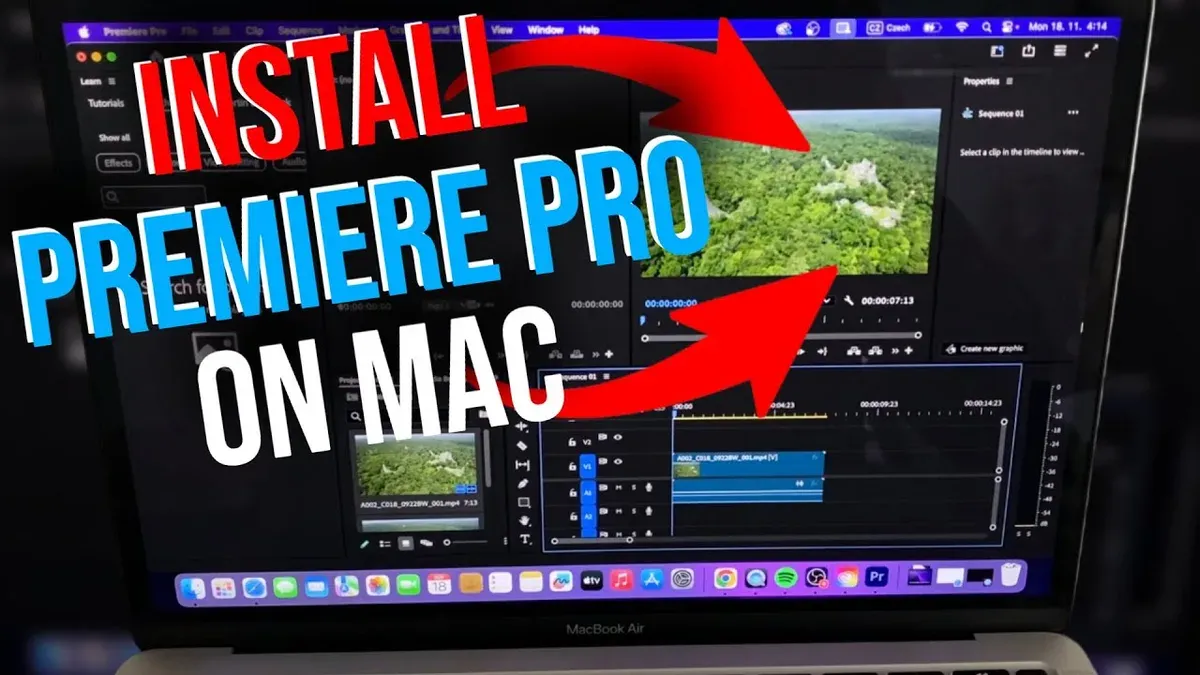
Short answer: To install Premiere Pro on Mac, first ensure your Mac meets Adobe’s system requirements, then download the Adobe Creative Cloud app from Adobe’s official website. Use the Creative Cloud app to locate Premiere Pro, start the installation, and follow on-screen instructions to complete setup.
This guide covers everything you need to confidently install Premiere Pro on Mac, including MacBook and MacBook Air specifics, steps to access beta and free trial versions, and how to manage presets and plugins seamlessly. You’ll also find practical troubleshooting tips tailored to common Mac installation hurdles, ensuring a smooth setup experience regardless of your skill level.
Before You Start: What You Need to Install Premiere Pro on Mac
To install Adobe Premiere Pro on your Mac successfully, you must first ensure your system meets the official Adobe requirements. Premiere Pro requires macOS version 11.5 or later and a minimum of 8GB RAM, though 16GB or more is recommended for smooth editing. Your Mac's processor should be at least a multicore Intel processor with 64-bit support or Apple Silicon (M1 or later). Compatible models generally include MacBook Pro (2015 and newer), MacBook Air (2018 and newer), iMac (2017 and newer), and Mac Mini (2018 and newer).
Check you have at least 8GB of free disk space dedicated solely to the application and working media, with additional space for cache files. A stable internet connection is essential not only for downloading the software but also for activation and updates.
You will need an Adobe ID to sign in and manage your license. If you don’t have one, create it at Adobe’s official website. Understand that Adobe Premiere Pro is primarily installed through the Creative Cloud desktop app, which manages updates and plugins. Standalone installers are rare and often outdated, so the Creative Cloud method is preferred.
- Verify your macOS version by clicking the Apple menu > About This Mac. You should see macOS 11.5 or later.
- Check hardware specs by clicking About This Mac > Overview to confirm your processor and RAM meet or exceed minimums.
- Ensure you have 8GB or more of free disk space on your startup drive. Use Finder > Go > Computer to inspect available storage.
- Confirm a stable internet connection by opening a browser and loading a website quickly.
- Log in or create your Adobe ID at adobe.com and keep your credentials ready.
- Download and install the Creative Cloud desktop app from Adobe’s official site to manage Premiere Pro installation.
How to Install Adobe Premiere Pro on Mac
- Download the Adobe Creative Cloud installer from Adobe's official website. Once downloaded, open the installer file and follow the on-screen prompts to install the Creative Cloud app on your Mac. When successful, the Creative Cloud app icon appears in your Applications folder and the menu bar.
- Launch the Adobe Creative Cloud app and sign in using your Adobe ID credentials. After signing in, you will access the app’s dashboard where all Adobe applications are listed.
- In the Creative Cloud app, navigate to the "Apps" tab. Scroll or use the search bar to locate "Premiere Pro." Next to Premiere Pro, click the "Install" button. You will see a progress bar indicating download and installation status.
- When installation completes, the button next to Premiere Pro changes to "Open." You can verify the installation by clicking "Open," which launches Premiere Pro. The welcome screen or new project window confirms the app is ready to use.
Following these steps ensures you install Premiere Pro via the official Adobe Creative Cloud system, which also manages updates and licenses automatically.
How to Install Premiere Pro on MacBook and MacBook Air
Start by verifying your MacBook or MacBook Air has enough available storage—at least 8 GB free is recommended—and is running macOS 11.0 or later for optimal compatibility. Navigate to Apple menu > About This Mac > Storage and System Preferences > Software Update to confirm these details.
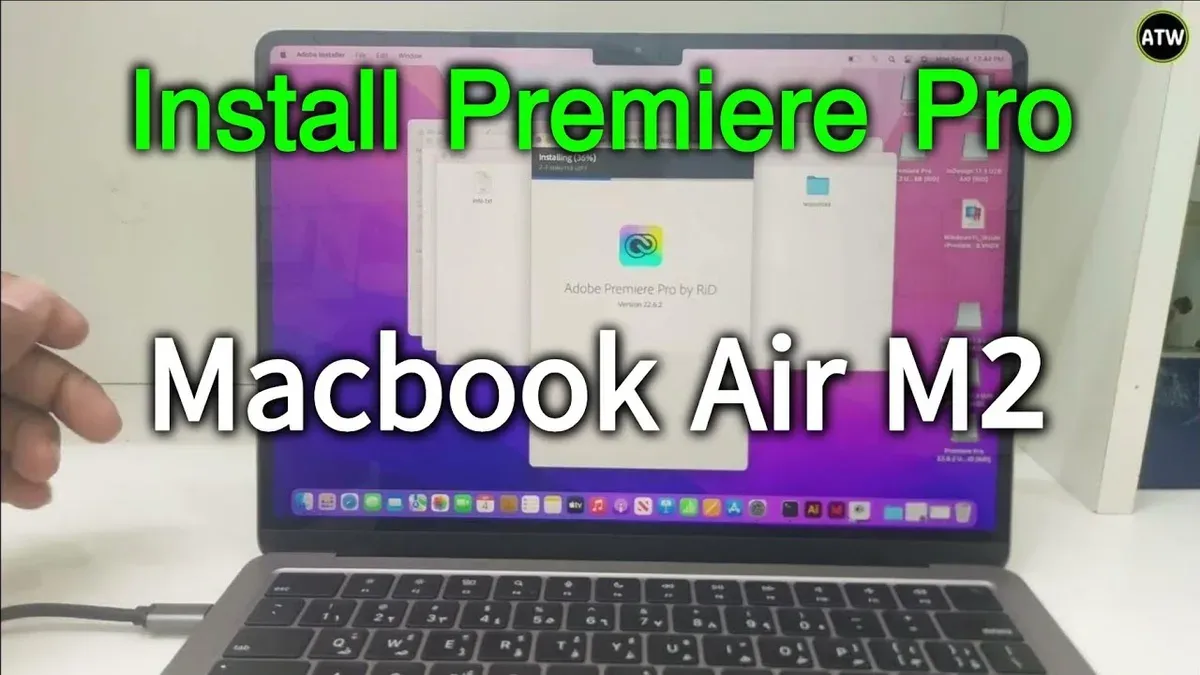
Before installation, close all unnecessary applications to free up CPU and RAM resources. This helps avoid slowdowns and potential conflicts during the installation process.
Adjust security settings by opening System Preferences > Security & Privacy > General, then allow apps downloaded from App Store and identified developers. If macOS blocks the installer, click Open Anyway to grant permission.
Once installed, check Premiere Pro performance on your MacBook model. MacBook Pro models generally handle video editing more smoothly due to better cooling systems and higher-performance CPUs compared to MacBook Air, which may experience thermal throttling during intensive tasks. Expect longer export times on MacBook Air under heavy workloads but smooth playback with optimized project settings.
- Check storage and macOS version; confirm at least 8 GB free and macOS 11.0 or later to proceed.
- Close all non-essential apps to maximize system resources; verify via Activity Monitor if needed.
- Open System Preferences > Security & Privacy and set app permissions to allow Adobe Premiere Pro installation.
- Run the Premiere Pro installer and complete setup; you should see a confirmation message once installation finishes successfully.
- Launch Premiere Pro and test basic playback and export; adjust project settings if performance issues arise, especially on MacBook Air.
How to Install Premiere Pro Beta on Mac
Adobe offers a beta version of Premiere Pro that lets you test upcoming features before they reach the stable release. To access this, you need to join Adobe’s beta program via the Creative Cloud desktop app.
- Open the Creative Cloud desktop app and sign in with your Adobe ID; you should see your installed apps and options.
- Click on the Apps tab on the left sidebar, then scroll down to find the Beta apps section.
- Locate Premiere Pro Beta in the list and click Install. This installs the beta alongside the stable version without overwriting it.
- Once installed, launch Premiere Pro Beta from your Applications folder or Creative Cloud app; it will have a "Beta" label in the app name.
Be aware that beta software may have bugs, stability issues, or incomplete features, so avoid using it for critical projects. Adobe encourages users to submit feedback on bugs or suggestions through the built-in feedback tool, accessible via Help > Provide Beta Feedback.
Using the beta version allows you to explore new tools early but requires readiness to encounter occasional glitches and to participate in improving the software.
- Join beta via Creative Cloud app
- Install Premiere Pro Beta alongside stable version
- Use beta cautiously; expect bugs
- Send feedback through Help menu
How to Install Premiere Pro Presets on Mac
Premiere Pro presets, such as Lumetri color presets (.look), effect presets (.prfpset), and transition presets, streamline your editing workflow by saving custom settings for reuse. To install them on your Mac, you first need to locate or create your presets folder for easy management.
- Open Finder and navigate to Documents/Adobe/Premiere Pro/[version]/Profile-[username]/Presets. This is the default location where Premiere Pro stores presets. If the folder doesn’t exist, create it to keep presets organized.
- Launch Premiere Pro and go to the Effects panel by selecting Window > Effects from the top menu. You should see your current presets listed here.
- To import a new preset, right-click inside the Effects panel and choose Import Preset... from the context menu.
- In the file dialog, locate the preset file on your Mac. Supported file types include .prfpset for effect presets and .look files for Lumetri color presets. Select the file and click Open. The preset will appear in the Effects panel, usually under the Presets folder.
- Organize presets by creating custom bins inside the Effects panel. Right-click on the Presets folder, select New Preset Bin, and name it relevantly (e.g., "Color Grading" or "Transitions"). Drag and drop presets into these bins for quick access.
- If a preset fails to load, ensure it is compatible with your Premiere Pro version and not corrupted. Also, verify that the preset file is not blocked by macOS security (check System Preferences > Security & Privacy > General for any blocked apps or files).
Following these steps ensures your presets are imported correctly and organized for efficient editing.
How to Install Premiere Pro Plugins on Mac
To extend Premiere Pro’s functionality, installing third-party plugins is essential. Start by choosing trusted sources like Adobe Exchange, Plugin Everything, or Red Giant, ensuring compatibility with your Mac and Premiere Pro version. Avoid unverified sites to prevent security risks.
- Download the plugin installer or zipped file from the vendor’s official website. You should see a downloaded file in your Downloads folder or the location you selected.
- If the plugin comes as a zipped file, double-click to unzip it. The extracted folder should contain an installer or plugin files.
- Run the installer by double-clicking the.pkg or.dmg file. Follow on-screen instructions carefully; successful installation typically ends with a confirmation message.
- Open Premiere Pro and navigate to Window > Extensions or Effects panel, depending on the plugin type. Your new plugin should be listed or accessible here.
- If the plugin requires activation, enter your license key or sign in as instructed. Confirm the plugin is functioning by testing its features on a sample project.
- Regularly check the plugin vendor’s website or Creative Cloud for updates. Install updates promptly to maintain compatibility and access new features.
Note: Some plugins require manual placement into the Plug-Ins folder located at /Library/Application Support/Adobe/Common/Plug-ins/7.0/MediaCore/. Vendor instructions will specify if this step is necessary.
Comparison of popular methods shows installers provide the smoothest experience, while manual installs offer granular control but risk errors if misplaced. Always verify plugin compatibility with your specific Premiere Pro version to avoid crashes.
How to Install Premiere Pro on Mac for Free
You can legally access Adobe Premiere Pro on your Mac for free by signing up for Adobe's official free trial through the Creative Cloud app. This trial typically lasts seven days, providing full access to Premiere Pro's features so you can evaluate the software before committing to a subscription.
Follow these steps to install the free trial:
- Download and open the Creative Cloud app on your Mac. Once launched, sign in with your Adobe ID or create one if you don't have it.
- Navigate to the Apps tab and locate Premiere Pro in the list of available applications.
- Click Try to start downloading the free trial version. When the download completes, the app will install automatically.
- Open Premiere Pro from your Applications folder or Creative Cloud app. You should see a notification confirming your trial is active for the full duration.
During the trial period, you have unrestricted access to all features. After the trial ends, you must purchase a subscription to continue using Premiere Pro. Avoid unofficial or pirated versions, as they carry legal risks and potential malware threats that can harm your Mac.
Adobe provides clear terms for the trial on its website, including the length and limitations. Using the official trial ensures you experience Premiere Pro safely and fully.
Troubleshooting Common Installation Issues on Mac
If Premiere Pro installation fails, crashes, or shows permission errors, start by verifying your Mac’s disk space and macOS updates. Insufficient storage or outdated software often cause these problems.
- Check your Mac’s storage in Apple menu > About This Mac > Storage. Ensure at least 10 GB free for smooth installation. If storage is low, delete unnecessary files or move them externally.
- Update macOS via System Preferences > Software Update. An outdated OS can block app installations.
- Reset the Creative Cloud app by quitting it and relaunching. Then clear its cache by navigating to Creative Cloud > Help > Manage Creative Cloud App > Clear Cache. This fixes corrupted temporary files causing installation stalls.
- Adjust your Mac’s security settings to allow app installations: go to System Preferences > Security & Privacy > General, and if you see a message about blocked Adobe software, click Allow Anyway. Also, temporarily disable Gatekeeper by running
sudo spctl --master-disablein Terminal if prompted. Remember to re-enable it after installation. - If errors persist, note common messages like "Installer failed to initialize" or "Permission denied." Search Adobe’s official support site or contact Adobe support directly at https://helpx.adobe.com/contact.html for specialized assistance.
- Verify disk space and update macOS
- Reset Creative Cloud and clear cache
- Modify Security & Privacy settings to allow Adobe apps
- Contact Adobe support if problems continue
Read next
- How to Install Illustrator on Mac: A Clear Step-by-Step Guide
- How to Install Photoshop on Mac: A Clear Step-by-Step Guide
- How to Install DaVinci Resolve on Mac: A Step-by-Step Expert Guide
- How to Install CapCut on Mac: A Step-by-Step Expert Guide
Frequently asked questions
Does adobe premiere pro work on mac?
Yes, Adobe Premiere Pro is fully compatible with Mac systems. It runs smoothly on macOS versions that meet Adobe's minimum requirements, including the latest MacBook and iMac models with Apple Silicon or Intel processors. Make sure your macOS is updated and meets the RAM and GPU criteria for optimal performance.
How to install premiere pro in laptop?
To install Premiere Pro on a laptop, visit the official Adobe Creative Cloud website, create or log into your Adobe account, and download the Creative Cloud desktop app. From there, locate Premiere Pro in the app list and click "Install." Ensure your laptop meets the system requirements and has sufficient storage space before starting the installation.
Does Adobe Premiere Pro work on Mac?
Adobe Premiere Pro works efficiently on Mac computers, supporting both Intel and Apple Silicon architectures. The software leverages macOS features for better video rendering and hardware acceleration. Verify your Mac's specifications against Adobe's recommended settings for a seamless editing experience.
How to install Premiere Pro in laptop?
Installing Premiere Pro on a laptop involves downloading the Adobe Creative Cloud application from Adobe's official site. After signing in, find Premiere Pro in the Creative Cloud app and initiate the installation. Close other heavy applications to ensure the installation process is smooth and uninterrupted.
How to install Premiere Pro on MacBook Air?
To install Premiere Pro on a MacBook Air, first confirm your macOS version is compatible and that your device has at least 8GB of RAM and adequate free disk space. Download the Adobe Creative Cloud app, sign in, then select Premiere Pro and click "Install." For MacBook Air models with Apple Silicon, Adobe provides a native version optimized for better performance.
Quick checklist
- Verify your Mac meets Adobe Premiere Pro’s system requirements, including macOS version and hardware specs.
- Download the official Adobe Creative Cloud app from Adobe’s website for reliable installations.
- Use the Creative Cloud app to install Premiere Pro or its beta versions securely.
- Install presets by copying them into the "Adobe Premiere Pro/Settings" folder within your user library.
- Manage plugins via the "Plug-ins" folder inside the Premiere Pro application package or use Adobe Exchange.
- Try the free trial through the official Adobe Creative Cloud app to access Premiere Pro without immediate purchase.
- Address common issues like insufficient disk space or permissions by adjusting system settings or using Disk Utility.
What this guide does not cover
This guide does not cover installation on Hackintosh or unsupported Mac hardware, nor does it provide instructions for cracked or unauthorized software versions. If your Mac is not officially supported or you seek alternative editing software, consider exploring other options compatible with your setup.
For the most seamless experience, always use official Adobe channels and supported hardware to ensure stability and receive updates.
The single most useful next step is to launch the Adobe Creative Cloud app and sign in with your Adobe ID. This central hub manages your installations, updates, and trial activations, giving you direct control over Premiere Pro and related Adobe apps.



