How to Install CMake on Mac: A Complete Step-by-Step Guide
This guide shows how to install CMake on Mac using Homebrew, the official installer, or building from source with clear steps and troubleshooting tips.

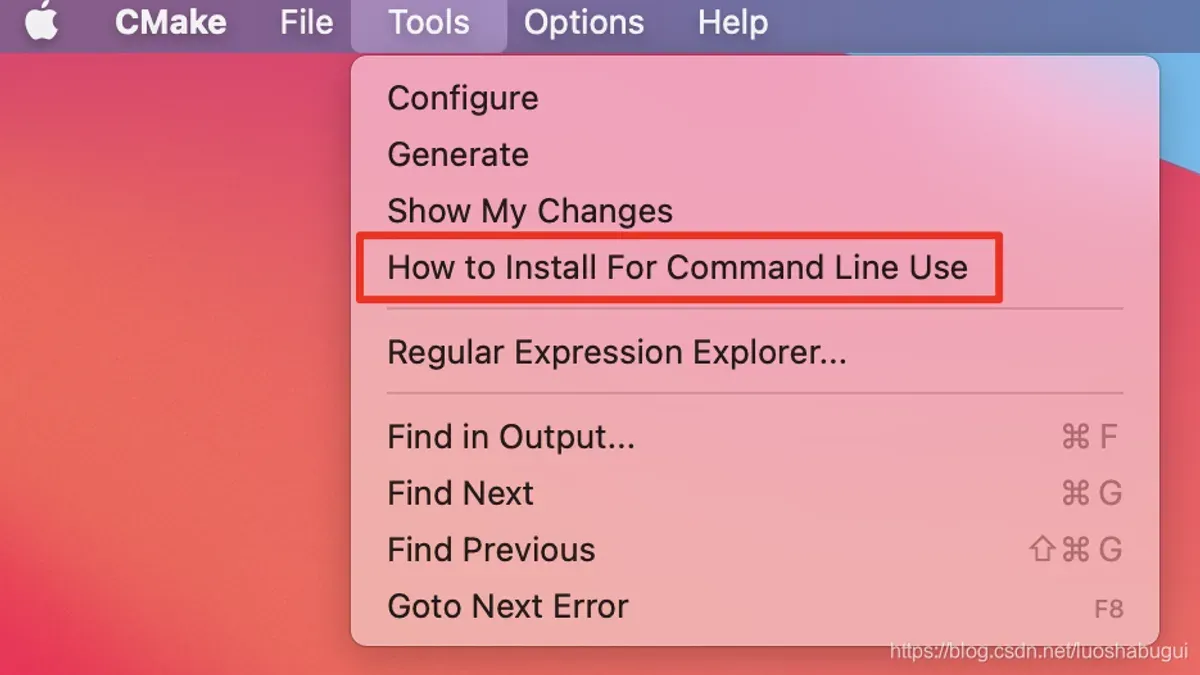
You’ve decided to work on a project that requires building software with CMake on your Mac. Before you can proceed, you need to get CMake installed correctly and efficiently.
This article guides you through how to install CMake on Mac by comparing popular methods: using Homebrew, downloading the official installer, and building from source. You’ll get clear terminal instructions, understand the pros and cons of each approach, and find troubleshooting tips to ensure a smooth setup.
Key takeaways
- Homebrew offers the easiest and fastest way to install CMake with automatic updates.
- The official installer provides a straightforward GUI option without requiring command-line use.
- Building from source gives full customization but requires more time and developer tools.
- Using the terminal commands correctly avoids common permission or path issues.
- Choose your method based on your comfort with the command line and specific project needs.
Before you start: What you need to install CMake on Mac
Before installing CMake on your Mac, ensure your system meets the necessary prerequisites to avoid installation issues.
- Check your macOS version. The latest CMake versions support macOS 10.13 (High Sierra) and newer. To verify your version, click the Apple menu and select About This Mac. You should see your macOS version listed at the top.
- Confirm you have administrator privileges. Installing CMake typically requires admin access to modify system files or use package managers like Homebrew.
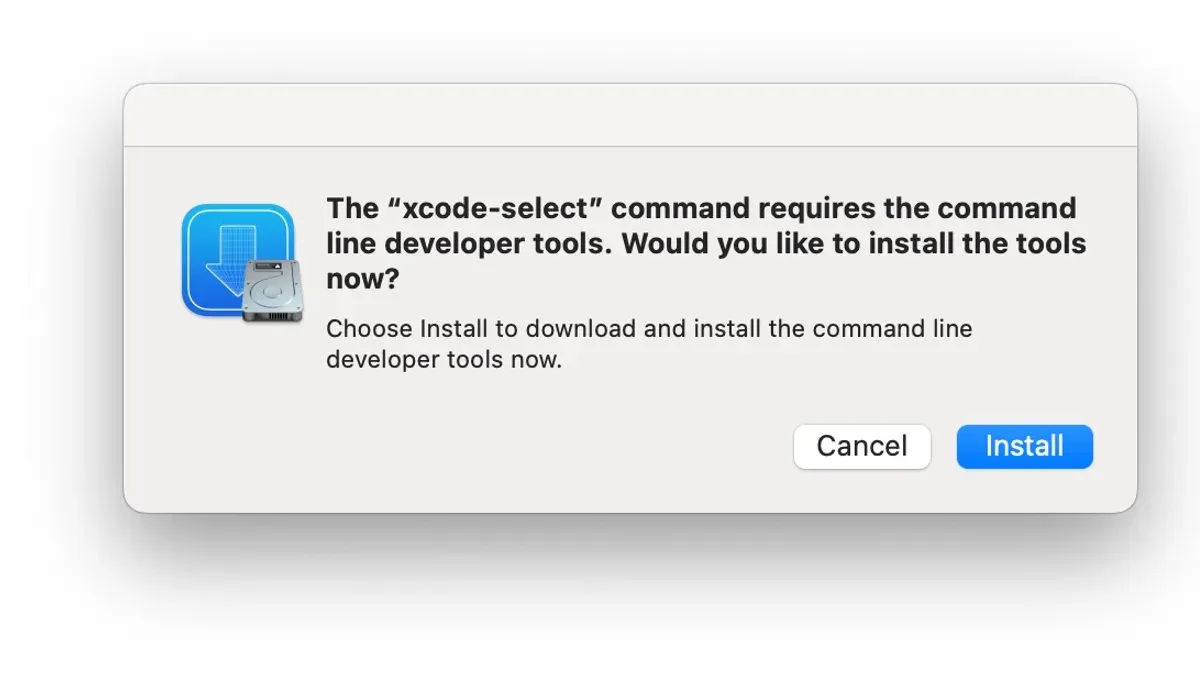
- Install Xcode Command Line Tools if not already present. Open Terminal and enter
xcode-select --install. If installed, you will see a message such as “xcode-select: note: no developer tools were found...” followed by a prompt to install. If already installed, a message like “xcode-select: error: command line tools are already installed” will appear. - Understand the installation options: you can install CMake via Homebrew, download the official installer package, or build it from source. Each method has benefits—Homebrew offers simplicity, the installer provides a GUI-based setup, and building from source allows customization.
How to install CMake on Mac using Homebrew
Homebrew is a widely used package manager for macOS that simplifies installing software like CMake. It handles dependencies and updates automatically, making it a recommended choice for many users seeking a hassle-free installation.
- Open the Terminal app on your Mac.
- If you don't have Homebrew installed, enter the following command:
/bin/bash -c "$(curl -fsSL https://raw.githubusercontent.com/Homebrew/install/HEAD/install.sh)"
You should see output showing the installation progress and a message confirming Homebrew is installed. - Update Homebrew to get the latest package information:
brew update
This ensures you install the most recent version of CMake. - Install CMake by running:
brew install cmake
The terminal will display download progress and installation steps. - Verify the installation by checking the version:
cmake --version
You should see output like “cmake version 3.x.x”, confirming the install.
Installing CMake with Homebrew usually takes just a few minutes and requires minimal manual configuration. Compared to downloading and installing CMake manually, Homebrew streamlines updates and dependency management, offering an efficient, command-line-centric approach.
How to install CMake on Mac by downloading the official installer
If you prefer a graphical interface over command line tools, downloading the official CMake installer for macOS is a straightforward approach.
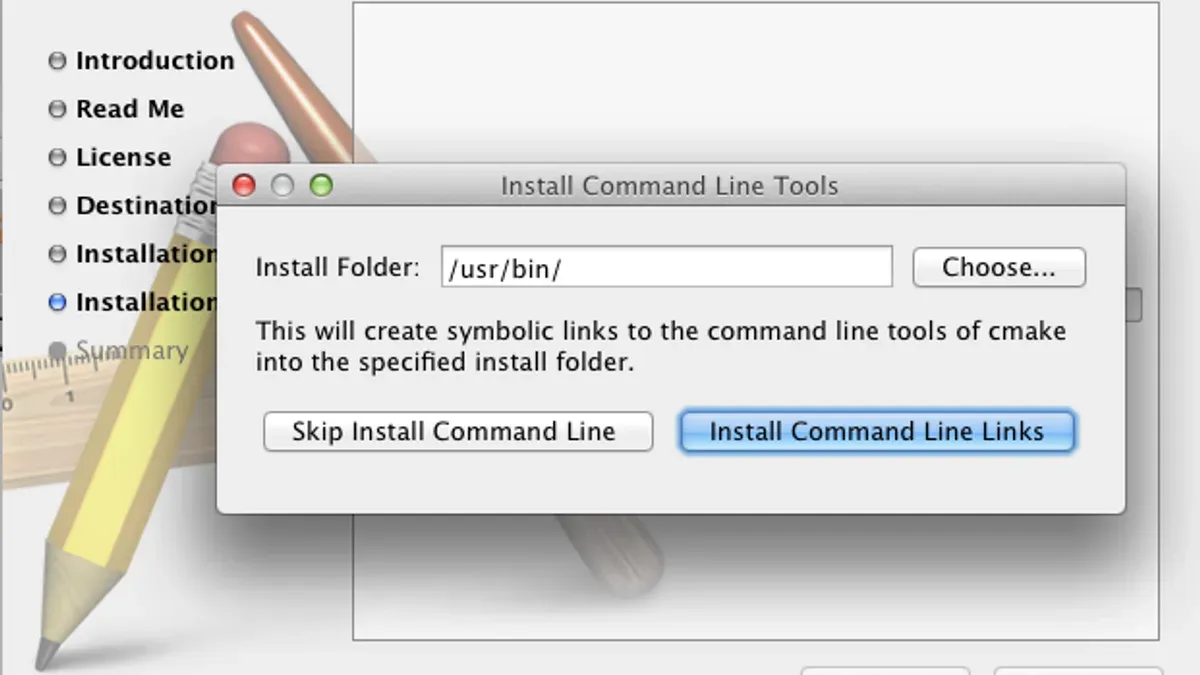
- Visit the official CMake website at https://cmake.org/download/. Scroll to the macOS section and download the latest stable "cmake--macos-universal.dmg" file.
- Open the downloaded.dmg file to mount it. A window will appear showing the CMake installer app icon.
- Double-click the installer icon to launch the graphical installation wizard. Follow the prompts to agree to the license and select the destination folder, typically "/Applications".
- After installation completes, open the Terminal app to verify the installation. Type cmake --version and press Enter. You should see the installed CMake version number displayed.
- If the terminal returns "command not found," you may need to add CMake to your PATH. Typically, the installer places CMake binaries inside "/Applications/CMake.app/Contents/bin".
- To add this to your PATH for the current session, run: export PATH=/Applications/CMake.app/Contents/bin:$PATH. To make this permanent, add the same line to your shell configuration file like
~/.zshrcor~/.bash_profile. - Reopen the terminal or source your configuration file, then run cmake --version again to confirm the command is recognized.
This graphical installer option is ideal if you prefer a guided setup and do not want to use package managers or compile from source.
How to build and install CMake from source on Mac
Building CMake from source gives you full control and access to the latest features not yet available in packaged versions. This approach requires you to have build tools like make and a C++ compiler, usually installed with Xcode Command Line Tools.
- Download the latest CMake source code from the official website or GitHub repository. You should get a file like cmake-version.tar.gz. Successful download will show the archive in your chosen directory.
- Extract the archive using
tar -zxvf cmake-version.tar.gz. You should see a new folder named cmake-version. - Open Terminal, navigate to the extracted folder with
cd cmake-version. The prompt should reflect this directory. - Run
./bootstrapto configure the build system. If successful, you’ll see a summary that includes enabled features and build targets. - Compile CMake by running
make. The terminal will display compilation progress, ending without errors. - Install the compiled binary using
sudo make install. This copies necessary files to system folders; you’ll be prompted for your password. - Verify installation by running
cmake --version. It should display the exact source version, which may be newer than Homebrew or installer versions.
Building from source generally takes more time and effort, but it’s ideal for advanced users needing the newest capabilities or custom configurations. The latest source versions often include features or fixes absent in packaged releases.
How to install CMake on Mac terminal: using command line only
This section guides you through installing CMake entirely via the terminal, ideal for users preferring command-line operations without any graphical interface.
- Open the Terminal app on your Mac.
- To install CMake using Homebrew, run brew install cmake. You should see output indicating successful download and installation, such as "==> Installation successful!"
- If you prefer not to use Homebrew, download the latest CMake binary with curl -LO https://cmake.org/files/v3.26/cmake-3.26.4-macos-universal.tar.gz. Extract it using tar -xzf cmake-3.26.4-macos-universal.tar.gz.
- Move the extracted CMake directory to a location like
/usr/local/cmakeusing sudo mv cmake-3.26.4-macos-universal /usr/local/cmake. - Add CMake to your PATH by running echo 'export PATH=/usr/local/cmake/CMake.app/Contents/bin:$PATH' >> ~/.zshrc (or modify
~/.bash_profileif you use Bash). Then reload the profile with source ~/.zshrc. - Verify the installation by typing cmake --version. The terminal should output the installed CMake version, confirming it is accessible.
- Run cmake --help to view usage instructions and available commands. This confirms CMake is ready for your projects.
- To install your project with CMake, navigate to your project directory and run cmake. to configure, then make to build, and finally sudo make install to install the compiled binaries. Output should confirm each step's completion without errors.
Using terminal commands exclusively lets you control the entire CMake installation and project build process without relying on graphical tools.
How to use CMake install command correctly
CMake projects generally follow a build lifecycle: configure, build, and install. After you configure your project with cmake and build it, the cmake --install command handles copying the built files to their final destination, such as system directories or a custom install path.
- Navigate to your build directory. You should see compiled binaries and intermediate files (for example, myproject/build/ contains Makefile or build.ninja).
- Run cmake --install.. This installs the project to the default location defined in your CMakeLists or the
CMAKE_INSTALL_PREFIX. You should see output like -- Install configuration: "Release" and a list of installed files. - To specify a custom install path, use cmake --install. --prefix /custom/path. Verify the files are copied to that directory.
- Common flags include
--configto specify the build type (e.g., Debug, Release) and--componentto install selected components if your project defines multiple install groups.
For example, before install, your build directory might contain bin/myapp and lib/libmylib.dylib. After running cmake --install., these files are copied to the install prefix, such as /usr/local/bin/myapp and /usr/local/lib/libmylib.dylib.
Running the install command is necessary when you want your built targets available system-wide or for packaging. Without installation, the build artifacts remain only within the build folder and are not in standard locations for execution or linking.
Troubleshooting common CMake installation issues on Mac
If you encounter "command not found" after installing CMake, your PATH variable likely wasn’t updated. Add CMake’s bin directory to your PATH by editing your shell profile (e.g., ~/.zshrc or ~/.bash_profile) with export PATH="/usr/local/bin:$PATH" if installed via Homebrew, or the appropriate path if installed differently. Then reload the profile with source ~/.zshrc (or relevant file).
Permission errors such as "Permission denied" often occur when installing CMake globally without admin rights. Use sudo with install commands (e.g., sudo make install) or ensure you have administrative privileges before running installation scripts.
If you see conflicting versions (e.g., "cmake version 3.x is installed but 3.y is needed"), multiple CMake installations may exist. Uninstall older versions with Homebrew using brew uninstall cmake or remove manually installed versions by deleting files in /usr/local/bin and related directories.
To cleanly uninstall CMake installed via Homebrew, run:
brew uninstall cmake- This removes the Homebrew CMake package.- Check for leftover files with
which cmakeand remove manually if necessary. - Verify removal by running
cmake --version, which should return "command not found".
When updating CMake, use brew upgrade cmake or download the latest installer, then verify the version with cmake --version to confirm the update.
Comparing installation methods: Homebrew vs installer vs source build
Choosing the right method to install CMake on your Mac depends on your priorities around ease, control, and maintenance. Below is a concise comparison to help you decide.
| Method | Installation Time | Complexity | Customization | Maintenance |
|---|---|---|---|---|
| Homebrew | Fast (minutes) | Low | Limited to formula options | Easy updates and uninstalls |
| Official Installer | Moderate (minutes) | Low | Minimal (standard setup) | Manual updates required |
| Source Build | Long (tens of minutes) | High | Full control over build options | Requires manual maintenance |
Ease of use and speed: Homebrew offers the quickest and simplest path with automatic dependency handling. The official installer provides a graphical interface, good for users preferring visual setup. Building from source is time-consuming and complex, suited for advanced users.
Control and customization: Source builds allow you to enable or disable specific features and optimizations. Homebrew and the installer provide pre-configured binaries with limited customization.
Compatibility and updates: Homebrew integrates well with macOS updates and keeps CMake versions current via simple commands. The installer requires manual downloading of new versions. Source builds need manual rebuilding to stay updated.
Maintenance and system impact: Homebrew manages dependencies and uninstall processes cleanly. The installer places files in standard locations but can leave residual files upon removal. Source builds can clutter build directories and require manual cleanup.
User scenarios:
- If you want a quick, hassle-free install with easy updates, use Homebrew. After installation, running
cmake --versionshould display the installed version. - If you prefer a graphical interface and standard setup without terminal commands, choose the official installer. Once installed, verify in Terminal with
cmake --version. - If you need tailored build options or the latest features not yet packaged, opt for building from source. After compiling and installing, confirm success by running
cmake --versionshowing your custom build.
- How to Install and Use the Clang C++ Compiler on Mac
- How to Install Python on Mac: A Clear Step-by-Step Guide
- How to Install Node.js with NVM on Mac: A Clear Step-by-Step Guide
- How to Install Rust on Mac: A Clear Step-by-Step Guide
Frequently asked questions
How to install cmake on windows?
To install CMake on Windows, download the official installer from the CMake website. Run the executable and follow the setup wizard, ensuring you select the option to add CMake to the system PATH for command-line use. Alternatively, you can use package managers like Chocolatey by running choco install cmake in an elevated command prompt.
How to install cmake on linux?
Most Linux distributions include CMake in their package repositories. Use your distribution's package manager, such as sudo apt install cmake for Debian-based systems or sudo yum install cmake for Red Hat-based ones. For the latest version, you may download and build from source.
How to run cmake install?
After configuring your project with CMake and building it, run cmake --install <build-directory> to install the built files. This command copies necessary files to the designated install location, often set by the CMAKE_INSTALL_PREFIX variable during configuration.
How to install cmake on macbook?
You can install CMake on a MacBook using Homebrew by running brew install cmake in the Terminal. Alternatively, download the official CMake installer from the website for a graphical setup or build from source if you need a customized installation.
How to install with cmake?
Installing with CMake involves configuring your project using cmake <source-directory>, then building it with make or an equivalent build tool. Finally, use cmake --install <build-directory> to copy the files to the installation directory.
What this guide does not cover
This guide does not cover integrating CMake with specific IDEs or advanced cross-platform build configurations, which require additional setup beyond basic installation. If you need to configure CMake for complex projects involving multiple platforms or specialized build environments, consider consulting dedicated documentation or tutorials tailored to your development tools.
For users working within IDEs like Xcode, CLion, or Visual Studio Code, additional steps may be necessary to ensure seamless integration, such as configuring project settings or installing plugins.
The most useful next step after installing CMake is to verify your installation by running cmake --version in the terminal. This confirms that CMake is correctly installed and accessible. From there, you can start generating build files for your projects by creating a CMakeLists.txt file tailored to your source code and running cmake. in your project directory.