How to Install Nginx on Mac: A Clear Step-by-Step Guide
This guide shows how to install Nginx on Mac using Homebrew or manual installation, with configuration and troubleshooting tips.

You want to run a reliable web server on your Mac, but you're uncertain about the best way to install Nginx. Whether you're setting up a local development environment or preparing for deployment, understanding your options is key.
This guide covers how to install Nginx on Mac using two main methods: Homebrew and manual installation. It also compares these approaches with Nginx installation on Linux and Windows systems, helping you decide which method fits your needs. After installation, you'll find clear steps for configuring Nginx and troubleshooting common issues.
Key takeaways
- Homebrew offers a quick, automated way to install Nginx with easy updates.
- Manual installation provides more control but requires handling dependencies and compilation.
- Setting up Nginx on Mac differs from Linux or Windows in package management and service handling.
- Post-installation setup includes configuring directories and testing server responses.
- Common issues include permission errors and port conflicts, which this guide helps you resolve.
Before you start: What you need to install Nginx on Mac
Installing Nginx on your Mac requires some basic preparations to ensure a smooth process. You should have a Mac running a supported version of macOS, typically macOS Mojave (10.14) or later, as these versions provide the necessary system libraries and compatibility for Nginx.
Basic familiarity with the Terminal and command line is essential because installation and configuration involve command-line tools. You will need an active internet connection to download Nginx and any associated packages.
If you prefer a simpler installation method, having Homebrew installed beforehand is helpful. Homebrew is a popular package manager for macOS that simplifies software installation. Homebrew version 3.0 or newer is recommended for compatibility with Nginx formulas.
Regarding permissions, you should operate with a user account that has administrator privileges. This is because installing system-level software and modifying configuration files require elevated permissions. When using Terminal commands that affect system directories, you may need to prepend commands with sudo and enter your password.
- Open Terminal from Applications > Utilities > Terminal. You should see a command prompt indicating readiness to accept commands.
- Check your macOS version by typing sw_vers -productVersion. The output should be Mojave (10.14) or later.
- Verify if Homebrew is installed by entering brew --version. A version number above 3.0 means Homebrew is ready; if not installed, consider installing it for easier management.
- Confirm you have administrator privileges by running a command with sudo, such as sudo ls /var/root. You will be prompted for your password; if the command runs without error, you have the necessary rights.
How to install Nginx on Mac using Homebrew
Homebrew is the most popular package manager for macOS and offers a straightforward way to install Nginx. If you do not have Homebrew installed, you can set it up quickly from the terminal.
- Install Homebrew (if needed): Open the Terminal app and run /bin/bash -c "$(curl -fsSL https://raw.githubusercontent.com/Homebrew/install/HEAD/install.sh)". Once complete, you should see a message confirming Homebrew is installed and ready to use.
- Update Homebrew: Type brew update to ensure you have the latest formulae. You should see progress messages ending with a confirmation that everything is up-to-date.
- Install Nginx: Run brew install nginx. The terminal will download and compile Nginx, showing download progress and installation details. This process usually takes a few minutes and is simpler compared to manual compilation.
- Start Nginx service: Use brew services start nginx to launch Nginx as a background service. The terminal will confirm that the service has started.
- Stop or restart Nginx: To stop, run brew services stop nginx. To restart, use brew services restart nginx. Each command returns a success message.
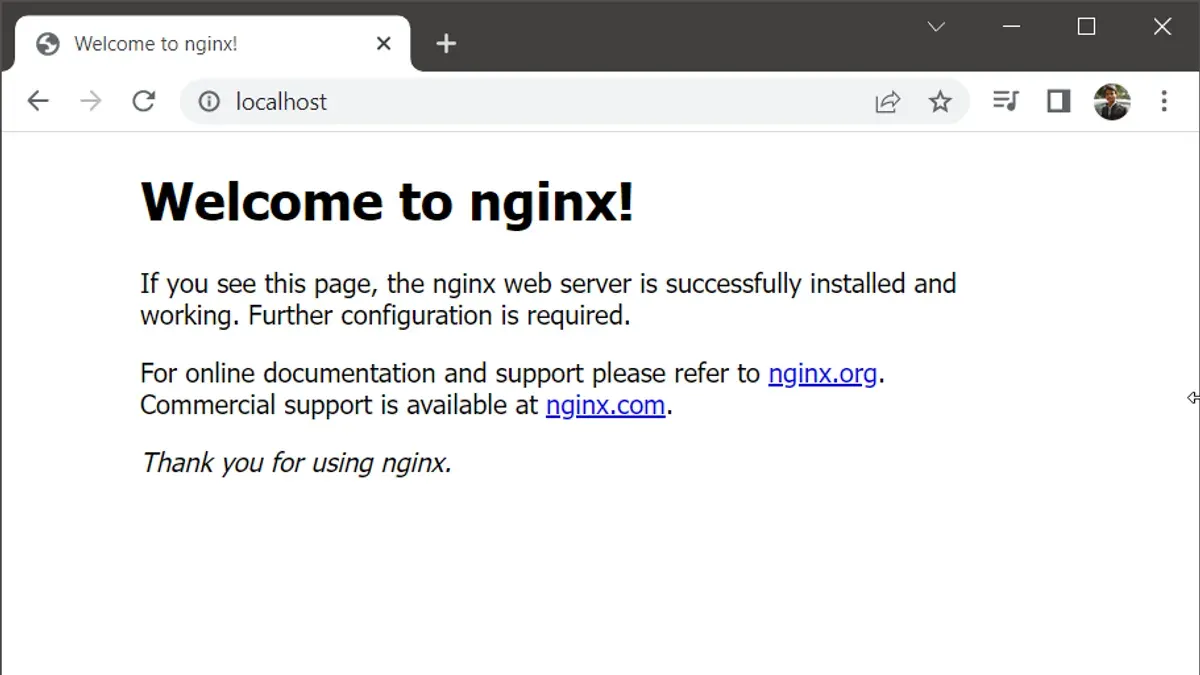
- Verify installation: Open a web browser and go to http://localhost:8080. You should see the default Nginx welcome page indicating the server is running with its default configuration.
Using Homebrew typically reduces installation time and minimizes complexity compared to manual installation. It also handles service management cleanly, making it a preferred method for many Mac users.
How to install Nginx on Mac without Homebrew
If you prefer not to use Homebrew, you can manually install Nginx by compiling it from the official source code. This method requires macOS's built-in tools and a few manual steps.
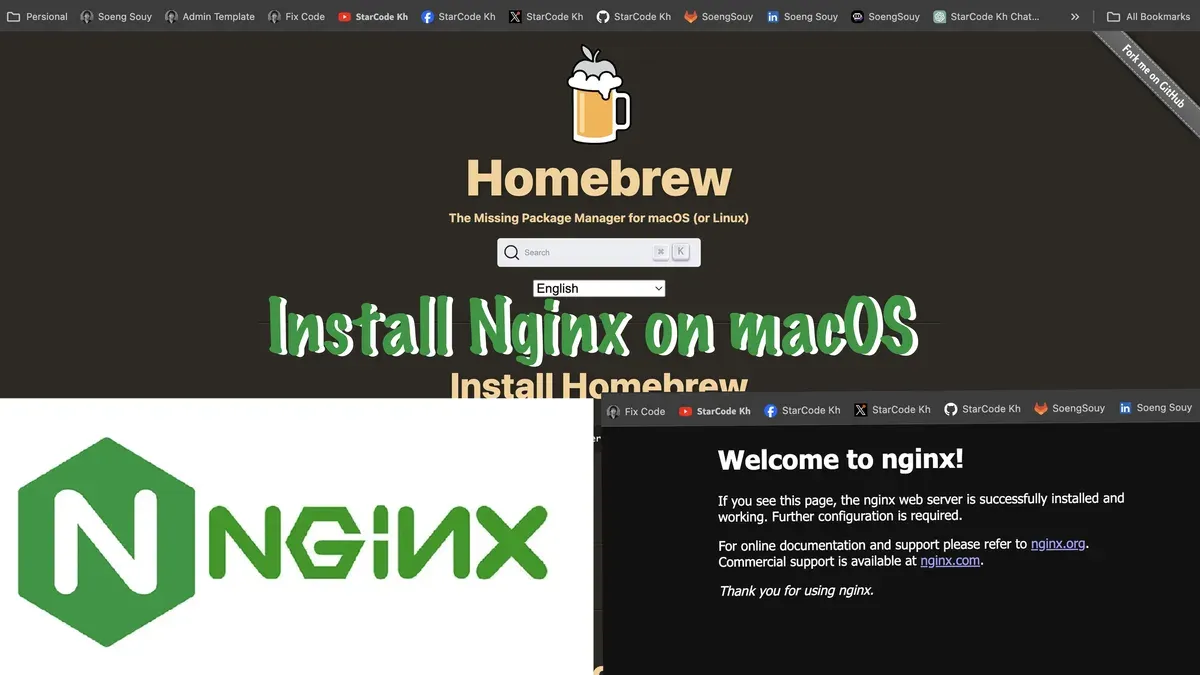
- Download the latest stable Nginx source code from nginx.org. For example, run curl -O http://nginx.org/download/nginx-1.24.0.tar.gz. After downloading, extract the archive using tar -zxvf nginx-1.24.0.tar.gz. You should see a new folder named nginx-1.24.0.
- Install the necessary build dependencies using macOS’s built-in tools. If you don’t have Xcode command line tools, install them with xcode-select --install. This ensures you have compilers like gcc and make. No output means it is already installed; otherwise, follow the prompts.
- Navigate to the extracted source directory with cd nginx-1.24.0. Run ./configure to prepare the build environment. This command checks your system and outputs configuration options. If there are missing dependencies, it will notify you here.
- Compile Nginx by running make. This process typically takes less than a minute on modern Macs. You should see progress lines ending with make: Nothing to be done for 'all'. if successful.
- Install Nginx using sudo make install. This copies the compiled binaries and configuration files to /usr/local/nginx by default. You will be prompted for your administrator password.
- Start Nginx manually by running sudo /usr/local/nginx/sbin/nginx. To test if it works, open your browser and go to http://localhost. You should see the default Nginx welcome page.
- To stop Nginx, run sudo /usr/local/nginx/sbin/nginx -s stop. Managing Nginx this way requires you to start, stop, and reload configuration manually using these commands.
Manual installation offers more control but less convenience compared to Homebrew. Compilation errors usually stem from missing command line tools or outdated macOS versions. Always verify your system meets the Nginx prerequisites.
How to setup Nginx on Mac after installation
- Locate the Nginx configuration files, usually found in /usr/local/etc/nginx/ when installed via Homebrew or /usr/local/nginx/conf/ for manual installs. You should see a nginx.conf file here, which controls server settings.
- Edit the nginx.conf file to configure the default server block. Open the file in a text editor and find the
serverblock. Modify therootdirective to point to your desired content directory, such as/usr/local/var/www, and ensure theindexdirective includesindex.html. Save your changes. - Start Nginx by executing
sudo nginxor reload withsudo nginx -s reloadif already running. This launches the server using the updated configuration. - Open a web browser and visit
http://localhost. You should see the Nginx welcome page or your custom index page if you replaced the default content. This confirms Nginx is serving content correctly. - For basic security and performance, limit server tokens by adding
server_tokens off;in thehttpblock of nginx.conf to hide version info. Enable gzip compression withgzip on;to improve load times. Restart Nginx after these changes.
Test the configuration for errors by running nginx -t in the Terminal. A successful output looks like:
nginx: the configuration file /usr/local/etc/nginx/nginx.conf syntax is ok
nginx: configuration file /usr/local/etc/nginx/nginx.conf test is successful
If errors appear, review the indicated lines in nginx.conf and correct them.
Following these steps, you will have Nginx running on your Mac, serving content securely and efficiently.
How to install Nginx on Linux and Ubuntu servers: A brief overview
Nginx installation on Linux varies by distribution, with Ubuntu, CentOS, and Debian among the most common for server environments. Package managers like apt on Debian-based systems and yum or dnf on Red Hat-based systems like CentOS manage installation and updates differently compared to Mac’s Homebrew.
On Ubuntu, you typically update package lists and install Nginx using apt. For example:
- Run sudo apt update. This refreshes package lists, confirming current versions are available.
- Install Nginx with sudo apt install nginx. The system downloads and installs Nginx and dependencies.
- Start the Nginx service: sudo systemctl start nginx. Successful start means no errors returned.
- Enable Nginx to launch at boot: sudo systemctl enable nginx. This ensures Nginx runs automatically after reboots.
On CentOS 7, the process uses yum and systemctl commands:
- Run sudo yum install epel-release to enable the Extra Packages for Enterprise Linux repository, which includes Nginx.
- Install Nginx with sudo yum install nginx. The package manager handles dependencies.
- Start Nginx: sudo systemctl start nginx. No output indicates success.
- Enable service on boot: sudo systemctl enable nginx.
Typical configuration files are located at /etc/nginx/nginx.conf on most Linux distros. Service management via systemctl contrasts with Mac’s brew services approach.
| Package Manager | Common Linux Distros | Install Command |
|---|---|---|
| apt | Ubuntu, Debian | sudo apt install nginx |
| yum | CentOS 7, older Red Hat | sudo yum install nginx |
| dnf | Fedora, CentOS 8+ | sudo dnf install nginx |
How to install and run Nginx on Windows
Nginx on Windows runs differently compared to Unix-like systems such as macOS or Linux. Rather than a traditional installation, you download a precompiled binary and run it directly without an installation wizard.
- Download the official Windows zip archive from nginx.org. Choose the latest stable version labeled for Windows.
- Extract the contents of the zip file to a folder of your choice, for example C:\nginx. There is no installer, so extraction completes the setup.
- Open Command Prompt or PowerShell and navigate to the extracted folder using
cd C:\nginx. You should see files likenginx.exeandconfdirectory. - Start Nginx by running
start nginx. If successful, no output appears, but Nginx runs in the background listening on port 80. - To verify, open
http://localhostin a web browser; you should see the default Nginx welcome page. - Stop Nginx with
nginx -s quitornginx -s stopcommands in the terminal.
Windows does not support running Nginx as a service natively, and performance is generally lower than on Unix-like systems due to differences in network and process handling.
For development on Windows, Nginx works well for testing static sites or reverse proxy setups but may not be ideal for high-load production environments. Many users prefer running Nginx within Windows Subsystem for Linux (WSL) for more consistent behavior.
Example commands in PowerShell:
cd C:\nginx. ginx.exeto start. ginx.exe -s reloadto reload configuration. ginx.exe -s quitto stop
Common troubleshooting when installing or running Nginx on Mac
When installing or running Nginx on Mac, you may encounter common issues such as permission errors, port conflicts, or service crashes. Resolving these requires checking system settings and logs carefully.
Fixing permission denied errors
If you see an error like "bind() failed (13: Permission denied)", it means Nginx lacks rights to bind to privileged ports such as 80 or 443. To fix this, run Nginx with elevated privileges:
- Use sudo to start Nginx, e.g., sudo nginx.
- If running as a non-root user, configure Nginx to use ports above 1024 in your
nginx.conf. - Confirm the error is gone by restarting Nginx; no permission error should appear.
Resolving port conflicts
Port conflicts occur when another service already uses port 80 or 443. Typical message: "bind() failed (98: Address already in use)". To identify the conflicting process:
- Run
sudo lsof -i:80to see which app occupies port 80. - Stop or reconfigure the conflicting service, for example, stopping Apache with
sudo apachectl stop. - Restart Nginx and verify it starts without errors.
Addressing service not starting or crashing
When Nginx fails to start or crashes, check the error logs located by default at /usr/local/var/log/nginx/error.log or the path set in nginx.conf. Common causes include syntax errors or misconfigured modules.
- Run
nginx -tto test the configuration syntax; it should report "syntax is ok" and "test is successful". - Fix any syntax errors reported.
- Restart Nginx and monitor the logs for any new errors.
Reinstalling or resetting configuration
If issues persist, a clean reinstall or resetting Nginx configuration can help:
- Uninstall Nginx via Homebrew with
brew uninstall nginxor remove manually installed files. - Delete or back up your
nginx.confand related config files. - Reinstall Nginx and restore a default configuration.
- Start Nginx and confirm it runs without errors.
- How to Install Apache on Mac: A Clear Step-by-Step Guide
- How to Install MAMP on Mac: A Clear Step-by-Step Guide
- How to Install XAMPP on Mac: A Clear Step-by-Step Guide
- How to Install Redis on Mac: A Clear Step-by-Step Guide
Frequently asked questions
How to install nginx on windows?
To install Nginx on Windows, download the official Windows build from the Nginx website. Extract the zip file to a preferred location, such as C:\nginx. Run nginx.exe from the extracted folder using Command Prompt to start the server. Note that Windows support is limited compared to Unix-based systems, so stability and performance may vary.
How to install nginx in linux server?
Installing Nginx on a Linux server typically involves using the package manager specific to your distribution. For example, on Debian-based systems, you use sudo apt install nginx, while on Red Hat-based systems, use sudo yum install nginx or sudo dnf install nginx. After installation, enable and start the Nginx service with systemctl commands.
How to install nginx on ubuntu?
On Ubuntu, update your package list with sudo apt update and then install Nginx using sudo apt install nginx. Once installed, start the service with sudo systemctl start nginx and enable it to run at boot via sudo systemctl enable nginx. The default configuration files are located in /etc/nginx/.
How to install nginx on centos 7?
For CentOS 7, first enable the EPEL repository using sudo yum install epel-release. Then install Nginx with sudo yum install nginx. Start and enable the service using sudo systemctl start nginx and sudo systemctl enable nginx. Configuration files reside in /etc/nginx/.
How to use nginx?
Nginx is primarily used as a web server, reverse proxy, or load balancer. After installation, you customize its behavior by editing configuration files in the /etc/nginx/ directory on Unix-like systems or the extracted folder on Mac and Windows. Common tasks include setting server blocks for websites, configuring SSL, and managing caching or proxy rules. Reload the service after changes to apply them.
What this guide does not cover and who should seek other resources
This guide does not cover advanced Nginx configurations such as reverse proxy setups, SSL/TLS configuration, or performance tuning. If you require these features, consulting specialized tutorials or official Nginx documentation is recommended. Manual compilation may not be suitable for users unfamiliar with command line compilation or dependency management, as it requires handling dependencies and build tools carefully. Additionally, running Nginx on Windows has performance and feature limitations compared to Unix-like systems and is primarily recommended for development or testing purposes.
The single most useful next step is to verify your Nginx installation by accessing http://localhost in your web browser after setup. This confirms that the server is running properly and ready for your custom configurations. From there, exploring Nginx’s configuration files located at /usr/local/etc/nginx/nginx.conf (Homebrew) or your custom install directory (manual) will help you tailor the server to your needs.