How to Install and Use SQLite Browser on Mac: A Practical Guide
This guide shows how to install SQLite browser on Mac and use both command-line and graphical interfaces for efficient database management.

You need to manage a SQLite database on your Mac, but you're unsure whether to use the command-line interface or a graphical tool. Installing and using SQLite and the DB Browser for SQLite can seem complicated without clear steps.
This guide explains how to install SQLite and the DB Browser for SQLite on Mac, focusing on how to install SQLite browser on Mac and offering practical advice on using both command-line and graphical interfaces. You'll learn step-by-step installation instructions, basic commands for SQLite3, how to open and edit databases with the DB Browser, and how to troubleshoot common issues.
Key takeaways
- Install SQLite easily via Homebrew with a simple terminal command.
- Download and set up the DB Browser for SQLite from its official website for a user-friendly interface.
- Use SQLite3 commands like.open and.tables to manage databases in the terminal.
- DB Browser allows visual editing, making database management accessible without command-line skills.
- Common installation issues often relate to Homebrew path settings or missing dependencies.
Before you start: what you need to install SQLite browser on Mac
SQLite is a lightweight, serverless database engine accessed via command-line tools, while DB Browser for SQLite is a graphical interface designed to simplify database management. Installing both provides flexibility depending on your comfort with command-line versus visual tools.
Ensure your Mac runs macOS 10.12 or later and that you have administrator permissions to install software. The most reliable installation method on Mac is using Homebrew, a widely adopted package manager that streamlines setup and updates.
Alternative installation options include downloading SQLite and DB Browser installers directly from their official websites. While this method avoids command-line use, it may require manual updating and can lead to compatibility issues if dependencies are missing.
User feedback generally favors Homebrew installations for their smoother process and better integration with macOS. Direct downloads are simpler for beginners but can occasionally result in installation errors or outdated software versions.
- Check your macOS version via Apple menu > About This Mac. You should see a version number 10.12 or higher.
- Verify you have administrator rights by opening System Preferences > Users & Groups and confirming your account type.
- Install Homebrew by opening Terminal and entering the official installation command from brew.sh. When successful, typing brew help shows Homebrew commands.
How to install SQLite on Mac using Homebrew
- Open the Terminal application on your Mac. This is where you will enter all the necessary commands.
- Check if Homebrew is already installed by typing brew --version. If Homebrew is installed, you will see its version number. If not, proceed to the next step.
- To install Homebrew, enter the following command:
/bin/bash -c "$(curl -fsSL https://raw.githubusercontent.com/Homebrew/install/HEAD/install.sh)"
After installation, you should see confirmation messages indicating Homebrew is set up properly. - Update Homebrew to ensure you have the latest package information by running brew update. The Terminal will display progress and finish with a prompt.
- Install SQLite by typing brew install sqlite. Homebrew will download and install the SQLite package, showing progress and success messages.
- Verify the installation by running sqlite3 --version. The Terminal should display the installed SQLite version number, confirming it is ready to use.
Using Homebrew is preferred because it manages dependencies, keeps SQLite up to date, and integrates well with macOS. It avoids manual downloads and complex configurations, providing a reliable and straightforward installation method.
How to install DB Browser for SQLite on Mac
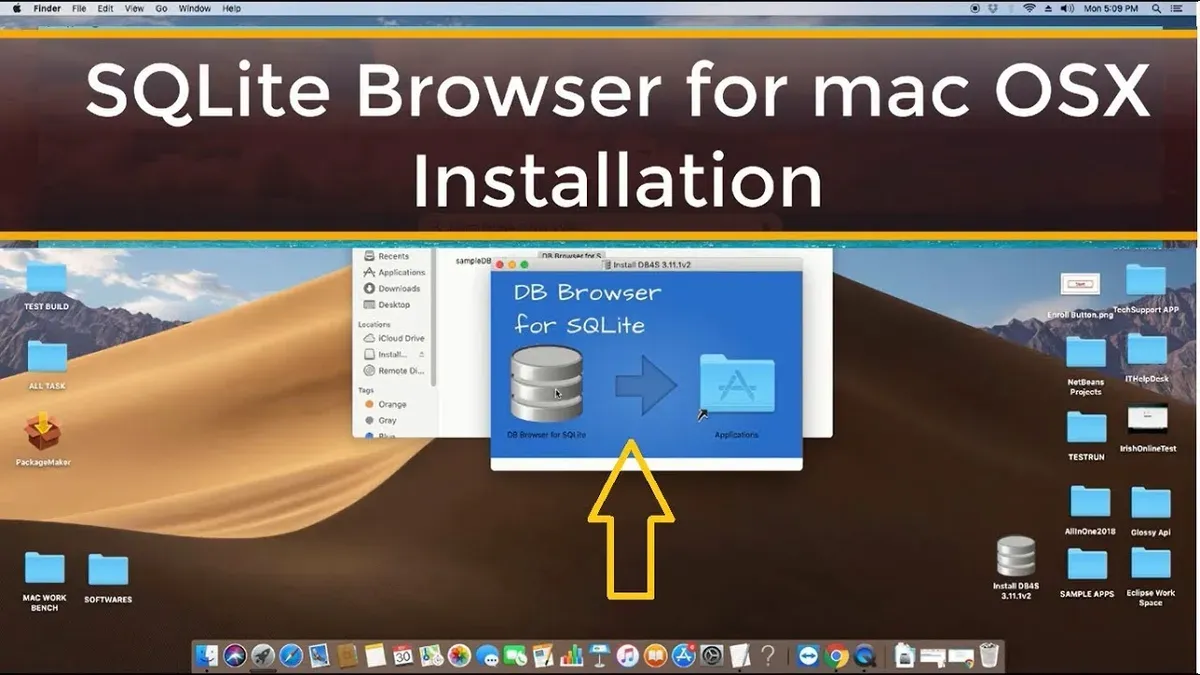
To install the graphical DB Browser for SQLite on your Mac, start by visiting the official website at sqlitebrowser.org/dl/. This page provides the latest stable version for macOS.
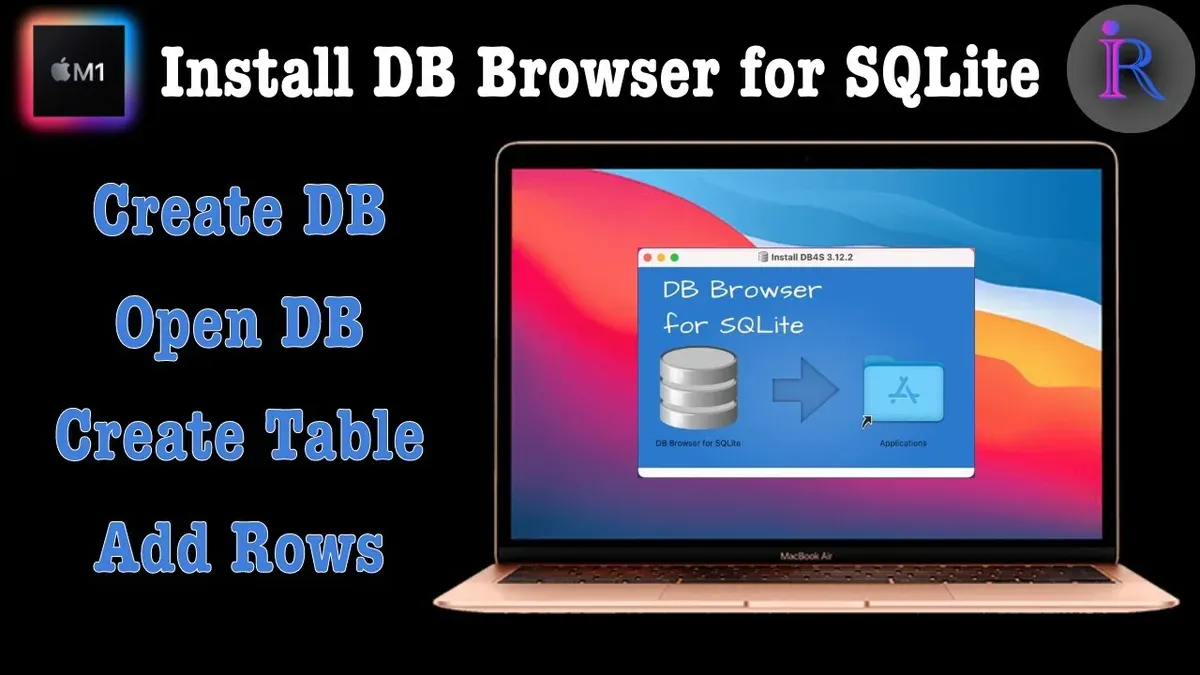
- Download the DMG file labeled for macOS by clicking the appropriate link. Once the download completes, open the DMG file to mount the installer volume.
- Drag the "DB Browser for SQLite.app" icon into your Applications folder. This copies the app to your system.
- Open the Applications folder and double-click the DB Browser for SQLite app to launch it. macOS may prompt you with a security warning; if so, go to System Preferences > Security & Privacy > General and click Open Anyway to allow the app to run.
- When the app opens, you should see the main interface with options to create or open databases, confirming successful installation.
DB Browser for SQLite offers a visual interface ideal for users preferring point-and-click database management, including table design and data editing. In contrast, the SQLite CLI suits those comfortable with command-line commands and scripting, offering more granular control but requiring familiarity with SQL syntax.
Choosing between them depends on your workflow: use DB Browser for quick, visual tasks and SQLite CLI for automation or complex queries.
How to use SQLite3 on Mac: basic commands and examples
Using SQLite3 through the terminal on your Mac allows direct and flexible database management. Start by launching the terminal and typing sqlite3 mydatabase.db to create or open a database named mydatabase.db.
- Open Terminal and enter sqlite3 mydatabase.db. You should see the prompt change to sqlite>, indicating the database is ready.
- Create a table with CREATE TABLE users (id INTEGER PRIMARY KEY, name TEXT, email TEXT);. On success, you get no error message.
- Insert data using INSERT INTO users (name, email) VALUES ('Alice', '[email protected]');. The terminal will return sqlite> without errors.
Retrieve data by running SELECT * FROM users;. The output lists all rows, for example:
| id | name | |
|---|---|---|
| 1 | Alice | [email protected] |
Command-line usage is ideal when you need precise control, script automation, or work on remote systems without a graphical interface. However, for visual browsing and editing, the DB Browser offers ease and clarity.
How to use SQLite browser: opening, editing, and managing databases
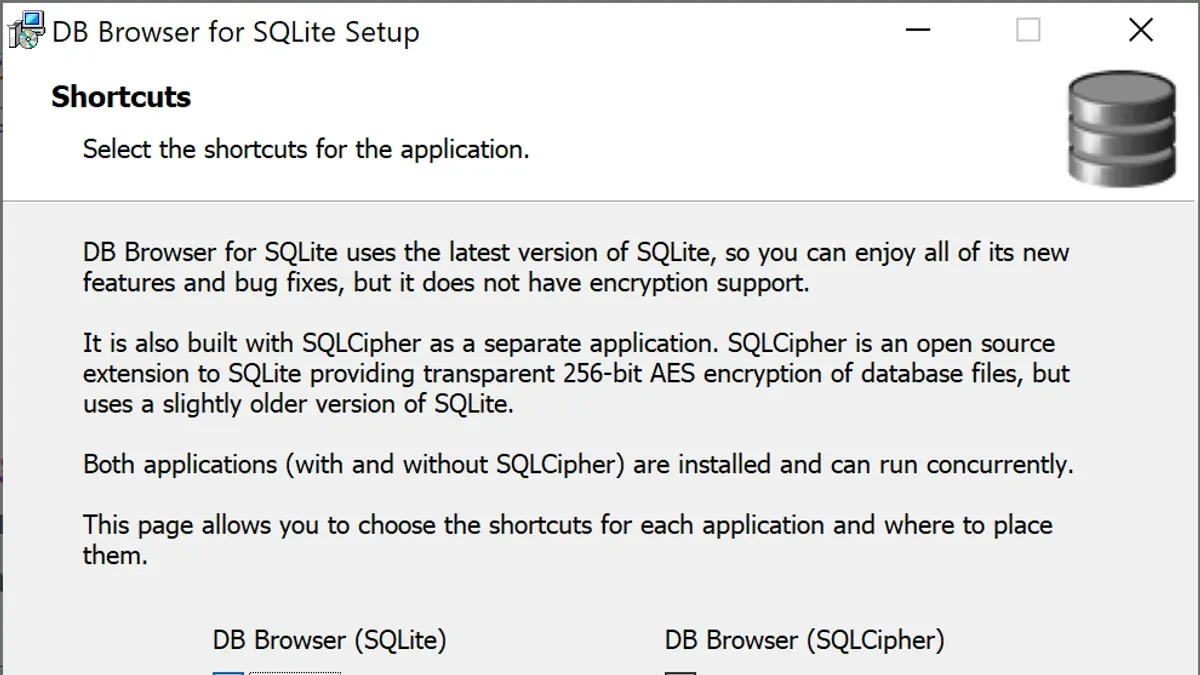
- Open DB Browser for SQLite and click File > Open Database. Select an existing .sqlite or .db file. You should see the database schema and tables loaded in the left panel.
- To create a new database, choose File > New Database. Enter a name and save location, then add tables using the Database Structure tab by clicking New Table. A dialog appears to define columns and data types.
- To add records, switch to the Browse Data tab. Select the target table from the dropdown menu. Click New Record at the bottom to enter data into editable fields. Press Write Changes to save.
- Modify records by selecting a row in Browse Data, editing fields directly, and clicking Write Changes. Use Delete Record to remove entries.
- Import data via File > Import > Table from CSV file. Follow prompts to map CSV columns to table columns. Export tables using File > Export > Table(s) as CSV or SQL dump.
- Use the Search box in the Browse Data tab to quickly filter rows by matching text in any column. The interface also supports sorting columns by clicking headers.
- Navigate between tabs easily: Database Structure for schema changes, Execute SQL for custom queries, and Browse Data for record-level editing. Tooltips and status messages provide workflow guidance.
Troubleshooting common issues when installing or using SQLite browser on Mac
If you encounter permissions errors such as "Operation not permitted" or "Permission denied" when launching DB Browser, ensure the app has the necessary access. Go to System Preferences > Security & Privacy > Privacy, then add DB Browser to Full Disk Access or Files and Folders. Restart the app after changes.
Conflicts with existing SQLite versions or Homebrew misconfigurations may cause errors like "command not found" or version mismatches. Verify your PATH by running echo $PATH in Terminal. Ensure Homebrew's bin path (usually /usr/local/bin or /opt/homebrew/bin) precedes other SQLite installs. Reinstalling SQLite with Homebrew can also resolve version conflicts.
If the app crashes or fails to launch, try deleting its preference files located in ~/Library/Preferences/org.sqlitebrowser.sqlitebrowser.plist and relaunching. Updating macOS and DB Browser to the latest versions can fix compatibility issues.
- Open System Preferences > Security & Privacy > Privacy and add DB Browser to Full Disk Access. You should see the app listed with a checked box.
- Open Terminal and run
echo $PATH. Confirm Homebrew’s bin directory is listed near the start. - If the PATH is incorrect, add Homebrew’s bin path to your shell configuration file (e.g.,
~/.zshrc) and reload the terminal. You should now access SQLite commands directly. - Delete DB Browser’s preference file at
~/Library/Preferences/org.sqlitebrowser.sqlitebrowser.plist. Relaunch the app; it should start without crashing.
- How to Install Redis on Mac: A Clear Step-by-Step Guide
- How to Install MongoDB on Mac: A Clear Step-by-Step Guide
- How to Install CMake on Mac: A Complete Step-by-Step Guide
- How to Install Python on Mac: A Clear Step-by-Step Guide
Frequently asked questions
Does sqlite work on mac?
Yes, SQLite works natively on Mac. It is included with macOS by default, allowing you to manage databases directly from the Terminal using the sqlite3 command-line interface.
How to download db browser for sqlite?
You can download DB Browser for SQLite by visiting the official website at sqlitebrowser.org. Choose the macOS version, download the DMG file, then open it and drag the application to your Applications folder.
Does SQLite work on Mac?
SQLite functions seamlessly on Mac systems. It is pre-installed and accessible via the Terminal, making it convenient for command-line database management without additional setup.
How to install DB Browser for SQLite on Mac?
To install DB Browser for SQLite on your Mac, download the macOS installer from sqlitebrowser.org. Open the downloaded DMG file, then drag and drop the DB Browser app into your Applications folder to complete the installation.
How to download DB Browser for SQLite?
Download DB Browser for SQLite from its official site at sqlitebrowser.org by selecting the macOS version. After downloading, mount the DMG file and move the app to Applications for easy access.
What this guide does not cover and when to seek other resources
This guide focuses on installing and using SQLite and DB Browser for SQLite on Mac for general database management. It does not cover advanced SQLite configuration, performance tuning, or integration with programming languages such as Python, Swift, or Java. If you need to embed SQLite in an application, perform complex SQL scripting, or require automated database management, specialized developer resources and documentation should be your next stop.
For those working on large-scale or production databases, or requiring secure encryption features, consider professional-grade database solutions or consulting with database administrators.
The single most useful next step is to practice creating and managing small databases with DB Browser for SQLite, experimenting with queries and data editing. This hands-on experience will build confidence in both the graphical interface and command-line tool, helping you decide which suits your workflow best for everyday database tasks.