
How to Install WordPress Locally on Mac: A Step-by-Step Guide
This guide walks you through installing WordPress locally on your Mac using LocalWP, MAMP, or native Apache setups for safe website development.

Setting up a local WordPress environment on your Mac can save time and reduce risks when developing or testing websites. You might have downloaded WordPress and faced questions about the best way to get it running locally without impacting your live site.
This article explains how to install WordPress locally on Mac by walking you through three popular methods: LocalWP, MAMP, and a native setup using Apache, PHP, and MySQL. Each approach is broken down step-by-step, with practical advice on setup choices and troubleshooting specific to Mac environments.
Key takeaways
- LocalWP offers a user-friendly interface with automated setup for beginners.
- MAMP provides flexibility and control but requires more manual configuration.
- A native stack leverages built-in Mac tools but demands command-line familiarity.
- Common issues include port conflicts and PHP version mismatches, identifiable through logs.
- Regular backups and updates maintain the security and stability of your local WordPress site.
Before you start: What you need to install WordPress locally on Mac
Installing WordPress locally on your Mac means running a web server environment on your computer, separate from a live hosting server on the internet. This setup allows you to develop and test websites without affecting a public site. To do this, your Mac needs a web server (such as Apache or Nginx), PHP for processing WordPress code, and a database system like MySQL or MariaDB to store content and settings.
Most modern Macs running macOS Monterey or later meet the hardware requirements for local WordPress development. A Mac with at least 8GB of RAM, 50GB of free disk space, and a recent processor (Intel i5 or Apple M1/M2 chip) will provide smooth performance. Software prerequisites include macOS 12 or newer, PHP version 7.4 or higher, and MySQL 5.7 or newer or MariaDB equivalent.
You have several popular options for local development environments compatible with Mac, such as LocalWP, MAMP, and native setups using built-in Apache, PHP, and MySQL or MariaDB installations. Each offers trade-offs between ease of use, configuration flexibility, and system resource usage.
- Check your macOS version by clicking the Apple menu > About This Mac. You should see macOS Monterey or newer.
- Verify available disk space by opening Finder > your main disk > Get Info. Confirm at least 50GB free.
- Confirm PHP version by opening Terminal and typing php -v. It should display version 7.4 or higher.
- Check if MySQL or MariaDB is installed by typing mysql --version in Terminal. If not installed, plan to include it in your setup.
- Choose your preferred local development environment based on your comfort with configuration and resource considerations.
Being prepared with compatible hardware, updated software, and a clear understanding of what local installation entails will help you avoid common setup issues and choose the best method for your needs.
How to install WordPress locally on Mac using LocalWP
- Visit the LocalWP official website (https://localwp.com) and download the macOS installer. After downloading, open the installer and follow the on-screen instructions to complete the installation. You should see the LocalWP application launch once installation finishes.
- Open LocalWP and click the blue + New Site button located at the bottom left corner. This opens the site creation wizard displaying options for site name and setup preferences.
- Enter a descriptive site name (for example, "MyLocalSite") and click Continue. LocalWP will prompt you to choose an environment setup.
- Choose Preferred environment to use the default PHP version and web server configuration optimized for most WordPress sites. Alternatively, select Custom to specify PHP version (e.g., 8.1 or 7.4), web server (Nginx or Apache), and MySQL version. Click Continue after selection.
- Set your WordPress username, password, and admin email in the next step. These credentials will be used for the WordPress dashboard login. Click Add Site to begin the automatic site setup process.
- Once the setup completes, LocalWP displays your new site in the sidebar. Click on your site name to open its dashboard where you can start the server by clicking Start Site. The site URL and Admin panel link will be visible and clickable.
- LocalWP manages the MySQL database automatically; you don't have to configure it manually. To access the database directly, use the Database tab within the site's dashboard, which provides credentials and a button to open Adminer, a lightweight database management tool.
- Navigate to the WordPress admin panel by clicking the WP Admin button in LocalWP. You can now begin customizing and developing your WordPress site locally.
LocalWP’s user interface simplifies the WordPress local installation process by combining environment setup, database management, and site administration in one application tailored for Mac users. Screenshots typically show the clean sidebar with sites listed, the environment selection screen, and the site dashboard with start/stop controls and WP Admin access.
How to install WordPress locally on Mac using MAMP
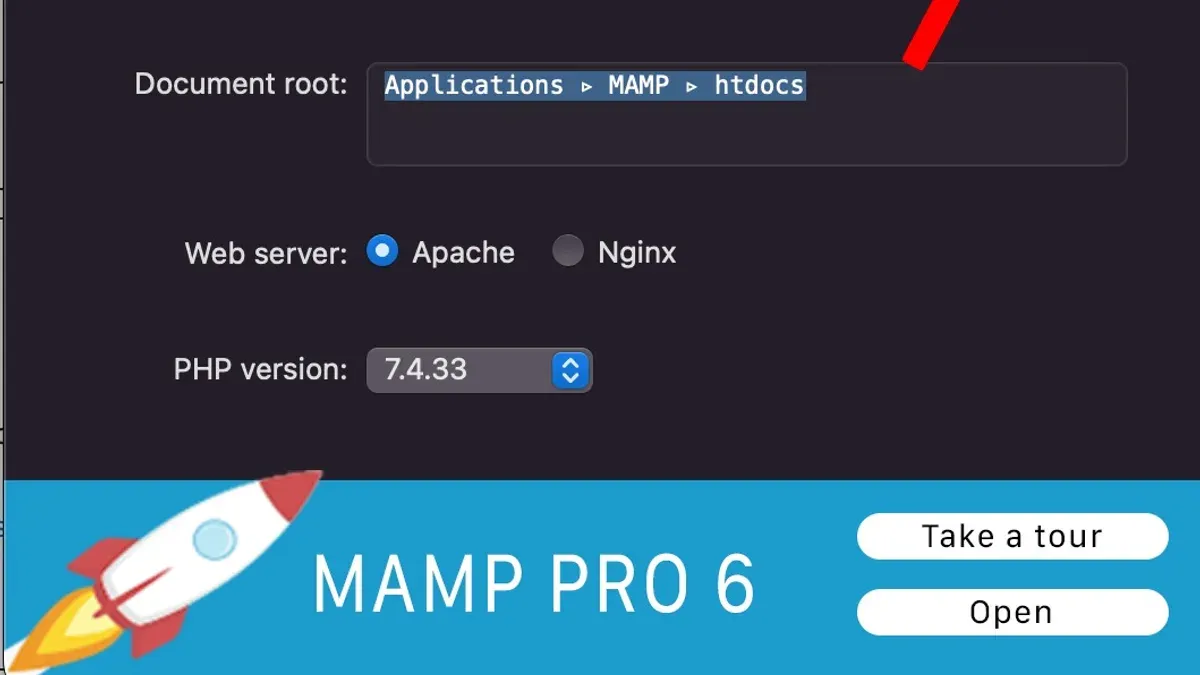
- Download MAMP from the official website at mamp.info and open the installer package. Follow the installation prompts to install MAMP in your Applications folder. After installation, launch the MAMP app; you should see the MAMP control panel with options to start servers.
- In the MAMP control panel, click the "Start Servers" button. The Apache and MySQL server status indicators should turn green, confirming the servers are running. You can verify this by clicking "Open WebStart page," which should load the MAMP welcome page in your browser.
- Download the latest WordPress package from wordpress.org and unzip it. Move the extracted WordPress folder into the MAMP web root directory, typically located at /Applications/MAMP/htdocs/. You can rename this folder to your preferred site name, for example, "mytestsite".
- Access phpMyAdmin bundled with MAMP by opening http://localhost/phpMyAdmin/ in your browser. Click on "Databases" in the top menu, then enter a database name such as "wordpress_local" and click "Create." You should see the new database listed in the sidebar, confirming its creation.
- Open your browser and navigate to http://localhost/mytestsite (replace "mytestsite" with your folder name). The WordPress installation script will start. Choose your language, then enter the database name created earlier, username "root," password "root" (default MAMP credentials), and set "localhost" as the database host. Proceed through the prompts to complete the installation.
- After completion, WordPress will prompt you to create an admin user and site details. Once done, you will be redirected to the WordPress dashboard, confirming a successful local installation using MAMP.
How to set up WordPress locally on Mac with native tools (Apache, PHP, MySQL)
- Check and enable Apache and PHP: Open Terminal and run
apachectl -vto confirm Apache is installed. Start Apache withsudo apachectl start. Verify PHP is enabled by creating a file/Library/WebServer/Documents/phpinfo.phpcontaining<?php phpinfo();?>. Accesshttp://localhost/phpinfo.phpin your browser to see PHP information. - Install MySQL or MariaDB manually: Download the MySQL DMG installer from the official site or install MariaDB via Homebrew (
brew install mariadb). Start the MySQL service withsudo /usr/local/mysql/support-files/mysql.server startorbrew services start mariadb. Secure your installation by runningmysql_secure_installation. - Create a WordPress database: Log into MySQL with
mysql -u root -p, then runCREATE DATABASE wordpress_db CHARACTER SET utf8mb4 COLLATE utf8mb4_unicode_ci;andGRANT ALL PRIVILEGES ON wordpress_db.* TO 'wpuser'@'localhost' IDENTIFIED BY 'password';Adjust username and password accordingly. Exit MySQL withexit;. - Download and set up WordPress files: Download WordPress from wordpress.org and unzip it into
/Users/yourusername/Sites/wordpress. Renamewp-config-sample.phptowp-config.phpand edit database settings to match your MySQL user, password, and database name. - Run the WordPress installer: Open your browser and navigate to
http://localwordpress.test. The WordPress setup wizard should appear. Follow the on-screen prompts to select your site title, admin username, and password. Upon completion, you will have a fully functional local WordPress site running on native macOS Apache, PHP, and MySQL.
Configure Apache virtual hosts: Edit /etc/apache2/httpd.conf to ensure the line LoadModule php_module libexec/apache2/libphp.so is uncommented. Then edit or create /etc/apache2/extra/httpd-vhosts.conf to add:
<VirtualHost *:80>
DocumentRoot "/Users/yourusername/Sites/wordpress"
ServerName localwordpress.test
<Directory "/Users/yourusername/Sites/wordpress">
Options Indexes FollowSymLinks
AllowOverride All
Require all granted
</Directory>
</VirtualHost>
Replace yourusername with your Mac username. Add 127.0.0.1 localwordpress.test to your /etc/hosts file. Restart Apache with sudo apachectl restart.
How to troubleshoot common WordPress local installation issues on Mac
Installing WordPress locally on your Mac can run into several typical issues. This guide helps you identify and resolve common errors related to server ports, database connections, PHP versions, file permissions, and browser caching.
Fixing port conflicts with Apache or LocalWP
If you encounter an error like "Apache can't bind to port 80" or LocalWP fails to start the site, it usually means another service occupies the default port.
- Open Terminal and run sudo lsof -i:80 to identify which process is using port 80.
- If a process like "httpd" or "nginx" is listed, stop it by running sudo apachectl stop or terminating the process ID with sudo kill [PID].
- Alternatively, configure LocalWP or Apache to use an alternative port (e.g., 8080) via their respective settings.
- Restart your local server; the site should now load without port conflict errors.
Resolving database connection errors
Errors such as "Error establishing a database connection" usually indicate incorrect database credentials or that MySQL/MariaDB is not running.
- Check your
wp-config.phpfile for correctDB_NAME,DB_USER,DB_PASSWORD, andDB_HOSTvalues. - Verify MySQL is running by opening Terminal and typing mysqladmin -u root -p status. If not running, start it with brew services start mysql or through MAMP’s interface.
- If the database user lacks privileges, grant them using MySQL commands like GRANT ALL PRIVILEGES ON database.* TO 'user'@'localhost';
- Reload your site; the connection error should be resolved.
Dealing with PHP version incompatibilities
WordPress requires a minimum PHP version, and using an incompatible version causes errors or blank pages.
- Check your PHP version by running php -v in Terminal.
- If the version is outdated, update it via Homebrew with brew upgrade php or switch PHP versions in MAMP or LocalWP settings.
- Restart your web server to apply changes.
- Revisit your WordPress site to confirm compatibility.
Permissions issues with WordPress files and folders
Incorrect file permissions lead to errors like "Unable to create directory" or problems uploading media.
- Open Terminal and navigate to your WordPress directory.
- Set directories to 755 and files to 644 using:
find. -type d -exec chmod 755 {} \;
find. -type f -exec chmod 644 {} \; - Ensure the web server user owns the files with sudo chown -R _www:_www. (replace
_wwwwith your server’s user if different). - Try uploading media or installing plugins; permission errors should be resolved.
Clearing browser caches and resetting local environment
Sometimes, changes don’t reflect due to cached data or corrupted local environments.
- Clear your browser cache or open the site in a private/incognito window.
- If issues persist, stop and restart your local server in LocalWP, MAMP, or manually.
- Consider deleting the
wp-content/cachefolder if using caching plugins locally. - Reload your WordPress site to verify changes appear correctly.
How to compare LocalWP, MAMP, and native setups for local WordPress on Mac
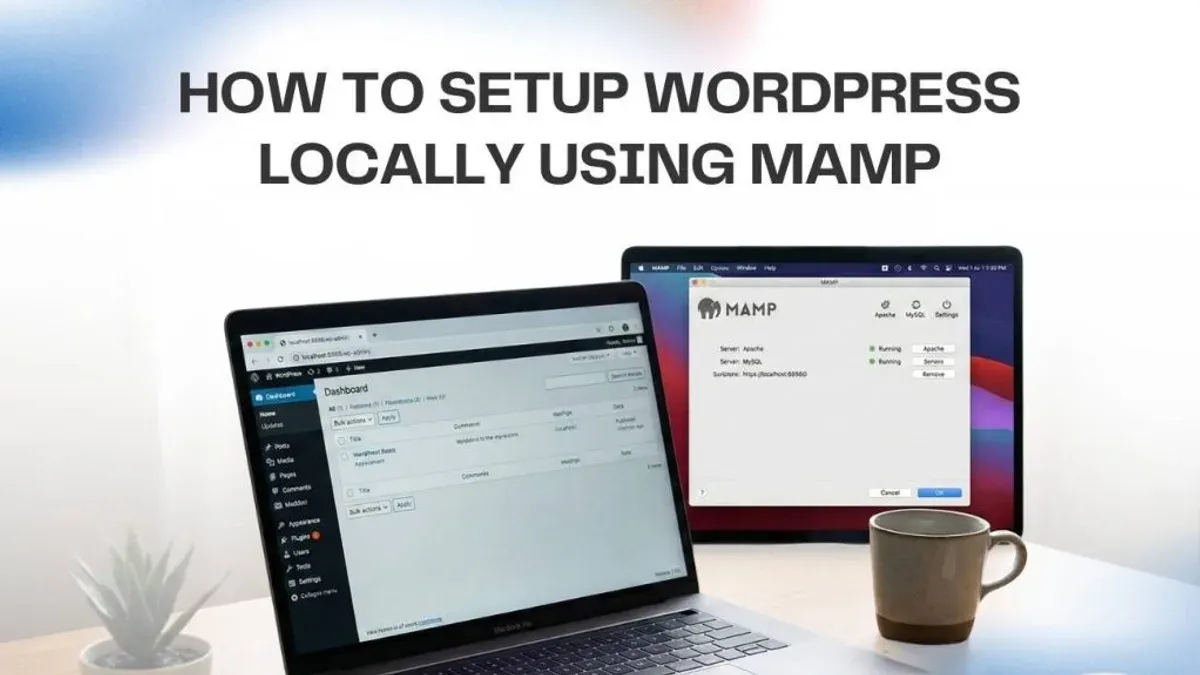
Choosing the right local WordPress installation method on Mac depends on your workflow preferences, technical skills, and project needs. This comparison highlights key factors such as ease of use, performance, flexibility, multi-site support, and available resources.
| Feature | LocalWP | MAMP | Native Setup |
|---|---|---|---|
| Ease of Use & Setup Time | User-friendly GUI; setup usually under 10 minutes; minimal manual configuration | Moderate setup with GUI; takes about 15-20 minutes including database creation | Complex manual setup; requires command line and config file editing; can take 30+ minutes |
| Performance & Resource Usage | Optimized for WordPress with moderate resource consumption; occasional overhead from virtualization | Runs directly on macOS; moderate resource use but can slow with multiple sites | Lightweight; uses native services so generally best performance and lowest resource usage |
| Flexibility & Customization | Good PHP version switching; limited deep server config options | Allows PHP, Apache/Nginx version selection; more control over server settings | Maximum flexibility; full control over Apache, PHP, MySQL configuration files |
| Support for Multiple Sites & PHP Versions | Supports multiple WordPress sites with isolated environments; easy PHP version switching per site | Supports multiple hosts, but PHP version switching is global | Supports unlimited sites and PHP versions but requires manual setup for each |
| Community Support & Documentation | Active community with detailed guides and forums | Established user base; good official documentation and third-party tutorials | Vast documentation for Apache, PHP, MySQL but less WordPress-specific local setup help |
- Assess your comfort with technical setup: If you prefer minimal configuration, LocalWP offers the quickest start.
- Consider performance needs: Native setup uses less memory and CPU but requires more setup work.
- Evaluate flexibility: For deep server customization, native or MAMP setups provide more control.
- Review how many sites and PHP versions you need to manage: LocalWP simplifies multiple isolated environments.
- Check available support and documentation to match your preferred learning style and troubleshooting needs.
By weighing these factors, you can select the local WordPress installation method on Mac that fits your skill level and development workflow best.
How to secure and maintain your local WordPress installation on Mac
Maintaining a secure and updated local WordPress environment protects your work and ensures smooth development. Regular backups, updates, and security awareness are essential even on local setups.
Backing up your local WordPress sites and databases
- Use a plugin like UpdraftPlus or Duplicator within your local WordPress dashboard to create site backups. You should see a successful backup confirmation message.
- Export your database manually with phpMyAdmin or command line by selecting your WordPress database and clicking “Export.” A.sql file download indicates success.
- Copy your entire WordPress folder (usually under ~/Sites or the LocalWP/MAMP folder) to an external drive or cloud storage. Confirm the folder is fully copied without errors.
Keeping PHP, MySQL, and WordPress updated locally
- Check for macOS updates that may include PHP or Apache improvements via System Preferences > Software Update. Successful installation means your PHP environment stays secure.
- For MAMP or LocalWP, open the application and check for updates in their Preferences or Help menu. Follow prompts to update the stack.
- Update WordPress core by navigating in your local site's dashboard to Dashboard > Updates and clicking “Update Now.” You will see a completion message once updated.
Avoiding common security pitfalls on local environments
- Do not use default passwords; set strong, unique passwords for the WordPress admin and database users.
- Disable remote access to your local database when possible to prevent unauthorized connections.
- Limit plugins and themes to trusted sources only to reduce vulnerabilities.
Using version control and syncing with live sites
- Initialize a Git repository in your local WordPress folder to track code changes. Running git status should show your files are tracked.
- Commit changes regularly with clear messages to maintain a history of your development progress.
- Use deployment tools or plugins like WP Migrate DB or version control integrated workflows to sync your local changes safely with your live server. Successful sync means your live site reflects your tested local updates without errors.
- How to Install XAMPP on Mac: A Clear Step-by-Step Guide
- How to Install Nginx on Mac: A Clear Step-by-Step Guide
- How to Install PHP on Mac: A Clear Step-by-Step Guide
Frequently asked questions
How to install wordpress on local computer?
To install WordPress on a local computer, you need a local server environment like LocalWP, MAMP, or a native setup with Apache, PHP, and MySQL. Download and install one of these tools, then create a new site or database as prompted. Finally, download WordPress from the official site and follow the installation steps in your browser, entering database details when asked.
How to install wordpress on linux?
Installing WordPress on Linux involves setting up a LAMP stack—Linux, Apache, MySQL, and PHP. Use your package manager to install Apache, MySQL, and PHP, then create a MySQL database and user for WordPress. Download WordPress, extract it to your web server directory (usually /var/www/html), and complete the installation through your browser by providing database credentials.
How to install wordpress on localhost?
Installing WordPress on localhost means running it on your own machine using a local server environment. Choose software like LocalWP or MAMP that bundles Apache, MySQL, and PHP, then create a new WordPress site within that environment. Access the local site via your browser at a localhost address and finish the WordPress installation wizard.
How to install wordpress on my pc?
To install WordPress on a PC, you can use tools like LocalWP for Windows or XAMPP. Install the chosen software to set up a local web server with PHP and MySQL support. Download WordPress, place it in the server’s web directory, create a database, and run the installation through your browser using localhost or the tool’s provided URL.
How to install wordpress on computer?
Installing WordPress on a computer requires a local server environment that supports PHP and MySQL. Use LocalWP, MAMP (for Mac), XAMPP, or native setups to configure the server. After setting up, download WordPress, configure the database, and complete the setup in your web browser by entering the database and site details as requested.
What this guide does not cover and who should look elsewhere
This guide does not cover deploying WordPress to live servers or advanced server configurations such as setting up SSL certificates, configuring CDN integrations, or managing multi-site networks. If you need to launch your site publicly or require production-level performance and security settings, consult specialized hosting setup guides or professional server administrators. Additionally, this guide assumes a basic familiarity with Mac system preferences and terminal commands; users unfamiliar with these may need beginner Mac tutorials first.
For your next step, focus on backing up your local WordPress installation regularly by exporting your database and copying your WordPress files to a safe location. This practice prevents data loss during troubleshooting or software updates and ensures you can restore your environment quickly if needed.



