
How to Move from Google Chat to ClickUp Checklist Efficiently
Discover practical steps to efficiently move checklist items from Google Chat to ClickUp using no-code automation platforms.

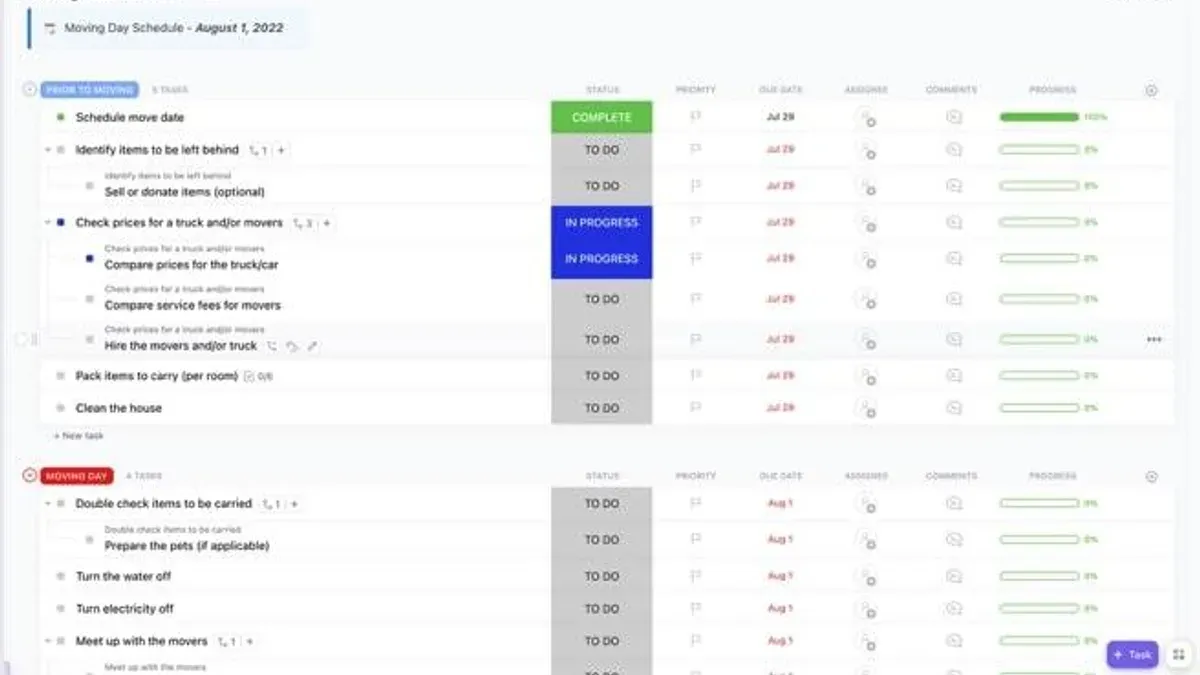
ClickUp lets you create and manage checklists within tasks, including adding, editing, and deleting checklist items via integrations. However, its Google Task Management integration automates syncing with Google Tasks only and does not support migrating checklists directly from Google Chat.
The key to an efficient migration lies in leveraging no-code automation platforms like Make.com or Zapier to build custom workflows that move checklist data from Google Chat messages into ClickUp checklists. This article guides you through the practical choices and setup steps to make this transition smooth and maintainable.
Settings, menu paths and limits here were checked against Make, Zapier, ClickUp in November 2026.
Understand the limits of migrating checklists from Google Chat to ClickUp
Direct migration of checklists or chat messages from Google Chat into ClickUp’s checklist feature is not officially supported or documented. Despite Google Chat’s role as a communication hub, it lacks a native export or transfer function specifically designed for checklists that could seamlessly integrate into ClickUp.
This means you cannot simply import or convert chat-based checklists directly into ClickUp’s system.
Google Chat integrations primarily enable task creation through automation platforms rather than direct message import. For instance, you might automate creating ClickUp tasks from chat triggers, but the original checklist format in the chat will not transfer intact. Attempting to assume otherwise risks losing or misplacing critical task data.
Consider a project team that tracks to-dos as checklist items in a Google Chat group conversation. There is no built-in method to export that entire chat checklist and place it automatically into a ClickUp checklist. Instead, you must design a manual or no-code automated workflow that parses chat content and creates corresponding checklist items in ClickUp.
Accept that moving checklist data requires deliberate setup of automation or manual transfer steps, rather than expecting a one-step direct import.
For more details on what is not supported, see the official integration page at ClickUp Google Task Management integration.
Choose your automation platform to connect Google Chat and ClickUp checklists
When moving checklists from Google Chat to ClickUp, selecting the right automation platform is crucial. ClickUp’s native Google Task Management integration only syncs tasks from Google Tasks and does not support checklist migration from Google Chat. This leaves Make.com and Zapier as the practical no-code options for automating checklist creation.
| Platform | Automation Capability | Ease of Use | Checklist Support | Account/Plan Requirements |
|---|---|---|---|---|
| Make.com | Custom workflows with triggers/actions including Create Checklist and Create Checklist Item | Intermediate — visual builder requires understanding of workflow logic | Full checklist creation and management from Google Chat events | No specific limits; suitable for complex, tailored automations |
| Zapier | Prebuilt triggers and actions like New Checklist, New Task, Create Checklist, Create Message | Beginner-friendly with guided setup and templates | Supports checklist creation and updates from Google Chat events | Free and paid plans; some features may require paid tiers |
| ClickUp Native Integration | Automates task syncing between Google Tasks and ClickUp | Easy — built into ClickUp settings | No checklist migration support from Google Chat | Available to all ClickUp users |
For example, if you want to automatically generate a ClickUp checklist from a Google Chat message that contains a task list, Make.com lets you design a custom workflow to parse the message and create checklist items in the correct order. Zapier achieves similar results with simpler setup, using predefined triggers like “New Checklist” or actions like “Create Checklist.”
Remember, neither platform can replace ClickUp’s own Google Task Management integration for syncing tasks with Google Tasks.
Set up your automation workflow to create checklists in ClickUp from Google Chat
To automate checklist creation in ClickUp triggered by Google Chat activity, you must carefully configure your workflow on platforms like Make.com or Zapier. Each platform requires specific steps and attention to trigger-action mapping to avoid common failures.
Make.com Workflow Setup
Start in Make.com's Dashboard by selecting Create Scenario. Add the Google Chat and ClickUp modules. For triggers, choose options like New Chat Message or specific chat commands that signify a checklist item. Then add actions to Create Checklist or Create Checklist Item within ClickUp tasks. The sequence matters: triggers must precede actions; otherwise, the automation won’t initiate correctly. For example, if you select a ClickUp action before defining a Google Chat trigger, the workflow won't capture the chat input needed to build the checklist.
Zapier Workflow Setup
On Zapier, go to the Dashboard and click Create Zap. Set ClickUp as the trigger app, selecting events like New Task that should prompt checklist creation. Then configure Google Chat as the action app to post messages or update chats based on checklist events. Alternatively, reverse this trigger-action pairing if your workflow requires Google Chat events to generate ClickUp checklists. Proper mapping between these apps is critical; mismatches often cause incomplete or failed checklist syncing.
For instance, trigger a new chat message with a checklist format to confirm that the corresponding checklist or checklist item appears correctly in ClickUp. Incorrect field mapping often leads to missing checklist items or failure to trigger the automation at all.
- On Make.com, create a scenario by adding Google Chat and ClickUp modules with proper trigger-action order.
- On Zapier, build a Zap choosing ClickUp and Google Chat with accurate event mapping.
- Test your automation with sample data to confirm checklist creation before full use.
Validate and maintain your checklist migration workflow after setup
Check several recent messages to ensure they spawn corresponding checklists or checklist items without delay or failure.
Inspect the created checklists within ClickUp tasks to verify items are accurately added, edited, or removed according to the automation logic. ClickUp supports managing checklists via integrations, including creating and deleting checklist items, so mismatches usually indicate a configuration or trigger error.
These tools log failures that can help pinpoint problems such as authentication lapses or API changes.
If errors occur, remove incorrect checklists manually in ClickUp before correcting the automation.
API adjustments can silently break integrations, causing trigger failures or incorrect checklist handling.
Then confirm the trigger filters and action steps remain correctly configured. If the checklist partially appears but lacks some items, verify the sequence of actions creating and updating checklist items in your workflow.
Key Steps to Move Your Checklists from Google Chat to ClickUp
Pages this guide relies on
- AI Workflow Automation Software & Tools | Make — Make
- ClickUp Google Chat Integration - Quick Connect - Zapier — Zapier
- Google Task Management Integration | ClickUp — ClickUp



