Switching from Asana to ClickUp: A Clear Expert Transition Guide
Learn how to switch from Asana to ClickUp smoothly, saving costs and preserving your data with a clear expert transition plan.

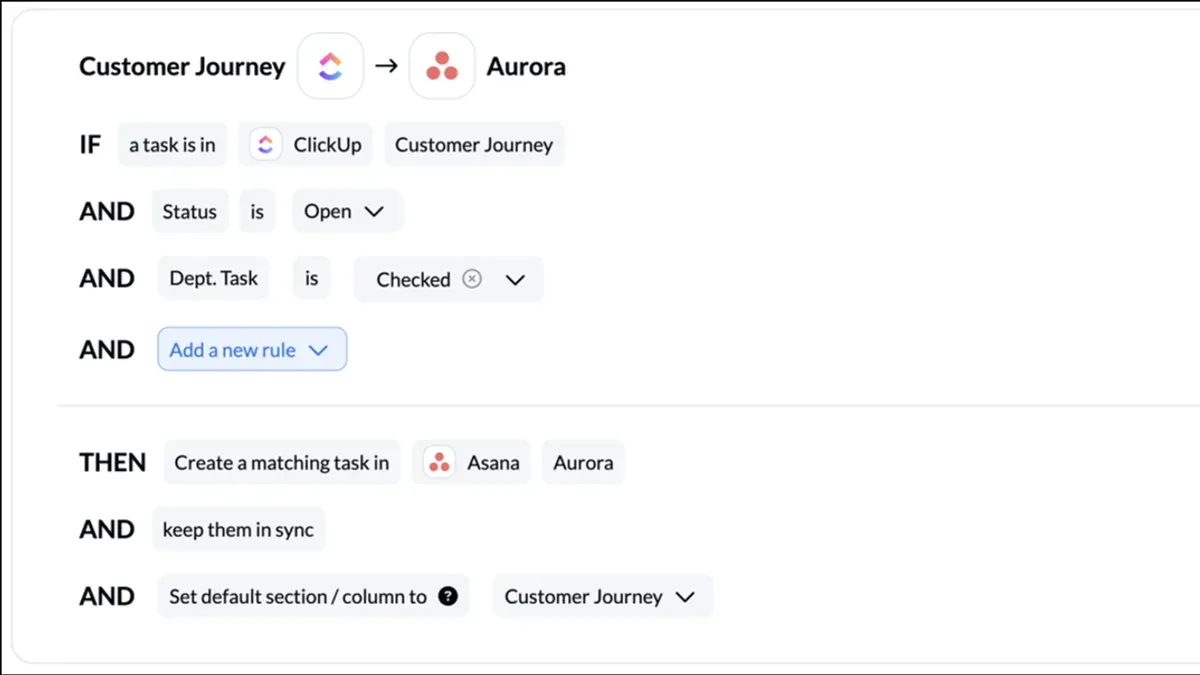
Switching from Asana to ClickUp offers a practical solution with plans like Unlimited at $7 per user per month billed annually and Business at $12, substantially cheaper than Asana's Advanced tier at $24.99. However, the migration is not just about cost savings—it requires a disciplined sequence to preserve your active data and avoid common pitfalls.
A careful plan that moves only active projects while keeping completed work in Asana read-only ensures a clean transition without data chaos.
You will learn to map your Asana projects properly into ClickUp’s Spaces, Folders, and Lists, avoid integration failures, and confirm permissions to keep your data compliant. Follow this expert roadmap to switch confidently, without losing control or productivity.
Every limit and setting name below comes from AIStackMatch, HelpCompare, AIToolPick (full list at the end), as of November 2026.
Understand what ClickUp and Asana offer for your team
ClickUp’s Unlimited plan costs $7 per user per month when billed annually, and the Business plan is $12 per user per month. By contrast, Asana’s Advanced tier charges $24.99 per user per month, making ClickUp a notably more cost-effective option for teams seeking advanced features.
Offline access is another critical factor. ClickUp provides offline functionality across all plans, albeit with some limitations, allowing you to keep working even without a stable connection. Asana restricts offline access to tasks and conversations only within projects you’ve previously opened on your device, limiting flexibility.
ClickUp’s free plan is significantly more generous, supporting more than two users, unlike Asana’s free plan which limits you to just two users. This makes ClickUp a better choice for small teams or pilot projects wanting to explore without immediate costs.
Integration capabilities also set ClickUp apart. It supports over 100 integrations, including essential tools like Slack, GitHub, and Google Drive, helping you consolidate your software stack efficiently. Additionally, ClickUp includes built-in Docs, enabling you to embed and maintain project documentation directly within the platform, reducing reliance on external tools.
With ClickUp, they can update tasks offline, sync changes later, and access integrated Slack conversations and GitHub updates in one place. Asana’s limited offline scope and higher cost per user might hinder this seamless workflow.
Compare ClickUp versus Asana: key differences that affect your workflow
When moving from Asana to ClickUp, understanding the mapping of your project structure is crucial. Asana projects translate into ClickUp as Spaces, Folders, or Lists, depending on your chosen organization method. Sections in Asana become either Statuses or Custom Fields in ClickUp, while team members are matched automatically by email, ensuring continuity in task assignments.
However, several features don’t transfer seamlessly. Additionally, @mentions in comments are not imported, impacting communication threads. Custom views, portfolio settings, timeline dependencies, and recurring task rules from Asana do not carry over, requiring you to rebuild those elements within ClickUp.
These differences affect workflows and reporting. For example, if your team relies heavily on multi-level subtasks for detailed task breakdowns, you must redesign these in ClickUp's flatter structure. Reporting that depends on portfolio views or timeline dependencies will need alternative setups using ClickUp’s dashboards or custom fields.
| Feature / Hierarchy | Asana | ClickUp |
|---|---|---|
| Project Structure | Projects with Sections | Spaces, Folders, or Lists; Sections become Statuses or Custom Fields |
| Subtask Levels | Multiple nested levels | Only one level supported |
| @mentions in Comments | Supported | Not supported |
| Custom Views | Available | Not imported |
| Portfolio Settings | Available | Not imported |
| Timeline Dependencies | Available | Not imported |
| Recurring Task Rules | Available | Not imported |
For instance, a project with nested subtasks and timeline dependencies in Asana will lose these detailed layers and automation after migration. You must create new workflows using ClickUp’s statuses and custom fields, and rebuild recurring tasks manually. Plan accordingly to preserve your team's efficiency and clarity.
Tip: Review your most complex projects and identify which elements need manual reconstruction post-import to avoid workflow disruptions.
- Map your Asana projects to appropriate Spaces, Folders, or Lists in ClickUp before importing.
- Identify and plan for tasks with nested subtasks deeper than one level to restructure.
- Prepare to recreate custom views, portfolio settings, and recurring task rules in ClickUp.
Use the native ClickUp Asana importer to move your data
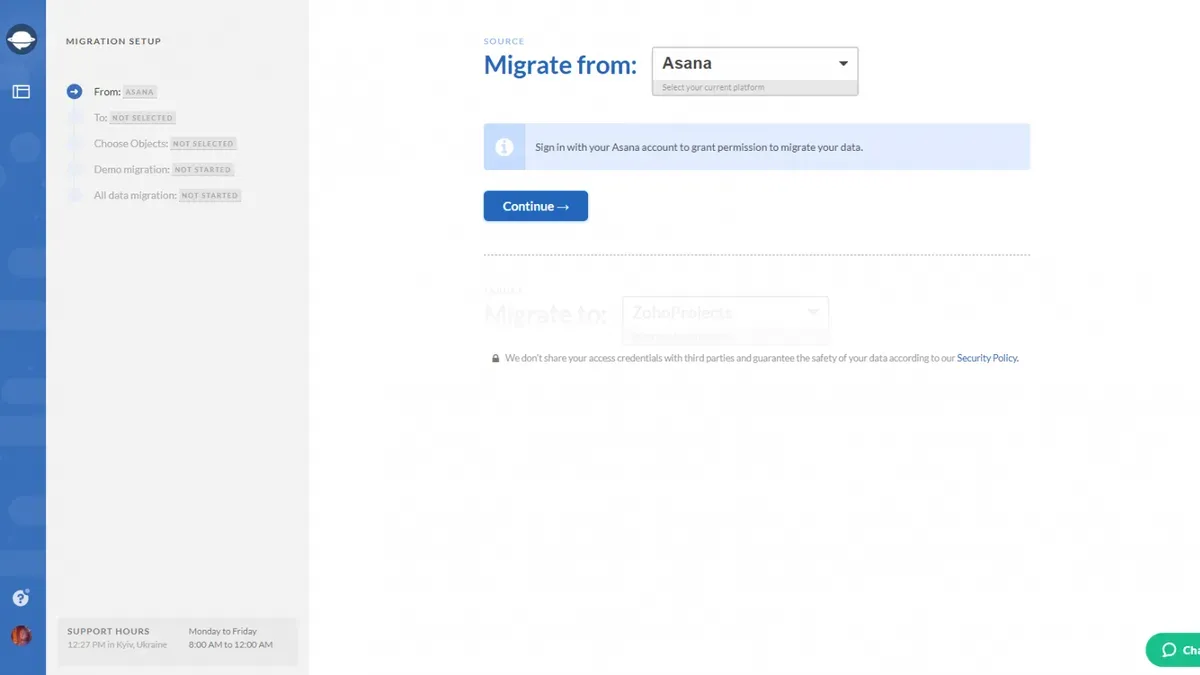
Ensure you grant this access before starting the import. The importer handles tasks, subtasks (only one level deep), descriptions, due dates, assignees, attachments, comments, and tags, but it does not support nested subtasks beyond a single level or @mentions.
Completed or archived projects should remain in Asana with read-only access during your transition period to avoid clutter and confusion in ClickUp. This separation keeps your new workspace clean and focused.
Sections within Asana projects are converted to Statuses or Custom Fields in ClickUp, ensuring your workflow stages remain visible.
For example, if your Asana project "Website Redesign" contains sections like "To Do," "In Progress," and "Completed," these will appear in ClickUp as statuses within the mapped List or Folder. Tasks with subtasks, descriptions, due dates, and comments will migrate with their details intact, except any subtasks nested beyond one level will not transfer fully.
The import process follows a strict order: first, establish workspace access; second, select active projects; third, initiate mapping of projects and sections; and finally, launch the import. Changing this order risks partial imports or data mismatch, such as missing comments or broken assignee links.
Tip: Keep completed projects in Asana set to read-only for at least a month to ensure a smooth transition and data reference.
Avoid common pitfalls when migrating from Asana to ClickUp
This overload can obscure critical tasks and slow down adoption. Instead, import active projects selectively to keep your workspace manageable.
If you neglect this, your reporting and filtering in ClickUp will misalign, causing data loss or inaccurate views. For example, a priority field set up as a dropdown in Asana must be matched exactly to ClickUp’s custom fields to preserve task categorization.
Ignoring this leads to confusion, especially since nested subtasks beyond one level are unsupported. Expect to rebuild complex task structures and adjust workflows accordingly after migration.
Overlooking this breaks essential workflows and notifications your team depends on. Recreate these manually in ClickUp’s Automation and Integration settings to restore full functionality.
| Symptom | Cause | Fix |
|---|---|---|
| Workspace overwhelmed with irrelevant or inactive projects | Migrating everything at once | Limit import to active, priority projects first |
| Custom fields missing or showing incorrect data | Not mapping custom fields properly before import | Pre-map custom fields in ClickUp to match Asana’s fields |
| Confusing task layouts and missing subtasks | Ignoring ClickUp’s different task hierarchy and subtask limits | Plan task restructuring and rebuild subtasks within ClickUp’s limits |
| Automations and integrations stop working post-migration | Skipping rebuilding automations and integrations | Manually recreate all automations and integration configs in ClickUp |
If you import everything simultaneously without mapping fields, tasks may lose priority tags and subtasks beyond one level vanish. Without reestablishing automations, task notifications fail, disrupting your team’s rhythm.
Tip: Before import, audit your Asana data for active projects, custom fields, and automations to prioritize what to migrate.
Recreate your automations and integrations in ClickUp
After migrating your data, restoring your workflow automations is critical to maintaining productivity. In ClickUp, you access this by navigating to Space Settings > Automations. Here, you can create custom triggers, conditions, and actions that replicate your previous Asana automations. For example, you might set a trigger on task status change with a condition checking for a specific priority, then an action that notifies the assigned team member.
ClickUp supports over 100 integrations, including popular tools like Slack, GitHub, and Google Drive. These connections help consolidate your software stack and keep your workflows seamless. After migration, verify that each integration is connected properly and test its functionality to prevent workflow interruptions.
Use the automation builder’s straightforward interface to replicate these rules, ensuring conditions match your team’s new ClickUp setup.
- Open Space Settings and go to Automations
- Recreate essential automation rules with correct triggers, conditions, and actions
- Reconnect and test integrations like Slack, GitHub, and Google Drive
Plan permissions carefully to maintain data compliance
Start by migrating only active projects and templates to ClickUp, leaving completed and inactive projects archived in Asana with read-only access for about a month. This prevents accidental edits and data leakage during the transition.
ClickUp’s granular permission settings let you assign roles at the Space, Folder, and List levels. Use these settings to restrict access to client or personal data only to essential team members. For example, set Guest permissions to view-only on client-related folders, while giving full editing rights to project managers. This layered control helps you limit exposure and meet data protection requirements.
Plan your permission hierarchy before migration. If you allow broad access prematurely, sensitive information could be exposed. Conversely, overly restrictive permissions can stall workflows. Balance access by defining who needs to see, comment, or edit each workspace segment. Remember that ClickUp’s default permissions differ from Asana’s, so review and adjust them immediately after import.
Tip: Archive completed projects in Asana as read-only and delay their migration to reduce complexity and risk.
- Migrate only active projects and templates to ClickUp initially
- Set archived Asana projects to read-only for at least one month
- Configure ClickUp permissions precisely by role and workspace level before inviting all users
Check your migration a week later and keep integrations maintained
Confirm that each task includes its comments, attachments, due dates, and assignees without loss. Pay particular attention to attachment links, as broken links can disrupt workflows.
Monitor your automations and integrations closely. Any skipped step in rebuilding these can cause workflow breaks or missed notifications. Check for error messages or missed triggers in ClickUp's automation logs and integration dashboards, such as Slack or GitHub, to ensure they function as expected.
This approach prevents accidental changes in Asana that won’t sync and allows you to catch any overlooked data or projects. For example, if a crucial subtask with comments was missed during import, you can still access it in Asana and re-import or manually recreate it in ClickUp.
You can re-run imports for specific projects or tasks, rebuild automations in ClickUp’s Space Settings, and reconnect integrations to restore proper function.
- Verify completeness of tasks, comments, and attachments
- Monitor automations and integrations for errors or missed triggers
- Keep Asana read-only for a transition period to catch missed items
Decide if switching from Asana to ClickUp fits your team
If your team prefers a polished, straightforward rollout with minimal setup, staying on Asana is likely the better choice due to its simpler defaults and ease of use. For example, a small team with standardized workflows that want minimal disruption should consider remaining on Asana.
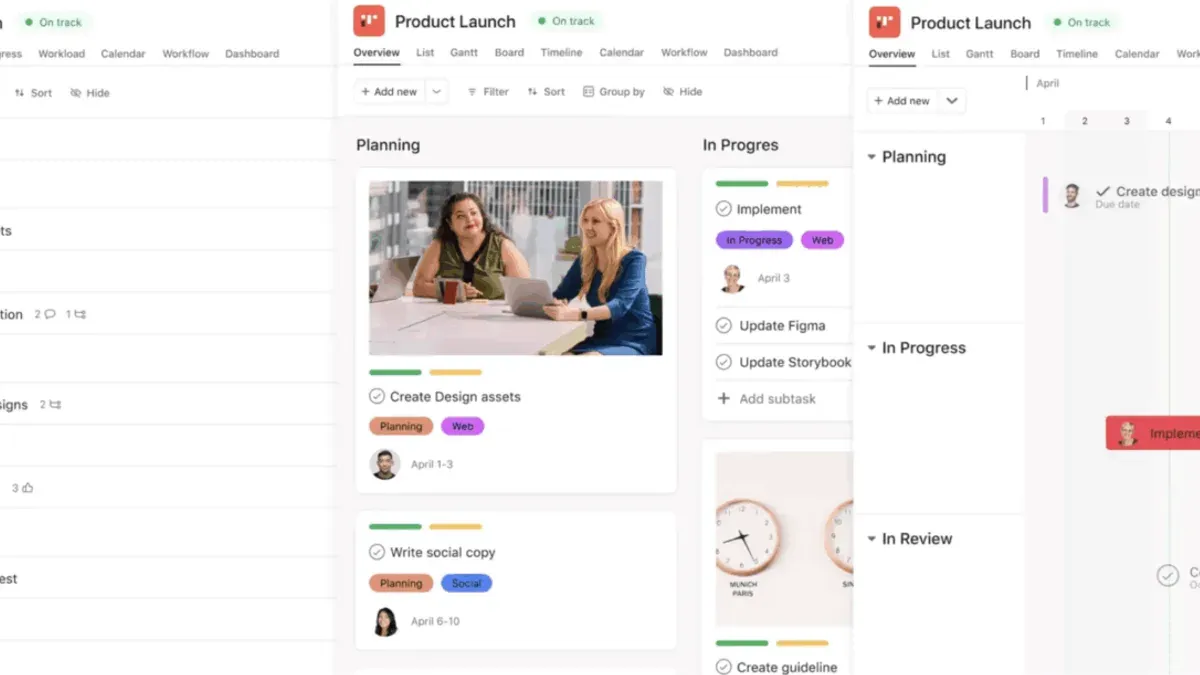
If your workspace contains many completed or archived projects, maintain those in Asana and migrate only active projects to ClickUp. This keeps your ClickUp workspace focused and uncluttered. Imagine a team with years of archived projects—they can keep those records in Asana while benefiting from ClickUp’s features on current work.
For teams seeking a more generous free plan and richer software integrations, ClickUp stands out. Its free tier supports more users than Asana’s, which was limited to just two users starting late 2025. Additionally, ClickUp offers over 100 integrations, including Slack, GitHub, and Google Drive, enabling smoother connectivity and consolidation of your software stack.
| Your situation | Recommended platform | Reason |
|---|---|---|
| Value polished, easy rollout with less configuration | Stay on Asana | Simpler defaults reduce setup time and complexity |
| Have many completed or archived projects | Archive in Asana; migrate only active projects to ClickUp | Prevents workspace clutter in ClickUp |
| Need generous free plan and extensive integrations | Switch to ClickUp | More users on free plan and 100+ integrations for better connectivity |
Tip: Evaluate your workflow complexity and team size first. If your team is small or piloting, ClickUp’s free plan offers substantial cost savings without sacrificing integrations.
- Review your active versus archived projects before migrating
- Assess your need for integrations and free user limits
- Decide based on whether ease of rollout or feature richness matters more
Key Steps for a Successful Asana to ClickUp Migration
Pay close attention to the importer’s limitations, such as only supporting one level of nested subtasks and not transferring @mentions, so you can plan workarounds in advance. This careful approach minimizes data loss and helps maintain your team’s workflow continuity throughout the transition.
Sources checked
- Migrate from Asana to ClickUp Without Losing Momentum — AIStackMatch
- Asana to ClickUp Migration Guide | HelpCompare — HelpCompare
- How to Switch from Asana to ClickUp: Step-by-Step Migration Guide | AIToolPick Blog — AIToolPick
- Migrating from Asana to ClickUp: A 4-Week Playbook | GAX Online — GAX Online
- Moving to ClickUp From Asana or Monday | Kodah — Kodah Business Automation