
Moving from ClickUp to Asana: A Complete Migration Checklist
Minimize disruption and maintain project integrity by following this complete moving from ClickUp to Asana checklist for a smooth migration.

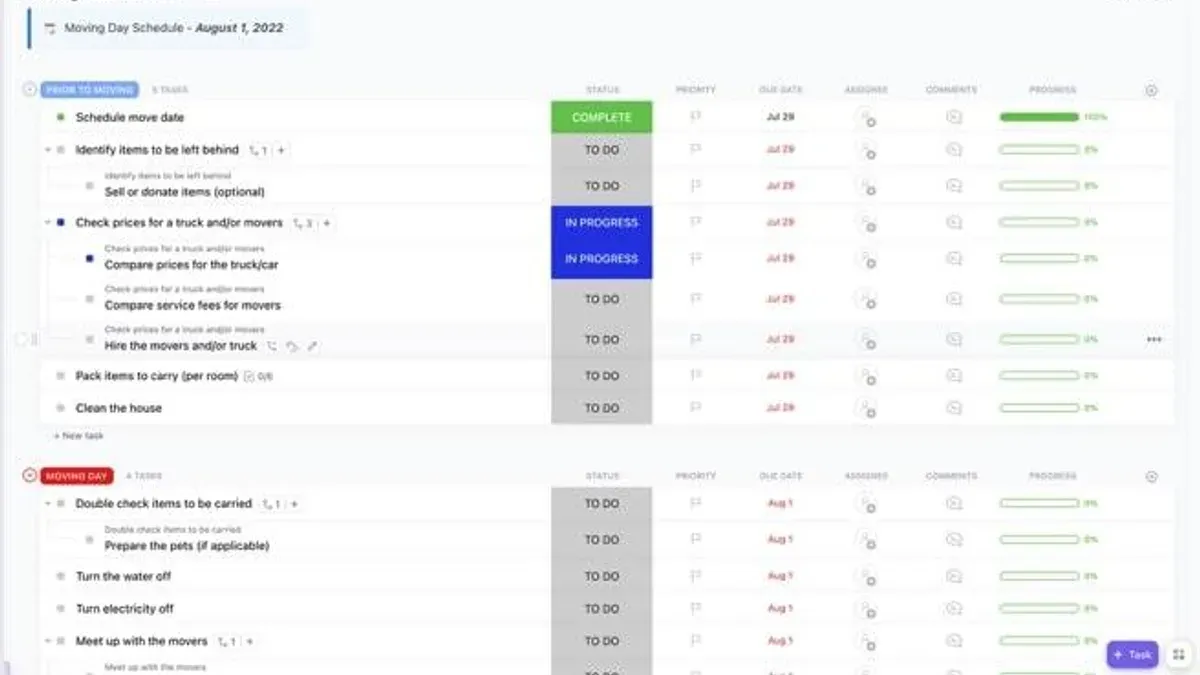
By following these steps, you minimize disruption and maintain project integrity throughout your migration.
Last verified November 2026 against Altosio, ToolStack, Kodah Business Automation.
Understand what ClickUp and Asana are
ClickUp arranges projects using a hierarchy of Workspaces, Spaces, Folders, and Lists. Each Workspace contains multiple Spaces, which can include Folders to group Lists. Lists hold tasks, which may have subtasks and checklists.
Asana organizes work using Workspaces, Teams, Projects, and Sections. A Workspace contains Teams, and each Team manages Projects. Projects are broken down into Sections, which then contain tasks and subtasks. Unlike ClickUp, Asana does not have Folders, and it handles checklists differently by converting them into subtasks.
For example, when you migrate with the Altosio tool, ClickUp Workspaces become Asana Workspaces, Spaces translate into Teams, Lists convert into Projects, and Statuses become Sections. Checklists in ClickUp are migrated as Asana subtasks because Asana lacks a direct checklist feature.
Picture a ClickUp Workspace named "Marketing" with Spaces like "Campaigns" and Lists such as "Social Media Strategy." Post-migration, "Marketing" will remain a Workspace in Asana, "Campaigns" will become a Team, and "Social Media Strategy" a Project under that Team. The tasks within the Lists will align accordingly under Sections and subtasks.
- Review your ClickUp hierarchy and identify Workspaces, Spaces, Folders, and Lists
- Map these elements to Asana’s Workspaces, Teams, Projects, and Sections
- Prepare your team for structural differences to avoid confusion after migration
Altosio migration tool mappings detail these structural translations precisely.
Map ClickUp features to their Asana equivalents for migration
For example, a Task in ClickUp with a checklist of five items will appear as a Project task with five subtasks in Asana. This is crucial to maintain task detail continuity.
| ClickUp Feature | Asana Equivalent | Notes |
|---|---|---|
| Workspace | Workspace | 1:1 mapping |
| Space | Team | Direct mapping |
| List | Project | Direct mapping |
| Status | Section | Mapped within Projects |
| Checklist | Subtask | Checklist items become subtasks |
| Comments | Comments | Appear as migration account posts |
| Custom Fields (Checkbox) | Multi-Enum with two values | Checked / Not checked values |
| Custom Fields (Currency) | Number Field | Manual adjustment needed post-migration |
Attachments larger than 100 MB are excluded due to Asana API limits. Certain custom field types such as Files, Location, Progress (Auto/Manual), Rating, Relationship, and Tasks have no Asana equivalents and are skipped. Comments do migrate but are all attributed to the migration account because Asana's API does not support preserving original user identities in comments.
| Unsupported or Limited Feature | Effect |
|---|---|
| Attachments > 100 MB | Not migrated |
| Files, Location, Progress, Rating, Relationship, Tasks Custom Fields | Not migrated |
| Comments | All appear as migration account user |
Only the 16 closest ClickUp colors migrate; others are lost.
Tip: Review and adjust custom fields and large attachments manually after migration to avoid missing critical data.
- Verify your ClickUp custom fields and prepare to adjust checkbox and currency fields in Asana.
- Identify any attachments over 100 MB and plan alternative storage or manual transfer.
- Understand checklist items will convert to subtasks; prepare your team for this structural change.
For the full detailed feature mapping and migration limitations, consult Altosio's migration documentation.
Prepare your ClickUp data and Asana workspace before migration
Review Workspaces, Spaces, Lists, and custom fields to understand what will move and what needs manual adjustment. This audit prevents surprises during migration and clarifies what data requires special attention.
Match each ClickUp user with the corresponding Asana user by email. Without this, task assignees and followers won’t migrate correctly, causing significant data loss in ownership and collaboration links. Prepare a list of user emails and confirm their presence in Asana before migration.
Export your ClickUp data as CSV files for backup and for potential manual import. In the ClickUp web app, navigate to Settings > Export > Export CSV. This export acts as a safeguard and a fallback if automated migration encounters issues.
Set up your Asana workspace to mirror your ClickUp structure. Create Teams and Projects aligned with your audited Spaces and Lists. This alignment ensures that imported data lands in the correct context, minimizing post-migration cleanup.
Plan to rebuild automations manually after migration. ClickUp automations do not transfer automatically to Asana. Document your automation rules in advance so you can recreate them in Asana without disrupting workflows.
For example, if you have a ClickUp List for product launches assigned to specific team members, confirm each assignee’s email matches an active Asana user. Export that List’s CSV, then set up a matching Asana Project with corresponding Sections before importing. This preparation keeps ownership and structure intact.
Use the Altosio migration tool to automate your migration
Start by opening the Altosio web app and navigating to the Home page. Create a new project by clicking New Project, then Create, and give your project a clear name reflecting the migration task.
Next, set up connectors to both ClickUp and Asana. Begin with the source connector: choose New connector, select ClickUp as the source, then authenticate by logging in and selecting the ClickUp Workspaces you want to migrate. This step ensures Altosio can access your ClickUp data. After this, create the target connector by selecting New connector again, choosing Asana, and generating an access token to authorize Altosio to write data into your Asana workspace.
This feature is critical for minimizing downtime and ensuring data consistency.
For instance, migrating Lists without first mapping users by email may result in task assignees not transferring correctly.
Handle common migration pitfalls and what to avoid
The migration from ClickUp to Asana can present specific challenges that cause data loss or confusion if not managed carefully. One critical misstep is failing to map users by their email addresses before migration. Without this, assignees and followers are not preserved, resulting in tasks losing ownership and visibility. Imagine a task suddenly showing no responsible person—this is a direct consequence of skipped user mapping.
Structural differences between ClickUp’s hierarchy and Asana’s layout also lead to disorganized projects. ClickUp’s layers—Workspaces, Spaces, Folders, Lists—do not translate one-to-one into Asana’s Workspaces, Teams, Projects, and Sections. Ignoring this causes your projects to look messy or incomplete after import, confusing your team.
Automations and integrations are another common pitfall. They do not transfer during migration and must be recreated manually in Asana. Overlooking this means losing workflow automation, requiring time-consuming reconstruction.
Attachments larger than 100 MB are silently skipped during migration. This invisible loss can leave critical files missing without warning, so pre-migration cleanup or manual transfer of large files is necessary.
This can cause confusion when reviewing discussions, as all comment authorship appears uniform regardless of the original poster.
| Symptom | Cause | Fix |
|---|---|---|
| Tasks have no assignee or followers after migration | User emails not mapped before migration | Map all user emails precisely to Asana accounts before import |
| Projects appear disorganized or incomplete | Structural differences between ClickUp and Asana ignored | Plan and map ClickUp’s hierarchy into Asana’s structure before migrating |
| Automations and workflow rules are missing post-migration | Automations don’t migrate automatically | Rebuild automations manually within Asana after migration |
| Large attachments missing without error | Attachments over 100 MB skipped silently | Manually transfer or archive files over 100 MB separately |
| All comments show the migration account as author | Asana API restrictions on comment creation | Inform users about this limitation and archive original comment authorship externally if needed |
For example, if you overlook user mapping, your team might open a project post-migration only to find all tasks unassigned, disrupting accountability. Prevent this by mapping every ClickUp user’s email to a corresponding Asana user before migrating. This simple action preserves task ownership and follower lists intact.
- Communicate to your team that comments will appear under one migration account
Decide between automated migration and manual CSV import
Choosing the right migration method depends on your team's size, data complexity, and the importance of preserving workflows. If you need to migrate all active projects with full user email mapping, complex custom fields, and want to retain as much automation as possible, the Altosio migration tool is the optimal choice. This tool automates the process, supports delta passes without extra license costs, and handles user mapping more precisely than manual methods.
On the other hand, if your data is limited or you prefer a simpler, manual approach, exporting your ClickUp data as CSV files and importing them into Asana using Asana’s built-in CSV import feature is effective. This route requires you to rebuild automations and adjust unsupported custom fields manually post-import.
Regardless of the method, plan a pilot migration with a single team or project first. Run ClickUp in read-only mode alongside Asana for two weeks to minimize disruption and allow your team to adapt smoothly before fully switching.
| Your Situation | Recommended Migration Method | Deciding Factor |
|---|---|---|
| All active projects, full user mapping, complex custom fields | Altosio migration tool | Automated user email mapping and license-efficient delta updates |
| Limited data or simpler setup | Manual CSV export and Asana CSV import | Simplicity and manual control over data |
| Heavy reliance on automations and custom fields | Either method with planned manual rebuilds | Automations and custom fields require manual adjustment post-migration |
| Desire to minimize disruption and ensure adoption | Start with pilot migration and two-week parallel run | Gradual transition reduces risk and improves adoption |
Meanwhile, a small team with a handful of simple projects might benefit from exporting CSVs and manually importing to keep control and reduce complexity.
- Run a pilot migration with a single project or team
- Set ClickUp to read-only and run it in parallel with Asana for two weeks
- Map users by email carefully if using Altosio
- Prepare to rebuild automations and adjust custom fields manually after migration
What to do after migration: checking, maintaining, and onboarding
Once the migration from ClickUp to Asana is complete, your focus must shift to verifying the integrity of your data and enabling your team to work effectively in the new environment. Begin with a thorough audit of your migrated projects to confirm that the structure, tasks, subtasks, and custom fields match your expectations. For instance, check that ClickUp checklists properly appear as Asana subtasks and that all custom fields, especially complex types like currency fields, have been accurately transferred or adjusted manually.
Automations and workflow rules do not transfer and require manual rebuilding within Asana. This step is crucial for maintaining your team's productivity and process consistency. Plan to recreate any integrations or automated rules your team relied on in ClickUp before fully switching over.
Training your team on Asana’s interface and the new workflows ensures a smooth transition. Conduct focused onboarding sessions highlighting key differences such as task ownership, comment handling, and subtask management. Encourage users to explore and ask questions to reduce resistance and confusion.
Maintain ClickUp in read-only mode for two weeks after migration. This overlap period allows you to catch any overlooked tasks or data that did not migrate or were missed during verification. It also provides a safety net to ease the switch and prevents disruption while teams gain confidence in Asana.
- Audit project structures, tasks, subtasks, and custom fields for accuracy
- Manually rebuild automations and integrations in Asana
- Train your team on Asana’s interface and workflows
- Keep ClickUp read-only for two weeks to catch overlooked data
Tip: Use the audit to identify any custom fields that need manual adjustment, such as currency fields, and adjust them promptly to prevent workflow interruptions.
Checklist for moving from ClickUp to Asana
Begin by auditing and exporting your ClickUp data thoroughly. This ensures no critical information is overlooked during migration. Map each ClickUp user’s email to the corresponding Asana user carefully; skipping this causes loss of task ownership, assignees, and follower data.
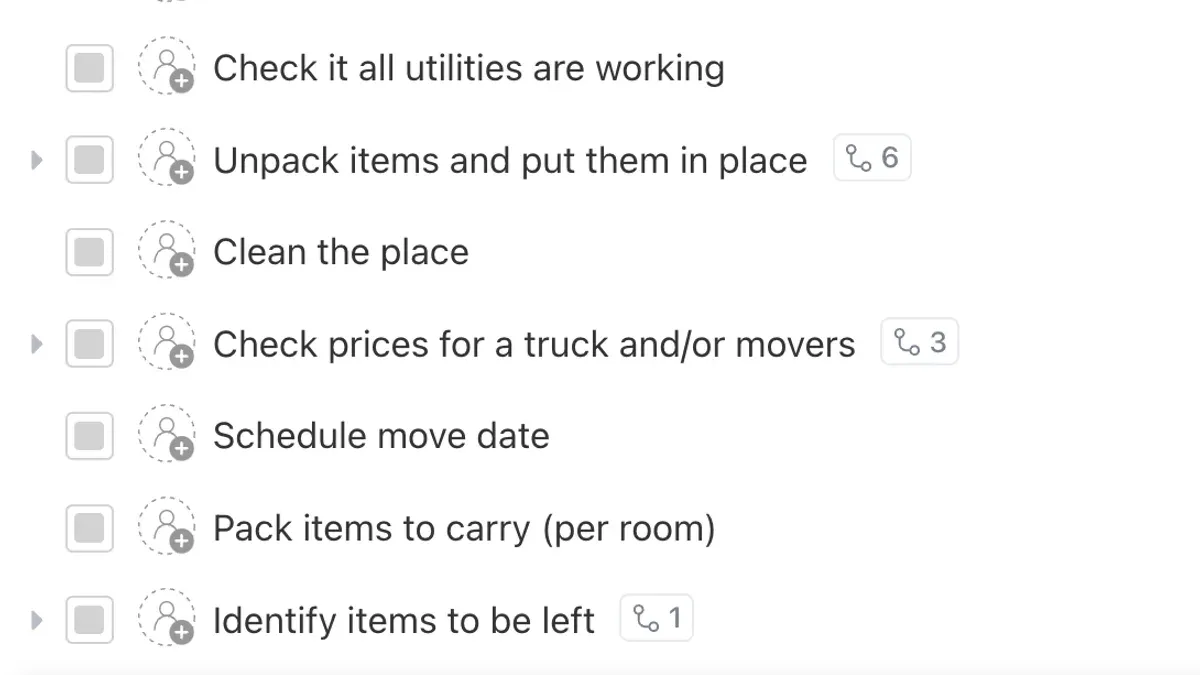
Set up your Asana workspace with the right teams and projects matching your ClickUp structure. Decide your migration method: use the Altosio migration tool for full active projects requiring detailed user and custom field mapping, or opt for manual CSV import for simpler cases.
Run a pilot migration with one team or project to verify data integrity. This step minimizes disruption and helps identify any issues early. Once confident, migrate the full dataset and keep ClickUp read-only in parallel for two weeks to allow your team to adjust smoothly.
After migration, rebuild automations and adjust custom fields that did not transfer automatically. Train your team on Asana workflows to ensure adoption and productivity. Finally, audit the migrated data about one week after completing the migration to confirm success and address any remaining gaps.
Tip: Running ClickUp in read-only mode for two weeks helps prevent data loss and gives your team time to get comfortable with Asana.
Learn more about the recommended migration approach.
Key Steps to Successfully Move Your Team from ClickUp to Asana
References
- ClickUp to Asana migration — Altosio
- Migrating from ClickUp to Asana — Step-by-Step Guide | ToolStack — ToolStack
- Moving to ClickUp From Asana or Monday | Kodah — Kodah Business Automation



