Your Expert Checklist for Moving from Adobe Express to Loom
This checklist guides you through transitioning from Adobe Express to Loom, focusing on workflow adjustment, content repurposing, and video setup.

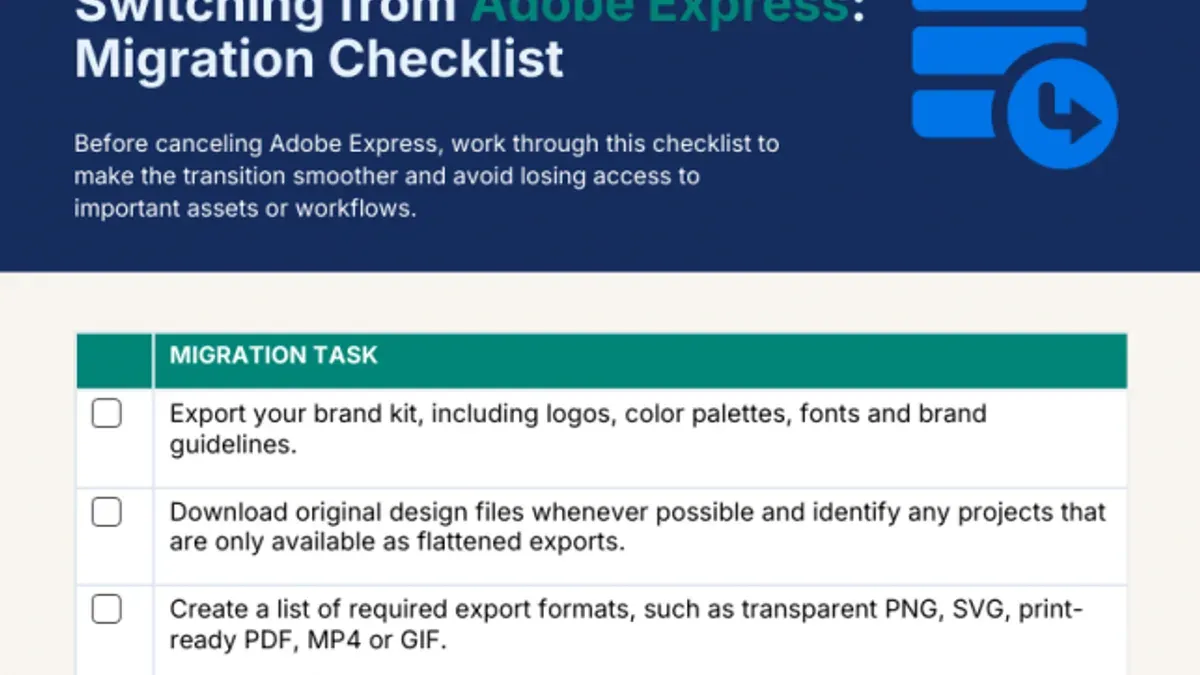
Short answer: Transitioning from Adobe Express to Loom requires strategic planning to shift from static graphic content to dynamic video communication. This moving from Adobe Express to Loom checklist guides you through adjusting workflows, repurposing content, and setting up Loom to maximize your video-based messaging.
This article covers the essential steps to understand the fundamental differences between these tools, prepare your existing Adobe Express assets for migration, and configure Loom for efficient video creation and sharing. You'll find practical advice on converting designs into engaging videos, best practices to avoid common pitfalls, and criteria to decide when to use Loom exclusively or alongside Adobe Express. The focus is on making your transition smooth and effective, ensuring your content remains impactful throughout the change.
Understand the Core Differences Between Adobe Express and Loom
Adobe Express is primarily a graphic design and quick multimedia content creation tool, ideal for crafting social media graphics, flyers, and simple videos through templates and drag-and-drop features. It emphasizes visual design elements like layering, typography, and stock assets, outputting formats such as PNG, JPG, PDF, and short video clips.
In contrast, Loom is a video messaging and screen recording platform focused on asynchronous communication through video. Its core features include webcam recording, screen capture, real-time annotation, and instant sharing via links. Loom outputs primarily in MP4 video format, designed to convey spoken explanations, demonstrations, or walkthroughs.
These fundamental differences affect content style and workflow: Adobe Express suits static or animated visual content aimed at broad audience engagement, while Loom supports personalized, explanatory video communication that can streamline collaboration.
For example, if you used Adobe Express to create a product announcement flyer, shifting to Loom means moving toward recording a video demo explaining the product’s features. This is more than switching tools; it’s adapting how you craft and deliver your message.
| Feature | Adobe Express | Loom |
|---|---|---|
| Primary Function | Graphic design and quick multimedia creation | Video messaging and screen recording |
| Typical Use Cases | Social media graphics, flyers, simple videos | Product demos, tutorials, team communication |
| Output Formats | PNG, JPG, PDF, short video clips | MP4 video files |
| Workflow Focus | Visual content creation with templates and assets | Asynchronous video capture and sharing |
Prepare Your Adobe Express Content for Migration
Begin by auditing your Adobe Express assets to identify which content types adapt well to video. For example, infographics and static social posts can become narrated slides or animated segments in Loom. Export your graphics and images by opening the project, selecting "Download" from the top-right menu, and choosing PNG or JPG. Extract any accompanying scripts or text by copying from the project’s text boxes into a document for narration or subtitles.
Next, categorize your content into three groups: archive, repurpose, or discard. Archive high-value but outdated templates for reference; repurpose regularly used visuals and messages into video-friendly formats; discard redundant or off-brand materials. For instance, a seasonal promotional graphic might be archived, while a tutorial infographic could be repurposed.
Plan your content flow by mapping key messages into a storyboard or outline that fits video storytelling. Instead of isolated images, think sequentially: what should viewers see first, what requires explanation, and where to place calls to action. This ensures your transition leverages Loom's strengths.
- Audit all Adobe Express projects for content type suitability
- Export graphics via the Download button selecting PNG/JPG
- Copy scripts or key text into a separate document
- Classify assets as archive, repurpose, or discard
- Create a storyboard or outline for video flow
Set Up Loom for Effective Video Communication
Begin by downloading and installing the Loom desktop app from loom.com/download and adding the Loom browser extension available for Chrome or Edge. This dual setup ensures you can record both your screen and webcam with flexibility. After installation, open Loom and access Settings > Recording to adjust video quality—select between Standard (720p) or HD (1080p) based on your bandwidth and audience needs; HD provides clearer visuals but requires more data.
Next, configure privacy settings under Settings > Privacy to control who can view your videos. For sensitive content, enable Require Sign-In to View to restrict access. Organize your workspace by creating folders in the Loom dashboard, naming them according to project or audience to streamline content retrieval.
Integrate Loom with tools like Slack or Google Drive via Settings > Integrations to automate sharing and storage, enhancing your workflow. For example, linking Loom to Slack allows you to post videos directly into relevant channels without leaving the app.
- Install Loom desktop app and browser extension
- Set video quality in Settings > Recording
- Adjust privacy controls in Settings > Privacy
- Create and name folders for content management
- Connect Loom with Slack or Google Drive under Settings > Integrations
Convert and Create Content in Loom: Practical Steps
Transforming static Adobe Express visuals into dynamic Loom videos involves leveraging Loom’s screen recording and webcam features to add context and personality. Start by opening your Adobe Express design on your screen, then launch Loom and select "Screen + Cam" mode to record both your screen and your webcam simultaneously. This combination allows you to narrate your content while maintaining viewer engagement with your presence.
Use Loom’s annotation tools—accessible via the toolbar during recording—to highlight key elements, draw attention, or underline points in real time. Keep videos concise, ideally between 3 to 5 minutes, focusing on clear, segmented messages to improve viewer retention.
For example, if you previously created an infographic in Adobe Express explaining a process, you can record a step-by-step walkthrough of each section, narrating key insights and using cursor highlights. This approach can increase engagement as viewers see explanations unfold visually and verbally, rather than passively viewing a static image.
After publishing, compare engagement metrics such as view duration and feedback to measure improvement over the original static content’s interaction.
- Open Adobe Express content on your screen
- In Loom, select "Screen + Cam" mode
- Use narration to explain visuals clearly
- Apply annotations during recording to emphasize points
- Keep video length between 3 and 5 minutes for optimal engagement
- Review viewer engagement metrics post-publishing
Deploy and Share Your Loom Videos Efficiently
After creating your videos in Loom, leverage multiple sharing options to maximize reach. Use direct shareable links from the video page for quick distribution or embed videos in emails, intranet pages, or LMS platforms via the "Embed" option in the video settings. Integrate Loom with Slack, Google Drive, or Microsoft Teams to seamlessly deliver content within existing workflows.
Track engagement through Loom’s built-in viewer insights, accessible under the "View Stats" tab. These show who watched your video, watch duration, and drop-off points—data typically unavailable or limited in Adobe Express outputs. This insight helps you refine messaging and timing based on audience behavior.
Organize your videos within Loom by creating folders and using descriptive titles and tags. This structure supports easy retrieval and version control, especially when updating content. Collaborative features like comments, video replies, and team libraries enable streamlined feedback and iteration, enhancing alignment across your team compared to static Adobe Express files.
For example, imagine launching a training series: you embed Loom videos in your LMS, track learner engagement to identify which topics need reinforcement, and use team comments to update videos before the next cohort starts. This dynamic approach contrasts with static Adobe Express PDFs that lack integrated feedback and detailed usage data.
- Share videos via link, embed, or integrations like Slack and Microsoft Teams
- Monitor viewer engagement through Loom’s analytics dashboard
- Organize videos with folders, titles, and tags for easy access and updates
- Use collaborative comments and team libraries for efficient feedback and version control
Avoid Common Mistakes When Transitioning to Loom
One common mistake is treating Adobe Express content as ready-made video material without adapting it for Loom’s strengths. For example, uploading a static infographic as a video without narration or annotation can result in low engagement because viewers expect dynamic explanations in Loom videos. Instead, script and record voiceovers to guide your audience.
Ignoring your audience’s preferred video formats and length can also diminish impact. If your viewers favor concise updates, lengthy Loom videos over five minutes may reduce viewership. Tailor video duration and format by reviewing viewer feedback and Loom’s analytics under the “Viewers” tab.
Neglecting Loom’s privacy and permission settings risks unintentional data exposure. For instance, leaving videos on “Anyone with link can view” when content is sensitive can cause leaks. Use the “Workspace” privacy controls to restrict access or set password protection under video settings.
Finally, failing to adequately train your team on Loom’s unique features—like screen + cam recording, drawing tools, and video trimming—slows adoption and lowers content quality. Schedule brief training sessions or share Loom’s Help Center guides to build confidence and consistency.
- Adapt static content with narration and annotations for engagement
- Match video length and format to audience preferences using analytics
- Configure privacy settings carefully in Workspace and video options
- Provide team training on Loom’s core features and editing tools
Evaluate When Not to Switch or When to Use Both Tools
Adobe Express remains the preferred choice for content that demands high-quality graphic design and quick layout adjustments, such as social media posts, flyers, or infographics. If your workflow heavily relies on pixel-perfect branding elements and fast template edits, sticking with Adobe Express avoids unnecessary complexity.
Conversely, hybrid workflows can maximize strengths by combining Adobe Express’s design capabilities with Loom’s video communication. For instance, an educator might design a polished worksheet or infographic in Adobe Express, then use Loom to create a narrated video walkthrough, enhancing learner engagement without sacrificing visual quality.
Resource and skill considerations also influence your choice. Teams with strong graphic design skills but limited video editing experience may benefit from maintaining Adobe Express while gradually integrating Loom, allowing a smoother skill transition.
Consider the long-term content management strategy: if your organization values a diverse content library blending static visuals and dynamic video, using both platforms ensures flexibility and efficiency.
Case Study: A marketing team fully switched to Loom for all content but found their social media engagement dropped due to less polished visuals. Reintroducing Adobe Express for graphic assets alongside Loom videos restored engagement and improved workflow without doubling effort.
Read next
- Your Expert Checklist for Moving from Adobe Express to Canva for Education
- Your Expert Checklist for Moving from Adobe Express to Book Creator
- How to Switch from Adobe Express to Google Sites: A Clear Expert Guide
Frequently asked questions
Can I directly import Adobe Express projects into Loom?
No, Loom does not support direct import of Adobe Express projects. You need to export your Adobe Express content as images, PDFs, or videos first, then upload or reference these files in Loom to create your video content.
What types of Adobe Express content are easiest to convert into Loom videos?
Static graphics like infographics, social media posts, and presentations are easiest to convert since you can simply screen share or upload them as visuals in Loom. Animated or interactive content may require additional editing or narration to translate effectively into video format.
How do I maintain brand consistency when switching to video content?
Use Loom’s custom branding options by uploading your logo and selecting brand colors in Settings > Branding. Also, create video templates with consistent intro/outro elements and use a uniform tone in your narration to keep your brand identity intact.
What team training is recommended for a smooth Loom adoption?
Provide hands-on sessions covering Loom’s recording features, editing tools, and sharing workflows. Focus training on best practices for video scripting, concise messaging, and using Loom’s integrations with collaboration platforms to maximize adoption.
What this advice does not cover
This guide does not cover detailed video editing beyond Loom’s native capabilities; users requiring advanced editing features such as multi-track timelines, color grading, or motion graphics will need additional software like Adobe Premiere Pro or Final Cut Pro. It also does not address the integration of Loom videos into complex LMS platforms or marketing automation systems, which may require custom workflows or third-party tools.
Quick checklist
- Review your Adobe Express projects and export all graphic assets as high-resolution PNGs or JPEGs.
- Create a Loom account and configure your video quality settings under Account > Preferences > Video Quality.
- Set up standard recording templates in Loom to maintain consistent branding and messaging.
- Repurpose Adobe Express static content by incorporating it as visuals or backgrounds in your Loom videos.
- Share Loom videos using direct links or embed codes, and adjust privacy settings for your intended audience.
- Test video playback on multiple devices to ensure accessibility and quality.
- Avoid relying solely on Loom for content types better suited to graphic design or animation.
Start by exporting your most frequently used Adobe Express content and creating a simple Loom recording that integrates these assets. This practical step will help you identify workflow gaps and build confidence in your new video-centric communication approach.