Moving from Book Creator to Loom: Your Expert Checklist for a Smooth Transition
This checklist guides educators and creators through setting up Loom and transitioning projects from Book Creator to dynamic video content.

Short answer: Moving from Book Creator to Loom involves shifting from a primarily book-focused, static content platform to a dynamic video communication tool. This transition requires setting up your Loom workspace, learning core video creation and editing features, and adapting your existing projects for engaging, visual storytelling through video. Use this moving from Book Creator to Loom checklist as your practical guide to ensure a smooth and confident switch.
This article covers a step-by-step approach tailored for educators and content creators like you. You'll get clear instructions on setting up your Loom account, mastering essential video creation tools, applying those skills to replace your Book Creator projects, avoiding common pitfalls, and efficiently managing your Loom content for collaboration. Each step explains not just the how, but why, helping you make informed choices throughout your transition.
Understand Why Moving from Book Creator to Loom Matters
Book Creator excels at building interactive books, combining text, images, and audio to craft engaging digital stories. However, Loom shifts the focus toward dynamic video communication, offering screen recording, live annotations, and real-time video explanations. This makes Loom particularly suited for educators and creators who want to deliver clear tutorials, provide personalized feedback, or facilitate asynchronous discussions.
Video content generally fosters higher engagement compared to static or interactive text-based materials, as it leverages both visual and auditory channels simultaneously. For example, instead of creating a step-by-step book project on how to solve a math problem, you can record a Loom video walking through each step while annotating the screen in real time. This approach helps learners grasp complex concepts faster and reduces misunderstandings.
Typical projects that benefit from Loom include instructional walkthroughs, demonstration videos, and collaborative feedback sessions. If your goal is to enhance clarity and connection with your audience, Loom’s video-first platform offers a richer, more flexible medium than Book Creator’s book format.
Set Up Your Loom Account and Workspace
Begin by visiting loom.com or downloading the Loom app from your device’s app store. You can sign up using your email, Google, or Microsoft account. Loom offers a free plan with basic features suitable for starting out, including up to 25 videos per person and 5 minutes max recording length. Paid plans add unlimited video length, advanced editing, and team collaboration tools—useful if you need more flexibility than Book Creator’s limits.
To log in, click “Sign In” on the homepage, enter your credentials, and verify your email if prompted. Common issues include forgotten passwords or browser cookies blocking login; resetting your password or trying an incognito window usually resolves these.
Once logged in, set up your profile by clicking your avatar in the top right, selecting “Settings,” then “Profile.” Add your name, photo, and preferred language. Under “Workspace,” configure your team settings if applicable, and adjust privacy options such as who can view your videos by default.
For example, if you’re an educator shifting from Book Creator, enabling workspace collaboration lets your team review videos before sharing with students. Tailoring these settings now streamlines your content creation later.
| Plan | Max Video Length | Editing Features | Team Collaboration | Best For |
|---|---|---|---|---|
| Free | 5 minutes | Basic trimming | Limited | Individual creators starting out |
| Pro | Unlimited | Advanced editing | Yes | Educators and content creators needing more control |
- Go to loom.com or app store, choose sign-up method
- Complete login, troubleshoot via password reset or incognito mode if needed
- Open Settings > Profile to personalize your account
- Adjust workspace and privacy preferences in Settings > Workspace
- Choose free or paid plan based on your video length and collaboration needs
Create and Edit Videos in Loom: The Essentials for Beginners
Starting a Loom recording begins with choosing your content capture. Click the Loom icon or app, then select whether to record your entire screen, an application window, or a browser tab. Next, activate or deactivate your camera and microphone by toggling the respective icons, ensuring your voice and face are captured as needed.

For example, to create a tutorial, select "Screen + Cam" to show your screen and a small video overlay of yourself. Hit "Start Recording" to begin. Once finished, Loom automatically uploads the video to your library.
Editing is straightforward: open your video and click "Trim" to remove unwanted segments at the start or end. Use "Callouts" to add text boxes or arrows that highlight key points—ideal for guiding viewers through complex material. Adjust your video thumbnail by selecting "Change Thumbnail" to pick a frame or upload a custom image, improving viewer engagement.
Organize videos by creating folders in your Loom library named by project or topic, such as "Math Tutorials" or "Parent Feedback." This structure simplifies retrieval and sharing with specific audiences.
- Choose recording type and toggle camera/mic before starting
- Use trimming to cut unnecessary footage
- Add callouts for emphasis during playback
- Customize video thumbnails for clarity and appeal
- Create folders to keep videos categorized and accessible
Apply Your Loom Skills to Replace Book Creator Projects
Transitioning your Book Creator projects into Loom videos starts with thoughtful planning to preserve or enhance your original narrative. Outline your video by mapping key book sections to video segments, ensuring smooth pacing and clear objectives. For example, if your Book Creator lesson covers photosynthesis in plants, structure your Loom video to introduce the topic, showcase diagrams via screen recording, and conclude with a live explanation.
Use Loom’s screen recording feature to capture interactive digital materials or live demonstrations that would have been embedded in your Book Creator book. This enables you to walk your audience through processes step-by-step, such as navigating educational websites or illustrating science experiments. Incorporate Loom’s annotation tools during recording or editing to highlight critical information, maintain viewer engagement, and reinforce learning points.
Engage your audience by varying your pacing—pause strategically to emphasize ideas and add supplementary resources like linked documents or follow-up questions in the video description. A practical video script outline might include: 1) Introduction and learning goals; 2) Visual demonstration with annotations; 3) Summary and call-to-action.
Consider a case where a Book Creator lesson on fractions was adapted into a Loom video. The original book allowed students to manipulate shapes; the Loom video replaced this with animated screen recordings of virtual manipulatives and a guided walkthrough. Engagement increased as learners found the video’s explanations clearer and appreciated the ability to replay difficult sections on demand.
Avoid Common Mistakes When Transitioning to Loom
One frequent stumbling block is underestimating Loom’s video file sizes and storage limits. For example, a 10-minute screen recording with HD resolution can easily reach hundreds of megabytes, quickly filling your free storage quota. This can interrupt your workflow if you don’t monitor storage under Settings > Storage and archive or delete old videos regularly.
Another common oversight is neglecting audience accessibility. Loom offers automatic captions and playback speed controls, found under the video player options, which enhance comprehension and accommodate varied learning needs. Ignoring these features can alienate viewers who rely on captions or need to adjust speed for better understanding. User feedback often highlights frustration when captions are missing or playback is rigid.
Finally, skipping rehearsal and thorough editing before sharing videos reduces professionalism and clarity. Loom’s built-in editor allows trimming, cutting, and adding call-to-actions; utilizing these tools prevents distracting pauses or errors. Imagine sending a tutorial with long silences or repeated mistakes—it diminishes engagement and can create confusion.
- Regularly check Settings > Storage to avoid exceeding limits
- Enable automatic captions and inform viewers about playback speed controls
- Rehearse your message to ensure smooth delivery
- Use Loom’s editor to trim and refine videos before publishing
Manage Your Loom Content and Collaborate Efficiently
Organizing your Loom videos starts with folders and tagging. Create folders for classes, subjects, or project types to keep your workspace tidy. Use tags to label videos by theme or purpose, such as "Feedback," "Tutorial," or "Assignment," enabling quick filtering. For example, a teacher might have separate folders for "Math" and "Science" with tags like "Quiz Review" and "Lab Instructions."
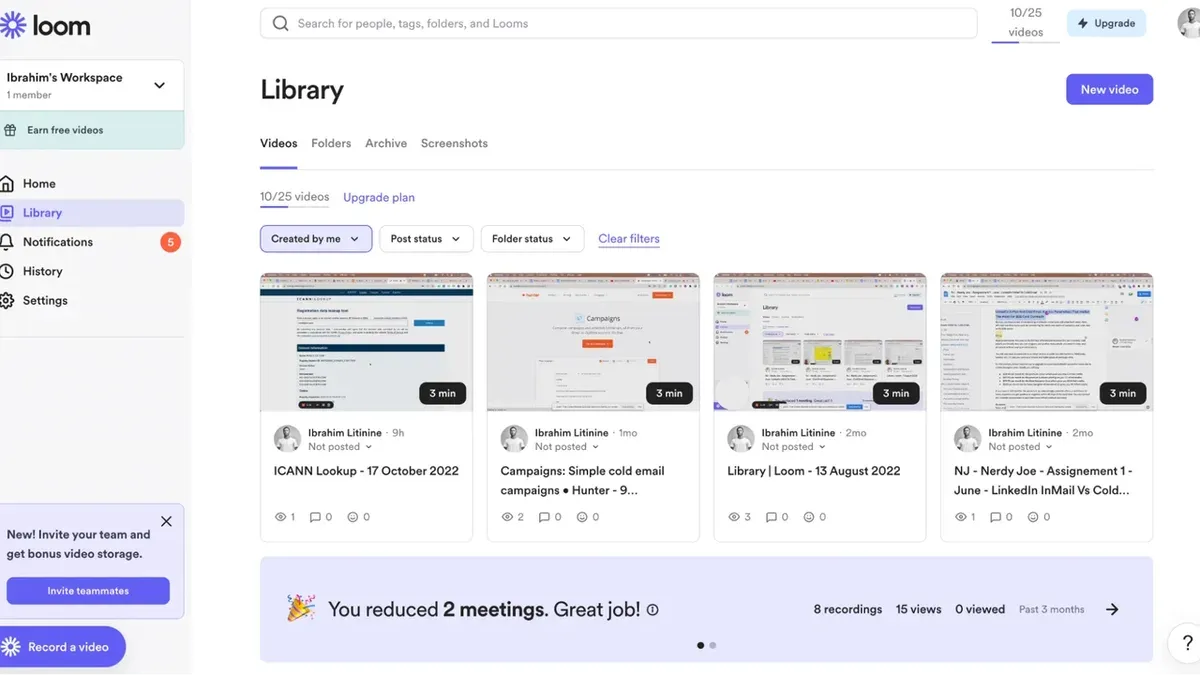
When sharing, Loom offers links, embed codes, and integrations with platforms like Google Classroom or Microsoft Teams. Links are simple and instant but less customizable. Embeds allow videos to appear directly within webpages or LMS modules, enhancing user experience but require technical setup. Integrations automate sharing and track engagement but depend on platform compatibility.
Collaboration shines through Loom’s comments and video replies. Team members or students can leave timestamped feedback directly on a video, fostering clear, contextual communication. Imagine a content creator sharing a draft video; collaborators comment on specific moments, speeding revisions without lengthy emails.
- Create folders labeled by course or project type.
- Tag videos with relevant keywords for fast searching.
- Choose sharing method based on audience and platform: link for quick access, embed for integrated viewing, or LMS integration for streamlined management.
- Encourage collaborators to use comments and video replies for precise feedback.
Read next
- Moving from Book Creator to Canva for Education: Your Essential Checklist
- Switching from Book Creator to Google Sites: A Complete How-To Guide
- Switching from Book Creator to Adobe Express: Your Expert Guide
- Your Expert Checklist for Moving from Adobe Express to Loom
Frequently asked questions
How to log into loom?
To log into Loom, go to loom.com and click the "Log In" button at the top right. Enter your registered email address and password, or use single sign-on options like Google or Slack for quicker access. If you forget your password, select "Forgot password?" to receive a reset link via email.
How to edit in loom?
After recording, open your video in Loom and click the "Edit" button below the player. You can trim the video by dragging the handles on the timeline or cut sections with the split tool. Add a call-to-action or change the thumbnail via the options on the right panel. Remember to save changes before exiting the editor.
How to start a loom?
To start a Loom recording, open the Loom desktop app or browser extension and click the red "Start Recording" button. Choose your recording type—screen only, screen + camera, or camera only—and select the screen or window to capture. Click "Start" to begin, and press the stop button when finished.
How to set up a loom?
Set up Loom by creating an account on loom.com and installing the desktop app or browser extension. Configure your recording preferences under settings, such as video quality, microphone, and camera source. Organize your workspace by creating folders for projects to keep content easily accessible.
How to create a loom?
Creating a Loom video starts with clicking "New Video" in the app or extension. Select your recording mode and screen/window, then click "Start Recording." Once done, Loom automatically uploads your video to your library where you can edit, share, or download it instantly.
Quick checklist
- Review your current Book Creator projects and identify key content to convert.
- Create your Loom account and organize your workspace with clear folders.
- Familiarize yourself with Loom’s recording options: screen, camera, or both.
- Experiment with trimming videos directly in Loom’s editor to remove unnecessary parts.
- Replace book elements with video segments that engage your audience visually and audibly.
- Check your video settings for quality and privacy before sharing.
- Invite collaborators through Workspace settings to streamline teamwork.
- Back up important content regularly outside of Loom to avoid data loss.
This guide’s limits
This guide does not cover advanced video production techniques or third-party editing software integration. Users seeking complex video editing, such as multi-camera setups, green screen effects, or professional-grade sound mixing, should consult specialized resources tailored to those needs.
For educators and creators focused on straightforward transition and effective use of Loom’s built-in tools, this checklist provides a practical roadmap.
Start by creating a simple Loom video replicating one of your smaller Book Creator projects. This hands-on approach will build your confidence and highlight how to leverage Loom’s strengths effectively.