Switching from Book Creator to Google Sites: A Complete How-To Guide
Discover how switching from Book Creator to Google Sites transforms your digital books into dynamic, web-native presentations with greater customization.

Short answer: Switching from Book Creator to Google Sites lets you transform your digital books into dynamic, web-native presentations. Google Sites offers greater customization, seamless integration with other Google Workspace tools, and improved options for sharing and promoting your content online.
This guide covers the key differences between Book Creator and Google Sites, showing you how to set up a Google Site specifically for book presentation. You’ll learn how to embed existing books, convert PDFs into interactive formats using Google Books, and leverage Google’s platform to reach broader audiences. Rather than simply replicating your Book Creator projects, this approach helps you maximize Google Sites’ strengths for a richer, more engaging reader experience.
Understand the Differences Between Book Creator and Google Sites
Book Creator is a specialized app designed primarily for assembling multimedia ebooks. It excels at integrating text, images, audio, and video into fixed-page layouts, making it straightforward to create interactive storybooks or educational content. Its interface guides you through a linear, page-by-page creation process, ideal for users wanting a simple, focused ebook format.
Google Sites, on the other hand, is a flexible website builder that lets you construct multi-page sites with customizable layouts, embedded content, and extensive integration with other Google Workspace tools. Unlike Book Creator's fixed pages, Google Sites offers dynamic navigation menus, sections, and embedded interactive elements, allowing your content to be presented as a rich, web-native experience.
The switch matters because Google Sites gives you greater control over the presentation and sharing of your work. You can organize your book content into navigable sections, embed live Google Docs or Sheets, and promote your work with integrated forms or social sharing buttons. However, you will need some familiarity with website design concepts, unlike the more guided environment of Book Creator.
For example, imagine you created a children’s picture book in Book Creator with embedded audio narration on each page. Moving this to Google Sites, you can create a homepage with chapters as separate pages, embed each audio file alongside the text and images, and add a feedback form to engage your readers directly on the site.
| Feature | Book Creator | Google Sites |
|---|---|---|
| Primary Use | Multimedia ebook creation | Website building with flexible content |
| Layout | Fixed page-by-page format | Customizable sections and navigation menus |
| Multimedia Support | Embedded images, audio, video within pages | Embeds plus integration with Google Drive, Docs, Sheets |
| Navigation | Linear page flipping | Hierarchical menus and hyperlinks |
| User Skill Level | Beginner-friendly, guided | Intermediate, requires site design understanding |
| Sharing Options | Export as ebook or web link | Public website with SEO and sharing controls |
How to Create Google Page for Book Presentation
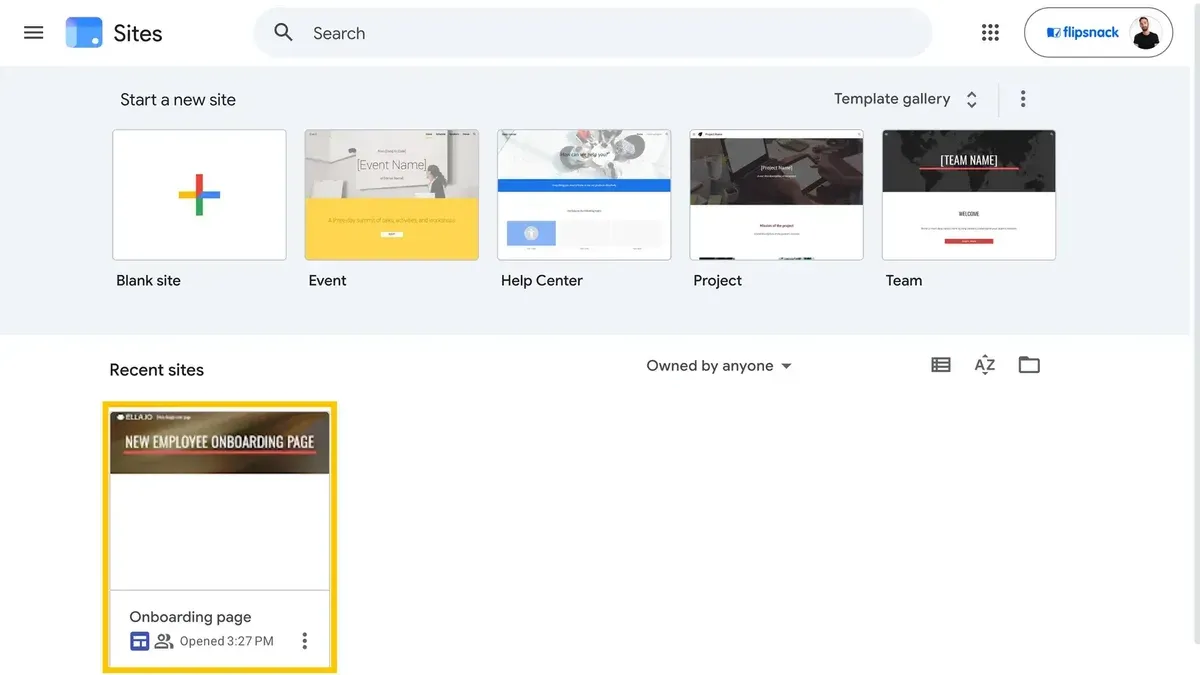
Start by navigating to sites.google.com and clicking the + Blank button to create a new site from scratch. Alternatively, explore the Template Gallery where you can select a layout like Portfolio or Project that suits a book's chapter-style organization. A blank site offers maximum customization, while templates provide structured layouts that save setup time.
Once your site is created, organize your content by adding pages through the Pages tab on the right sidebar. Create a separate page for each chapter or section of your book by clicking the + New page button and naming it accordingly, for example, "Chapter 1: Introduction." This approach mimics a book’s flow and helps readers navigate logically.
To enrich your pages beyond static text, use the Insert tab to embed multimedia elements such as images, YouTube videos, or Google Slides. For example, on your "Chapter 2" page, embed a video explanation or an interactive quiz using Forms to engage readers actively. Drag and drop elements to arrange the layout, and use text boxes to add commentary or instructions.
After arranging all pages and content, preview your site using the Preview button (eye icon) to check navigation and presentation across devices. This ensures the book’s digital experience is smooth and visually appealing.
- Go to sites.google.com and click + Blank or choose a template from Template Gallery
- Use the Pages tab to create pages named by chapters or sections
- Insert multimedia and interactive elements via the Insert tab
- Organize layout by dragging elements on the page
- Preview your site to verify navigation and design before publishing
How to Add Books to Google Books
Google Books is a distribution platform that helps you reach a wider audience beyond your Google Sites presentation. Unlike hosting content on Google Sites, Google Books allows you to publish and sell your books, making them discoverable through Google Search and the Google Play Store.
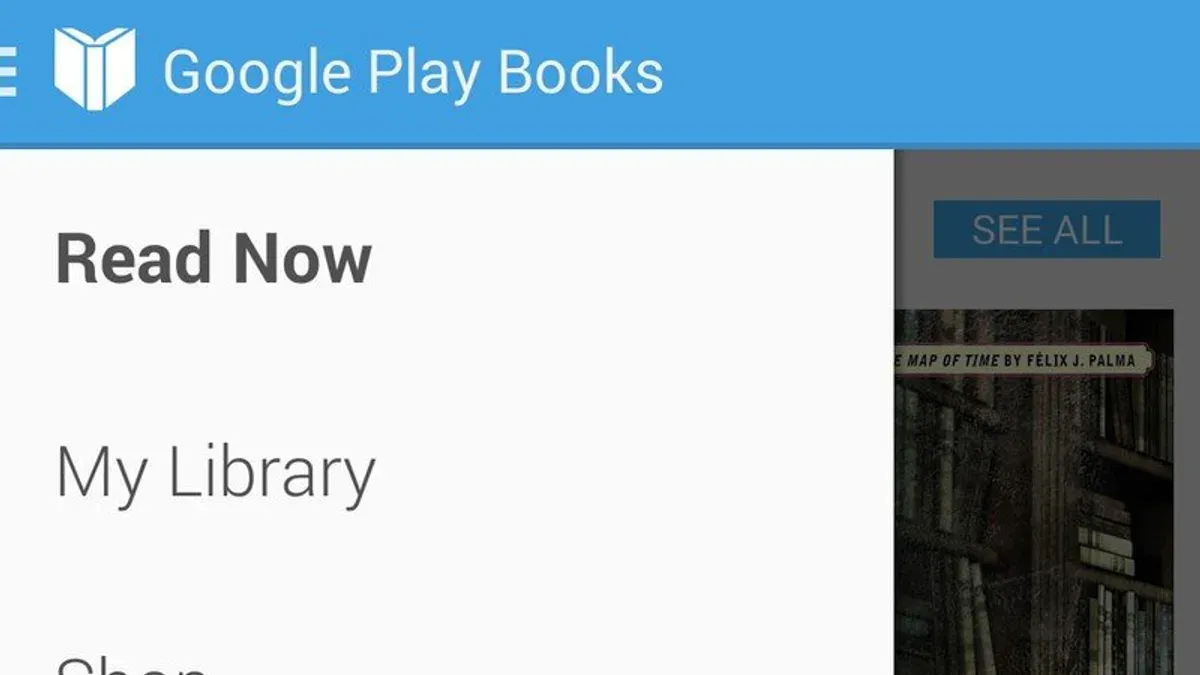
To add your books to Google Books, you need to format them as EPUB or PDF files and prepare detailed metadata including title, author, description, categories, and rights information. You must also hold the necessary publishing rights for your content.
Start by creating an account on the Google Play Books Partner Center. Once logged in, use the dashboard to add a new book by uploading your EPUB or PDF file. Fill out the metadata forms accurately, as this information affects your book’s visibility and categorization.
For example, when uploading a children’s book, you would select relevant categories such as "Children's Literature" and set appropriate age ranges. Avoid common mistakes like skipping rights confirmation or uploading unsupported file types, which can delay approval.
Publishing on Google Books enhances discoverability by integrating your work into Google’s ecosystem, allowing users to preview, buy, or download your book. It also supports promotional tools such as discounts and pre-orders, expanding your reach beyond static web pages.
- Prepare EPUB or PDF files with clean formatting.
- Create detailed metadata including rights and categories.
- Register and log into Google Play Books Partner Center.
- Upload your book and complete all metadata fields.
- Review submission status and make updates as needed.
How to Turn PDF into Google Books
Start by preparing your PDF for upload. Ensure the file is optimized for digital reading by compressing it to reduce size without losing clarity; tools like Adobe Acrobat’s “Reduce File Size” feature or free online compressors work well. Next, upload the PDF to Google Drive by selecting New > File upload and choosing your optimized PDF.
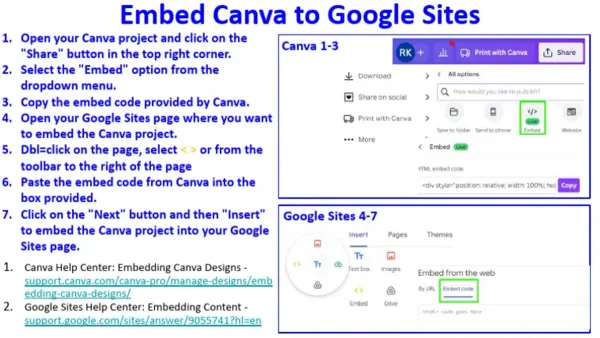
To display the PDF interactively within Google Sites, open your site editor, select the page or section where you want the book, click Insert > Drive, and choose your PDF. This embeds a viewer allowing readers to scroll through pages without downloading the file, maintaining a seamless experience.
For Google Books, convert your PDF into an EPUB or other compatible eBook format using tools like Calibre. Import your PDF into Calibre, then select Convert books > EPUB to create a file suitable for Google Books’ Partner Center. This conversion improves reflowable text display on various devices.
For example, you might start with a 20MB PDF of a children’s book, compress it to 5MB, upload to Drive, and embed it on a Google Sites page titled “Sample Book.” To prepare for Google Books, convert the PDF to EPUB in Calibre, then upload the EPUB to Google Books Partner Center for wider distribution.
- Compress PDF for optimal file size
- Upload PDF to Google Drive
- Embed PDF in Google Sites via Insert > Drive
- Use Calibre to convert PDF to EPUB for Google Books
- Upload EPUB to Google Books Partner Center
How to Use Google Books for Promotion
Google Books is a powerful platform to increase your book's visibility by leveraging previews and detailed metadata. When you upload your book, ensure the metadata fields like title, author, keywords, and description are comprehensive and relevant; these elements directly influence searchability and reader interest.
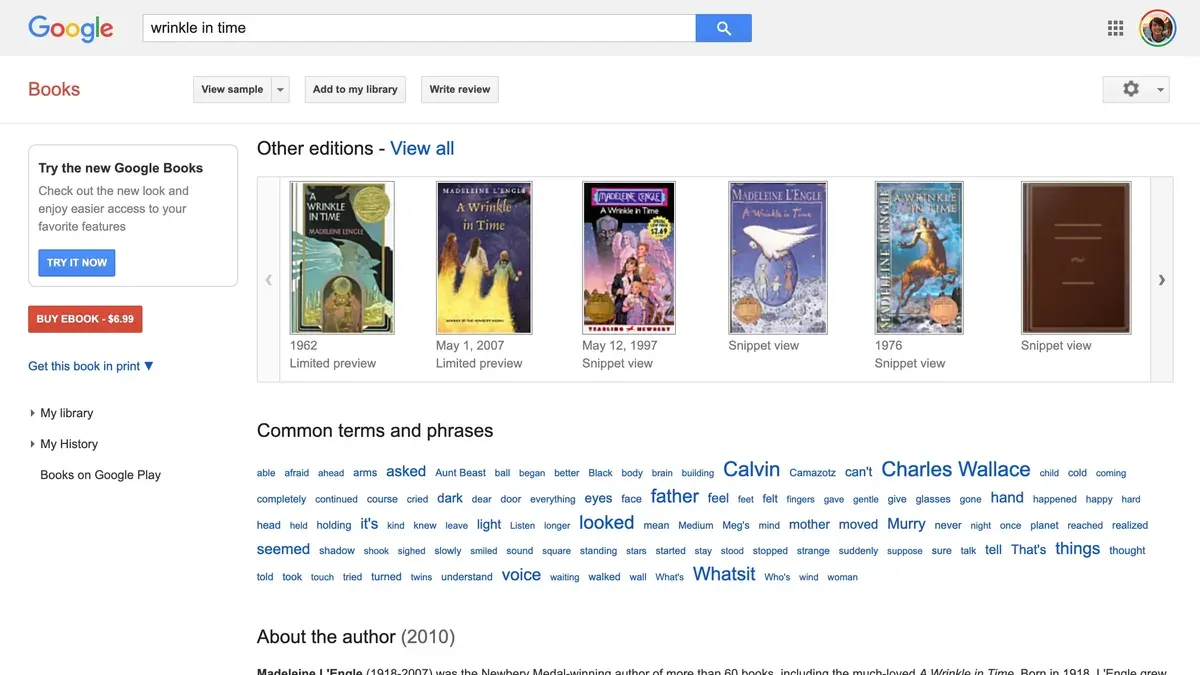
Link your Google Sites pages directly to your Google Books listing. This connection creates a seamless experience for visitors, allowing them to preview your book and then navigate to your site for more information or purchase options. Embedding the Google Books preview widget on your site enhances user engagement by offering a glimpse inside your book without leaving the page.
Optimize your Google Sites pages with SEO best practices: use clear, descriptive page titles, include relevant keywords in headings and content, and add alt text to images. This helps your book pages rank higher in search results, driving organic traffic. Additionally, integrate social sharing buttons on your Google Sites pages to encourage readers to share your book across platforms.
Consider using Google Ads campaigns targeting keywords related to your book’s topic or genre. Linking these ads to your Google Books page or your Google Sites book presentation can boost visibility among potential readers actively searching for similar content.
For example, an educator who linked their Google Sites book page to their Google Books preview saw a notable increase in site visits and reader engagement within weeks. This strategic integration, combined with SEO and social sharing, effectively expanded their audience reach.
- Complete detailed metadata during book upload to Google Books
- Embed Google Books preview widget on your Google Sites pages
- Use SEO best practices on your Google Sites book pages
- Add social sharing buttons to encourage content distribution
- Run targeted Google Ads campaigns linking to your Google Books or Sites pages
Read next
- Moving from Book Creator to Canva for Education: Your Essential Checklist
- Switching from Book Creator to Adobe Express: Your Expert Guide
- How to Switch from Adobe Express to Google Sites: A Clear Expert Guide
- Your Expert Checklist for Moving from Adobe Express to Book Creator
Frequently asked questions
How to promote book on google books?
To promote your book on Google Books, first ensure it is properly uploaded and indexed through the Google Play Books Partner Center. Optimize your book's metadata with relevant keywords, clear descriptions, and appealing cover images. Share direct links to your book’s Google Books page on social media and embed them on websites or blogs to increase visibility. Consider using Google Ads for targeted promotion if you want to reach specific audiences.
How do I log in to Book Creator with Google?
On the Book Creator login page, select the 'Sign in with Google' option. This will prompt you to choose your Google account or enter your Google credentials. Once authenticated, you will be logged into Book Creator without needing a separate password. Make sure you allow necessary permissions for seamless access.
What is the best way to create a Google book from scratch?
The best way to create a Google book from scratch is by using Google Sites to design each page as a web page, leveraging its templates and layout tools. Start with a clear structure, adding text boxes, images, and embedded content to enrich your book. Use the navigation menu to simulate chapters or sections, making it easy for readers to explore. This method avoids static PDFs and fully utilizes Google's web-native features.
Can Google make a book entirely online without downloads?
Yes, Google allows you to create and publish books entirely online using tools like Google Sites and Google Docs, eliminating the need for downloads. You can build, edit, and share your content in the cloud, ensuring instant updates and accessibility from any device. This approach supports collaboration and integration with other Google services.
How do I create my Google book using free tools?
You can create your Google book using free tools like Google Docs for writing and Google Sites for layout and publishing. Use Google Docs to draft and format your text, then embed or link these documents within Google Sites pages. Add images, videos, and interactive elements through Sites to enhance your book’s presentation. All these tools are accessible with a free Google account.
What this guide does not cover
This guide does not cover advanced coding or custom scripting in Google Sites, which may be necessary for highly interactive book features some users expect from Book Creator. If your projects rely heavily on animations, embedded quizzes, or complex interactions, consider exploring Google Apps Script or other web development tools to supplement Google Sites.
Quick checklist
- Review the differences between Book Creator and Google Sites to set realistic expectations.
- Create a dedicated Google Site page optimized for book presentation using sections and embedded media.
- Add your books to Google Books by uploading or linking properly through Google Play Books Partner Center.
- Convert PDFs to Google Books format to improve accessibility and searchability.
- Use Google Books features to promote your work through metadata and sharing options.
Your most effective next step is to start building your Google Site page with a clear structure that highlights your book's content and interactive elements. Focus on clean navigation and embedding multimedia to make your digital book stand out on the web rather than simply replicating static pages.