Moving from Book Creator to Screencastify: Your Expert Checklist
This checklist guides you through adapting content and tools when moving from Book Creator to Screencastify for effective video-based lessons.

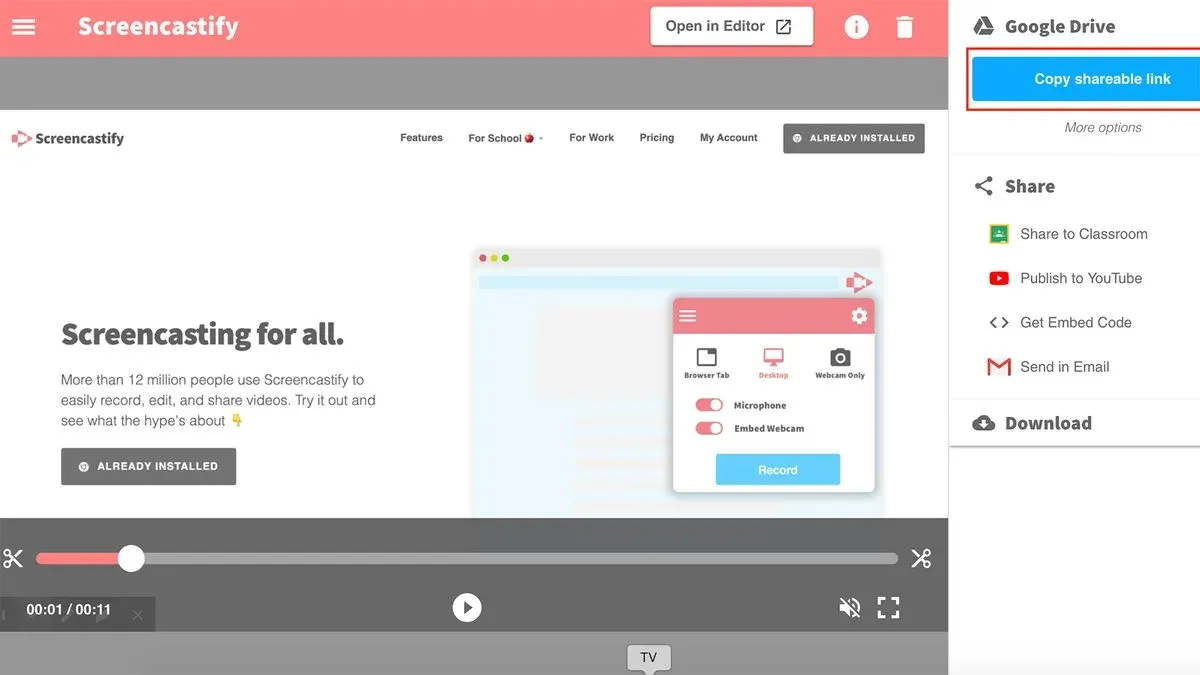
Short answer: Moving from Book Creator to Screencastify requires shifting from static, interactive books to dynamic, video-based lessons. This transition involves adapting your content creation process, learning new recording and editing tools, and rethinking student engagement strategies. This moving from Book Creator to Screencastify checklist guides you through these changes to ensure a smooth and effective switch.
This article covers the essential pedagogical and technical adjustments you need to make when replacing a book-creation platform with a screencasting tool. You’ll learn how to prepare your existing content, configure Screencastify for classroom use, produce engaging videos, and securely manage your new resources. Understanding these steps will help you maintain instructional quality while embracing the strengths of video-based learning.
Understand the Core Differences Between Book Creator and Screencastify
Book Creator is designed primarily for crafting interactive, multimedia eBooks that combine text, images, audio, and video into a single, navigable project. It excels at supporting student-driven storytelling, digital portfolios, and collaborative book projects that emphasize static and semi-dynamic content.
In contrast, Screencastify focuses on video capture and screencasting, enabling you to create dynamic video presentations with live annotations, voice narration, and webcam overlays. This platform is ideal for delivering lessons, demonstrations, or feedback that benefit from real-time explanation and visual emphasis.
| Feature | Book Creator | Screencastify |
|---|---|---|
| Primary Output | Interactive eBooks combining multimedia elements | Video recordings with screen capture and live annotation |
| Content Type | Static and interactive pages with embedded media | Dynamic video presentations and real-time screencasts |
| Best Suited For | Student stories, portfolios, project books | Explainer videos, tutorials, feedback sessions |
| Engagement Method | Reader-driven navigation and exploration | Visual and auditory explanations with emphasis tools |
For example, if you previously assigned students to create a digital science report in Book Creator, switching to Screencastify means guiding them to produce a narrated video tour of their experiment, using annotation tools to highlight key steps. This shift demands adapting your workflow to prioritize verbal explanation and screen interaction over static page design, which can enhance engagement and provide more nuanced assessment opportunities.
Prepare Your Content and Workflow for Screencastify
Begin by exporting your Book Creator projects as PDFs or image files via the Share menu, selecting Export as PDF to retain layout and visuals. These assets can serve as visual references or be inserted directly into your Screencastify recordings. Next, plan your screencasts by drafting concise video scripts and storyboards that focus on clear verbal explanations complemented by live annotations or on-screen highlights, leveraging Screencastify’s drawing tools.
Adjust your lesson plans to accommodate a video format. For example, instead of a multi-page interactive book on the water cycle, create a 5–7 minute screencast where you narrate the process, annotate diagrams in real time, and pause for student reflections or questions.
Consider pacing differently: videos favor segmented content chunks with clear transitions, unlike the self-paced navigation in Book Creator. Mapping out these segments beforehand helps maintain engagement and ensures smooth delivery.
- Export Book Creator projects as PDFs or images for reuse
- Write focused video scripts and create storyboards
- Segment lessons for video pacing and engagement
- Plan to use Screencastify’s annotation tools to emphasize key points
Set Up Screencastify for Maximum Efficiency
Begin by installing the Screencastify extension from the Chrome Web Store and granting permissions for screen, microphone, and webcam access when prompted. This ensures seamless recording capabilities without interruptions.

Next, open Screencastify and navigate to Settings > Video. Set the video resolution to 720p for a balance between quality and file size, ideal for classroom sharing. Under Audio, select your preferred microphone device—external mics often provide clearer sound than built-in ones. Enable the webcam and choose your camera source to add a personal touch to your recordings.
Integrate Screencastify with Google Classroom by clicking Settings > Integrations and linking your Google account. This connection allows direct video submissions and sharing within your LMS. For other platforms like Canvas or Schoology, use the provided shareable links or embed codes from Screencastify’s dashboard.
For example, after linking Google Classroom, you can record a tutorial, then instantly assign or share it with your students without leaving Screencastify.
- Install Screencastify extension and allow screen, mic, and camera permissions.
- Set video resolution to 720p in Settings > Video.
- Select external microphone and enable webcam under Audio and Video settings.
- Link Google Classroom via Settings > Integrations for direct sharing.
- Use share links or embed codes for other LMS platforms.
Create Engaging Screencastify Videos: Tips and Best Practices
To maintain learner attention, use Screencastify’s annotation tools such as the pen, highlighter, and spotlight to emphasize key points during your video. Enable the webcam overlay to add a personal touch; seeing your face helps build connection and clarify explanations. For example, a math teacher highlighting steps on the screen while narrating and showing their face often receives positive feedback on clarity and engagement.
Keep videos concise by focusing each recording on a single learning objective; aim for 5 to 7 minutes to balance depth and attention span. Structure scripts to avoid filler and jump directly to essential content. After recording, incorporate interactive elements like quizzes or polls using integrated tools or platform features to reinforce learning and check understanding.
One teacher reported that videos with annotations and webcam overlays led to more questions from students, indicating higher engagement. Additionally, embedding a short quiz post-video helped increase content retention and provided immediate feedback on comprehension.
- Use pen, highlighter, and spotlight tools to emphasize content
- Enable webcam overlay to personalize the lesson
- Keep videos between 5-7 minutes focused on a single objective
- Script tightly to maintain clarity and brevity
- Add quizzes or polls after videos to boost interaction and retention
Manage and Share Your Screencastify Content Securely
Organizing your Screencastify videos efficiently starts with using the built-in integration with Google Drive. Videos are automatically saved in a dedicated Screencastify folder, but creating subfolders by class, subject, or unit helps keep content accessible and manageable for you and your students.
When sharing, Screencastify offers multiple access controls. The "Anyone with the link" setting enables easy access but may risk unintended viewers. For student and parent sharing, use the "Restricted" option combined with Google Classroom integration or explicit email invitations to maintain control over who views your content.
Consider data privacy regulations such as FERPA or GDPR. Avoid public sharing unless necessary, and regularly audit permissions to ensure compliance. For example, if you share a math lesson video with a parent, use Google Drive’s "Share with specific people" option and disable downloading or copying to protect student data.
| Sharing Setting | Impact on Student Access |
|---|---|
| Anyone with the link | Easy access, potential privacy risk |
| Restricted (specific users) | Controlled access, requires sign-in |
| Google Classroom | Streamlined access for enrolled students |
Compliance Checklist:
- Use restricted sharing settings whenever possible
- Integrate with your LMS to limit access
- Regularly review and update shared permissions
- Disable download options if sensitive data is involved
Avoid Common Pitfalls When Transitioning to Screencastify
One common mistake is overloading videos with too much information, which can overwhelm students and dilute key messages. Keep videos concise and focused, ideally under 10 minutes, to maintain engagement and clarity.
Another frequent issue is neglecting to test audio and video quality before sharing lessons. Poor sound or blurry visuals can frustrate learners and reduce comprehension. Always preview recordings using Screencastify's "Preview" option and adjust microphone sensitivity or video resolution under Settings > Video & Audio before distribution.
Additionally, ignoring student device capabilities and bandwidth constraints can cause accessibility problems. For example, a student with limited internet speed may struggle to stream a high-resolution screencast smoothly. Consider offering lower resolution downloads via Google Drive or providing transcripts to accommodate diverse needs.
Educators have reported that failing to address these issues led to repeated student requests for video replays and troubleshooting support, causing unnecessary delays. Planning for these factors upfront minimizes disruptions and ensures a smoother transition.
- Keep videos concise and focused (under 10 minutes)
- Use Screencastify's Preview feature to check audio/video quality before sharing
- Adjust microphone sensitivity and video resolution in Settings > Video & Audio
- Consider bandwidth limits—offer lower resolution options or transcripts
- Test videos on multiple devices similar to those students use
Read next
- Moving from Book Creator to Loom: Your Expert Checklist for a Smooth Transition
- Moving from Book Creator to Canva for Education: Your Essential Checklist
- Your Expert Checklist for Moving from Adobe Express to Screencastify
- Switching from Book Creator to Google Sites: A Complete How-To Guide
Frequently asked questions
Can I directly import Book Creator projects into Screencastify?
No, you cannot directly import Book Creator projects into Screencastify because they are fundamentally different platforms—Book Creator focuses on interactive e-books, while Screencastify is a video recording and editing tool. To transition, export content from Book Creator as PDFs or images, then use Screencastify to record explanations or presentations incorporating those exported assets.
What are the best practices for keeping students engaged with Screencastify videos?
Keep videos concise, ideally under 10 minutes, and use clear, conversational language. Incorporate interactive elements by pausing for questions or prompts and encourage students to respond via comments or follow-up activities. Using annotations and on-screen highlights helps maintain attention and clarify key points.
How do I ensure student privacy when sharing Screencastify content?
Use Screencastify’s privacy settings to restrict video access to specific Google Classroom groups or via unlisted links rather than public sharing. Avoid including personally identifiable information in recordings and verify that sharing permissions are set to “Anyone with the link” only if absolutely necessary and paired with secure distribution.
What technical requirements should I check before starting with Screencastify?
Ensure you have a Google Chrome browser updated to the latest version and a reliable internet connection for smooth recording and uploading. Verify that your device’s microphone and webcam are enabled and tested within Screencastify’s settings. Also, confirm sufficient storage space in your linked Google Drive account to save and manage recordings.
What this advice does not cover
This guide does not cover advanced video editing beyond Screencastify’s built-in tools; users needing professional editing should consider supplementary software like Adobe Premiere Pro or Final Cut Pro. It also does not address accessibility compliance in depth—if your institution requires specific accessibility standards, consult specialized resources. Additionally, this checklist assumes you have basic familiarity with both platforms; complete beginners might need foundational tutorials before proceeding.
Quick checklist
- Review your existing Book Creator projects and identify content suitable for video presentation.
- Map out how your teaching objectives translate from static books to dynamic screencasts.
- Install Screencastify and configure settings: choose recording mode, set video resolution to 720p for balance, enable microphone and webcam as needed.
- Test recording a short video to check audio levels and screen capture quality.
- Plan video segments to keep them under 10 minutes for better engagement.
- Use Screencastify’s annotation tools to emphasize key points during recordings.
- Save videos in Google Drive or your institution’s preferred cloud storage for secure access.
- Share videos with students via LMS links or embed them in lesson plans.
- Gather student feedback on video format to refine your approach.
- Watch out for common issues like background noise, overly long recordings, and unclear narration.
Begin by converting one lesson or project from Book Creator into a short Screencastify video. This focused start helps you adapt your workflow, test the tools, and gather student reactions without overwhelming your schedule or resources.