How to Set Up a Passkey for PayPal: A Clear Step-by-Step Guide
This article provides clear, practical steps to set up a passkey for PayPal, enhancing your account security with password-free authentication.


This article explains how to set up a passkey for PayPal, providing clear, practical guidance on the process and its purpose within PayPal’s security framework.
PayPal has introduced passkeys as a secure alternative to traditional passwords. A passkey is a cryptographic credential stored on a device, used to authenticate logins without transmitting passwords. This method reduces risks from phishing and password theft.
Understanding why PayPal requires passkeys helps users see their role in preventing unauthorized access. Setting up a passkey involves device-specific steps and requires an up-to-date browser or app with biometric or PIN verification. The following sections cover setup instructions, usage, troubleshooting, and managing authentication options.
Before you start: What is needed to set up a passkey for PayPal
Setting up a passkey for PayPal requires several prerequisites to ensure a smooth and secure process. First, a PayPal account in good standing is essential, with both email and phone number verified. This verifies identity and allows recovery options if needed.
A compatible device is necessary. Supported devices include smartphones with biometric capabilities such as Face ID or fingerprint sensors, as well as computers equipped with Windows Hello or macOS Touch ID. Devices running recent OS versions—iOS 16 or later, Android 9 or later, Windows 10 or later, and macOS Ventura or newer—typically support passkey authentication.
Ensure the PayPal app is updated to the latest version from official app stores, or access PayPal through browsers like Chrome, Edge, Safari, or Firefox updated to their latest stable releases. This guarantees compatibility with passkey features.
Basic familiarity with biometric authentication or PIN setup is helpful since the passkey setup process integrates these security methods. Without a configured biometric or PIN option on the device, passkey registration cannot proceed.
- Confirm PayPal account email and phone number are verified; the account settings page will show verified status when complete.
- Check device compatibility by verifying it supports biometric authentication or secure hardware-based PIN login.
- Update the PayPal app or open the PayPal website in an up-to-date browser; the login page should display the option to set up a passkey if supported.
- Ensure biometric or PIN authentication is enabled on the device through system settings.
Tip: When unsure about device compatibility, consult PayPal’s Help Center or the device manufacturer’s documentation for passkey support details.
What is a passkey for PayPal?
A passkey for PayPal is a modern authentication method that replaces traditional passwords with a cryptographic key pair. It uses public-key cryptography to securely verify identity without transmitting or storing a password that could be stolen. When setting up a passkey, PayPal creates a unique private key stored securely on the user’s device and a corresponding public key registered with PayPal’s servers.
This system is designed to be phishing-resistant because the private key never leaves the device, making it impossible for attackers to intercept or reuse login credentials. Unlike passwords or PINs, which can be guessed, stolen, or reused across multiple sites, passkeys provide a higher level of security while simplifying the login process.
Think of it as a lock and key: PayPal holds the lock (public key), and the user holds the key (private key). To gain access, the user’s device proves possession of the private key without revealing it, confirming identity securely and efficiently.
PayPal’s security documentation highlights passkeys as a step forward in protecting accounts from phishing and credential theft, reducing reliance on passwords that are vulnerable to compromise.
Why is PayPal asking me to set up a passkey?
PayPal is transitioning users to passkeys as part of a broader move toward passwordless authentication aimed at reducing account takeovers and fraud. Traditional passwords are vulnerable to phishing, credential stuffing, and brute force attacks. Passkeys use cryptographic methods that eliminate these risks, making unauthorized access significantly more difficult.
Regulatory and industry security standards increasingly recommend or require strong multi-factor and passwordless authentication methods. PayPal’s adoption of passkeys aligns with guidelines from bodies like the FIDO Alliance and compliance expectations for financial services, ensuring safer user identity verification.
From a user experience perspective, passkeys streamline login by leveraging built-in device authentication, reducing friction while enhancing security. This future-proofing approach prepares PayPal accounts for evolving threats and technology improvements without relying on cumbersome passwords.
PayPal’s security blog and announcements note that accounts using passkeys have shown a marked decrease in fraudulent login attempts, supporting the effectiveness of this approach. Users prompted to set up passkeys are encouraged to do so to maintain account security and comply with PayPal’s updated authentication policies.
Do I have to set up a passkey for PayPal?
PayPal currently encourages users to adopt passkeys as part of its enhanced security measures, but setting one up is not universally mandatory. For many accounts, especially newer ones or those flagged for higher-risk activity, PayPal may require passkey setup to continue accessing all features. Official PayPal communications emphasize that passkeys are part of the move toward passwordless authentication, aligning with industry regulations and improved fraud prevention.

Users who choose not to set up a passkey immediately can still log in using traditional methods like passwords combined with two-factor authentication (2FA). However, PayPal may impose additional verification steps, such as security questions or one-time codes via SMS or email, which can interrupt the login flow. Over time, failure to adopt passkeys might lead to restricted account functionality or eventual mandatory enforcement.
Reports from users indicate that enforcement varies by region and account risk level, with some experiencing prompts to set up a passkey during login or transaction processes. Those postponing setup should be prepared for these interruptions and consider completing passkey enrollment to avoid access issues.
How to set up a passkey on PayPal: Step-by-step
- Open the PayPal app or visit the PayPal website and log in with current credentials. Navigate to Settings by tapping the gear icon (app) or clicking the profile icon (website), then select Security.
- Locate and select Passkeys or Login and security keys from the Security menu. This opens the passkey setup interface where the option to Add a new passkey appears.
- Choose the device to register the passkey on. Most users will select their current smartphone or computer. The system will prompt for biometric authentication (fingerprint, face recognition) or device PIN to verify identity.
- Follow the on-screen instructions to register the passkey. This usually involves confirming biometric or PIN authentication multiple times. A confirmation message indicates the passkey is successfully registered.
- Optionally, add passkeys on multiple devices by repeating the process on each device. This provides backup login options if one device is unavailable.
- Review the list of registered passkeys in the Security settings to manage or remove any devices. Always keep at least one backup device registered to avoid lockout.
Tip: Passkey setup typically takes under five minutes but can vary depending on device responsiveness and biometric setup.
How to use PayPal login with passkey
Logging in to PayPal with a passkey streamlines authentication while maintaining strong security. Instead of entering a password, the login process initiates biometric or PIN verification on the registered device.
- Go to the PayPal login page and enter the email address or username associated with the PayPal account. The password field will be replaced by a prompt to use the passkey.
- Trigger the passkey authentication by selecting the option to use biometric data or device PIN. This activates the device’s secure verification mechanism, such as fingerprint scan or Face ID.
- Upon successful biometric or PIN verification, PayPal grants access without requiring a password. The user is directed to the account overview page.
During this process, the cryptographic keys stored on the device authenticate the user securely without transmitting sensitive credentials over the internet. This reduces the risk of phishing and password theft.
Compared to password login, passkey authentication typically shortens login time by eliminating manual password entry and reducing multi-step verification prompts. It also lowers friction by relying on familiar device security features.
Tip: Ensure the device used for passkey login remains updated and protected with a strong PIN or biometric lock to maintain security integrity.
Troubleshooting common issues with PayPal passkeys
When a passkey is not working or the device is not recognized, first verify that the device’s biometric or PIN authentication is properly set up and unlocked. Ensure the PayPal app or browser is updated to the latest version. If an error message appears during setup or login, note the exact code or wording to identify the issue.
Common error messages include “Authentication failed,” “Device not supported,” and “Passkey setup interrupted.” For "Authentication failed," confirm the device’s biometric sensors or PIN are correctly configured and retry. If "Device not supported" appears, check that the device meets PayPal’s compatibility requirements. For "Passkey setup interrupted," restart the device and try again.
If locked out due to passkey issues, use PayPal’s account recovery options. This may involve answering security questions, receiving a verification code via email or SMS, or using an alternative login method.
How to reset or change a PayPal passkey
- Open the PayPal app or website and go to Settings > Security > Manage login methods. The current authentication options should appear.
- Select the passkey option and choose Reset or Remove. Confirmation prompts will appear; accept to proceed.
- Follow the on-screen instructions to set up a new passkey using the device’s biometric or PIN system.
- Upon successful reset, a confirmation message will appear. Test logging in immediately to verify the new passkey functions.
Tip: If passkey problems persist, contact PayPal Support directly with error codes for specialized assistance.
How to change PayPal passkey to password or manage authentication methods
Reverting to password-only login on PayPal reduces account security by removing phishing-resistant passkey protections. Passwords remain vulnerable to theft, reuse, and brute-force attacks, so this change should be considered carefully. Managing authentication preferences allows balancing convenience and security by enabling multiple methods or selecting preferred options.
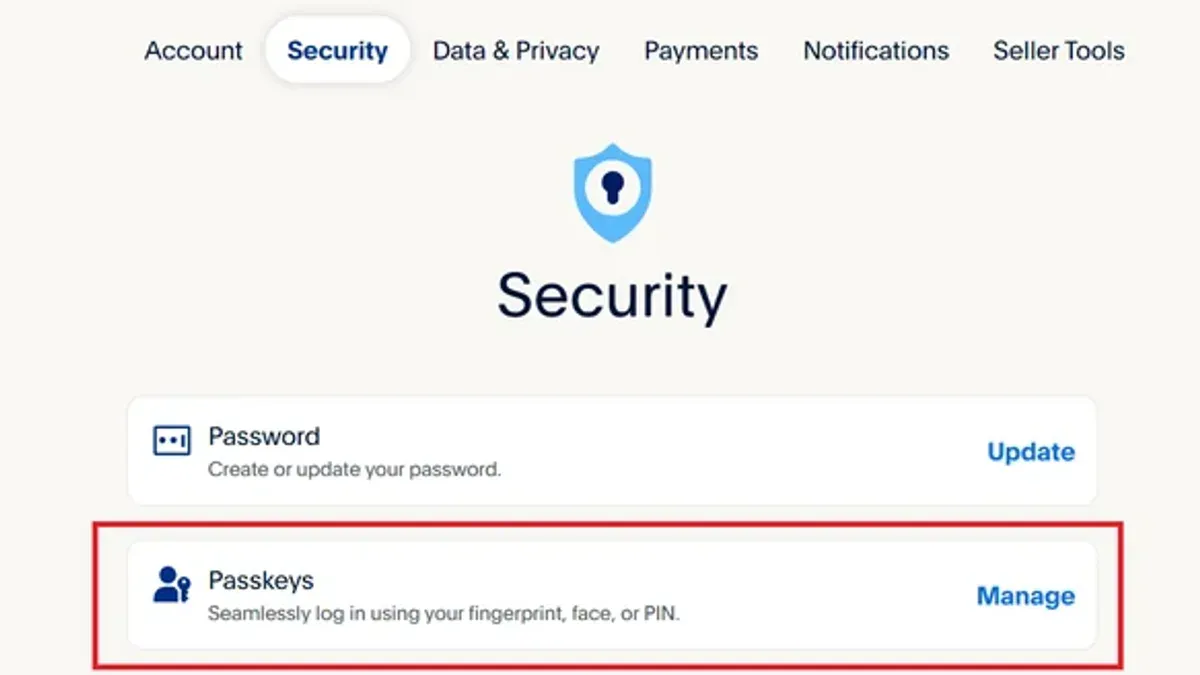
- Log in to the PayPal account and navigate to Settings (gear icon) in the top-right corner.
- Select the Security tab from the left menu; this opens authentication management options.
- Under Login & Security, locate Manage login methods or Two-step verification.
- Choose Change authentication method or Switch to password login if available; a confirmation screen will appear.
- Follow prompts to verify identity using current passkey or biometric method.
- Enter and confirm a strong, unique password to replace the passkey login.
- Review and update additional security settings, such as adding two-step verification via SMS or authenticator apps, if desired.
- Save changes; the account now uses the selected authentication method for login.
Tip: After switching to password login, enable two-step verification to compensate for the reduced security compared to passkeys.
Managing authentication methods in PayPal settings provides flexibility but always prioritize multi-factor options to maintain strong account protection.
Why PayPal login might require a security key instead of a passkey
PayPal distinguishes between passkeys and security keys as separate authentication methods. A passkey uses device-based biometric or PIN verification tied to cryptographic keys, enabling passwordless login. In contrast, a security key is a physical hardware token, such as a USB or NFC device, that must be connected or tapped during login for two-factor authentication.
Security keys are requested by PayPal in scenarios where enhanced security is necessary, such as logging in from an unrecognized device, high-risk transactions, or when an account is set to require hardware-based multi-factor authentication. This method provides a stronger defense against phishing and remote attacks compared to passkeys alone.
Handling login flows involving security keys requires access to the registered hardware device. When prompted, users must insert or tap the security key as instructed. Successful authentication results in immediate access without further password entry. If the security key is unavailable, PayPal’s fallback options may include alternative two-factor methods or account recovery.
| Feature | Passkey | Security Key |
|---|---|---|
| Type | Software-based cryptographic credentials | Physical hardware token |
| Authentication method | Biometric or PIN on device | Touch, tap, or insert hardware device |
| Use cases | Regular login, smoother access | High-risk login, multi-factor enforcement |
| Risk mitigation | Phishing-resistant, device-bound | Stronger phishing and remote attack protection |
- Select PayPal login and enter the username/email to initiate.
- When prompted for a security key, connect the hardware token via USB or tap it on an NFC-enabled device.
- Wait for the device to confirm authentication (usually a light or vibration).
- Upon successful validation, PayPal grants access without requiring a password.
- If the security key is not recognized, follow on-screen instructions to use backup methods or recover the account.
Frequently asked questions
Why is paypal forcing me to set up a passkey?
PayPal requires setting up a passkey to enhance account security by adopting passwordless authentication. This measure reduces risks associated with stolen or weak passwords and aligns with modern security standards. It is part of PayPal's effort to protect users from unauthorized access and fraud.
How to set up paypal key?
To set up a PayPal passkey, log into the PayPal account, navigate to the Security settings, and select the option to add a passkey. Follow the on-screen prompts to register a biometric method or device-based authentication. The process typically involves confirming identity and linking a compatible device or security key.
Does paypal require a passkey?
PayPal is moving toward requiring passkeys for improved security, especially for accounts with certain risk factors or high transaction volumes. While not all users may be immediately required to set one up, the platform encourages adoption and may enforce it over time.
How to set up passkey?
Setting up a passkey generally involves accessing the security or login settings of the service, choosing the passkey option, and registering a supported device or biometric method. The process requires confirming identity through existing credentials before the passkey can be activated.
Why is paypal asking for a passkey?
PayPal requests a passkey to improve login security by replacing or supplementing passwords with stronger authentication methods. This helps prevent unauthorized access, phishing attacks, and account takeovers.
What this advice does not cover and who should do something else
This guide does not cover detailed troubleshooting for device-specific biometric or hardware issues unrelated to PayPal's system. For example, problems with fingerprint sensors or facial recognition software on particular smartphones are outside this scope.
Users with unsupported devices may not be able to set up passkeys and should rely on alternative PayPal authentication methods, such as two-factor authentication via SMS or authenticator apps.
This advice assumes a standard PayPal personal account and does not address variations for business or merchant accounts, where different security protocols or administrative controls may apply.
Focus next on ensuring the device intended for passkey setup is fully updated, supports biometric authentication or PIN security, and that the PayPal app is the latest version. This preparation is the essential step to avoid setup errors and secure login experiences.
See also: How to Set Up a Passkey for Microsoft Account: Step-by-Step Guide · How to Set Up a Passkey for Google Account: A Step-by-Step Guide · How to Set Up a Passkey for Apple ID on iPhone: A Step-by-Step Guide · How to Set Up a Passkey for Amazon: A Step-by-Step Guide