Switching from Gimkit to Quizlet: A Clear Guide for Educators
This guide helps educators switch from Gimkit to Quizlet by outlining key differences and practical steps for a smooth transition.

Short answer: Switching from Gimkit to Quizlet requires adjusting your content format and understanding different game mechanics. You can’t directly transfer all Gimkit features, but with the right approach, you can recreate engaging study sets in Quizlet efficiently.
This guide covers the practical steps and challenges of switching from Gimkit to Quizlet. You’ll learn how Gimkit’s unique question styles compare to Quizlet’s, how to prepare your questions for import, manage student submissions, and avoid common pitfalls. The focus is on giving you clear, actionable advice to keep your students engaged while making the transition as smooth as possible.
How does Gimkit work and why might you want to switch?
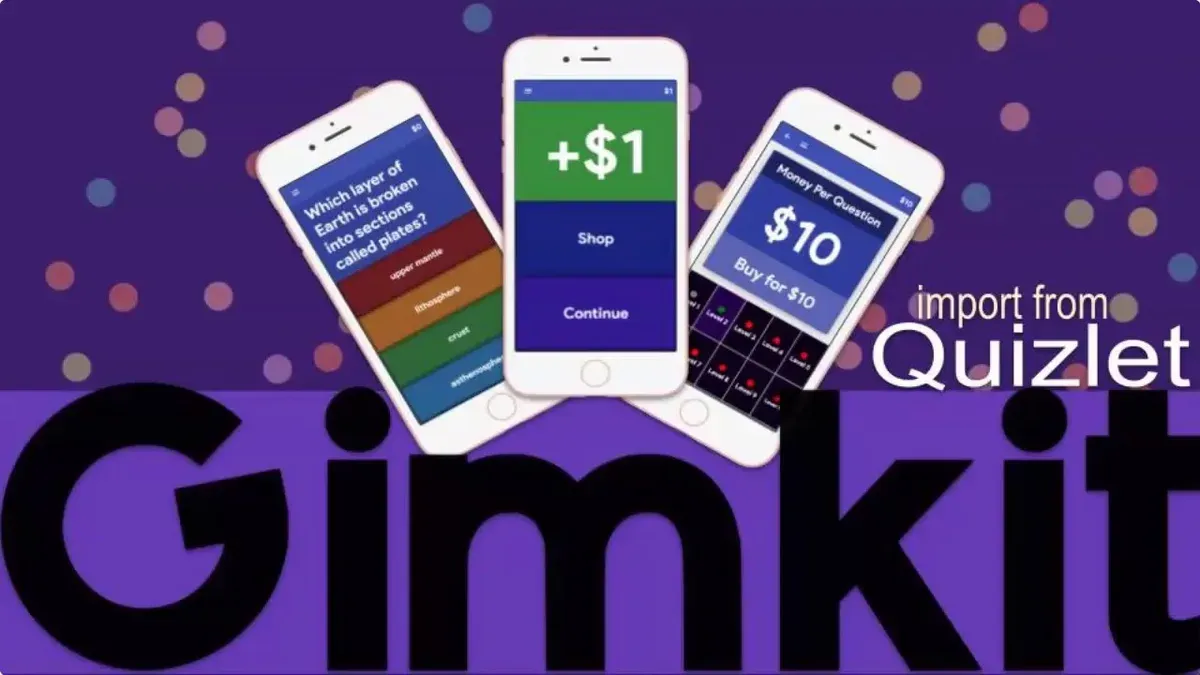
Gimkit offers a game-based learning platform where students answer questions to earn in-game currency, which they use to purchase power-ups and upgrades. This interactive setup boosts engagement through competition and strategy, making review sessions lively. Core features include real-time feedback, various game modes like "Classic" and "Team Mode," and automatic grading.
Despite its appeal, educators often switch to Quizlet for several reasons. Quizlet supports a wider range of content formats such as flashcards, diagrams, and matching games, catering to varied learning styles. Its larger user base means easier sharing and collaboration across schools and districts. Additionally, Quizlet integrates more smoothly with common learning management systems, streamlining classroom workflows.
Gimkit’s limitations can prompt the switch. Question formats are more restrictive, primarily focusing on multiple choice and short answer. Pricing can also be a factor; Gimkit’s free tier limits content and features more so than Quizlet’s free version. For example, if you want to include image-based flashcards or need seamless Google Classroom integration, Quizlet is often a better fit.
| Feature | Gimkit | Quizlet |
|---|---|---|
| Game-Based Learning | Yes, with in-game currency and power-ups | Limited, mostly flashcard games |
| Content Formats | Multiple choice, short answer | Flashcards, diagrams, matching, tests |
| Integration | Basic | Wide, including LMS and Google Classroom |
| User Base | Smaller, mainly K-12 | Large, K-12 and beyond |
| Pricing Limits | More restrictive free tier | More generous free tier |
In sum, switching to Quizlet often comes down to needing greater content flexibility, broader sharing capabilities, and smoother integration, despite Gimkit’s engaging game mechanics.
How to import a Quizlet into Gimkit and why that’s not a perfect solution
Gimkit does not support direct importing of Quizlet decks through an automatic upload or integration feature. To transfer content, you start by exporting your Quizlet deck as a CSV file, which is possible via Quizlet's export option under the "More" menu on the deck page. This export provides terms and definitions in plain text, separated by tabs or commas, which you can then upload to Gimkit by creating a new kit and choosing the "Import from CSV" option.
However, this import process often requires manual cleanup. Quizlet decks often contain formatting, images, or multiple-choice options that do not translate into Gimkit’s simpler question-and-answer format. For example, a Quizlet deck with images next to terms will lose those visuals during export and import, reducing engagement. Additionally, Gimkit expects a clear question and answer pair, so flashcards with multiple definitions or ambiguous formatting cause errors or require manual editing.
Because of these limitations, many educators find it more efficient to recreate Quizlet decks directly within Gimkit. This allows you to customize question types and ensure compatibility with Gimkit's game mechanics. Another workaround is to copy-paste content from Quizlet into Gimkit’s interface, adjusting terms and answers to fit Gimkit’s format, especially for kits that rely on unique question types or power-ups.
- Export Quizlet deck as CSV via the "More" menu
- Create new kit in Gimkit and select "Import from CSV"
- Manually edit imported questions to fit Gimkit’s question-answer style
- Recreate or copy-paste content when formatting or images don’t transfer
- Check for errors or missing information after import
How to make Gimkit questions that fit Quizlet’s style when switching
Gimkit supports multiple question types like multiple choice, multiple select, and short answer, with game mechanics tied to student earnings. Quizlet focuses mainly on term-definition pairs and multiple choice, lacking Gimkit’s earnings-based game format. When switching, you need to simplify or reformat questions to match Quizlet’s core styles.
For example, a Gimkit question might be: "Select all prime numbers: 2, 3, 4, 5." Quizlet doesn’t support multiple select natively, so convert this into separate flashcards or multiple-choice questions with one correct answer each. Instead of one question with multiple correct answers, create individual cards for each prime number with the term as the number and the definition as "Prime number." This preserves content without confusing Quizlet’s system.
Use tools like Excel or Google Sheets to organize your question data before importing into Quizlet. Create columns labeled "Term" and "Definition" for Quizlet’s import format. Templates available online can help structure this correctly. Avoid Gimkit-specific features like power-ups or timed elements, as Quizlet doesn’t support them.
Side-by-side comparison:
| Gimkit | Quizlet |
|---|---|
| Q: Which of these are prime? (Select all) A: 2, 3, 5 | Term: 2 Definition: Prime number |
| Term: 3 Definition: Prime number | |
| Term: 5 Definition: Prime number |
By breaking down complex Gimkit questions into Quizlet’s term-definition pairs or single-answer multiple choice, you ensure smoother content transition and maintain clarity for students.
How to set up a Gimkit game and why understanding this helps in switching
Creating a Gimkit game begins by selecting a kit from your library or creating one from scratch under the “My Kits” tab. Once chosen, click “New Game.” You must name the game and select a game mode such as “Classic,” “Team Mode,” or “Co-op.” Each mode changes how students interact—Classic is individual play, Team Mode divides players into groups, and Co-op has all players working together.
Next, configure settings including time limits per question, power-ups availability, and whether to enable live leaderboards. Power-ups like “Double Money” or “Freeze” add a strategic layer during gameplay. Live feedback shows students’ answers in real-time, increasing engagement and allowing immediate correction.
For example, setting a 30-second timer with power-ups enabled in Team Mode creates a fast-paced, competitive environment. This contrasts with Quizlet’s focus on study and test modes that lack real-time interaction or game mechanics. Quizlet offers flashcards, learn, write, spell, test, and match games, but none combine power-ups with live multiplayer competition.
| Feature | Gimkit | Quizlet |
|---|---|---|
| Game Modes | Classic, Team, Co-op | Study, Test, Match (no teams) |
| Power-Ups | Available (e.g., Freeze, Double Money) | None |
| Live Feedback | Real-time answer display | Delayed or none |
Understanding these setup elements highlights that switching to Quizlet means trading Gimkit’s dynamic game features for Quizlet’s broader study tools. This helps you anticipate changes in student engagement and plan how to adapt your lesson flow accordingly.
- Choose or create a kit in “My Kits”
- Click “New Game” and name it
- Select game mode: Classic, Team, or Co-op
- Set timers, enable power-ups, and toggle live feedback
- Start the game and monitor engagement
How to use Quizlet effectively after switching from Gimkit
Start by creating clear, focused study sets. Use Quizlet’s term-definition format, and add images or audio to enhance memory retention. For example, a biology set can include labeled diagrams and pronunciation audio to support diverse learners. Organize sets into folders by unit or topic to keep content manageable and accessible.
Leverage Quizlet Live to boost engagement and teamwork. Plan a 15-minute session where students join via a code, then collaborate to match terms with definitions. This live, competitive mode encourages active participation. A typical session might start with a quick review, followed by two rounds of Quizlet Live, and end with a brief debrief on difficult terms.
Use collaboration features by allowing students to contribute to sets. Enable editing in the set options so students can add terms or hints. This fosters ownership and deeper involvement. Track student progress through Quizlet’s class analytics to hold students accountable and identify who needs extra help.
- Create focused, multimedia-rich sets organized by topic
- Run Quizlet Live sessions with clear timing and team roles
- Encourage student contributions to sets for collaboration
- Monitor progress using Quizlet’s built-in class tools
"Quizlet Live helped my students stay involved and learn from each other," says a teacher who switched from Gimkit. "The multimedia options make the content stick better."
How to turn things in Gimkit and Quizlet: managing student submissions and answers
Gimkit collects answers during live games, automatically grading them as students play. You can access results in the “Reports” tab, where detailed breakdowns of each student’s responses and scores by question are available. However, Gimkit’s submission process is tied directly to its live game format, meaning there is no separate “turn-in” step; answers are submitted in real time. You won’t find an option to review or edit submissions after the game ends, so ensure students complete the game fully for accurate grading.
Quizlet handles assignments differently. When you create a study set and assign it via the “Assignments” tab, students complete tasks asynchronously. Their progress is tracked automatically, and you can view individual completion status and accuracy through the “Progress” dashboard. Unlike Gimkit, Quizlet allows students to revisit and improve their answers until the assignment deadline, giving more flexibility but requiring clearer deadlines and reminders from you.
For example, if you assign a Quizlet set on vocabulary, students can pause and resume at will, while Gimkit demands continuous play until completion. To manage this, communicate expectations clearly. Export Gimkit reports as CSV files for offline review, and use Quizlet’s progress reports to monitor ongoing work. Combining these approaches helps maintain consistent oversight despite the platform differences.
- In Gimkit, run the full game session to collect complete answers.
- Access the “Reports” tab for grading details immediately after the game.
- In Quizlet, assign sets with clear due dates through the “Assignments” tab.
- Use the “Progress” dashboard to track who has finished and their accuracy.
- Export reports from both platforms for record-keeping and analysis.
How to join a Gimkit game using codes and how that compares to Quizlet joining
In Gimkit, joining a live game requires students to enter a unique join code displayed on the teacher’s screen. This code is typically a short alphanumeric string, for example, “AB12CD.” Students navigate to gimkit.com/join, input the code, and then enter their name before entering the game lobby. This process is fast, usually taking under a minute for an entire class, and it allows the teacher to control when the game starts by managing the lobby.
Quizlet Live works differently. Instead of a code, the teacher starts a Live session and shares a join link or code. Students go to quizlet.live, enter the code (usually a 6-digit number), and are automatically assigned to teams. The joining process here is also quick but incorporates automatic grouping, which can extend the setup by a minute or two compared to Gimkit. This can affect classroom flow if your priority is immediate individual play.
In practice, Gimkit’s join code method offers a straightforward, single-step entry focused on individual participation. Quizlet Live, by assigning teams upon entry, shifts the classroom dynamic toward collaboration from the start. For example, if you display a code "G7H9J2" on the board, students quickly input it and enter; Quizlet Live’s team assignments require waiting for all students before beginning, potentially delaying the start.
- Display Gimkit join code on screen (e.g., “AB12CD”).
- Have students go to gimkit.com/join and enter code plus name.
- Wait for all students, then start the game.
- For Quizlet Live, share the session code or link.
- Students enter quizlet.live and input the code.
- Teams are assigned automatically; wait for full participation before starting.
Common mistakes to avoid when switching from Gimkit to Quizlet
Expecting a seamless content import is a frequent error. Many teachers assume their Gimkit questions will transfer directly to Quizlet without changes. However, Quizlet’s format requires term-definition pairs or single-answer cards, so you must revise or recreate content. One teacher shared on a forum that importing a 50-question Gimkit set resulted in dozens of incomplete cards, forcing a time-consuming manual fix.
Another pitfall is ignoring differences in engagement styles. Gimkit’s dynamic gameplay with power-ups and timers creates a competitive energy that Quizlet’s study and Live modes do not replicate exactly. Educators who skip adjusting their lesson plans to fit Quizlet’s structure find student interest waning. For example, relying solely on Quizlet’s flashcards without scheduling Live sessions or collaboration can reduce interaction.
Failing to train students and staff on Quizlet’s interface and features also undermines the switch. Teachers report confusion when students don’t understand how to join Live games or track progress asynchronously. Without clear instructions and practice, the transition stalls and frustration grows.
- Don’t expect direct Gimkit-to-Quizlet imports; plan content revision.
- Adapt lesson plans for Quizlet’s engagement modes, not Gimkit’s gameplay.
- Provide training sessions for all users on Quizlet’s joining, studying, and tracking features.
- Test Quizlet sets and Live sessions before full classroom use.
- Communicate clearly about deadlines and progress monitoring differences.
Frequently asked questions
How to make quizlet into a gimkit?
You cannot directly convert a Quizlet set into a Gimkit game. To create Gimkit content from Quizlet material, export your Quizlet terms and definitions as a CSV file, then import or manually enter them into Gimkit. Gimkit requires question formatting that supports its game mechanics, so you may need to edit terms into question-and-answer pairs suitable for Gimkit’s formats.
How to get gimkit answers?
Gimkit answers are created by the teacher when making questions. If you want to review or edit answers, go to your Gimkit dashboard, select the kit, then click the "Edit" button to see all questions and correct answers. Students cannot access answers during a live game unless you share them after the session.
How to use gimkit in the classroom?
Use Gimkit by creating or selecting a kit aligned with your lesson content. Launch a live game and share the unique game code with your students for joining. Monitor progress on your dashboard and encourage engagement by using power-ups and timed rounds. It works best when integrated into lesson pacing with clear instructions for students.
How to use gimkit?
Start by signing into your Gimkit account and selecting or creating a kit. Launch a live game or assign it as homework. Share the game code for student access. Use the dashboard to track student performance and adjust question difficulty or game settings as needed.
How to create questions in gimkit?
In Gimkit, create questions by navigating to your kit, clicking "Edit," then "Add Question." Choose from multiple-choice, short answer, or other supported formats. Enter the question text and correct answer(s), and optionally add distractors for multiple choice. Save changes before exiting to ensure questions are ready for gameplay.
What this guide doesn’t cover
This guide does not cover switching from Gimkit to Quizlet for subjects requiring highly specialized question formats unsupported by either platform, such as complex math equations or interactive simulations. It assumes basic familiarity with both platforms but does not dive into advanced features like Quizlet’s image upload or Gimkit’s power-ups beyond their standard uses. If you need those specialized capabilities or advanced subscription features, consider dedicated tools or custom solutions tailored for your subject area.
Quick checklist
- Review your Gimkit question types and identify those incompatible with Quizlet’s formats.
- Manually recreate or adjust questions to fit Quizlet’s term-and-definition or multiple-choice style.
- Use Quizlet’s import feature carefully—expect to clean up formatting and answers.
- Set up Quizlet study sets with clear titles and descriptions for easy student access.
- Explain to students the difference in joining methods: Quizlet uses class codes or links, unlike Gimkit’s game codes.
- Test your Quizlet sets by previewing them as a student to ensure smooth navigation and clarity.
- Manage submissions by using Quizlet’s assignment feature or exporting results for grading.
The most useful next step is to create a simple Quizlet set based on your current Gimkit content, then test it with a small group of students or colleagues. This hands-on trial will reveal necessary adjustments and help you build confidence with Quizlet’s interface before fully switching over.
See also: Moving from Gimkit to Quizizz Checklist: A Clear Transition Guide · Moving from Gimkit to Pear Deck Checklist: A Practical Guide for Teachers · Moving from Gimkit to Padlet Checklist: A Direct, Practical Guide for Educators · Moving from Gimkit to Nearpod Checklist: A Practical Educator’s Guide