Switching from Google Forms to Edpuzzle: A Practical How-To Guide
Discover how switching from Google Forms to Edpuzzle transforms static quizzes into interactive video lessons that engage students effectively.

Short answer: Switching from Google Forms to Edpuzzle lets you turn static quizzes into interactive video lessons that engage students more effectively. Edpuzzle integrates questions directly into videos, offering a dynamic alternative to Google Forms' text-based quizzes.
This article guides you through the transition from Google Forms to Edpuzzle with a focus on leveraging Edpuzzle’s unique video interactivity. You’ll learn how to create and manage quizzes in both platforms, understand the key benefits of Edpuzzle’s approach, and avoid common pitfalls during the switch.
How to make quizzes in Google Forms
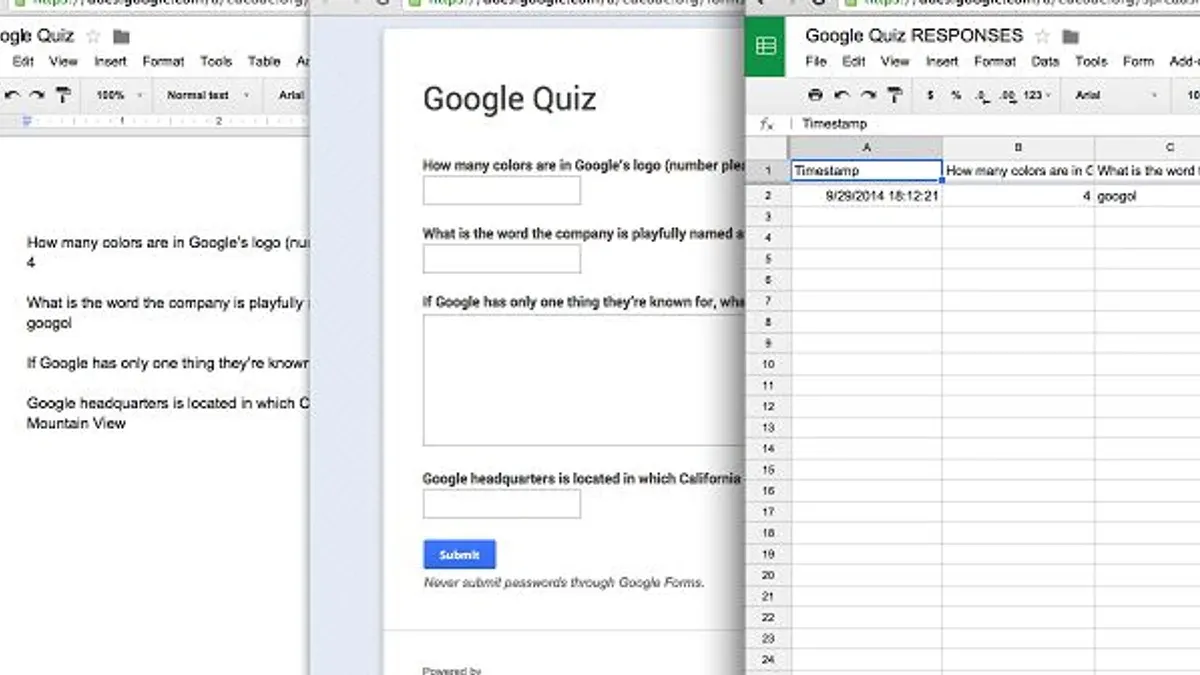
Start by opening Google Forms and selecting a blank form. Go to the Settings gear icon, click the 'Quizzes' tab, and toggle on 'Make this a quiz.' This activates quiz features like automatic grading and feedback.
Add questions by clicking the '+' button. You can choose question types such as Multiple choice, Short answer, or Checkbox. For example, create a 5-question quiz with three multiple choice, one short answer, and one checkbox question.
After entering each question, click 'Answer key' to select the correct answer(s) and assign points, typically 1-5 per question depending on complexity. For short answer questions, add possible correct responses and set point values accordingly.
Enable feedback by adding explanations for correct or incorrect answers in the 'Answer key' section, helping students understand their mistakes immediately.
Once all questions are set, preview the quiz to confirm the correct answers and point distribution. This foundational setup ensures your quiz is ready for distribution and automatic grading.
- Open Google Forms and create a blank form.
- Enable quiz mode via Settings > Quizzes > Make this a quiz.
- Add questions using the '+' button; select appropriate question types.
- Set correct answers and assign points in 'Answer key' for each question.
- Add feedback for answers if desired.
- Preview the quiz before sharing.
How to shuffle choices in Google Forms
To reduce cheating and increase test integrity, Google Forms lets you shuffle answer choices for individual questions. Open your quiz in Google Forms, click on the question you want to shuffle, then click the three-dot menu in the bottom-right corner of the question box. Select "Shuffle option order" to randomize the order of answer choices for that question. This feature works only on question choices, not on the questions themselves.
For example, if you have a multiple-choice question about the capital of France with options Paris, London, Rome, and Berlin, enabling shuffle changes the order each student sees, making it harder to share answers.
However, Google Forms does not support randomizing entire questions. To shuffle questions, you must manually duplicate forms with different question orders or use the section feature combined with go to section based on answer logic, which can be complex and time-consuming.
Compare this with Edpuzzle, where you can easily reorder questions and control the sequence of interactive video-based questions, overcoming Google Forms’ limitation.
| Feature | Google Forms | Edpuzzle |
|---|---|---|
| Shuffle answer choices | Yes, per question | Yes, by question order |
| Shuffle entire questions | No native support; manual workarounds required | Yes, easy drag-and-drop question sequencing |
- Open your quiz and select a question
- Click the three-dot menu in the question box
- Enable Shuffle option order
- Repeat for each question needing randomization
- Consider Edpuzzle if you need to shuffle whole questions easily
How to add and edit answers in Google Forms
To set correct answers in Google Forms, open your quiz and click on a question, then select the Answer key option at the bottom right. Here, you can choose one or multiple correct answers depending on the question type. Assign points for each question to enable automatic grading.
If you need to edit answers after creation, simply return to the same Answer key area. Modify the correct choices or update points as needed. Remember to click Done after making changes; failing to save will leave the original answers unchanged, which affects grading accuracy.
For example, if you initially marked "Option A" as correct but later realize "Option B" is the right answer, updating this in the Answer key will correct the grading for all submissions. Without saving, students selecting "Option B" would not receive credit, potentially skewing results.
- Select a question and click Answer key
- Set or change correct answer(s) and assign points
- Click Done to save changes
- Review quiz after edits to ensure accuracy
Why switch from Google Forms to Edpuzzle for quizzes
Google Forms offers straightforward quizzes but lacks interactive depth. Edpuzzle integrates questions directly into videos, turning passive watching into active learning. Embedding multiple-choice or open-ended questions within a video increases engagement, with many educators noting higher completion rates compared to traditional text-based quizzes.
Edpuzzle’s analytics provide detailed insights not just on answers but on how students interact with the video—when they pause, rewind, or skip. This level of data helps you identify exactly where students struggle or lose interest, which Google Forms cannot track. For example, if a student rewinds a particular segment multiple times, it signals a challenging concept that may need reinforcement.
Unlike Google Forms’ text-only format, Edpuzzle supports multimedia content, combining visual and auditory learning. This multimedia integration addresses different learning styles and keeps students focused. The trade-off is a slightly steeper learning curve to set up videos and embed questions, but the engagement and feedback benefits outweigh this initial effort.
How to create and manage quizzes in Edpuzzle
Start by selecting a video from Edpuzzle’s library or upload your own via the “Add Content” button. Once your video is ready, use the timeline to pause at specific points where you want to insert quiz questions. Click the “Add Question” icon and choose from multiple-choice, open-ended, or true/false formats.
Set correct answers and add feedback directly within each question interface. This feedback appears immediately after a student responds, reinforcing learning. When finished, save your quiz and assign it to your class through the “Assign” option.
Edpuzzle’s dashboard tracks each student’s progress, showing who watched the video, answered questions, and their scores. For example, if you embed three questions at 1:10, 3:45, and 5:20, you can see response accuracy and time spent on each segment. This data helps identify concepts students struggle with.
- Upload or select a video via “Add Content”
- Pause video at quiz points and click “Add Question”
- Set correct answers and feedback for each question
- Save and assign the quiz to your class
- Monitor student progress and responses in the dashboard
Common mistakes to avoid when switching from Google Forms to Edpuzzle
Assuming your Google Forms quizzes transfer directly to Edpuzzle without adapting the format is a frequent error. Google Forms quizzes rely on text-based questions, while Edpuzzle integrates questions into videos, requiring you to rethink timing and question placement. For example, one teacher tried uploading a Google Forms quiz as-is and found students confused by abrupt video stops and unclear question context.
Ignoring student technical readiness can block engagement. Edpuzzle demands stable internet and device compatibility for smooth video playback. Some educators overlooked this and faced incomplete submissions because students struggled with buffering or device restrictions.
Not using Edpuzzle’s analytics tools to monitor student interaction wastes its potential. Simply assigning videos without reviewing completion rates, answer patterns, or time spent misses opportunities to spot learning gaps early.
Failing to communicate changes clearly to students creates frustration. Inform students about the switch, how to access Edpuzzle, and expectations. One school resolved confusion by sending detailed instructions and hosting a demo session before the first quiz.
- Adapt quiz design to video format, adjusting question timing and clarity
- Check student internet and device readiness before assigning video quizzes
- Regularly review Edpuzzle analytics to identify struggling students
- Communicate changes, provide guidance, and offer practice runs
Frequently asked questions
How to use google forms for quizzes?
Open Google Forms and select a blank quiz or turn a form into a quiz by clicking the settings gear icon, going to the "Quizzes" tab, and enabling "Make this a quiz." Add your questions using multiple-choice, checkbox, or short answer formats. Assign point values and correct answers for automatic grading. Share the form link with students to start collecting responses.
How to add answers to google forms?
When creating a question, choose a question type like multiple choice or checkbox. Enter the possible answers in the option fields below the question. To designate the correct answer, click "Answer Key," select the right option(s), and assign point values. This enables automatic scoring for your quiz.
How to edit answer in google form?
Locate the question you want to change in your form. Click on the answer option you want to edit and modify the text directly. To change the correct answer, open the "Answer Key" and select a different option or adjust point values as needed.
How to put answers on google forms?
After adding a question, click "Answer Key" at the bottom of the question box. Select the correct answer(s) by clicking the option(s) that apply. Assign the point value for the question, then click "Done" to save the answer key settings.
How to work google forms?
Google Forms works by creating forms or quizzes that collect responses online. You add questions, set answer keys for quizzes, and customize settings like notifications or response restrictions. Once shared, responses are automatically collected in Google Forms and can be analyzed or exported for grading.
Quick checklist
- Review your current Google Forms quizzes to identify which questions can benefit from video context.
- Create an Edpuzzle account and explore the video editor interface.
- Upload or select videos relevant to your quiz material.
- Add interactive questions at key moments in the video using Edpuzzle’s question types.
- Assign quizzes and monitor student engagement through Edpuzzle’s analytics dashboard.
- Test the full quiz experience from a student’s perspective before launch.
- Prepare to provide students with clear instructions about the new video-based format.
What this advice does not cover
This article does not cover in-depth Edpuzzle subscription tiers or integration with specific LMS platforms; users should verify compatibility with their institution’s infrastructure before switching. If your school requires advanced grade syncing or compliance features, consult your IT department or Edpuzzle support for tailored guidance.
For educators managing very large classes or needing offline quiz capabilities, Google Forms may still be more practical. Edpuzzle’s strengths lie in interactive video engagement rather than traditional quiz administration at scale.
Start by identifying one or two key lessons where video questions can replace or supplement existing Google Forms quizzes. This focused approach helps you gain familiarity with Edpuzzle’s tools and assess student response before broader adoption.
See also: Switching from Google Forms to Blooket: A Practical Guide for Educators · Moving from Gimkit to Edpuzzle Checklist: What You Need to Know · Edpuzzle Implementation Timeline: A Step-by-Step Guide for Educators · Moving from Edpuzzle to Quizizz: Your Practical Transition Checklist