Switching from Google Forms to Blooket: A Practical Guide for Educators
Learn how to transition from Google Forms to Blooket to create interactive, game-driven quizzes that boost student participation.

Short answer: Switching from Google Forms to Blooket means moving from a traditional, text-based quiz format to an interactive, game-driven platform that increases student engagement. You leverage your existing question and answer content but transform it into competitive, timed games that motivate learners differently.
This article explains how Google Forms works, including its limitations like tab-switch detection, then guides you through creating Blooket games using your Google Forms content. You’ll learn why Blooket’s game mechanics can improve participation, what mistakes to avoid during the transition, and how to manage issues like blank or unresponsive Google Forms. Each section offers practical steps to help you shift smoothly from form-based assessments to dynamic learning games.
How to work Google Forms
Google Forms lets you create surveys, quizzes, and feedback forms quickly. Start by clicking the "+ Blank" button on forms.google.com or choose a template. You can add questions by clicking the "+" icon on the right. Question types include multiple choice, checkbox, dropdown, short answer, and paragraph, among others. Customize questions with required toggles, images, or videos.
Responses are collected automatically. Access them by clicking the "Responses" tab in your form editor. You can view answers individually or in summary charts. Export data to Google Sheets for deeper analysis or record-keeping. Google Forms sends email notifications if enabled.
Despite ease of use, Google Forms has engagement limits. It does not track if students switch tabs or cheat. The experience is static and text-heavy, which can lower participation. For example, typical completion rates drop when forms exceed 10 questions or lack interactive elements.
Picture creating a feedback form with 8 multiple-choice questions. You build it in 5 minutes, share the link, then check responses in a spreadsheet. This setup is straightforward but lacks gamification or live interaction.
Can Google Forms detect switching tabs?
Google Forms lacks built-in functionality to detect when a respondent switches browser tabs during an assessment. This limitation means you cannot track if a student leaves the test page to search for answers or consult other resources. Some educators try third-party tools or browser extensions to monitor tab activity, but these are often unreliable, require complex setup, or raise privacy concerns.
For example, if you assign a quiz via Google Forms, you won't receive alerts or logs showing if a student navigated away from the form. This contrasts with platforms like Blooket or dedicated quiz software that incorporate focus tracking and can pause or flag the game when a tab switch is detected, helping maintain test integrity.
If preventing off-task behavior during assessments is critical, consider using platforms designed for interactive monitoring rather than relying solely on Google Forms. These alternatives provide more control and clearer insights into student engagement.
- Google Forms has no tab-switch detection feature.
- Third-party monitoring tools are often unreliable or intrusive.
- Blooket and similar platforms offer better focus tracking.
- Choose platforms based on your need for test security and engagement.
How to make a Blooket game with Google Forms content
Start by exporting your Google Forms questions. Open your form, click the three-dot menu at the top right, and select "Print". Instead of printing, save as a PDF or copy the questions and answers manually into a text editor. Google Forms doesn’t export questions directly, so manual copying is often necessary.
Next, format your content to fit Blooket’s quiz structure. Blooket quizzes require a question, four answer options, and one correct answer. For example, a Google Form question like "What is the capital of France?" with options "Paris," "Rome," "Berlin," and "Madrid" fits perfectly. Remove any questions with formats Blooket doesn’t support, like long-form responses.
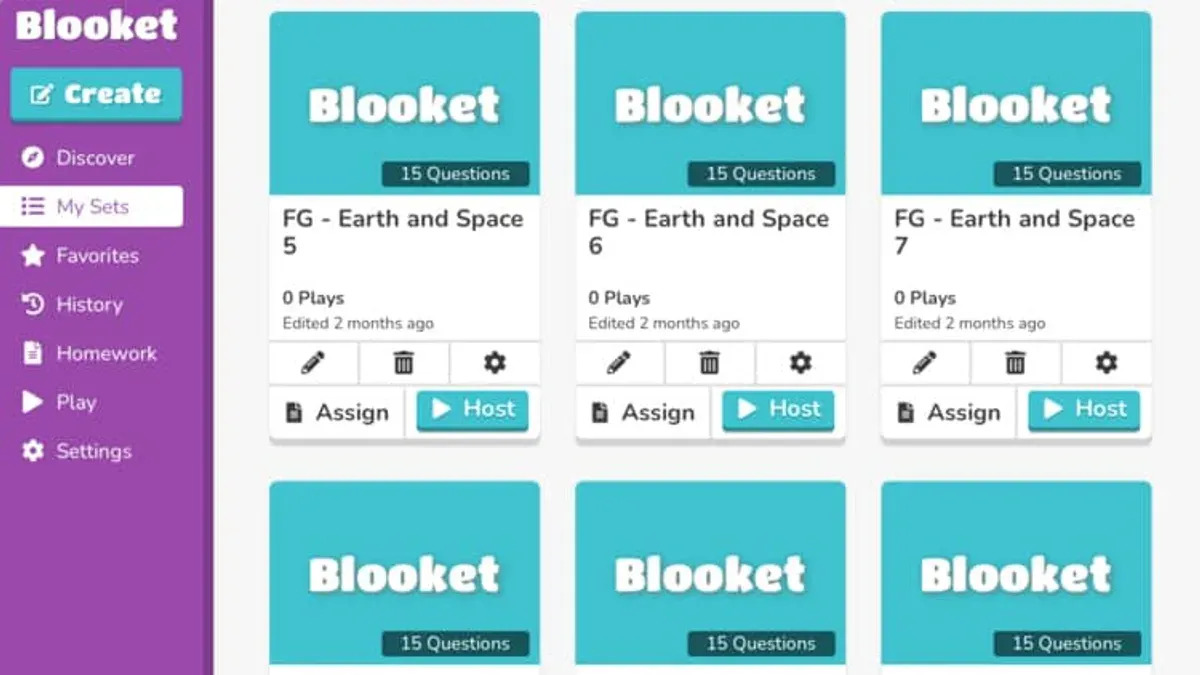
Log in to Blooket, click "Create," then choose "New Set." Enter your quiz title and start inputting questions. Copy each question and answers from your formatted list, marking the correct answer. Blooket’s interface is straightforward and confirms each entry.
Finally, choose a game mode. Beyond quizzes, try modes like "Tower Defense" or "Crazy Kingdom" to increase engagement. These modes use your questions but add gameplay elements that encourage participation and competition.
Checklist:
- Export and copy Google Forms questions
- Format questions into Blooket’s multiple-choice style
- Create a new Blooket set and input questions
- Select a game mode to enhance learning
Why switch from Google Forms to Blooket?
Blooket transforms standard question-and-answer sessions into engaging games, increasing student motivation through gamification. Unlike Google Forms, which simply collects responses, Blooket offers real-time feedback and competitive elements like leaderboards and timers that drive participation. For example, a history teacher reported that students were more eager to answer questions when playing a Blooket quiz, resulting in higher attentiveness and faster recall compared to traditional forms.
However, Blooket is less suited for detailed data collection and analysis. While Google Forms allows you to export response data into spreadsheets for in-depth review, Blooket focuses on gameplay metrics and immediate results. If you need comprehensive analytics or long-form answers, Google Forms remains the better choice. Switching means balancing more interactive sessions with some sacrifice in data granularity.
Common mistakes to avoid when transitioning
One frequent error is not adapting your Google Forms questions to fit Blooket’s game formats. For example, Google Forms allows long-answer text responses, but Blooket supports mostly multiple-choice questions with limited answer options. If you import questions without adjusting them, your game may confuse students or fail to run properly.
Another common pitfall is overlooking Blooket’s restrictions on question types and answer options. Blooket limits choices to four answers per question and doesn’t support open-ended responses. Ignoring these limits can result in incomplete games or the need for last-minute edits. Plan your question bank accordingly by selecting or rewriting questions to fit these parameters.
Many educators also forget to ensure students have the necessary accounts or access permissions. Blooket requires a stable internet connection and, depending on your setup, student accounts or game codes. Without proper access, students can’t participate, defeating the purpose of the transition.
Finally, failing to pilot test your Blooket game before full-class deployment is a major mistake. One educator shared that their first attempt ran into technical glitches and unclear instructions that disrupted the session. Running a small test with a few students helps identify such issues and smooth out the experience.
- Adjust questions to fit multiple-choice format with up to four options
- Review Blooket’s question and answer limitations before creating games
- Confirm students have access to accounts or game codes and stable internet
- Conduct a pilot test to catch errors and improve clarity
How to handle blank or unresponsive forms in Google Forms
Blank or unresponsive Google Forms can appear due to several common causes. These include browser cache issues, network interruptions, or script errors triggered by add-ons or embedded content. For example, a form might load as a blank page if a user’s browser blocks third-party cookies or scripts required for the form to render properly.

To troubleshoot, first clear your browser cache and cookies, then reload the form. Check the form in an incognito window or a different browser to rule out extension conflicts. Also, verify the form’s sharing settings under the "Settings" tab to ensure users have the proper access permissions. If the form includes images or videos, confirm these resources are accessible and not causing load failures.
Persistent blank forms despite these steps often indicate deeper compatibility or configuration issues. In such cases, moving to a platform like Blooket, which is optimized for interactive content and frequently updated for compatibility, can reduce these technical barriers and improve user experience.
- Clear browser cache and cookies
- Test form in incognito or alternate browser
- Verify form sharing and access permissions
- Check embedded content for accessibility
- Consider platform change if problems persist
Frequently asked questions
How to google forms?
To create a Google Form, go to forms.google.com and sign in with your Google account. Click the blank form or choose a template to start. Add questions by selecting the question type from the dropdown menu on the right, such as multiple choice, short answer, or checkboxes. Customize settings by clicking the gear icon to adjust confirmation messages, response collection, and presentation options.
Can Google Forms detect switching tabs?
Google Forms does not have built-in functionality to detect if respondents switch tabs or leave the form window. It focuses on collecting responses without monitoring user behavior beyond submission. If you need to restrict tab switching, consider third-party proctoring tools or platforms designed for secure testing.
How to create a blank form in Google Forms?
On the Google Forms homepage, simply click the large plus (+) icon labeled “Blank” to start a new form from scratch. This creates a clean slate without pre-filled questions or themes. You can then add your own questions and customize the form’s appearance as needed.
Can Google Forms select more than one answer?
Yes, Google Forms supports multiple answers if you use the “Checkboxes” question type. This allows respondents to select any number of options from a list. For single-answer selection, use “Multiple choice” instead, which restricts respondents to one choice.
What this advice does not cover
This guide does not cover advanced data analytics or integrations that require third-party tools. If you require detailed tracking of student responses beyond basic completion data, or need to integrate with learning management systems at a deep level, you may still need to rely on Google Forms or complementary software designed for that purpose. This practical approach focuses on leveraging existing Google Forms content to create engaging Blooket games rather than replacing all aspects of assessment or data management.
Quick checklist
- Review your existing Google Forms questions for suitability in a game format.
- Export or copy question content and answers accurately.
- Create a new Blooket game using the "Custom Set" feature and input your questions.
- Test the game to ensure questions and answers display correctly.
- Inform students about the interactive format and how to join the game.
- Monitor student engagement during the Blooket session.
- Collect feedback to refine future games and question sets.
The most useful next step is to open your current Google Forms quiz, export the questions, and start building a Blooket Custom Set. Focus on clear, concise questions and answers, then test the game yourself before sharing it with students. This hands-on approach lets you transform static forms into interactive learning experiences quickly and effectively.
See also: Google Forms Rollout Plan for Elementary Teachers: A Clear Step-by-Step Guide · How to Switch from Edpuzzle to Blooket: A Practical Guide · Moving from Blooket to Google Forms Checklist: A Practical Guide · Blooket Rollout Plan for Homeschool Families: A Step-by-Step Guide