
Switching from Notion to ClickUp: A Clear Migration and Setup Plan
Learn a clear migration and setup plan to switch from Notion to ClickUp while preserving workflows and leveraging advanced project management features.

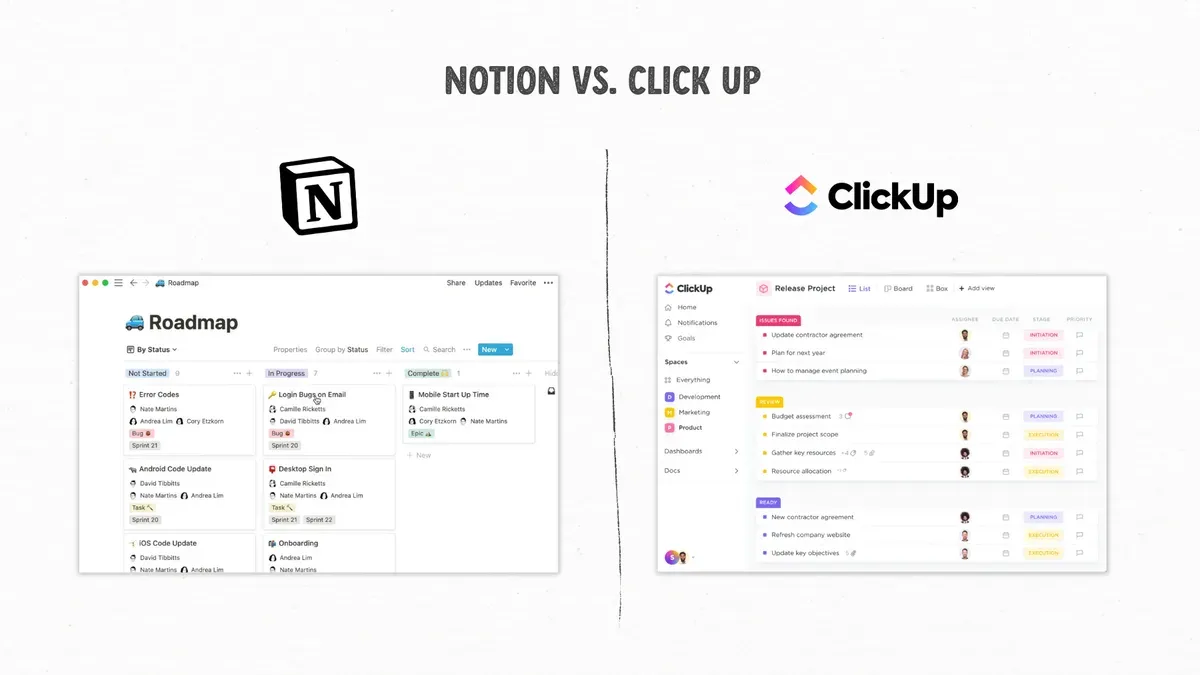
One major hurdle is that Notion’s calendar system cannot be directly linked to ClickUp or external calendars without third-party tools. This limitation often causes confusion when migrating time-sensitive tasks or schedules.
In contrast, ClickUp provides advanced project management features like task dependencies and native Google Calendar integration, which do not directly import Notion’s calendar data.
Understanding these differences upfront helps you plan a migration that preserves your workflows while leveraging ClickUp’s strengths.
Last verified November 2026 against Microsoft, Guiding Tech.
Understand the core differences between Notion and ClickUp
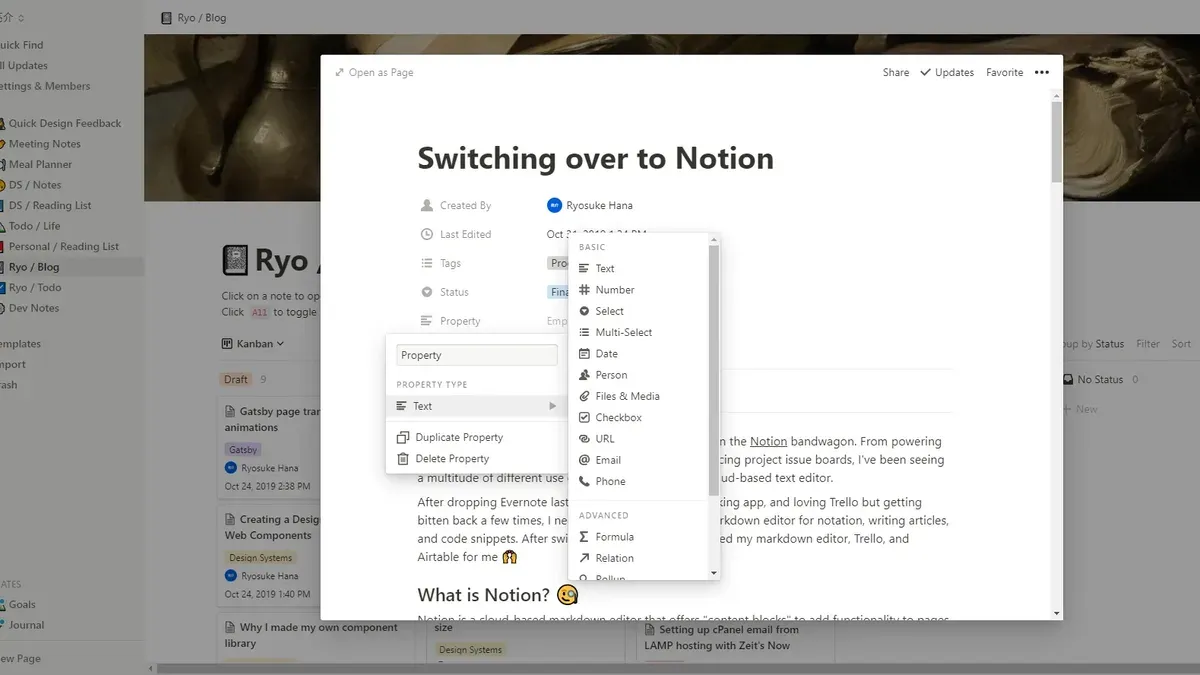
Notion excels in flexible note-taking through highly customizable pages, databases, and internal linking of content blocks. This flexibility demands manual setup for calendar views and data integrations, requiring you to build calendar displays or syncs yourself.
ClickUp, by contrast, is designed for structured project management. It offers native calendar integrations with services like Google Calendar, task dependencies to manage workflows, and built-in time tracking. These features simplify managing complex projects without additional configuration.
| Feature | Notion | ClickUp |
|---|---|---|
| Calendar Integration | Manual setup required, no native sync to external calendars | Native integration with Google Calendar and others |
| Task Dependencies | Not supported natively | Fully supported, essential for project workflows |
| Customization | Highly customizable pages, databases, and linking | Customizable but focused on structured task and project management |
Consider this example: if you want to track meeting notes linked to project tasks on a timeline, Notion lets you customize pages and databases extensively but requires you to manually create calendar views and syncs. ClickUp lets you connect tasks directly to your Google Calendar with dependencies and time tracking, streamlining project oversight.
Choose ClickUp if you need advanced project management with native calendar syncing. If your priority is flexible note-taking and database customization, staying with Notion or preparing for manual setup after switching is the better choice.Source
Prepare your Notion workspace and data before migrating
Focus on your core project pages and those databases that hold task or project information. Calendars in Notion are built within pages or databases and cannot be directly linked or synced to ClickUp or external calendars without third-party tools.
Choose formats compatible with ClickUp’s import tools, such as CSV for databases and Markdown or HTML for pages. This step is crucial to avoid import errors or missing data.
Recognize that You will need to manually recreate these in ClickUp after import. For example, if you have a Notion database with a calendar view for deadlines, export it as CSV, then import into ClickUp and set up task dates and dependencies there.
- Identify all Notion pages, databases, and calendars you want to migrate.
- Export each database as CSV and pages as Markdown or HTML.
- Note that Notion calendar links won’t sync with ClickUp calendars directly.
- Plan to manually rebuild calendar views and task dependencies inside ClickUp.
This preparation ensures your data moves smoothly and sets clear expectations on what requires manual setup after migration. For more on Notion calendar limits, see this reference.
Import your Notion data into ClickUp effectively
Start by using ClickUp’s import tool found under Settings > Import/Export > Import to bring in your Notion pages and databases. Importing these elements first preserves your content structure and essential data.
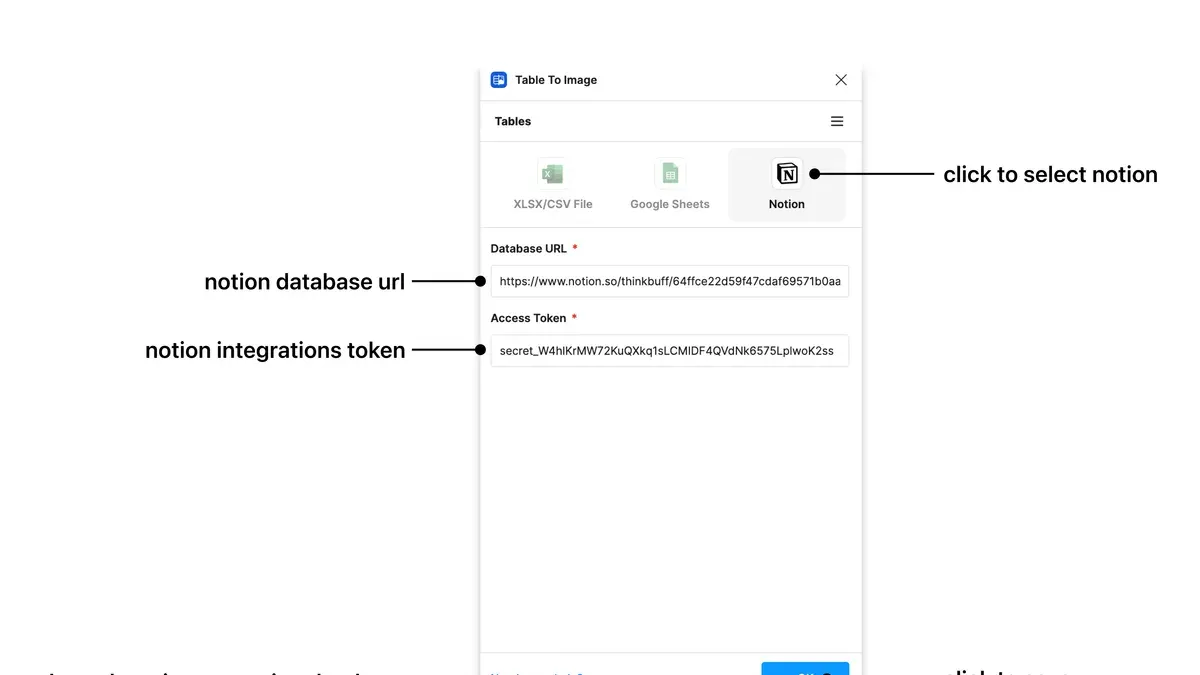
Next, manually recreate your calendars and task dependencies in ClickUp because Notion’s calendar data does not transfer directly. ClickUp’s native calendar integration and task dependencies require fresh setup to function properly.
Be aware that handwritten notes or ink-to-text conversions, such as those created in OneNote or within Notion itself, will not appear in ClickUp after import. These handwriting recognition features are platform-specific and do not migrate across tools.
Finally, rebuild any workflows or integrations manually in ClickUp, as automation and connected apps from Notion do not import automatically.
Set up ClickUp to replace your Notion workflows
For example, create a Space for each department, Folders for projects, and Lists for task groups within projects. This hierarchy replaces Notion’s flexible pages with a structured project approach.
Next, enable native calendar integrations by navigating to ClickApps > Calendar and connecting Google Calendar or other supported services. This setup ensures real-time syncing of tasks with due dates, which Notion’s calendar lacks natively.
Configure task dependencies under Task Settings > Dependencies to reflect workflows where tasks must follow others, a feature absent in Notion. Activate time tracking by enabling the Time Tracking ClickApp to monitor effort directly within tasks.
For instance, a Calendar view filtered by project deadlines replicates Notion’s calendar but with interactive task management.
These steps translate your Notion workspace into ClickUp’s advanced project management environment, enhancing task visibility and control without losing your original structure. Learn more about ClickUp’s calendar and task features.
Avoid common mistakes when switching from Notion to ClickUp
A common mistake is expecting your Notion calendar to sync directly with ClickUp’s native calendar. Notion does not provide built-in calendar linking to ClickUp or external calendars; this requires third-party tools or manual export/import, or you’ll see empty or unsynced calendar views.
Another frequent issue is assuming handwriting or ink-to-text data from OneNote or Notion will migrate intact.
ClickUp’s advanced project management features require explicit configuration post-import.
Finally, be mindful of your ClickUp account type limits. Some features, like advanced calendar views or dependencies, vary by plan. Overlooking this can cause missing functions or confusing error messages.
| Symptom | Cause | Fix |
|---|---|---|
| Calendars not syncing or showing empty in ClickUp | Notion calendar does not natively link to ClickUp | Use third-party sync tools or manually export/import calendar data |
| Handwritten notes appear as images, not searchable text | Handwriting recognition data does not migrate from Notion/OneNote | Convert handwriting to text before migration or retain outside ClickUp |
| Imported data lacks task dependencies or workflow automation | Workflows and dependencies require manual setup in ClickUp | Rebuild workflows manually using ClickUp’s task dependency and automation settings |
| Features missing or disabled in ClickUp post-migration | Account plan limits restrict feature access | Verify ClickUp plan features before migration and upgrade if needed |
The solution is to export your calendar data from Notion and import or recreate it in ClickUp’s native calendar, or rely on a third-party synchronization tool.
These points help avoid common frustrations and ensure a smoother transition from Notion to ClickUp. More details on ink-to-text limitations.
Check and maintain your ClickUp setup after migration
Verify that pages, databases, and tasks appear as expected without missing elements. Pay special attention to task dependencies and calendar events, since Notion calendar data requires manual recreation in ClickUp and does not import directly.
Test your calendar integrations by connecting ClickUp’s native calendar sync with Google Calendar or other supported services under Settings > Integrations > Calendar. Confirm that task dependencies behave correctly by adjusting a parent task’s schedule and observing if dependent tasks update accordingly.
Schedule regular audits of your workflows, ideally monthly or quarterly, to identify bottlenecks or workflow inefficiencies. Use ClickUp’s reporting tools and custom views to monitor progress and adjust statuses, priorities, or automations as needed.
Understand that certain elements like handwritten notes or ink-to-text data from your previous workspace won’t transfer and require manual re-entry or alternative solutions. Also, changes made after migration can usually be undone or adjusted within ClickUp’s version history and task edit options, but calendar syncing errors must be fixed through integration settings.
Post-migration checklist:
- Confirm all Notion pages and databases imported completely
- Manually rebuild calendars and verify their integration
- Test task dependencies for correct behavior
- Set up recurring workflow audits and reporting
- Review and re-enter any handwritten or ink-to-text content lost in migration
- Utilize ClickUp’s version history to undo or adjust recent changes
This prevents misalignment in your project timeline and maintains accurate scheduling.
When staying with Notion or choosing another tool makes sense
Notion remains the top choice if your workflow hinges on flexible note-taking with rich internal linking and customizable databases. Switching to ClickUp in such cases demands extensive manual rebuilding of these features, often outweighing the benefits.
If your calendar syncing needs are complex, especially involving Notion's internal calendar, understand that Notion does not support native calendar syncing with ClickUp. You must rely on third-party tools or manual methods to bridge this gap, which can complicate migration.
On the other hand, if your team prioritizes advanced project management features with built-in calendar integration and structured task dependencies, ClickUp offers clear advantages and will improve coordination and oversight.
Consider your use of handwriting recognition carefully. Features like ink-to-text conversions from OneNote or Notion do not transfer to ClickUp. If these are critical, you may need to maintain Notion or use specialized tools alongside ClickUp.
| Your Situation | Recommendation | Key Fact |
|---|---|---|
| Need flexible note-taking with internal linking | Stay with Notion | Notion’s flexible note-taking features do not transfer easily to ClickUp |
| Require native calendar syncing with complex Notion setup | Consider third-party tools before switching | Notion does not natively sync calendars with ClickUp |
| Focus on advanced project management with native calendar integration | Switch to ClickUp | ClickUp offers structured task management and calendar syncing |
| Depend on handwriting recognition or ink-to-text | Stay with Notion or use separate solutions | Handwriting recognition does not transfer during migration |
You would either need to keep Notion for note-taking or implement a parallel solution for handwriting recognition, adding complexity.
Read next
- Switching from ClickUp to Google Chat: A Clear Automation Transition
- How to Roll Out Notion for Team Leads: A Practical Plan
- Moving from Basecamp to ClickUp Checklist for Seamless Project Management
- Map Your ClickUp Implementation Timeline for Smooth Adoption
Frequently asked questions
How to link notion calendar to notion?
Notion's calendar is a built-in database view that you can link internally by creating filtered views or synced blocks within your workspace. To link one calendar to another within Notion, use linked databases or duplicate calendar views, then filter or configure them to reflect the desired data. This internal linking does not sync with external calendars without third-party tools.
How to setup notion?
Setting up Notion starts with creating a workspace and adding pages or databases tailored to your needs. Use the sidebar's New Page button, then choose templates or custom layouts for notes, projects, or wikis. Organize with blocks, toggle lists, and database views, adjusting permissions under Settings & Members to control access for teams or individuals.
Avoid Common Mistakes When Switching from Notion to ClickUp
- Relying on Native Calendar Linking: Expecting Notion’s calendar to sync directly with ClickUp or external calendars will lead to confusion. Avoid this by planning to use ClickUp’s native calendar integrations or third-party tools for calendar syncing.
- Ignoring Migration Order: Importing data without preparing your Notion workspace or following the correct import sequence can cause lost or misformatted content. Always export and clean your Notion data first, then import into ClickUp to preserve structure.
- Assuming Full Data Transfer of Handwriting: Handwritten notes or ink-to-text from Notion won’t transfer to ClickUp. Avoid relying on these during migration and consider converting critical handwritten data to text beforehand.
- Overlooking ClickUp’s Structured Approach: Treating ClickUp exactly like Notion’s flexible note-taking space causes workflow inefficiencies. Design your ClickUp setup around task and project management features to leverage its strengths.
- Skipping Post-Migration Checks: Not reviewing and maintaining your ClickUp workspace after import can leave errors unnoticed. Schedule time to audit and adapt workflows once data is migrated.
What This Guide Does Not Cover and When to Look Elsewhere
If your workflows require continuous, automatic calendar synchronization, investigate integration platforms like Zapier or Automate.io separately.
This clarity ensures you tailor ClickUp’s setup to your actual needs rather than replicating Notion’s flexibility exactly, enabling a smoother migration and better long-term productivity.
Documentation used
- Explore the Ink to Text Pen | Microsoft Support — Microsoft
- How to Use Handwriting Recognition in Microsoft OneNote — Guiding Tech
- Draw and sketch notes in OneNote | Microsoft Support — Microsoft



