Switching from Quizizz to Gimkit: A Step-by-Step Educator’s Guide
This guide helps educators switch from Quizizz to Gimkit by adapting content and leveraging Gimkit’s engaging game mechanics.

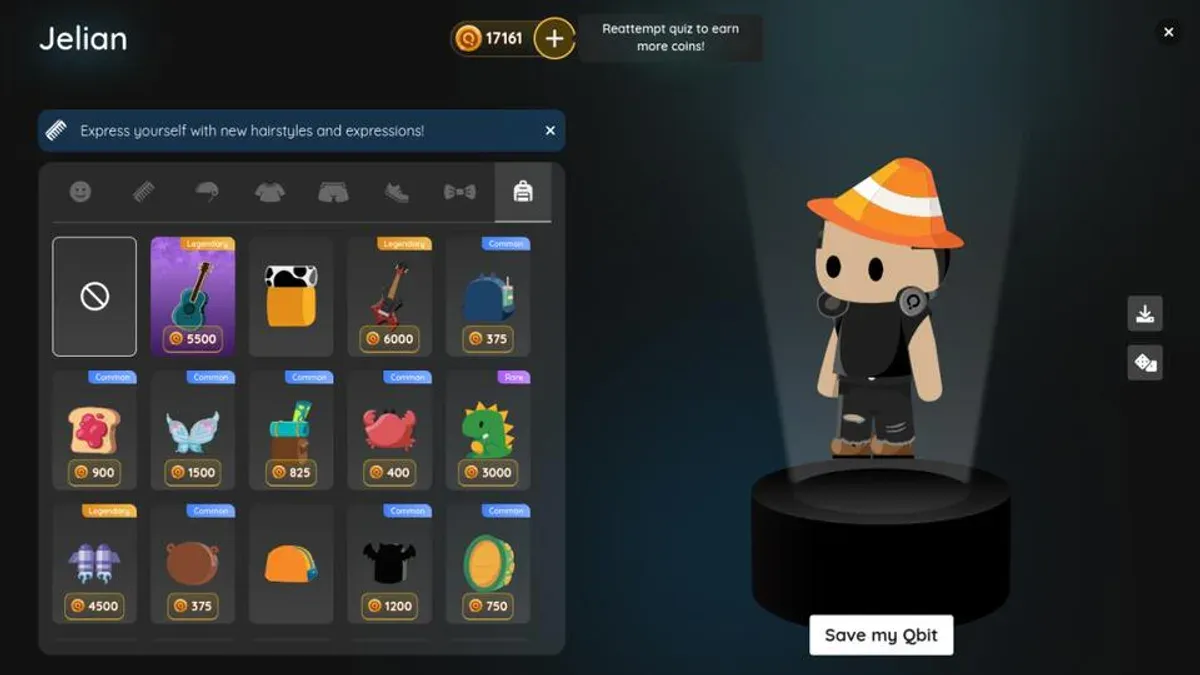
Short answer: Switching from Quizizz to Gimkit involves understanding that Gimkit’s game mechanics focus more on earning in-game currency through repeated answering, encouraging deeper engagement rather than just speed. You’ll need to adapt your Quizizz or Quizlet content to fit Gimkit’s interactive formats, which emphasize strategy and ongoing participation.
This article guides you through the technical and pedagogical shifts required when switching from Quizizz to Gimkit. You'll learn how to set up and navigate Gimkit’s dashboard, import content from Quizlet, create custom question sets, and use Gimkit’s unique features to enhance student motivation and assessment. Practical tips on avoiding common pitfalls and ethically managing answers complete the guide, ensuring a smooth transition that leverages Gimkit’s strengths in your classroom.
Understand the key differences between Quizizz and Gimkit
Switching from Quizizz to Gimkit involves moving from a traditional quiz format to a dynamic, game-based learning environment designed to boost student motivation and engagement. Quizizz delivers quizzes with immediate feedback and leaderboards, focusing on content delivery and assessment pace. Gimkit, however, uses an iterative earning model where students accumulate in-game currency by answering questions correctly, which they can spend on power-ups that influence gameplay.
This fundamental difference shifts the classroom experience: while Quizizz emphasizes straightforward quiz completion, Gimkit encourages continuous student interaction through its currency and power-up mechanics, making learning feel more like a strategy game. For example, a student who answers questions accurately in Gimkit might purchase a “Freeze” power-up to delay opponents, adding a strategic layer absent in Quizizz.
Gimkit offers both live and self-paced modes, similar to Quizizz, but its live mode integrates game elements that promote sustained attention. Educators report that this format leads to higher engagement, as students stay motivated to earn and spend currency rather than just completing questions. Additionally, Gimkit’s frequent updates introduce new features tailored for educators, such as customizable power-ups and detailed analytics, which enhance lesson adaptability.
| Feature | Quizizz | Gimkit |
|---|---|---|
| Quiz Style | Traditional quiz with leaderboards | Game-like, iterative earning model |
| Student Motivation | Points and badges | In-game currency and power-ups |
| Modes | Live and self-paced quizzes | Live and self-paced with game mechanics |
| Updates | Periodic feature additions | Frequent educator-focused updates |
| Engagement | Moderate, quiz completion focused | High, strategy and interaction driven |
"Switching to Gimkit transformed my classes — students are more invested because they’re not just answering questions; they’re playing a game that rewards strategy and knowledge." — Educator testimonial
How to set up a Gimkit account and navigate the dashboard
Start by visiting gimkit.com and clicking the “Sign Up” button. You can create an account using your email address or sign in quickly with Google or Microsoft credentials, which streamlines login and integrates with many school accounts. After entering your details and verifying your email, you’ll land on the dashboard.
The Gimkit dashboard is divided into clear sections: "Kits" for your quizzes, "Classes" to organize students, and "Reports" to track progress. The top menu bar offers quick access to creating new kits or classes, while the left sidebar lists your existing content.
To create a class, select the “Classes” tab and click “Create Class.” Name your class (e.g., "5th Grade Science") and add students by entering their emails or sharing a join code. This setup allows you to easily assign kits and monitor individual progress.
If your school uses Google Classroom or Microsoft Teams, link your Gimkit account via the “Integrations” menu under your profile settings. This connection simplifies rostering and assignment distribution, saving time and reducing manual entry errors.
For example, after signing up with your Google account, you create a class called "History 101," add students by sharing the join code, and then navigate to "Kits" to start building or importing quizzes. The dashboard’s intuitive layout helps you jump between creating content and managing classes without confusion.
- Go to gimkit.com and click “Sign Up”
- Choose email, Google, or Microsoft login
- Verify your email and access the dashboard
- Use the “Classes” tab to create classes and add students
- Link school LMS via “Integrations” in profile settings
- Explore “Kits” and “Reports” to manage content and track progress
How to add questions to Gimkit for a custom game
Start by clicking the Create a Kit button on your dashboard to open the question editor. Gimkit supports multiple-choice questions, text input questions, and allows adding images to questions or answer choices for visual engagement.
Enter your question in the Question field and then add answer options below. For multiple-choice, mark the correct answer by toggling the checkmark beside it. For text input questions, provide one or more acceptable answers exactly as students might type them.
To organize your content effectively, use the Tags field to label questions with keywords like “math,” “vocabulary,” or “chapter 3.” You can also assign categories if you want to group questions by topic or skill level. This makes it easier to find and reuse questions later.
Once the question is complete, click Add Question to include it in your kit. Repeat this process until you've built your set. For example, to create a 10-question kit on U.S. geography, add questions like “What is the capital of Texas?” with multiple-choice answers and tag them with “geography” and “U.S. states.”
You can save your kit at any time with the Save button and return to edit questions later by selecting the kit from your dashboard under My Kits. This flexibility lets you refine questions based on student feedback or curriculum changes.
- Click Create a Kit on the dashboard
- Enter question text and answer choices
- Mark correct answers or acceptable text responses
- Add tags and categories for organization
- Click Add Question to build the set
- Save and edit your kit anytime under My Kits
How to import a Quizlet into Gimkit to save time
Gimkit allows you to import Quizlet sets to streamline quiz creation. The import feature accepts CSV files, which you can generate by exporting your Quizlet content. This method saves you from manually entering each question and answer.
First, go to your Quizlet set and locate the Export option under the More menu. Choose to export as plain text, then copy the terms and definitions into a spreadsheet program like Excel or Google Sheets. Organize the data so the first column contains questions and the second contains answers. Save the file as a CSV.
Next, in Gimkit, click Create a Kit and select Import CSV. Upload your saved CSV file. Gimkit will parse the file and display the imported questions and answers side by side for review. At this stage, clean up any formatting errors or split compound questions into simpler ones to fit Gimkit’s straightforward question format, as Gimkit does not support multi-part questions or images within the import.
For example, a Quizlet set with 30 flashcards about U.S. states will import as 30 simple question-answer pairs in Gimkit. However, if a Quizlet term includes multiple definitions or embedded images, those elements will be omitted or require manual adjustment after import.
After reviewing, save the kit. You can now customize question types or add power-ups unique to Gimkit to enhance engagement.
- Export Quizlet set as plain text
- Organize data into two columns (question/answer) in a spreadsheet
- Save as CSV file
- In Gimkit, choose Create a Kit → Import CSV
- Upload and review imported content, clean up as needed
- Save and customize your Gimkit kit
How to make a quiz on Gizmo and its relation to Gimkit
Creating a quiz on Gizmo involves logging into the Gizmos platform, selecting the desired topic, and using their quiz builder to add questions with multiple choice or short answer formats. Gizmo offers a guided setup with pre-made question templates and interactive simulations tied to specific science and math topics.
It’s crucial to understand that Gizmo is a standalone platform focused primarily on interactive simulations and formative assessments, while Gimkit specializes in game-based learning with dynamic currency and power-ups. Because of this, Gizmo quizzes cannot be directly imported into Gimkit.
To transfer Gizmo quiz content to Gimkit, you need to manually recreate questions. Start by exporting or copying Gizmo questions and answers, then input them into Gimkit’s question editor. Since Gimkit supports multiple choice and text input, you can replicate most question types, but you must adapt any simulation-based or interactive elements into Gimkit’s game mechanics.
For example, if a Gizmo quiz asks students to identify parts of a cell through a simulation, you can create multiple choice questions in Gimkit that test the same knowledge but use Gimkit’s currency rewards and power-ups to boost engagement.
| Feature | Gizmo | Gimkit |
|---|---|---|
| Primary Focus | Interactive simulations with embedded quizzes | Game-based quizzes with in-game currency and power-ups |
| Quiz Import | Native creation only, no imports | Supports manual creation and imports from Quizlet (not Gizmo) |
| Student Interaction | Simulation-driven learning and assessment | Engagement through earning currency and strategic power-ups |
| Question Types | Multiple choice, short answer, simulation tasks | Multiple choice, text input, checkbox |
| Assessment Style | Formative with focus on content exploration | Formative and summative with game mechanics |
Choosing Gimkit over Gizmo often depends on your goal: Gimkit emphasizes motivation through game mechanics, which can increase student engagement and repeated practice. If your priority is interactive exploration tied to specific content simulations, Gizmo fits better. When shifting from Gizmo to Gimkit, plan to reframe content into quiz questions that leverage Gimkit’s unique features rather than trying to replicate simulations.
- Create Gizmo quizzes within the Gizmo platform using its built-in tools.
- Manually transfer questions by copying content and adapting to Gimkit’s formats.
- Use Gimkit’s currency and power-ups to engage students beyond static quizzes.
- Leverage Gimkit for repeated practice and game-like learning experiences.
- Recognize Gizmo’s strength in content simulation versus Gimkit’s strength in interactive gamification.
How to use Gimkit effectively in the classroom
Start your live Gimkit session by selecting "Live Game" from the dashboard and generating a unique game code. Share this code with your students to join instantly on their devices, allowing for real-time competition and interaction. Use the "Self-Paced" mode when assigning homework or review tasks, enabling students to complete quizzes at their own speed without time pressure.
Incorporate Gimkit's power-ups and kits strategically to enhance motivation. For example, activate the "Double Points" power-up during key review questions to encourage focus, or use kits like "Money Maker" to reward correct answers with in-game currency. These features foster engagement beyond traditional quizzes by adding layers of strategy and reward.
After gameplay, access the "Reports" tab to review detailed student performance analytics. Look for patterns such as commonly missed questions or individual student progress. Use this data to tailor subsequent instruction, focusing review sessions on challenging concepts. For instance, if many students struggle with a particular vocabulary set, plan a targeted mini-lesson addressing those terms.
Sample lesson plan: Begin with a 15-minute live Gimkit on recent vocabulary, using power-ups to keep energy high. Assign a self-paced Gimkit homework for reinforcement. Review performance reports before the next class to adapt your teaching focus.
How to get Gimkit answers ethically and why you shouldn’t
Temptation to find or share Gimkit answers can arise, especially when students want quick success. However, relying on answer keys undermines the core purpose of Gimkit: fostering genuine understanding and mastery. When students bypass learning by seeking shortcuts, they miss critical opportunities to build knowledge and skills.
Gimkit’s design actively discourages cheating. Questions are randomized for each student and game session, making static answer keys ineffective. Live play modes further reduce the chance to share answers, as the game’s pace and power-ups keep engagement dynamic and unpredictable.
Consider a middle school science class playing a Gimkit live game on ecosystems. If students try to share answers during the game, they risk being caught due to the randomized questions and rapid pace. Instead, encouraging students to focus on mastering concepts through repeated play and reviewing incorrect answers promotes deeper learning.
Educators emphasize academic integrity as essential for meaningful assessment. One teacher notes, “When students engage honestly, they develop critical thinking and retain knowledge better.” Support honest success by using Gimkit’s built-in review features and assigning practice sets that encourage repeated exposure rather than quick wins.
- Explain to students why integrity matters for their learning growth
- Leverage Gimkit’s randomized questions to minimize cheating opportunities
- Use review and practice modes to build mastery instead of relying on shortcuts
- Monitor live games to address any suspicious behavior promptly
Common mistakes to avoid when switching from Quizizz to Gimkit
One frequent error is assuming a direct feature parity between Quizizz and Gimkit. For example, Quizizz’s timed quizzes differ from Gimkit’s pacing, which relies on player-driven question answering and in-game currency. Treating them as identical can lead to confusion and disengagement.
Another common pitfall is neglecting to customize imported content. Simply importing Quizlet or Quizizz questions into Gimkit without adapting them to Gimkit’s power-up and reward systems wastes potential. Questions should be tagged thoughtfully, and answers formatted to align with Gimkit’s mechanics for better flow.
Overusing power-ups during games can distract students from learning objectives. For instance, enabling multiple power-ups like “Double Money” and “Freeze” simultaneously may shift focus toward game strategy rather than content mastery.
Finally, not preparing students for Gimkit’s unique pacing and reward system often causes frustration. Unlike Quizizz’s fixed pace, Gimkit’s self-paced approach requires clear introduction and classroom management to keep students on track.
Consider a middle school teacher who initially ran Gimkit games as a direct replacement for Quizizz quizzes. Students raced through questions without engaging deeply, and power-ups were overwhelming. After adjusting by limiting power-ups to one per game, customizing questions with tags, and briefing students on pacing expectations, engagement and assessment accuracy improved noticeably.
- Do not expect identical features; adapt your approach to Gimkit’s format.
- Customize imported questions with tags and answer formatting.
- Limit power-ups to avoid distraction from learning goals.
- Prepare students explicitly for Gimkit’s pacing and rewards.
Read next
- Switching from Quizizz to Blooket: A Step-by-Step Educator’s Guide
- Switching from Quizizz to Formative: A Practical Educator’s Guide
- Switching from Quizizz to Edpuzzle: A Practical Educator’s Guide
Frequently asked questions
How to make quizlet into a gimkit?
To convert Quizlet content into Gimkit, first export your Quizlet set as a CSV file via Quizlet’s export option found under the three-dot menu on your set page. Next, log into Gimkit and select “Create Kit” then choose the “Import” option. Upload the CSV file and map the columns so that Gimkit correctly identifies terms as questions and definitions as answers. Review and edit imported questions for formatting and game compatibility before saving your kit.
How to make gimkit questions?
In Gimkit, start by clicking “Create Kit” and then “Add Question.” You can enter multiple-choice questions, true/false, or short answer types. Each question requires a prompt and one or more correct answers; you can also add explanations to reinforce learning. Use the “Power-ups” feature to assign special effects to questions, enhancing engagement.
How to quiz on gizmo?
Quizzing on Gizmo involves logging into your Gizmo account, selecting an interactive simulation, and then accessing the associated quiz tab if available. Gizmo quizzes typically include multiple-choice or short answer questions that assess understanding of the simulation content. After completing the quiz, you can review results immediately or export scores for record-keeping.
How to use gizmo quiz?
To use a Gizmo quiz effectively, first complete the related simulation to understand the core concepts. Then, navigate to the quiz section within the Gizmo activity, answer questions thoughtfully, and utilize hints if offered. Teachers can assign Gizmo quizzes to students via the platform’s assignment tools for tracking progress.
How to make quizlet into a gimkit
Converting Quizlet content into Gimkit follows the same process as importing a Quizlet set: export your Quizlet terms and definitions as a CSV file, then import that file into Gimkit’s kit creation tool. After upload, adjust question and answer fields as needed, then finalize your kit for gameplay.
Quick checklist
- Review the differences between Quizizz and Gimkit’s game mechanics to tailor your content.
- Create and verify your Gimkit account, exploring the dashboard’s key features.
- Add or import questions carefully, ensuring they suit Gimkit’s interactive style.
- Use Gimkit’s power-ups and live game options to boost student engagement.
- Maintain ethical practices by discouraging answer sharing or shortcuts.
- Avoid common pitfalls like neglecting Gimkit’s pacing controls and feedback settings.
Limitations of this guide
This guide focuses strictly on K-12 educators and instructional coaches transitioning from Quizizz or Quizlet to Gimkit for classroom use. It does not cover switching for corporate training or adult education, where platform features and integration needs differ significantly. For institutional IT administrators or users requiring advanced data analytics or LMS integrations beyond Gimkit’s standard offerings, specialized resources and support from Gimkit’s team are recommended.
Your next step is to start creating a simple Gimkit game using imported Quizlet content to experience firsthand how the platform’s dynamic pacing and student incentives differ from Quizizz. This practical engagement will help you identify necessary adjustments and optimize your teaching approach quickly.