
Switching from Quizizz to Quizlet: A Practical Educator’s Guide
Discover practical steps and tips for switching from Quizizz to Quizlet to enhance student engagement and assessment effectiveness.

Short answer: Switching from Quizizz to Quizlet involves adapting from a game-based quiz environment to a versatile study and test creation platform. You’ll need to adjust how you design assessments, manage content, and engage students, as Quizlet emphasizes flashcards and self-paced study rather than live, competitive gameplay.
This guide covers the core differences between the two platforms, how to recreate your quizzes in Quizlet, tips for managing content migration, and strategies to maintain or improve student engagement and assessment quality. You’ll also learn about Quizizz’s unique features like tab-switch detection, the impact of recent platform changes, common pitfalls to avoid, and a practical checklist to streamline your transition.
Understand the core differences between Quizizz and Quizlet
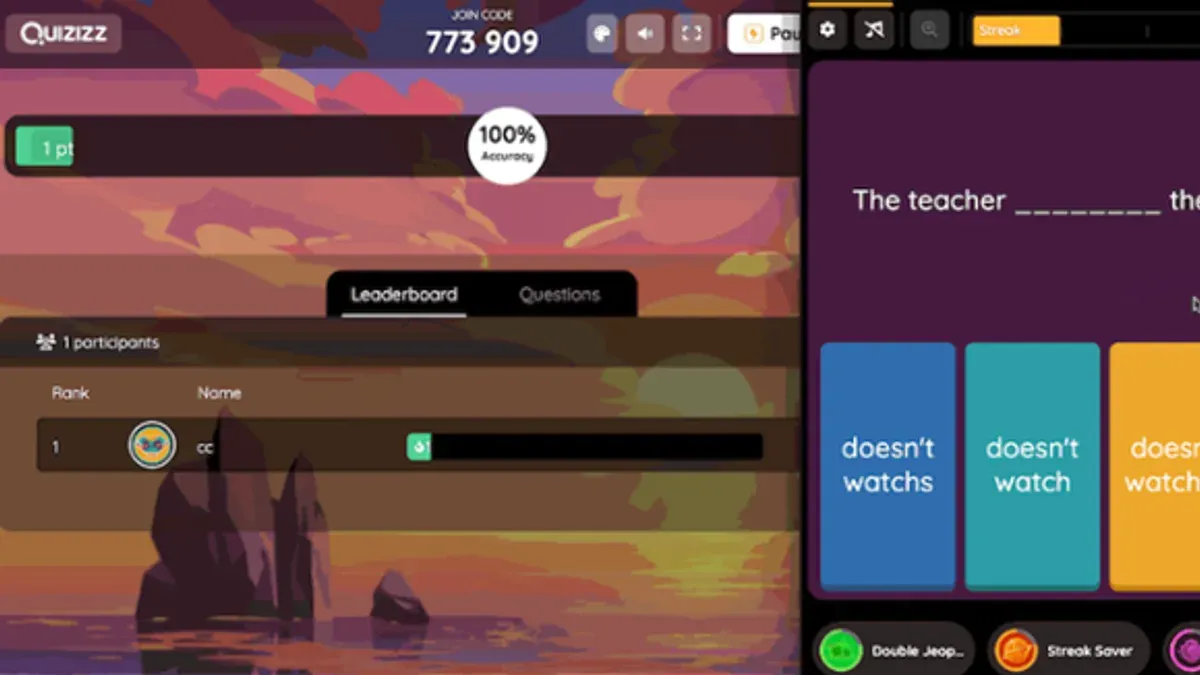
Quizizz is built around live, gamified quizzes where students compete in real time, receiving immediate feedback after each question. This design promotes engagement through elements like leaderboards, timed questions, and playful visuals, ideal for synchronous class settings or remote learning sessions where instant motivation matters.
In contrast, Quizlet centers on self-paced study using flashcards, varied learning modes, and customizable tests. Its tools focus on repetitive practice and concept reinforcement, supporting individual learning outside class time. Quizlet’s test creation offers flexible formats like matching, multiple choice, and written answers without live competition.
These differences shape how students interact with content: Quizizz encourages dynamic group participation, while Quizlet supports independent mastery and long-term retention. For example, a history teacher using Quizizz might run a 10-minute live quiz to energize a lesson, whereas the same teacher could assign Quizlet flashcards for homework review.
Understanding these platform distinctions helps you align your teaching goals with the right tool, ensuring that switching does not compromise engagement or assessment quality.
| Feature | Quizizz | Quizlet |
|---|---|---|
| Primary use | Live, gamified quizzes with real-time competition | Self-paced study with flashcards and tests |
| Engagement style | Interactive, timed challenges with leaderboards | Repetitive practice using varied study modes |
| Assessment feedback | Immediate after each question | Feedback after test completion or during study modes |
| Typical setting | Classroom or synchronous remote sessions | Homework, individual review, or asynchronous learning |
How does Quizizz work and why it appeals to educators
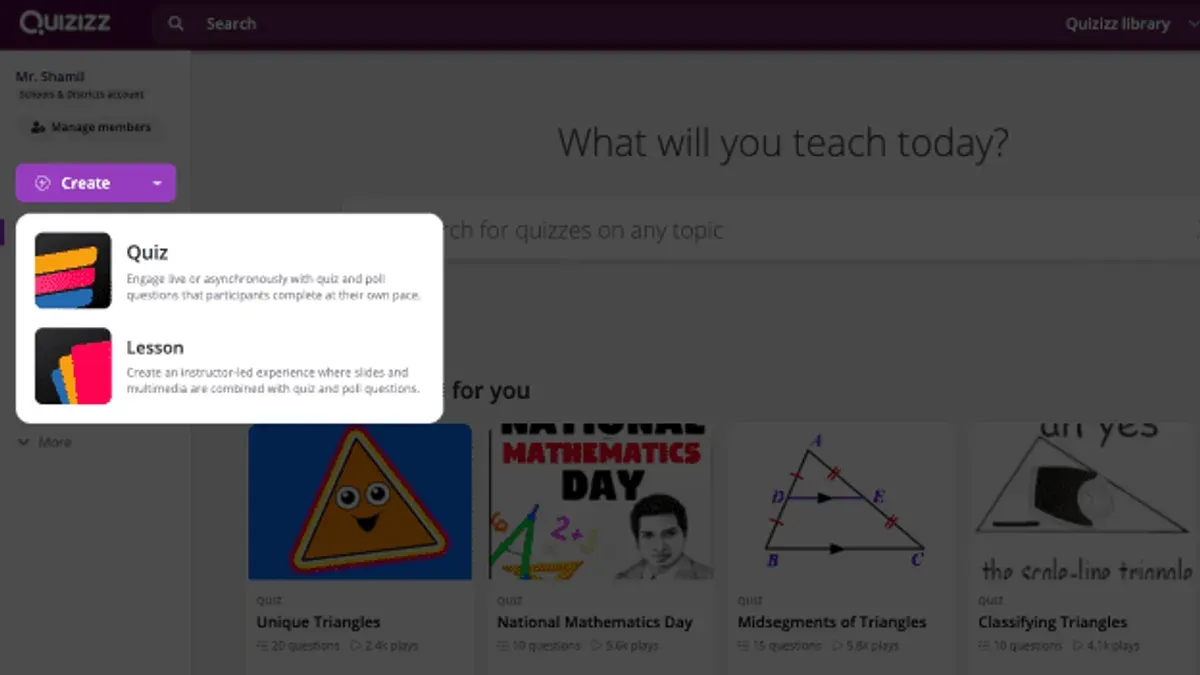
Quizizz operates by allowing you to create quizzes through a straightforward interface where questions, answer choices, and images can be added quickly. You start by navigating to the “Create” button and selecting “Quiz,” then input your questions and answers, setting correct options and time limits per question. This process supports both multiple-choice and open-ended questions, which accommodate diverse assessment needs.
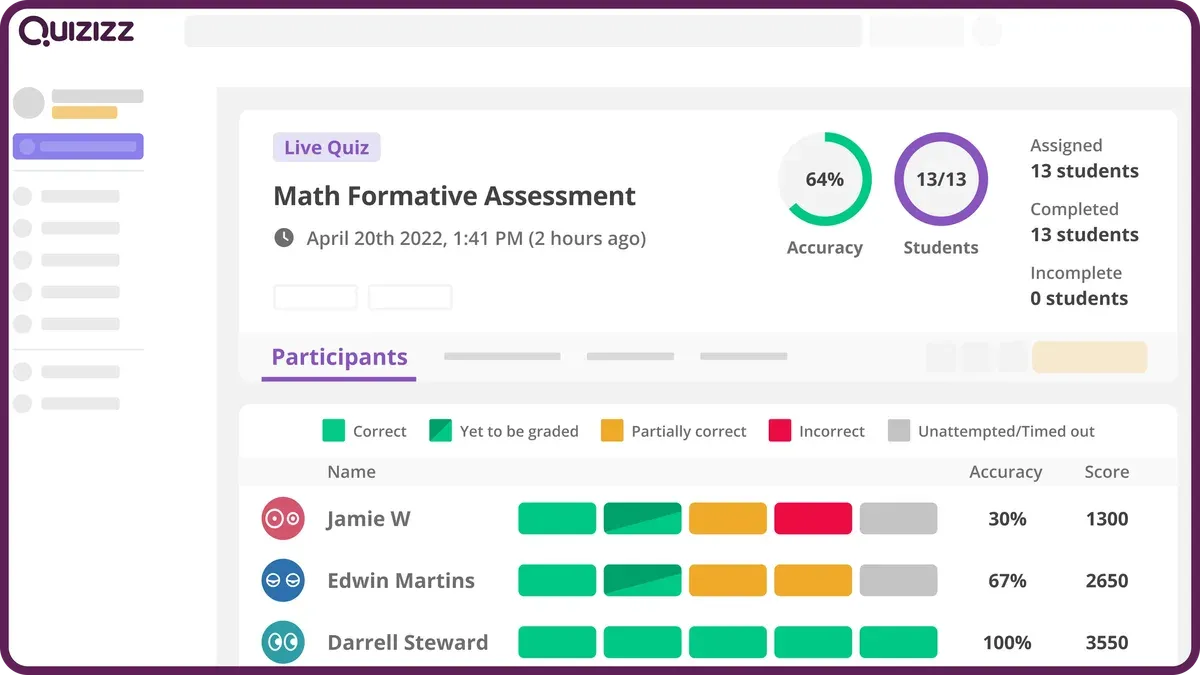
Once created, quizzes can be launched live for synchronous play or assigned asynchronously, letting students complete them at their own pace. During live sessions, Quizizz tracks student progress in real time, displaying a dynamic leaderboard that fuels motivation through gamification. Automated grading instantly scores responses and compiles detailed reports, saving you time while offering actionable insights for formative assessment.
For example, an educator might create a 15-question science quiz, add images to illustrate concepts, and assign it for homework. Students engage actively by competing to answer swiftly and accurately, while the educator receives a clear breakdown of class performance and individual question difficulty.
Educators appreciate Quizizz because it supports classroom dynamics by combining interactivity, instant feedback, and flexibility. The game-like environment encourages focus, and the platform’s reporting tools streamline assessment without sacrificing depth.
How to create a quiz in Quizlet and turn it into a test
Begin by logging into your Quizlet account and selecting Create from the top menu. Choose Study Set to start building your quiz content. Enter your quiz title and, under Term, input the question or prompt. For answers, use the Definition field. To create multiple choice questions, add the correct answer as the definition and include incorrect options as additional terms in the set. Quizlet does not natively support multiple choice formatting within a single card but uses study modes to simulate this.
Once your set is complete, click Save. To turn this into a test, select the study set, then click Test in the study mode options. Quizlet automatically generates a test combining multiple choice, true/false, and written questions from your set. For example, if you have a term "Capital of France" with the definition "Paris," Quizlet's test mode will include a multiple choice question with Paris and other terms as options.
When adapting Quizizz quizzes, convert each question into a term-definition pair. Group distractors as separate terms to appear as options during tests. Be mindful that Quizlet's test mode shuffles questions and answer types, so exact replication of Quizizz’s game-style quizzes is not possible, but you gain a flexible assessment tool.
- Go to Create > Study Set
- Enter question in Term, correct answer in Definition
- Add incorrect answers as separate terms for multiple choice options
- Save the set and select Test mode to generate an assessment
- Review and adjust terms to ensure clear, concise questions and distractors
How to edit and manage quizzes when switching platforms
Editing quizzes in Quizizz involves a game-centric interface where you can adjust question types, timers, and answer options directly within each quiz's dashboard under the "Edit" tab. Quizlet, however, focuses on modifying study sets by adding or changing term-definition pairs before generating tests, accessed through the "Edit" button on your study set page.
Direct content import between Quizizz and Quizlet is not supported, so you must reconstruct quizzes manually. For example, if you have a Quizizz quiz with 20 multiple choice questions, you’ll need to create a new Quizlet study set by entering each question as a term and the correct answer as the definition, or vice versa depending on the quiz format.
To streamline this, export your Quizizz questions to a spreadsheet or document first, then copy-paste batches into Quizlet’s term/definition fields. This reduces repetitive typing and helps maintain accuracy. Remember that Quizlet’s test options are less customizable regarding timers and game-based features, so adjust your expectations accordingly.
Strategies for efficient reconstruction include prioritizing high-impact quizzes for manual migration and archiving less used material. Additionally, use Quizlet’s bulk import feature where you can paste comma- or tab-separated questions and answers to speed up creation.
- Open your Quizizz quiz and export questions to a text or spreadsheet file
- Create a new Quizlet study set and click "Import"
- Paste your questions and answers, separating terms and definitions by tabs or commas
- Edit any formatting issues and save the set
- Review and adjust question phrasing to fit Quizlet’s test style
Can Quizizz detect switching tabs and what it means for assessments
Quizizz includes a tab-switch detection feature during live games, designed to discourage cheating by alerting educators when students navigate away from the quiz window. This function can notify the host immediately, helping maintain focus and integrity in synchronous assessments. For example, if a student clicks to another browser tab or window during a live Quizizz game, the teacher might receive a notification or see an indicator next to that student's name.
In contrast, Quizlet does not have built-in tab-switch detection or real-time monitoring for test-taking. Its assessments are typically self-paced and rely on student honesty rather than surveillance features. This means Quizlet tests are better suited for homework or low-stakes assessments where monitoring distractions or cheating through tab-switching is less critical.
When switching from Quizizz to Quizlet, you should adjust your assessment strategy accordingly. If maintaining strict control over testing behavior is essential, consider supplementing Quizlet with additional proctoring tools or shifting to open-book formats that reduce the impact of off-task behavior. Understanding this trade-off helps you set realistic expectations and design assessments aligned with Quizlet’s capabilities.
Why Quizizz changed to WayGround and how it affects your choice
Quizizz underwent a significant transition when it rebranded part of its platform as WayGround, shifting from solely gamified quizzes toward a broader suite of collaborative learning tools. The change began with company announcements emphasizing WayGround’s focus on interactive whiteboards and team-based engagement beyond Quizizz’s traditional quiz format. This move reflects a strategic pivot to support deeper classroom collaboration rather than just competitive quiz play.
For example, where Quizizz centers on live quizzes with automated grading, WayGround offers features like shared digital workspaces and creative brainstorming tools. This means educators looking for quick formative assessments might find Quizizz’s original tools more straightforward, while those interested in project-based or group work benefit from WayGround’s expanded capabilities.
Understanding this distinction affects your decision to switch to Quizlet. If your workflow depends on Quizizz’s fast, game-like quizzes, the shift toward WayGround’s collaborative platform could feel like a departure from familiar functionality. In contrast, Quizlet remains focused on self-paced studying and testing, providing a stable alternative if you want to avoid adjusting to WayGround’s new features and interface.
User feedback highlights occasional confusion when trying to access classic Quizizz features now integrated within WayGround’s environment, complicating content management and student tracking. Therefore, educators must consider whether adapting to WayGround aligns with their instructional goals or if moving to Quizlet’s more consistent study tools better suits their needs.
Common mistakes to avoid when switching from Quizizz to Quizlet
One frequent error educators make is assuming that quizzes can be directly imported from Quizizz into Quizlet. Unlike Quizizz’s export options, Quizlet requires manual recreation of study sets with term-definition pairs, demanding time to adapt questions and answer formats. For example, a teacher expecting to upload a Quizizz quiz file and generate a Quizlet test automatically often ends up spending extra hours reformatting content to fit Quizlet’s structure.
Another pitfall is overlooking Quizlet’s unique strengths and limitations. Quizlet excels at self-paced study and offers features like Learn mode and flashcards, but lacks Quizizz’s live game dynamics and tab-switch detection. Neglecting these differences can lead to mismatched expectations about student engagement and assessment control.
Many educators also fail to sufficiently prepare students for the platform change. Students accustomed to Quizizz’s competitive, real-time quizzes may struggle to adjust to Quizlet’s individual study modes without clear guidance or training on how to navigate Learn, Write, or Test features effectively.
Lastly, ignoring differences in feedback and reporting can reduce assessment effectiveness. Quizizz provides immediate, gamified feedback and detailed reports on question-level performance, while Quizlet’s reporting is more limited and less interactive. Expecting identical analytics can lead to disappointment and misinformed instructional decisions.
- Do not expect direct quiz file imports; plan for manual content adaptation.
- Understand and leverage Quizlet’s study modes instead of expecting live game features.
- Train students explicitly on using Quizlet’s tools to maintain engagement.
- Adjust assessment strategies to account for Quizlet’s simpler reporting and feedback.
Practical checklist for switching from Quizizz to Quizlet
Switching platforms requires a clear, structured approach. Start by auditing your existing Quizizz content to identify which quizzes fit your current learning goals and which need updating or discarding. Expect to spend about 2–3 hours reviewing a typical set of 10 quizzes.
Next, plan the recreation or adaptation process in Quizlet. Since direct imports aren’t possible, prepare your content as term-definition pairs aligned with Quizlet’s study set format. Allocate 4–6 hours for this step depending on quiz complexity. For example, converting a 20-question multiple choice quiz might involve creating 40–60 flashcards to cover terms, definitions, and distractors.
Communicate these changes clearly to your students. Provide a brief orientation session or a tutorial on using Quizlet’s interface to avoid confusion and ensure smooth adoption. This can be a 15–30 minute live or recorded session.
Before full deployment, test your recreated quizzes thoroughly. Use Quizlet’s preview and test features to verify question accuracy and functionality. Review available reporting options under the “Class Progress” tab to understand how you’ll track student performance.
Once live, monitor student engagement closely during the first few weeks. Adjust your quiz content or delivery based on participation rates and feedback to maintain assessment quality.
- Audit Quizizz quizzes for relevance (2–3 hours)
- Recreate content in Quizlet as study sets (4–6 hours)
- Communicate changes and provide student orientation (15–30 minutes)
- Test quizzes and review reporting options (1–2 hours)
- Monitor engagement and adjust strategy ongoing
For example, if you notice low Quizlet engagement after switching, consider adding more varied study modes like flashcards or matching games to complement tests, enhancing motivation.
Read next
- Switching from Quizizz to Pear Deck: A Practical Educator’s Guide
- Switching from Quizizz to Padlet: A Practical Guide for Educators
- Switching from Quizizz to Nearpod: A Practical Educator’s Guide
- Switching from Quizizz to Microsoft Forms: A Practical Educator’s Guide
Frequently asked questions
How to make multiple choice on quizlet?
To create multiple choice questions on Quizlet, start by selecting the "Create" button and choosing the "Study Set" option. Enter your term as the question and the definition as the correct answer. Quizlet doesn't offer a traditional multiple choice format but allows you to add distractors by inputting wrong answers as additional definitions or using the "Test" feature to generate multiple choice automatically from your terms.
How to use quizizz?
Using Quizizz begins with creating or selecting a quiz from the library. You can assign it live or as homework. Students join with a code, and the platform presents questions in a game-like format that tracks responses and time. Review results immediately to assess understanding.
How to see correct answers on quizizz?
After completing a quiz, you can view correct answers by checking the summary report under the "Reports" tab for that quiz. During live sessions, correct answers appear after each question if enabled. For homework, results including correct answers are accessible once all participants finish.
How to edit quiz in quizizz?
To edit a quiz in Quizizz, go to your library and select the quiz. Click the "Edit" button to modify questions, answers, or settings. Remember to save changes before exiting. Note that you cannot edit quizzes created by others unless you duplicate them first.
How to make a quiz on quizlet?
Creating a quiz on Quizlet starts with making a study set by clicking "Create" and entering terms with definitions. Use the "Test" mode to generate a quiz automatically, selecting question types like multiple choice, true/false, or written. Customize the test by choosing which terms to include and the number of questions.
Quick checklist
- Review your existing Quizizz quizzes and identify core content to transfer.
- Create corresponding Quizlet study sets before designing tests.
- Use Quizlet’s "Test" feature under your study set to generate assessments.
- Manually adapt game-based questions into study and test formats.
- Check Quizlet’s settings for "Answer Key" visibility and timed tests if needed.
- Communicate changes to students to manage expectations around engagement style.
- Regularly update and refine Quizlet content based on student feedback and performance.
What this advice does not cover
This guide does not cover switching from Quizizz to WayGround in depth, as WayGround is a distinct platform with different goals and workflows. Content migration is not automated; educators must manually adapt quizzes, which can be time-consuming and requires careful review. Additionally, Quizlet’s focus on study modes means it may not fully replicate the gamified engagement that Quizizz offers, so consider your instructional priorities carefully.
Start by mapping out your most frequently used Quizizz content and recreating it in Quizlet’s study sets. This step ensures your core material remains intact while you explore Quizlet’s test creation and study tools. Taking this structured approach helps smooth the transition and maintains assessment quality.



