Switching from Quizizz to Microsoft Forms: A Practical Educator’s Guide
Discover practical tips for switching from Quizizz to Microsoft Forms to create and manage quizzes efficiently with Microsoft 365 tools.

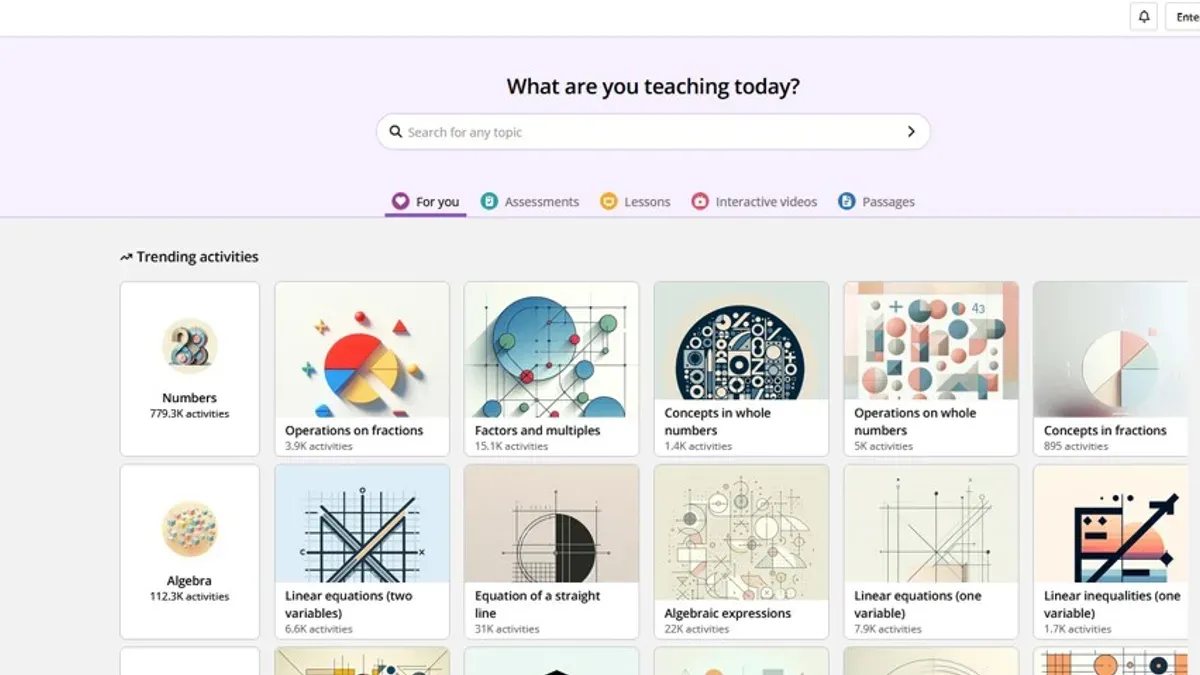
Short answer: Switching from Quizizz to Microsoft Forms is straightforward once you understand that Microsoft Forms distinguishes between "Forms" and "Quizzes." You can create, manage, and analyze quizzes within Microsoft Forms by enabling quiz settings, allowing you to replicate many Quizizz features while gaining seamless integration with Microsoft 365 tools.
This guide covers the practical differences between quizzes and forms in Microsoft Forms, step-by-step instructions for creating and managing quizzes, how to convert existing forms into quizzes, and essential tips to ease your transition. You will also learn common pitfalls to avoid, ensuring your switch is smooth and efficient without losing any interactive or analytical capabilities you rely on in Quizizz.
Understanding the difference: quiz vs form in Microsoft Forms
Microsoft Forms offers two distinct types of projects: Forms and Quizzes. Forms are designed primarily for data collection, surveys, or feedback, featuring question types like text, rating, choice, and date, but without scoring. Quizzes, on the other hand, add the ability to assign point values to questions, provide automatic scoring, and deliver immediate feedback based on answers.
Quizzes support branching logic that adapts the question flow depending on responses, enabling personalized assessments. For example, in a quiz, you can assign 5 points to a multiple-choice question and set tailored feedback for correct or incorrect answers. Forms typically gather opinions or registrations without scoring, such as a course interest survey.
| Feature | Quiz | Form |
|---|---|---|
| Scoring | Available with customizable point values per question | Not available |
| Feedback | Automatic, per answer choice | None |
| Branching logic | Yes, for adaptive question paths | Yes, but without score-based branching |
| Common question types | Multiple choice, text, rating, ranking, Likert | Same as quiz but no scoring |
| Use case examples | Knowledge tests, formative assessments | Surveys, event registrations |
Imagine creating a quiz to assess students’ understanding of photosynthesis: you assign points to multiple-choice questions and provide instant feedback on answers. Alternatively, a form might collect student preferences for project topics without scoring or feedback. Recognizing this distinction ensures you leverage Microsoft Forms optimally when transitioning from Quizizz.
How to create quizzes in Microsoft Forms
Start by logging into Microsoft Forms and clicking New Quiz on the main dashboard. This opens a blank quiz template where you can begin adding questions immediately.
To add a question, click the Add new button and select the question type: Choice for multiple-choice, Text for open-ended answers, Rating to collect scaled responses, or other available formats. For example, add a Choice question titled "What is the capital of France?" and list options like Paris, Berlin, and Rome.
Set the correct answer by selecting the right choice and assign point values by clicking the Points box—default is 1 point but can be adjusted as needed. You can provide feedback for correct and incorrect answers under the Feedback option to guide learners.
Customize quiz settings by clicking the ... menu (More options), then Settings. Enable Shuffle questions to randomize order and Accept responses to control quiz availability. Turn on Response receipts if you want participants to get a copy of their answers.
After adding all questions and configuring settings, preview your quiz using the Preview button to experience it from a respondent’s view before sharing.
- Click New Quiz to start
- Add questions via Add new and select type
- Set correct answers and assign points
- Customize quiz settings under Settings
- Preview the quiz before sharing
How to use Microsoft Forms for quiz management and analysis
Once your quiz is ready, share it with your students or participants by clicking the “Send” button and choosing to distribute via a direct link, email invitation, or embed code. You can control access by setting a deadline under "Settings" > "Options for responses," specifying a closing date and restricting responses to one per person to maintain quiz integrity.
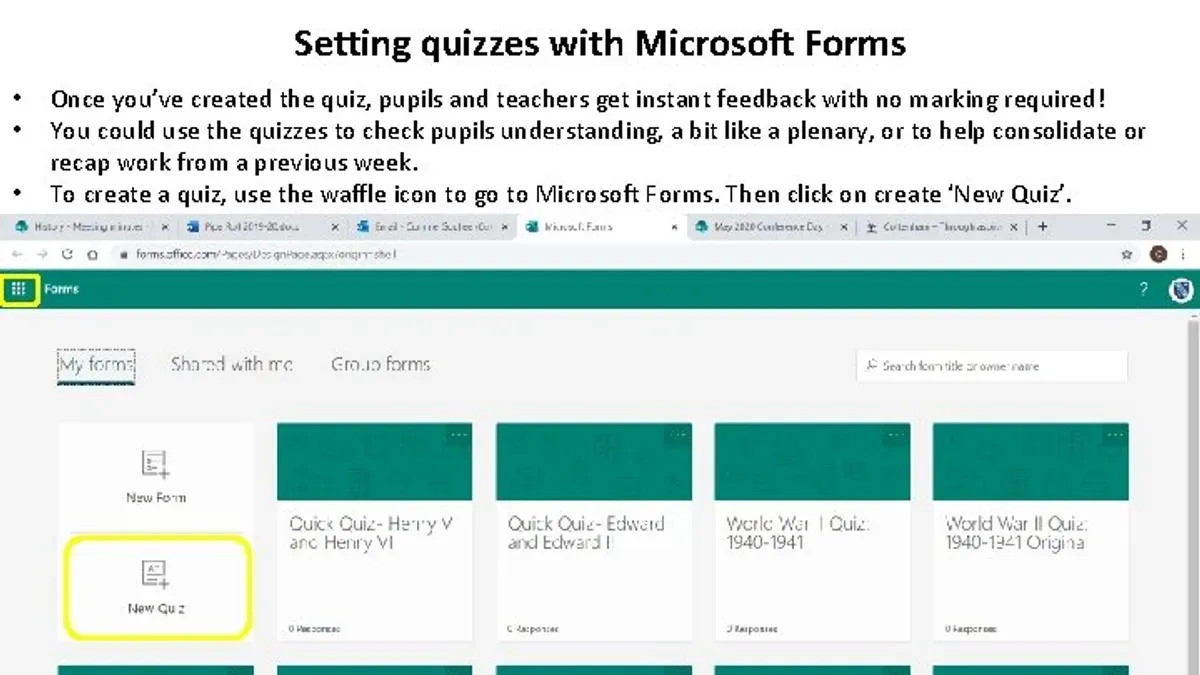
After responses come in, navigate to the "Responses" tab to view an automatic grading summary dashboard showing average scores, question-by-question performance, and individual results. For deeper analysis, export the data to Excel using the “Open in Excel” button. The exported sheet includes detailed grading statistics such as scores per participant, time taken per question, and overall quiz metrics.
Use these insights to identify questions that many struggled with and adjust your teaching or training materials accordingly. For example, if a majority miss a certain question, you can revisit that topic or provide additional resources, making your instruction responsive and data-driven.
How to convert Microsoft Form to quiz and turn forms into quizzes
If you have an existing Microsoft Form used as a survey or data collection tool, you can convert it into a quiz by enabling quiz settings and adding scoring retrospectively. Start by opening your form, then click Settings (gear icon) in the upper right and select the Quiz tab. Toggle on Make this a quiz to enable grading features.
Once quiz mode is enabled, go through each question to assign correct answers and point values. For example, if your original form asked "Which planet is known as the Red Planet?" as an open-ended question, change it to a multiple-choice type, mark "Mars" as correct, and assign points. Note that question types cannot be changed freely after creation, so you may need to recreate some questions if they don’t fit quiz formats.
Limitations include the inability to convert open text responses into automatically graded answers and no batch setting of points; you must set points question-by-question. If you had Likert or ranking questions, these do not support grading, so consider removing or replacing them.
For example, a simple customer satisfaction form can be turned into a knowledge quiz by enabling quiz mode and assigning correct answers to rating scale questions converted into choice questions, adding point values accordingly. Before conversion, the form collected opinions; after, it scores responses against correct answers.
- Open your form and click Settings → Quiz tab.
- Enable Make this a quiz.
- Review each question to assign correct answers and point values.
- Recreate questions if their type doesn’t support quiz grading.
- Remove or replace non-gradable question types like Likert scales.
- Preview the quiz to verify scoring works as intended before sharing.
Practical tips for switching from Quizizz to Microsoft Forms
Quizizz thrives on gamification elements like leaderboards, power-ups, and live competition that boost engagement during quizzes. Microsoft Forms lacks these interactive real-time features, so you should adjust expectations for live play and instead focus on delivering well-structured quizzes with clear instructions and timely feedback.
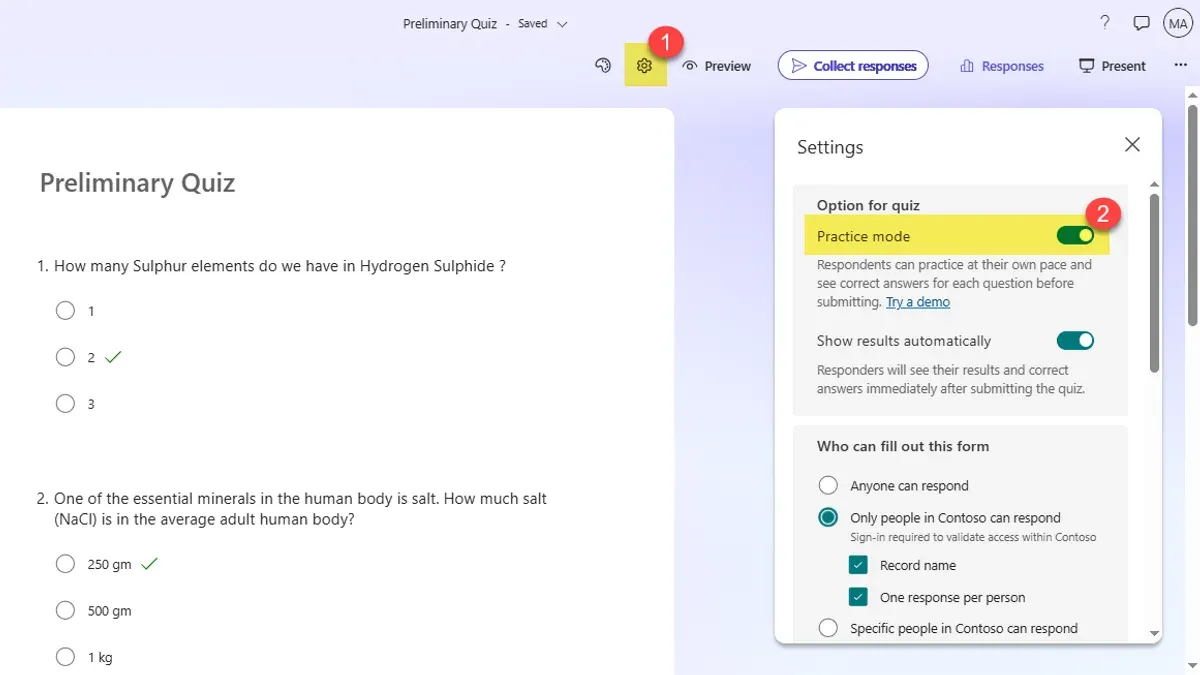
To compensate, leverage Microsoft Forms’ seamless integration with Microsoft 365 apps. For example, use Microsoft Teams to host synchronous quiz sessions where you can share the quiz link and discuss answers live, or export results to Excel for deeper analysis and personalized follow-up.
Managing your question bank efficiently is crucial. Microsoft Forms allows you to duplicate quizzes and individual questions, enabling easy reuse and adaptation. For instance, create a master quiz template and make copies to adapt for different classes or sessions without rebuilding from scratch.
By embracing these workflow adjustments—shifting from game-based engagement to integrated, data-driven instruction—you can optimize your quiz creation and delivery in Microsoft Forms.
- Use Microsoft Teams to simulate live quiz discussions and maintain engagement
- Export responses to Excel for detailed analysis and targeted feedback
- Duplicate quizzes and questions to build a reusable question bank
- Set clear expectations with learners about the quiz format and timing
Common mistakes to avoid when creating quizzes in Microsoft Forms
One frequent error is not setting correct answers and points for each question. Without this, your quiz remains ungraded, leaving learners without feedback or scores. Imagine assigning a quiz where all questions are left unscored; students complete it, but neither you nor they see results, defeating the purpose.
Overlooking quiz settings that affect response collection is another pitfall. For example, failing to enable "One response per person" or neglecting to turn on "Accept responses" can result in incomplete data or inaccessible quizzes. This often happens when quiz creators forget to check the "Settings" tab under "Options" before sharing.
Ignoring feedback options reduces the learning value. Microsoft Forms allows you to add customized feedback per answer, reinforcing concepts or correcting misunderstandings. Skipping this step misses an opportunity to guide learners directly within the quiz.
Finally, not testing your quiz before distribution can cause avoidable confusion. Preview your quiz using the "Preview" button to verify question flow, scoring, and feedback. For instance, a colleague once shared a quiz where multiple-choice questions lacked correct answer keys, discovered only after students complained about zero scores.
- Always assign correct answers and point values per question.
- Double-check "Settings" to control who can respond and when.
- Use feedback options to enhance learner engagement and understanding.
- Preview and test your quiz fully before sending it out.
Read next
- Switching from Quizizz to Google Forms: A Confident Educator’s Guide
- Switching from Quizizz to Formative: A Practical Educator’s Guide
- Switching from Quizizz to Edpuzzle: A Practical Educator’s Guide
- Switching from Quizizz to Blooket: A Step-by-Step Educator’s Guide
Frequently asked questions
How to make quiz in microsoft forms?
Start by logging into Microsoft Forms and selecting "New Quiz" from the home screen. Add questions by choosing from multiple-choice, text, rating, or other formats, then assign point values and correct answers. Customize settings like shuffle questions or set time limits before sharing the quiz link with participants.
How to create quiz in microsoft forms?
Creating a quiz involves clicking the "New Quiz" button after signing into Microsoft Forms. Input your questions and set correct answers along with points to enable automatic scoring. Use the "Settings" gear to adjust options such as allowing multiple attempts or showing correct answers after submission.
How to convert Microsoft Form to Quiz?
Open the existing Microsoft Form, click on the "More form settings" menu (three dots), and select "Convert to quiz." This changes the form to quiz mode, allowing you to assign correct answers and points. Remember to review each question to set the right answers post-conversion.
How to make quiz in Microsoft Forms?
To make a quiz, select "New Quiz" in Microsoft Forms, add your questions, and specify the correct answers with points. Utilize question types like multiple choice or ranking for variety. Adjust quiz settings such as response collection and result visibility before sharing.
How to use Microsoft Forms for quiz?
Use Microsoft Forms to create quizzes by selecting "New Quiz" and designing your questions with correct answers and points. After distributing the quiz link, monitor responses in real time under the "Responses" tab. Leverage built-in analytics for detailed performance insights and export results to Excel for further analysis.
What this advice does not cover
Microsoft Forms does not replicate some gamification and live competitive features found in Quizizz, so educators relying heavily on those may need to supplement with other tools. If your teaching depends on real-time leaderboards, timed multiplayer quizzes, or extensive game-based learning mechanics, you might consider combining Microsoft Forms with platforms designed specifically for those purposes or continuing to use Quizizz alongside Forms.
Quick checklist
- Understand the distinction between quizzes and forms within Microsoft Forms settings.
- Enable "Quiz" mode under "Settings" to assign points and correct answers.
- Use branching logic to create adaptive quiz paths.
- Leverage built-in analytics for response summaries and individual student insights.
- Convert existing forms to quizzes by activating quiz features and assigning correct answers.
- Plan your transition by identifying Quizizz features you use that Microsoft Forms does not support.
- Avoid common mistakes such as neglecting to assign point values or skipping feedback customization.
Begin your switch by creating a simple quiz in Microsoft Forms, focusing on the quiz settings to familiarize yourself with how point assignment and feedback work. This hands-on step will clarify the workflow and help you adapt your existing Quizizz content effectively.