
Switching from Quizizz to Padlet: A Practical Guide for Educators
Discover how to transition from Quizizz to Padlet to foster collaboration and enrich student engagement with interactive digital boards.

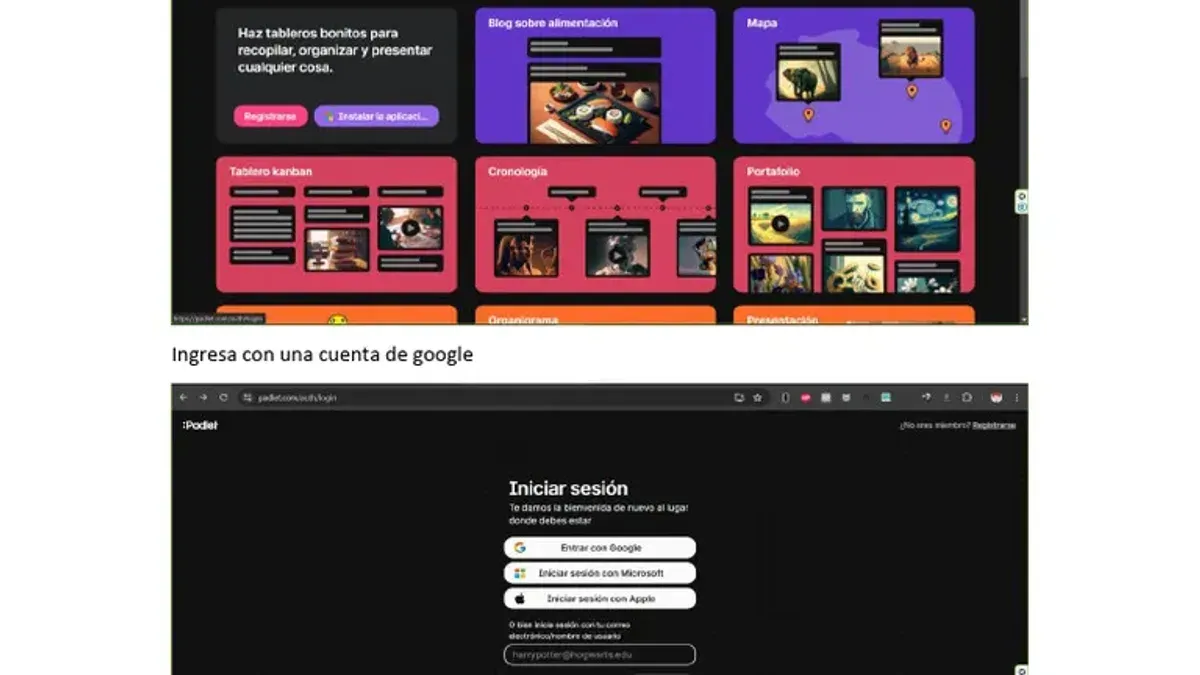
Short answer: Switching from Quizizz to Padlet involves moving beyond quiz-based assessments to a platform that fosters dynamic collaboration and diverse content sharing. Padlet lets you create interactive boards where students contribute ideas, upload files, and engage visually, expanding engagement possibilities beyond simple quizzes.
This article guides you through the key differences between these platforms and offers a clear, actionable roadmap to transition smoothly. You’ll learn how to prepare your existing Quizizz content, set up a Padlet workspace tailored to your classroom, design interactive activities that replace quizzes, avoid common pitfalls, and continuously improve your approach to maximize student collaboration and participation.
Understand the fundamental differences between Quizizz and Padlet
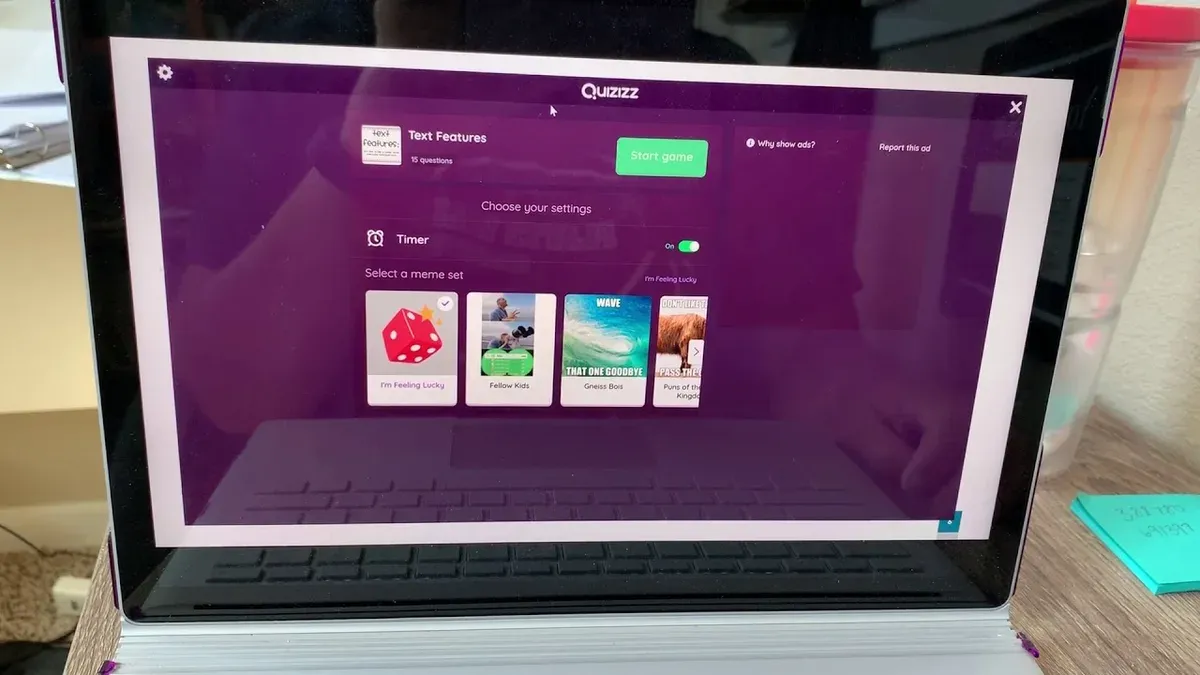
Quizizz is primarily a game-based quiz platform designed to boost assessment and engagement through competitive quizzes. It offers features like real-time leaderboards, timed questions, and automatic grading, making it ideal for quick knowledge checks and reinforcing content with clear right or wrong answers.
Padlet, on the other hand, functions as a flexible digital canvas that supports collaboration, multimedia sharing, and interactive brainstorming. It allows students to post text, images, videos, links, and more, enabling a wider range of expression and deeper engagement beyond multiple-choice formats.
Switching from Quizizz to Padlet means shifting your teaching approach from quiz-driven engagement to open-ended collaboration and content curation. This shift accommodates diverse learning styles by promoting varied participation modes such as visual, auditory, and kinesthetic learning.
| Feature | Quizizz | Padlet |
|---|---|---|
| Primary Use | Game-based quizzes and assessments | Collaborative digital canvas for sharing and brainstorming |
| Content Types | Multiple-choice, polls, fill-in-the-blanks | Text, images, videos, links, drawings |
| Engagement Style | Competitive, timed, score-driven | Open-ended, reflective, collaborative |
| Assessment | Automatic grading and instant feedback | Qualitative feedback through comments and reactions |
| Typical Use Case | Quick formative assessments and knowledge checks | Group projects, brainstorming sessions, content curation |
For example, instead of quizzing students on historical facts, you might use Padlet to have them collaboratively build a timeline with images, videos, and text, fostering deeper understanding and peer interaction rather than just recall.
Prepare your existing Quizizz content for migration
Begin by reviewing your Quizizz quizzes to identify questions that can be transformed into open-ended discussion prompts or multimedia posts on Padlet. For example, a multiple-choice question like "What are the main causes of climate change?" can become a Padlet post inviting students to upload images, articles, or videos supporting their answers.
Next, export your Quizizz reports by navigating to the quiz dashboard, selecting the desired quiz, and clicking "Reports" followed by "Export" to obtain CSV files. These reports provide valuable insights into student responses and common misconceptions, which can guide the design of your Padlet activities.
Recognize that some Quizizz content—such as timed polls or instant scoring—does not directly translate to Padlet's format. Plan alternative approaches, like using Padlet’s real-time commenting or reaction features to encourage engagement without relying on automatic scoring.
- Review each Quizizz quiz question for adaptability.
- Export quiz reports via Quizizz dashboard > Reports > Export CSV.
- Convert select questions into open-ended Padlet posts with multimedia prompts.
- Identify non-transferable quiz elements and devise alternative interactive methods.
Set up your Padlet workspace tailored for your classroom needs
Begin by choosing the Padlet format that best fits your intended activity. For example, use the Wall format for open brainstorming, Stream for chronological posts, Canvas for spatial organization, or Grid when you want a uniform layout of contributions.
Next, configure your board’s privacy and collaboration settings via the Settings menu. Set visibility to Private or Secret depending on whether you want only invited students or anyone with the link to access the board. Enable Contributor Permissions to allow students to add posts, comment, or only view, adjusting controls to fit your classroom management style.
Add scaffolding elements by embedding multimedia like images, videos, or links directly into the board to provide context or resources. Use Padlet’s built-in templates, such as K-W-L charts or Brainstorming, to structure student input and guide engagement.
For example, if you want students to collaborate on a project timeline, select the Canvas format, upload a project overview video, set the board to private with contributor commenting enabled, and add a template for milestone tracking. This setup encourages interactive, organized participation beyond simple quizzing.
- Choose Padlet format aligned with activity goals
- Set privacy to control student access
- Adjust contributor permissions for desired interaction level
- Embed multimedia and use templates for scaffolding
- Test the board setup before sharing with students
Implement interactive learning activities on Padlet replacing Quizizz quizzes
Shift from quiz-only engagement to interactive, multimedia-rich activities on Padlet. Use Padlet’s wall formats to enable brainstorming sessions where students post ideas as sticky notes, fostering collective thinking beyond right or wrong answers. For peer feedback, set up a "Stream" or "Canvas" board where students upload drafts, images, or videos, and classmates comment or add reactions, promoting iterative learning.
Embed videos, images, and documents directly by clicking the '+' icon and selecting "Upload" or "Embed Link," enriching the content and inviting varied responses. This versatility encourages students to express understanding through different media, not limited to text or multiple choice.
Padlet supports both synchronous and asynchronous participation. Real-time updates allow lively class discussions, while comment threads keep conversations ongoing outside class hours. For example, a history teacher replaced a Quizizz quiz on ancient civilizations with a Padlet "Grid" board where students uploaded photos of artifacts, added short analyses, and commented on peers’ posts. This format increased student interaction, with participation nearly doubling compared to quiz completions.
- Create a Padlet board suited to your activity type (e.g., Stream for feedback, Grid for projects)
- Invite students with editing rights to post multimedia content
- Encourage commenting and reactions to build peer interaction
- Use the "Embed" feature to add external videos or documents
- Schedule synchronous sessions for live collaboration and allow asynchronous comments
Avoid common mistakes when transitioning from Quizizz to Padlet
One frequent error is trying to replicate Quizizz’s competitive quiz format exactly on Padlet. For example, an educator initially set up a Padlet board with timed posts and point tracking to mimic a quiz competition, but students found it confusing and disengaged. The solution was to shift focus toward open collaboration, encouraging students to contribute ideas and resources without pressure.
Another pitfall is overwhelming students with broad, open-ended tasks without clear instructions or scaffolding. In one case, a teacher asked students to post multimedia reflections without prompts or guidance, resulting in sparse participation. Adding structured prompts and step-by-step guidelines helped increase engagement and clarity.
Lastly, misconfigured privacy and access settings can block student participation. One educator left the Padlet board set to “Private” without adding students as collaborators, causing access issues. Adjusting the board’s settings to “Secret” and sharing the access link resolved the problem quickly.
- Don’t try to mimic Quizizz’s competitive quiz mechanics exactly—embrace Padlet’s collaborative strengths.
- Provide clear instructions and scaffolding to guide student contributions.
- Check Padlet’s privacy settings under “Settings” > “Privacy” to ensure students have access.
Evaluate and iterate your Padlet activities for continuous improvement
To enhance your Padlet activities, start by collecting student reflections through embedded feedback forms or discussion posts on the board. Use Padlet's built-in analytics under the "Stats" tab to monitor engagement metrics such as post frequency, comments, and reactions. For example, if you notice low participation on a particular board, consider simplifying prompts or adjusting collaboration permissions to encourage more contributions.
Adjust your board design by experimenting with layouts like "Canvas" or "Shelf" to better suit the activity's goals. Modify prompt wording to be more open-ended or scaffolded based on student responses. Change collaboration settings under "Settings > Privacy & Permissions" to control who can post or comment, optimizing interaction flow.
Integrate Padlet data with your LMS or grading tools by exporting posts and engagement summaries as CSV files via the "Export" option. This helps create a comprehensive view of student performance and participation beyond quiz scores. For instance, after a multimedia project, export contributions to cross-reference with rubric assessments in your LMS gradebook.
Checklist:
- Collect student feedback using embedded forms or discussion prompts
- Review engagement data in Padlet's "Stats" tab regularly
- Iterate board layout, prompt style, and collaboration permissions based on observations
- Export Padlet data for integration with LMS grading and assessment tools
- Apply insights to refine future Padlet activities for better student outcomes
Read next
- Switching from Quizizz to Nearpod: A Practical Educator’s Guide
- Switching from Quizizz to Microsoft Forms: A Practical Educator’s Guide
- Switching from Quizizz to Google Forms: A Confident Educator’s Guide
- Switching from Quizizz to Gimkit: A Step-by-Step Educator’s Guide
Frequently asked questions
Can I import Quizizz quizzes directly into Padlet?
Padlet does not support direct import of Quizizz quizzes because it is designed as a flexible collaboration platform rather than a quiz delivery tool. You will need to manually recreate quiz questions or adapt content into Padlet’s interactive formats such as boards or walls. This approach encourages rethinking activities beyond quizzes to foster richer student interaction.
How do I maintain student data privacy when using Padlet?
To protect student data, set your Padlet privacy to “Private” or “Password Protected” under the “Privacy” settings menu. Avoid sharing Padlet links publicly and only invite students via email or secure classroom management systems. Review Padlet’s privacy policy regularly to stay informed about data handling and comply with your institution’s guidelines.
What are the best Padlet formats for different classroom activities?
Padlet offers several formats suited to various activities: the “Wall” for open-ended brainstorming, “Grid” for organized content sharing, “Stream” for chronological posts, and “Canvas” for freeform mind mapping. Choose “Shelf” when grouping resources or responses into categories, and “Map” for location-based projects. Match the format to your learning goal for maximum engagement.
How can I encourage student participation on Padlet if they are used to quizzes?
Shift the focus from right-or-wrong answers to creative contributions by assigning open-ended prompts, collaborative projects, or peer feedback tasks on Padlet. Use features like comments, reactions, and multimedia uploads to make interaction dynamic. Setting clear expectations and demonstrating how participation builds learning value helps students adapt to this collaborative environment.
What this advice does not cover
This guide does not cover switching from Quizizz to Padlet for large-scale standardized testing or automated grading workflows, as Padlet lacks such features. If your primary need involves detailed analytics, automated scoring, or compliance with testing standards, consider specialized assessment platforms designed for those purposes.
Quick checklist
- Review Quizizz quizzes and identify key learning objectives to preserve.
- Export any data or reports you need from Quizizz before discontinuing use.
- Create a new Padlet workspace and customize privacy and collaboration settings under "Settings" > "Privacy".
- Design interactive activities using Padlet’s formats such as Wall, Canvas, or Stream instead of quiz templates.
- Encourage student contributions with open-ended prompts to foster collaboration.
- Test Padlet activities with a small group before full implementation.
- Gather student feedback and adjust activity structure accordingly.
Your most effective next step is to start by setting up a specific Padlet board tailored to a current lesson objective, using one of Padlet’s flexible formats to invite student interaction beyond right or wrong answers. This practical shift will help you move past quiz replication and embrace Padlet’s collaborative potential.



