How to Turn On Two-Factor Authentication on Discord: A Step-by-Step Guide
Learn the exact steps to enable two-factor authentication on Discord to protect your account from unauthorized access and hacking attempts.

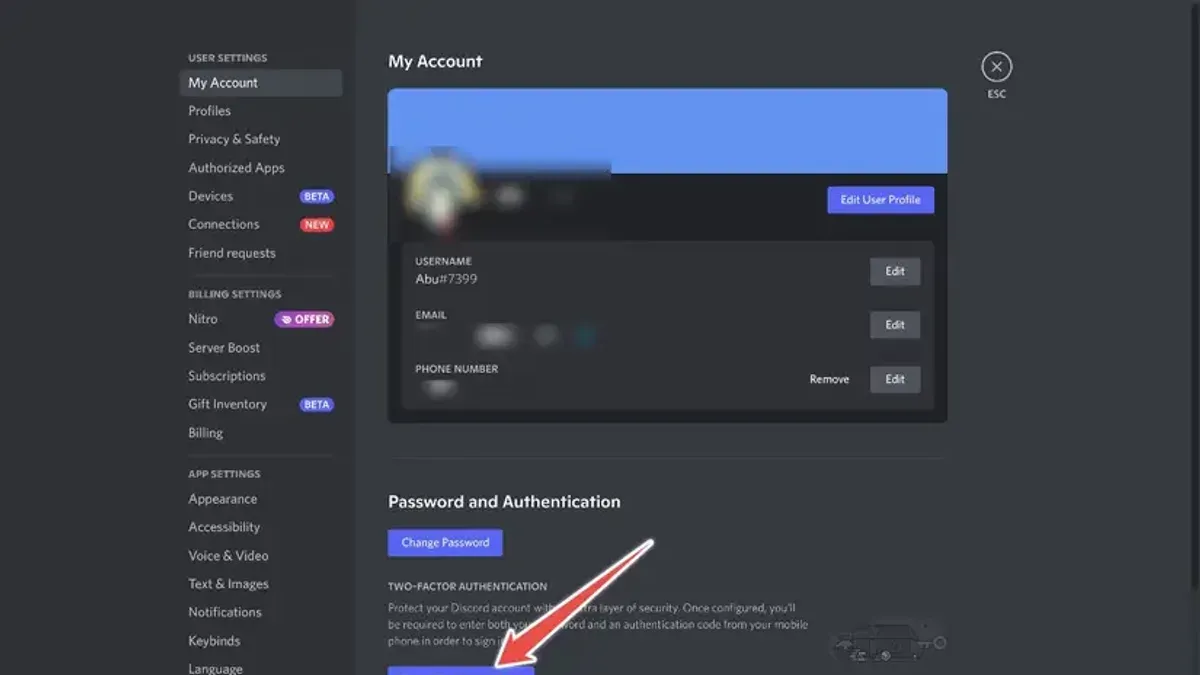
This guide explains how to turn on two-factor authentication on Discord, detailing the exact steps for both desktop and mobile platforms. Two-factor authentication (2FA) adds a crucial security layer by requiring a second verification method beyond the password. Enabling 2FA protects accounts from unauthorized access and reduces the risk of hacking.
Before starting, users need a Discord account with a verified email and access to an authentication app like Google Authenticator or Authy. The process involves navigating to Discord’s User Settings, locating the Security section, and activating 2FA with a QR code scan or manual key entry. This article also clarifies the distinction between two-factor and multi-factor authentication on Discord, a detail often overlooked.
Follow this step-by-step guide to confidently enable, disable, or troubleshoot two-factor authentication on Discord devices.
Before you start: What is needed to enable two-factor authentication on Discord
Two-factor authentication (2FA) on Discord requires several prerequisites to ensure a smooth setup. First, the Discord account must be verified with a confirmed email address. Without email verification, Discord will not permit enabling 2FA. Access to Discord is possible either through the desktop client, the mobile app, or a web browser. Each platform supports the 2FA setup process similarly.
Next, a smartphone with an authenticator app is essential. Discord supports popular authenticator apps such as Google Authenticator, Authy, and its own built-in authenticator. These apps generate time-based one-time passwords (TOTPs) needed during login. Many users encounter setup issues when the authenticator app’s time is not correctly synced or when the app is missing entirely.
Backup codes are a critical component of the process. These codes allow account access if the smartphone is lost or the authenticator app becomes unavailable. Users must save these codes securely, preferably offline or in a password manager, as they are only shown once during setup.
Finally, understanding that Discord distinguishes between two-factor authentication and multi-factor authentication (MFA) can clarify what 2FA covers. Discord primarily supports 2FA, which involves exactly two authentication factors: the password and a one-time code. MFA, involving more than two factors, is not currently a standard Discord feature.
- Verify the email address linked to the Discord account. Confirmation is indicated by a checkmark beside the email in User Settings > My Account.
- Ensure access to the Discord desktop client, web browser, or mobile app. The user should be able to log in without errors.
- Install an authenticator app on the smartphone, such as Google Authenticator, Authy, or use Discord’s built-in option. Opening the app should display the time-based codes.
- Prepare to save backup codes during the 2FA setup process. These codes will appear once and must be stored securely to prevent lockout.
- Review the difference between 2FA and MFA to set the right expectations about Discord's current security options.
How to turn on two factor authentication on Discord desktop
- Open the Discord desktop app and click the Settings icon (gear symbol) located at the bottom left, next to the username. The User Settings menu will appear.
- In the left sidebar, select My Account. The account details page will show options including the Two-Factor Authentication section.
- Click the Enable Two-Factor Auth button. A prompt will request the Discord account password. Enter the password and confirm.
- A QR code will display on screen. Use an authenticator app on a smartphone, such as Google Authenticator or Authy, to scan this QR code. Alternatively, manually enter the provided key into the authenticator app.
- The authenticator app generates a 6-digit code. Enter this code into the Discord prompt to verify and activate two-factor authentication.
- Once verified, Discord will display a set of backup codes. Save these codes securely outside the app, as they are essential to regain account access if the authenticator device is unavailable.
Each step results in immediate screen changes confirming progress: the password prompt appears after clicking enable, the QR code appears after password entry, and a successful code entry leads to backup code display. Users typically complete this process without issue if the authenticator app is set up correctly.
Tip: Backup codes can be printed or saved in a password manager for safe storage and easy retrieval.
How to turn on two factor authentication on Discord mobile
- Open the Discord app and tap the profile icon at the bottom right to access User Settings. The settings menu will appear.
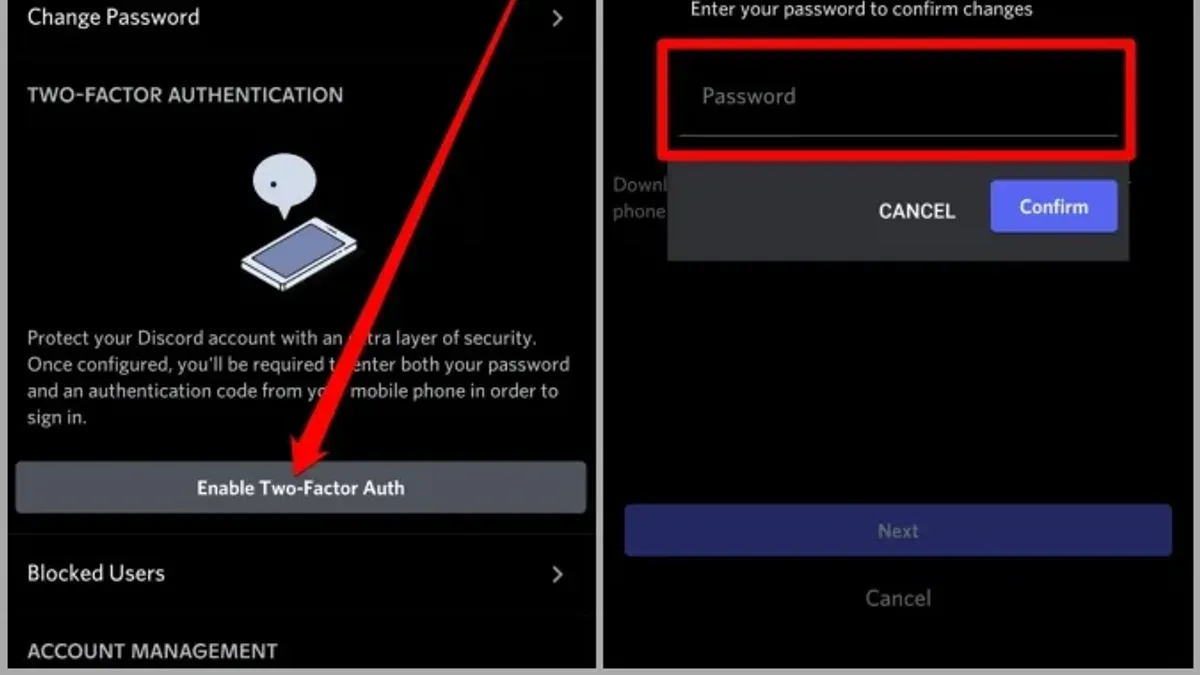
- Tap My Account, then select Two-Factor Authentication. This opens the 2FA setup screen.
- Enter the current Discord account password to verify identity and initiate the 2FA process. A QR code will be displayed once verification succeeds.
- Use an authenticator app on the same or another device to scan the displayed QR code. Popular apps include Google Authenticator and Authy. The app will generate a 6-digit authentication code.
- Input the 6-digit code from the authenticator app into the Discord app when prompted. Successfully entering the code activates two-factor authentication.
- Discord will present backup codes. Store these codes securely offline as they provide account access if the authenticator app is unavailable.
The mobile user interface differs from desktop primarily in navigation: mobile settings access via the profile icon and more compact menus, while desktop uses a sidebar. The setup steps are otherwise similar, with password verification and QR code scanning central to both.
Tip: Ensure the authenticator app’s time sync is accurate to avoid code mismatches during setup.
How to turn off two factor authentication on Discord
Disabling two-factor authentication (2FA) on Discord requires access to User Settings on either desktop or mobile. This process demands entering the current authentication code to verify identity, ensuring that only the account owner can disable this security feature. Users should be aware that turning off 2FA reduces account protection, increasing vulnerability to unauthorized access, especially if passwords are weak or reused.
- Open Discord and go to User Settings by clicking the gear icon near the username; on mobile, tap the profile icon at the bottom right. The User Settings menu should appear.
- Navigate to the “My Account” section, then locate the “Two-Factor Authentication” subsection. The current 2FA status will be displayed here.
- Click or tap the “Disable Two-Factor Auth” button. A prompt will request the current 2FA code from the authenticator app or SMS.
- Enter the valid 2FA code to confirm identity. Upon successful verification, 2FA will be disabled, and the account will no longer require secondary authentication at login.
Disabling 2FA exposes accounts to risks such as credential stuffing and phishing attacks, as noted by cybersecurity experts. Without the extra authentication step, attackers only need compromised login credentials to gain access. Therefore, it is critical to strengthen the account password and review connected apps and authorized devices immediately after disabling 2FA.
Tip: Consider temporarily disabling 2FA only when absolutely necessary and re-enable it promptly to maintain strong account security.
How to turn on multi factor authentication on Discord
Discord’s authentication model primarily centers on two-factor authentication (2FA), combining a password with a time-based one-time code via an authenticator app. While Discord does not market a distinct multi-factor authentication (MFA) system beyond this, additional security layers can be integrated through hardware security keys compatible with WebAuthn standards. This adds a physical security factor, effectively extending the authentication process beyond the traditional 2FA setup.
To add a hardware security key to a Discord account, users must first enable 2FA. Once 2FA is active, the option to register a security key becomes available under the Security Settings. This hardware key acts as a second factor separate from the authenticator app, enhancing protection against phishing and unauthorized access.
- Open Discord and go to User Settings > My Account > Enable Two-Factor Authentication if not already done; the system will prompt for password verification and authenticator app setup.
- After 2FA is enabled, scroll down to the Security section and select "Add Security Key." A prompt to insert or tap a compatible hardware key (such as a YubiKey) will appear.
- Follow the on-screen instructions to register the hardware key; successful registration will display the key’s identifier under Security Keys in the settings.
- Test the hardware key by logging out and logging back in, selecting the hardware key as the verification method; a prompt to tap or press the key should appear to complete login.
Tip: Keep backup codes and the authenticator app active even when using a hardware security key to avoid lockout if the key is lost or damaged.
In Discord’s context, two-factor authentication means combining two types of factors: something known (password) and something possessed (authenticator app or hardware key). Multi-factor authentication expands this by potentially adding more factors, such as biometrics or multiple physical keys, but Discord currently supports only one physical key alongside the authenticator app. This setup balances enhanced security with usability, acknowledging Discord’s focus on streamlined user experience.
Official Discord documentation confirms hardware security keys are supported as a complementary factor after enabling 2FA. User feedback notes this option strengthens account security without complicating the login flow excessively.
Troubleshooting common issues when enabling two-factor authentication on Discord
Authenticator apps may fail to generate valid codes if their time settings are incorrect. Ensure the smartphone’s time and date are set to automatic or synchronized with the network. Most authenticator apps have a manual time correction option under settings—using this can resolve code mismatches during login or setup.
Lost access to the authenticator app or device often blocks login attempts. In such cases, use the saved backup codes to regain access. If backup codes are unavailable or lost, contacting Discord support through their official help center is necessary to verify identity and recover the account.
Backup codes may not work if they have already been used or entered incorrectly. Each code can be used only once. For a fresh set, users must disable and then re-enable two-factor authentication, generating new backup codes during setup.
During setup or login, common error messages include "Invalid authentication code" or "Two-factor authentication failed." These often result from typing errors, expired codes, or time syncing issues. Rechecking the code entry, refreshing the authenticator app, or resyncing the phone’s time usually resolves these errors.
If two-factor authentication blocks login entirely and backup codes are lost, recovery requires contacting Discord support with proof of identity. Providing details such as account email, payment history (if applicable), or linked phone number can expedite verification.
How to set up two factor authentication on Discord safely
Use a trusted authenticator app such as Google Authenticator, Authy, or Microsoft Authenticator to ensure the security of generated codes. Keep the device running the authenticator app physically secure and protected by a strong lock screen. Never share backup codes or authentication codes with anyone, as these provide direct access to the account.
Regularly review authorized devices and active sessions in Discord’s Security & Privacy settings to identify and revoke any unfamiliar access. Combine two-factor authentication with a strong, unique password that includes letters, numbers, and symbols to maximize account protection.
Consider using hardware security keys like YubiKey for an additional physical layer of authentication. Security experts recommend hardware keys as among the strongest methods, as they require physical possession and are resistant to phishing. For most users, pairing an authenticator app with hardware keys offers the best protection.
- Choose and install a reputable authenticator app on a secure smartphone. After scanning Discord’s 2FA QR code, enter the generated code to activate 2FA; the account should then show 2FA as enabled in User Settings > My Account.
- Save backup codes securely, such as in a password manager or encrypted storage. Confirm codes are accessible offline to regain account access if the authenticator device is lost.
- Periodically check Discord’s Security & Privacy > Devices and Sessions to review and revoke unknown devices. Successful revocation removes access from the device immediately.
- Use a strong password, updated regularly, and avoid password reuse across services. Confirm password changes by logging out and back into Discord.
- If using a hardware security key, register it under User Settings > Security > Security Keys. After successful registration, the key will prompt during login alongside the authenticator app.
Frequently asked questions
How to turn on two factor verification on discord?
Access User Settings by clicking the gear icon near the username, then select "My Account." Under the "Password and Authentication" section, click "Enable Two-Factor Auth." Enter the account password to confirm identity, then scan the provided QR code with an authenticator app such as Google Authenticator or Authy. Finally, enter the generated code to complete the setup.
How do i turn on two-factor authentication?
Two-factor authentication is enabled via the Discord desktop or mobile app by navigating to User Settings > My Account > Password and Authentication. Select "Enable Two-Factor Auth," verify the account password, and link an authenticator app by scanning the QR code or entering the manual code. Confirm by inputting the time-based code from the app.
How to turn off multi factor authentication on discord?
To disable multi-factor authentication on Discord, go to User Settings > My Account > Password and Authentication. Click "Remove 2FA," then enter the 2FA code from the authenticator app to confirm. This disables two-factor authentication, which encompasses all multi-factor methods Discord currently supports.
How to make 2 factor authentication on discord?
Setting up two-factor authentication on Discord involves enabling it through User Settings under "My Account." After selecting "Enable Two-Factor Auth," authenticate with the account password, then link an authenticator app by scanning the QR code provided. Input the generated code to activate two-factor authentication.
How to enable multi factor authentication on discord mobile?
Open the Discord mobile app, tap the profile icon to access User Settings, then select "My Account." Choose "Enable Two-Factor Auth," enter the password, and scan the QR code using an authenticator app on the mobile device. Enter the generated code to finish the activation process.
What this guide does not cover and who should seek further help
This guide does not cover account recovery methods for accounts compromised before enabling two-factor authentication (2FA). Users who have lost access to their accounts or suspect unauthorized access should contact Discord support directly for assistance with recovery options. Additionally, this guide focuses on enabling and managing 2FA and multi-factor authentication (MFA) within Discord’s standard settings; it does not address advanced security measures such as hardware security keys or enterprise-level authentication setups.
For organizations or users requiring enhanced security beyond standard 2FA, consulting Discord’s official documentation or security experts is advisable. Users who experience persistent technical issues not resolved by the troubleshooting steps should also reach out to Discord support.
Taking the next step, it is recommended to generate and securely store backup codes immediately after enabling 2FA. These backup codes ensure access to the Discord account if the authentication device is lost or inaccessible, preventing lockout and maintaining continuous account security.
See also: How to Turn On Two-Factor Authentication on BeReal: Step-by-Step · How to See Where You're Logged Into Discord: Step-by-Step