How to Convert DOCX to Google Docs on Mac: A Clear Step-by-Step Guide
This guide shows you how to convert DOCX files to Google Docs on Mac smoothly using Google Drive and other free tools.

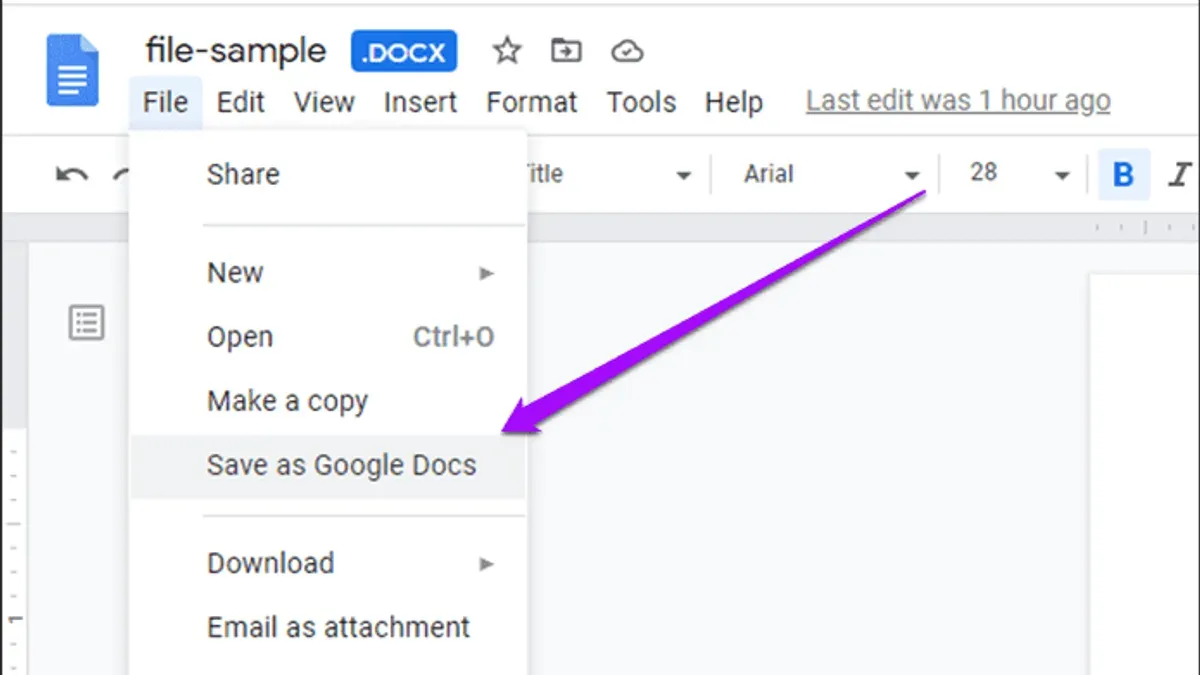
You have a DOCX file on your Mac that you need to edit in Google Docs, but aren’t sure how to make the switch smoothly. Whether you’re collaborating with others or just prefer Google Docs’ features, knowing how to convert DOCX to Google Docs on Mac is essential.
This guide walks you through the process using Google Drive’s built-in tools and compares them with alternative free and online converters. You’ll also find clear steps for related tasks like converting Google Docs back to DOCX, handling DOC to DOCX conversions, and tips to avoid common formatting pitfalls.
Key takeaways
- You can upload DOCX files directly to Google Drive and open them as Google Docs without extra software.
- Converting Google Docs to DOCX on Mac preserves formatting when done via Google Drive’s export options.
- DOC to DOCX conversion is straightforward using Microsoft Word or free online tools before uploading to Google Docs.
- Third-party converters offer shortcuts but may risk formatting loss or privacy concerns.
- Common issues include incompatible fonts or images, which require manual adjustments after conversion.
Before you start: what you need to convert DOCX to Google Docs on Mac
To convert DOCX files to Google Docs on your Mac, you need a few basic things ready. First, have a Google account set up and be able to access Google Drive through a web browser like Safari, Chrome, or Firefox. A stable internet connection is essential since uploading and converting files happens online.
Ensure your DOCX files are saved on your Mac's local storage, such as in the Documents folder or on the Desktop. You'll also need basic familiarity with Finder to locate your files and a web browser to upload and open them on Google Drive.
Google Drive supports DOCX files up to 100 MB in size. It also accepts common file formats like DOC, RTF, ODT, TXT, and HTML, but DOCX is preferred for better compatibility. Files larger than 100 MB cannot be converted directly.
Optionally, you can use third-party applications or free online converters if you want alternatives to Google Drive’s native conversion. These tools can sometimes handle batch conversions or preserve formatting differently, but they may require additional steps or pose privacy considerations.
- Check that you are signed into your Google account in your web browser. You should see your profile icon in the top-right corner of drive.google.com.
- Locate the DOCX file on your Mac using Finder. The file should be visible and accessible.
- Open your preferred web browser and go to drive.google.com. This page should load fully without errors.
- Confirm your internet connection is stable by opening another webpage or refreshing Google Drive.
- Optional: If you plan to use third-party converters, have their websites or apps ready and read their instructions in advance.
How to convert DOCX to Google Doc using Google Drive on Mac
The most reliable way to convert a DOCX file to Google Docs format on your Mac is by uploading it to Google Drive and opening it with Google Docs. This method maintains your file's formatting and allows easy editing within Google Docs.
- Open your browser and go to drive.google.com. Sign in to your Google account if you haven't already. You will see your Google Drive interface.
- Click the '+ New' button on the top-left corner and select File upload. In the Finder window that appears, locate your DOCX file, select it, and click Open. You will see an upload progress bar at the bottom-right corner, which typically completes within seconds for files under 5 MB.
- Wait for the upload to finish. Once uploaded, the DOCX file appears in your Drive list. Right-click the file and choose Open with > Google Docs. This action opens the document in Google Docs format, converting the DOCX file.
- Verify the conversion by checking the top of the document window. You should see the filename with a Google Docs icon, indicating the file is now editable in Google Docs format.
- Save the file as a Google Doc by default, Google Docs saves your changes automatically in Drive in the new format. The original DOCX file remains unchanged unless you explicitly delete it.
Automatic conversion setting: To have all DOCX files uploaded convert automatically, click the gear icon in Google Drive, select Settings, and check Convert uploaded files to Google Docs editor format. This saves you the extra step of opening the file manually.
This Google Drive method is straightforward and preserves most formatting. The upload speed depends on file size and internet connection, but typical DOCX files under 10 MB convert quickly. Using the Google Drive app for Mac follows a similar process but requires dragging files into the Drive folder.
How to convert Google Docs to DOCX on Mac
Exporting your Google Docs file back to DOCX format is straightforward and ensures compatibility with Microsoft Word on your Mac. Follow these steps to save your document as a DOCX file:
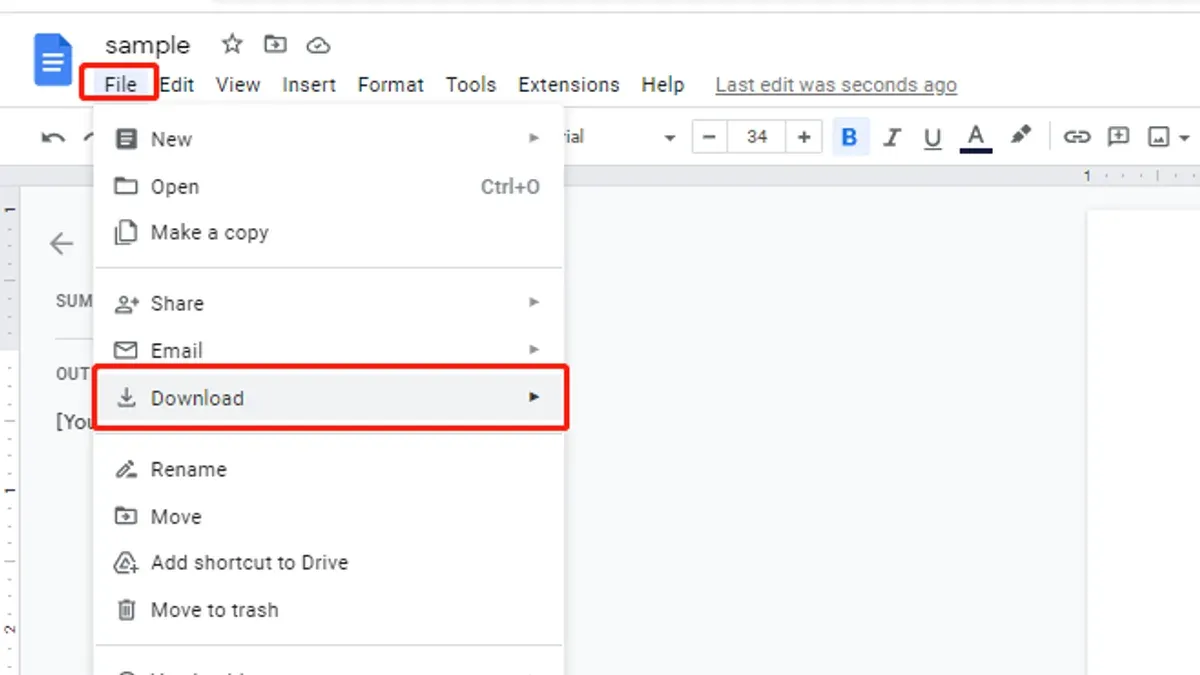
- Open the Google Docs file you want to convert in your browser.
You should see your document loaded and editable. - Click on the File menu in the top-left corner of the Google Docs interface.
A dropdown menu appears showing various options. - Hover over Download to reveal the available file formats.
A submenu with format choices appears. - Select Microsoft Word (.docx) from the list.
Your browser will start downloading the DOCX file. - Locate the downloaded DOCX file, usually in your Downloads folder unless otherwise specified.
The file will typically be named after your Google Docs document with a.docx extension. - Double-click the DOCX file to open it with Microsoft Word or another compatible word processor on your Mac.
The document should open with its formatting intact.
Google Docs exports DOCX files that generally retain formatting, styles, and images well, though complex layouts may require minor adjustments in Microsoft Word. Exported files vary in size depending on content, but typical text documents often range from a few hundred kilobytes to a few megabytes.
How to convert DOCX to DOC on Mac when needed
Some users need the older DOC format instead of DOCX for compatibility with legacy systems or software that does not fully support DOCX. On Mac, converting DOCX files to DOC can be done either using Microsoft Word or free online converters, each with pros and cons.
Using Microsoft Word on Mac
Microsoft Word provides the most reliable method to convert DOCX to DOC with minimal formatting loss.
- Open your DOCX file in Microsoft Word on your Mac. You should see the document displayed with its original formatting.
- Click on File in the menu bar, then select Save As.
- In the save dialog, click the File Format dropdown menu and choose Word 97-2004 Document (.doc).
- Choose the save location and click Save. The file will be saved in the DOC format.
This method generally preserves formatting better and avoids conversion errors common in online tools.
Using free online converters
Several free online converters allow you to upload a DOCX file and download a DOC version. While convenient, they may introduce formatting issues or limit file size.
- Open a trusted online converter website (e.g., CloudConvert, Zamzar).
- Upload your DOCX file using the site’s interface.
- Select DOC as the output format.
- Start the conversion and download the converted DOC file once ready.
Be cautious with sensitive documents when using online converters due to privacy concerns.
| Conversion Method | Formatting Accuracy | Conversion Speed | Privacy |
|---|---|---|---|
| Microsoft Word Save As DOC | High - preserves most formatting | Fast - immediate local conversion | High - local file only |
| Popular Online Converters | Medium - possible formatting loss | Variable - depends on internet speed | Low - uploads to external servers |
How to convert Google Docs to DOCX without losing formatting
Exporting Google Docs to DOCX on Mac can sometimes lead to formatting changes, especially with fonts, images, and layout. To minimize these issues, follow best practices that ensure your document retains its original appearance.
- Open your Google Docs file and review it carefully within the editor. Look for any custom fonts, image placements, or complex formatting that might not translate well.
- Use File > Download > Microsoft Word (.docx) to export the document. This built-in option preserves most formatting better than copying and pasting.
- Before finalizing, use the Google Docs Print preview feature (File > Print > Preview) to check how the layout appears, as it closely matches exported formatting.
- After downloading the DOCX file, open it in Microsoft Word or another compatible app on your Mac. Compare the text styles, font sizes, image positions, and spacing with the original Google Docs file.
- If you notice differences, adjust the Google Docs document by replacing uncommon fonts with standard ones like Arial or Times New Roman, and reposition or resize images to simpler layouts.
- Repeat the export and review steps until the DOCX closely matches the original formatting. Avoid using third-party converters here, as they often introduce more inconsistencies.
For example, a Google Docs file using the Lobster font and wrapped images often shifts text or image placement after export. Changing to Arial and using inline images typically resolves these problems, resulting in a near-identical DOCX.
How to turn DOCX into Google Doc directly in Google Drive
You can open a DOCX file directly as a Google Doc in Google Drive without manually converting it beforehand. This process lets you view and edit the document in Google Docs format instantly.
- Drag and drop the DOCX file from your Mac’s Finder into your Google Drive web interface. When the upload completes, the DOCX file will appear in your Drive with a Word icon.
- Right-click the uploaded DOCX file and choose Open with > Google Docs. Google Docs will create a new document version in the Google Docs format and open it in a new tab.
- Once opened, Google Docs automatically saves this converted file. You will see the file name at the top, usually with the original DOCX name and no file extension, indicating it’s now a Google Docs document.
- Check the top center of the window where it says Document opened in Google Docs. The file is now editable and stored as a Google Docs file in your Drive alongside the original DOCX file.
- If you want to keep only the Google Docs version, you can delete the original DOCX file from your Drive after confirming the converted document retains the formatting and content.
This method avoids extra downloads or uploads and keeps your files organized in Google Drive. However, complex formatting might shift slightly during conversion, so review the document after opening it this way.
Troubleshooting common issues converting DOCX to Google Docs on Mac
If your DOCX file won’t upload or convert in Google Drive, start by checking your internet connection and file size. Google Drive limits uploads to 5 TB, but practical limits for DOCX files are often much smaller due to browser or memory constraints.
If you see an error like “Upload failed” or “File is too large,” try splitting the document into smaller parts or compressing images within the DOCX before uploading.
Formatting glitches are common after conversion because Google Docs doesn’t support some Word features. To fix this:
- Open the converted Google Doc.
- Compare it side-by-side with the original DOCX in Word or a compatible app.
- Manually adjust fonts, spacing, and tables using Google Docs’ editing tools.
- Replace unsupported fonts with standard ones like Arial or Times New Roman.
If Google Drive conversion repeatedly fails, use a trusted third-party online converter as an alternative. Websites like CloudConvert or Zamzar can convert DOCX to Google Docs-compatible formats, but watch out for privacy and file size limitations.
Finally, clear your browser cache or try a different browser if upload issues persist, as outdated cache or incompatible browsers can cause conversion failures.
Using online converters and third-party apps to convert DOCX to Google Docs on Mac
Several popular online converters and third-party apps can convert DOCX files to Google Docs format, offering free options with varying speed, privacy, and conversion quality. Common tools include CloudConvert, Zamzar, and Online-Convert. Each offers straightforward upload interfaces and quick conversions, but differ in security and output precision.
| Converter | Speed | Cost | Privacy | Conversion Quality |
|---|---|---|---|---|
| CloudConvert | Fast | Free tier with limits | Encrypted transfers, retains files briefly | High, preserves formatting well |
| Zamzar | Moderate | Free with daily limits | Files stored temporarily, privacy policy applies | Moderate, occasional formatting shifts |
| Online-Convert | Moderate | Free for basic use | Uploads deleted after 24 hours | Good, minor layout changes possible |
Privacy and security considerations: Uploading sensitive documents to third-party servers carries inherent risk. Ensure the service uses encrypted connections (HTTPS) and review their data retention policies before use.
Using these tools on Mac:
- Open your browser and navigate to the chosen converter website.
- Upload your DOCX file from your Mac by clicking the upload button or dragging the file into the designated area.
- Select Google Docs or compatible output format if available; often this means converting DOCX to an editable format like ODT or directly to Google Docs via file import afterwards.
- Start the conversion and wait for the process to complete; a download link or option to save to cloud storage should appear.
- Download the converted file and upload it to Google Drive if needed, where you can open and edit it as a Google Doc.
When to prefer Google Drive native conversion: If you prioritize maximum formatting accuracy, data privacy, and integrated workflow, Google Drive’s built-in conversion remains the best choice. Third-party tools are useful for quick conversions without signing in or when Google Drive experiences issues converting certain complex DOCX files.
- How to Convert Pages Documents to PDF on Mac: Step-by-Step Guide
- How to Convert PDF to Word on Mac: Clear Step-by-Step Methods
- How to Convert Image to Text on Mac: A Clear Step-by-Step Guide
- How to Convert Scanned PDFs to Editable Text on Mac
Frequently asked questions
How to convert google doc to docx?
Open your Google Doc, then click on the File menu, choose Download, and select Microsoft Word (.docx). The file will download to your Mac as a DOCX, preserving most formatting and styles.
How to turn docx to google doc?
Upload the DOCX file to Google Drive, then right-click it and select Open with > Google Docs. Google Docs will convert the DOCX into a native Google Doc format, allowing you to edit it online.
How to convert word to google doc on mac?
On your Mac, upload the Word DOCX file to Google Drive using the web interface or the Google Drive app. Once uploaded, open it with Google Docs, which automatically converts it for editing.
How to convert docs to google docs?
If you mean files in DOC or DOCX format, upload them to Google Drive and open with Google Docs to convert. For DOC files, you may first need to convert to DOCX on your Mac to avoid compatibility issues.
How to convert doc to google doc?
Because Google Docs handles DOCX files better than DOC, first convert your DOC file to DOCX using a word processor like Microsoft Word or Pages on your Mac. Then upload the DOCX to Google Drive and open it with Google Docs to convert.
What this guide does not cover and who should look elsewhere
This guide does not cover batch conversions or enterprise-level integrations which require specialized software. If you need to convert large volumes of DOCX files regularly or integrate document conversion into automated workflows, consider dedicated enterprise tools tailored for those scenarios. Some formatting differences are inevitable when converting complex DOCX files to Google Docs due to differences in supported features, such as advanced tables, macros, or certain embedded objects. Offline conversion to Google Docs format is not possible since Google Docs requires an internet connection for uploading and conversion.
The single most useful next step is to familiarize yourself with Google Drive’s upload and file conversion settings. Ensuring that “Convert uploaded files to Google Docs editor format” is enabled in your Drive preferences will streamline your workflow by automatically turning DOCX files into editable Google Docs as soon as you upload them. This simple setting often resolves common conversion issues and saves time.