
How to Install and Use the Clang C++ Compiler on Mac
This guide shows how to install the C++ compiler Clang on Mac and compile code using Xcode Command Line Tools or Homebrew.

When you start working on C++ projects on your Mac, having the right compiler setup is essential. You might find yourself wondering how to install C++ compiler clang on Mac and ensure it works seamlessly with your code.
This article guides you through the necessary steps to install Clang on your Mac using both Xcode Command Line Tools and Homebrew. It also explains how to compile C++ code effectively, verify the Clang installation, specify different compiler versions, and troubleshoot common issues. By following these instructions, you will be able to leverage Clang’s full capabilities for your development needs.
Key takeaways
- Install Clang on Mac easily via Xcode Command Line Tools or Homebrew depending on your preferences.
- Check Clang installation by running
clang --versionin Terminal to confirm it’s set up properly. - Compile C++ files using
clang++ filename.cpp -o outputand specify compiler versions when needed. - Resolve common issues such as missing headers or outdated tools by updating Xcode or Homebrew packages.
Before you start: What you need to install Clang on Mac
Clang is available on Mac through two main sources: Apple's Xcode Command Line Tools and the standalone version via Homebrew. The Xcode Command Line Tools package includes Clang by default and is typically pre-installed or easy to add on most recent macOS versions. Alternatively, Homebrew offers a way to install a more customizable, standalone Clang version.
To proceed, you need a Mac running a supported version of macOS and basic familiarity with the Terminal app. Using Terminal commands is essential to install and manage Clang. The Xcode Command Line Tools Clang is tightly integrated with macOS and optimized for Apple hardware, while the Homebrew version can provide newer releases and additional flexibility but requires Homebrew to be installed first.
Most Mac users find the Xcode Command Line Tools sufficient for standard C++ development, as it covers typical needs and integrates with Apple's developer ecosystem. Homebrew installation success rates are generally high but depend on an active internet connection and correctly configured system paths.
- Confirm you have Terminal access by opening the Terminal app from Applications > Utilities. You should see a command prompt.
- Check if Xcode Command Line Tools are installed by entering clang --version. If you see version details, Clang is already available.
- If not installed, you will install them or Homebrew in the following sections.
How to install Clang on Mac using Xcode Command Line Tools
- Open Terminal from your Applications > Utilities folder.
- Type clang --version and press Enter. If Clang is already installed, you will see the version number and build details. If not, proceed to the next step.
- Type xcode-select --install and press Enter. A software update window will appear prompting you to install the Command Line Tools.
- Click Install in the popup window. The download and installation will begin automatically. You will see progress messages in a separate installation window.
- Once installation completes, return to Terminal and type clang --version again. You should now see Clang’s version information, confirming a successful installation.
This method uses the official Apple-supported Command Line Tools package, ensuring compatibility with macOS and Xcode. It is straightforward and recommended for most users because it integrates well with system updates and avoids dependency on third-party package managers.
The installation package typically includes the latest stable Clang release supported by Apple, allowing you to compile C++ code efficiently without extra configuration.
How to install Clang on Mac using Homebrew
If you want the latest or a specific version of Clang beyond what Xcode Command Line Tools offers, Homebrew provides a flexible alternative. Follow these steps to install and configure Clang through Homebrew.
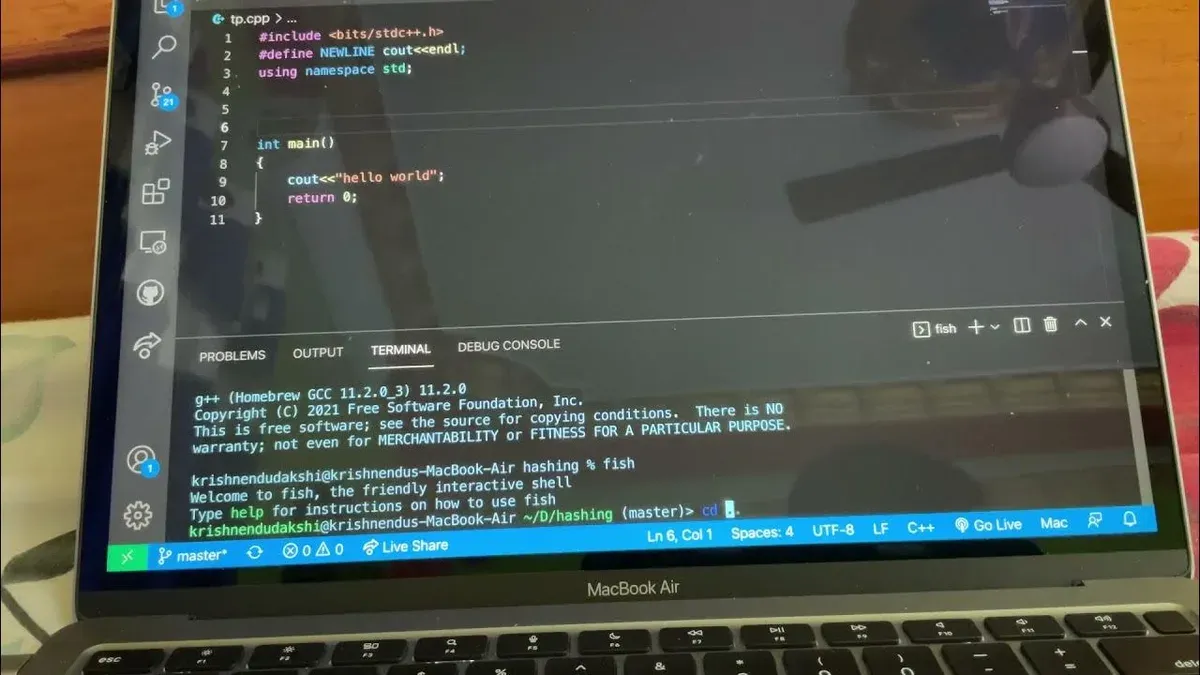
- Check if Homebrew is installed: Open Terminal and type brew --version. If you see a version number, Homebrew is installed. Otherwise, install it by running /bin/bash -c "$(curl -fsSL https://raw.githubusercontent.com/Homebrew/install/HEAD/install.sh)". After installation, verify by rerunning brew --version. You should see Homebrew’s version displayed.
- Install LLVM (which includes Clang): Run brew install llvm. Homebrew will download and install the latest LLVM package. Upon successful completion, it will confirm the installation.
- Configure your shell’s PATH: Homebrew installs LLVM binaries in /usr/local/opt/llvm/bin (Intel Macs) or /opt/homebrew/opt/llvm/bin (Apple Silicon). Add this directory to your PATH by adding export PATH="/usr/local/opt/llvm/bin:$PATH" or export PATH="/opt/homebrew/opt/llvm/bin:$PATH" to your shell profile (e.g., ~/.zshrc or ~/.bash_profile). Restart the Terminal or source the profile file. Run clang --version to confirm you are using the Homebrew-installed Clang.
The Homebrew LLVM Clang typically has newer features and supports more recent C++ standards compared to the Xcode Command Line Tools version. For example, it often includes more up-to-date sanitizers and improved optimization passes. However, Xcode Clang is better integrated with Apple’s development tools and SDKs, making it more seamless for certain Mac-specific projects.
How to use Clang to compile C++ code on Mac
- Open Terminal and run clang++ hello.cpp -o hello to compile the program. If successful, no errors appear and an executable named hello is created.
- Run the program with ./hello. You should see the output: Hello, World!
- To specify the C++ standard, add the -std flag, for example clang++ -std=c++17 hello.cpp -o hello. This compiles using C++17 features.
- If you want to use the libc++ standard library instead of the default libstdc++, add -stdlib=libc++, like clang++ -std=c++17 -stdlib=libc++ hello.cpp -o hello. This is common on Mac for compatibility.
- If multiple Clang versions are installed, specify the compiler version by using its full path, for example /usr/local/opt/llvm/bin/clang++ or /usr/bin/clang++. You can check versions with clang++ --version.
Create a file named hello.cpp with a simple C++ program, for example:
#include <iostream>
int main() {
std::cout << "Hello, World!" << std::endl;
return 0;
}
This is your source code to compile.
Troubleshooting common Clang installation and compilation issues on Mac
If you encounter the error "command not found: clang", it usually means the Xcode Command Line Tools are not installed or the PATH is misconfigured.
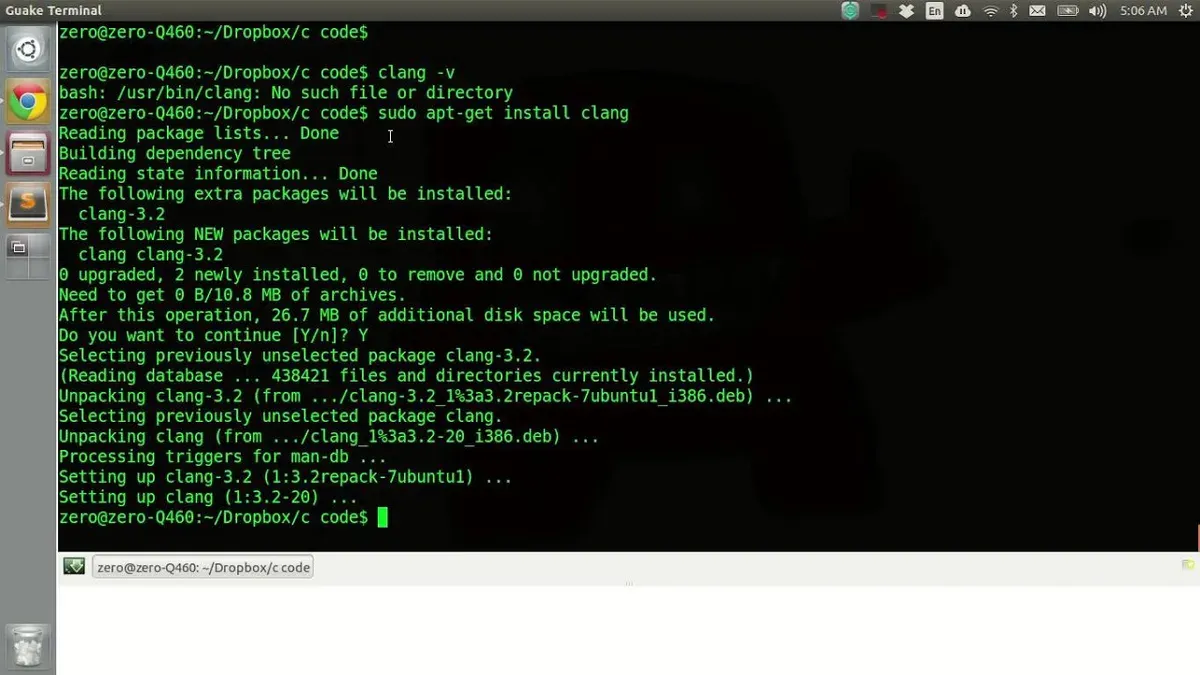
- Open Terminal and run xcode-select --install. A prompt should appear to install the tools. Confirm installation.
- After installation, verify by running clang --version. You should see Clang’s version details.
Conflicts between Xcode and Homebrew versions can cause unexpected behavior, such as errors referencing incompatible standard libraries.
- Check which Clang is used by running which clang. It should point to either
/usr/bin/clang(Xcode) or/usr/local/opt/llvm/bin/clang(Homebrew). - If you want to prioritize Homebrew’s Clang, add
export PATH=/usr/local/opt/llvm/bin:$PATHto your shell profile (e.g.,~/.zshrc), then restart Terminal.
Errors like "fatal error: 'iostream' file not found" or complaints about C++ version support often indicate missing or mismatched standard libraries.
- Specify the standard library explicitly with
-stdlib=libc++and set the language standard, for example-std=c++17, when compiling:clang++ -std=c++17 -stdlib=libc++ your_program.cpp -o your_program. - Ensure your Clang version supports the C++ standard you want; check with clang --version.
To confirm Clang is used as the compiler, compile a simple program with clang++ and run ps -p $$ -o comm= to check your shell, then run clang++ -v during compilation to see detailed compiler invocation.
- How to Install Swift Toolchain on Mac: A Step-by-Step Guide
- How to Install Rust on Mac: A Clear Step-by-Step Guide
- How to Install Ruby with rbenv on Mac: A Step-by-Step Guide
- How to Install Python on Mac: A Clear Step-by-Step Guide
Frequently asked questions
How to compile c++ with clang?
To compile C++ code with Clang, open your terminal and run clang++ filename.cpp -o outputname. This command compiles filename.cpp and creates an executable named outputname. You can add flags like -std=c++17 to specify the C++ standard version or -Wall to enable warnings.
How to install clang on linux?
On Linux, you typically install Clang through your package manager. For example, on Ubuntu, use sudo apt install clang. Other distributions have similar commands, like sudo dnf install clang on Fedora or sudo pacman -S clang on Arch Linux.
Is clang a compiler?
Yes, Clang is a compiler front end for the C family of languages, including C, C++, and Objective-C. It translates source code into executable machine code, supporting multiple platforms and offering fast compile times and helpful diagnostics.
What is clang compiler?
Clang is an open-source compiler developed as part of the LLVM project. It provides a modern, modular compiler infrastructure with strong support for C, C++, and Objective-C, known for clear error messages and compatibility with GCC.
What version of c++ does clang support?
Clang supports a wide range of C++ standards, including C++98, C++03, C++11, C++14, C++17, C++20, and many features from C++23. You select the standard with flags like -std=c++17 when compiling your code.
What this guide does not cover and who should look elsewhere
This guide focuses exclusively on installing and using Clang as a C++ compiler on Mac systems. It does not address installation on Linux or Windows, which require different procedures and tools. Additionally, users seeking advanced Clang features such as static analysis, sanitizers, or integration with specialized IDEs like Visual Studio should consult dedicated resources tailored to those environments.
For most developers and students wanting to compile C++ code on Mac, the next best step is to practice compiling a variety of C++ source files using Clang from the Terminal. Experiment with different compiler flags like -std=c++17 or -Wall to understand how they affect compilation and warnings. This hands-on approach will solidify your command of Clang’s capabilities and prepare you for more advanced usage scenarios.



