
Plan Your Microsoft Planner Rollout for Instructional Coaches
A Microsoft Planner rollout plan for instructional coaches ensures smooth adoption and efficient task management across coaching workflows.

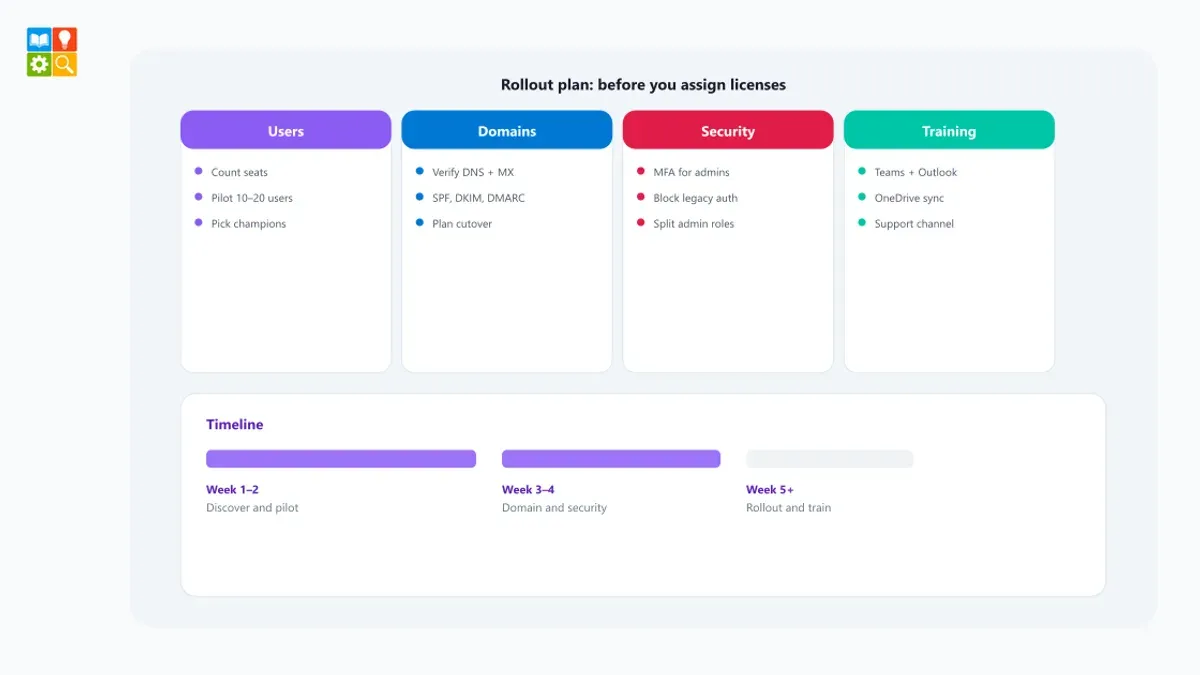
A Microsoft Planner rollout plan for instructional coaches must address these complexities head-on or risk low engagement and fractured task management.
Microsoft Planner now operates on a unified platform that merges features from Microsoft To Do, basic, and premium plans. This integration ensures seamless collaboration across Microsoft 365 apps like Teams, Outlook, and Copilot, so your rollout must leverage this unified experience to maintain consistency.
Failing to account for the premium features such as Goals view, Timeline view, custom fields, and task dependencies can stall adoption. Moreover, without a clear strategy that matches your administrative permissions, you risk overwhelming users or losing visibility into how Planner is used.
Checked in November 2026 against TECHCOMMUNITY.MICROSOFT.COM, Microsoft; details like these change, so the date matters.
Understand Microsoft Planner’s Unified Platform and Why It Matters to You
This integration spans across Microsoft 365 apps such as Teams, Outlook, and Copilot, enabling seamless task management within your instructional coaching workflow.
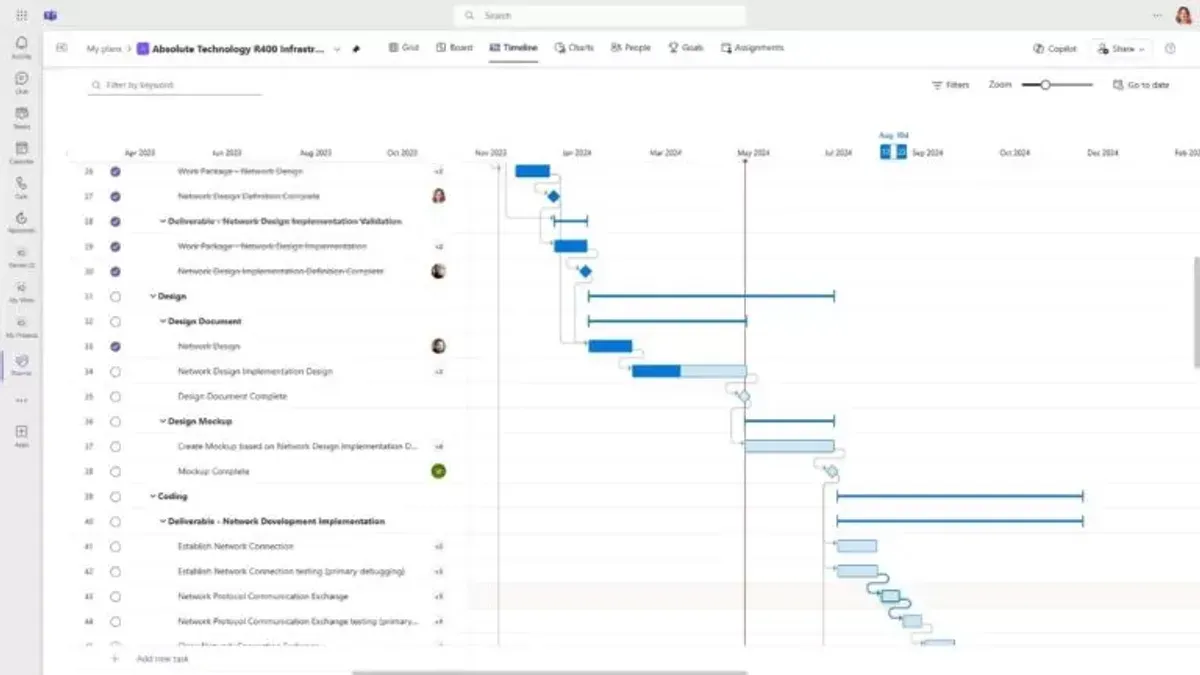
Premium features like Goals view and Timeline view give you clear visual tracking of coaching milestones and deadlines. Custom fields allow you to tailor task details to your coaching context, while sprints and backlogs help organize iterative coaching cycles. Task hierarchy and dependencies let you manage complex workflows by linking related coaching tasks in logical sequences.
For example, you can create a plan in Teams to track individual coaching sessions, link related tasks in a hierarchy to represent phases of a coaching cycle, and use Timeline view to monitor progress against deadlines. This unified approach consolidates your coaching task management, reduces fragmentation, and makes collaboration with team members more consistent and efficient.
These capabilities matter because managing multiple coaching activities involves tracking diverse, interrelated tasks. The unified platform ensures you have a consistent set of tools across Microsoft 365, which simplifies adoption and supports scalable coaching operations. See the unified plans overview for details.
Set Up and Use Planner Within Microsoft Teams Channels
To integrate Microsoft Planner within your coaching team's workflow, add Planner as a tab directly inside your Teams channels. This works in both private and shared channels, keeping your coaching tasks visible alongside your conversations and meetings. The process requires access to the Teams desktop or web app and the appropriate Planner licensing for all members.
Follow this exact path: navigate to the desired Channel, click the + (Add a tab) button at the top, then select Planner. From here, you can either create a new plan or select an existing one to link. This setup centralizes task management, so when your coaching team discusses progress or next steps in the channel, the related Planner tasks remain immediately accessible without switching apps.
For instance, if you run a coaching cycle on instructional strategies, adding a Planner tab named "Strategy Coaching Tasks" in your shared channel lets all members see and update action items during meetings. This keeps task updates synchronous with the ongoing dialogue and avoids task details getting lost in chat threads.
Do not attempt to reorder these steps, such as creating a plan outside Teams first and then adding it; this can cause confusion or incomplete integration. The tab addition must come through the channel menu to ensure proper visibility and permissions. Also, be aware this integration won’t function fully on mobile-only Teams apps due to feature limitations.
Choose Your Rollout Approach Based on Admin Permissions
Your ability to manage Microsoft Planner rollout hinges largely on whether you have admin permissions. With admin rights, you can oversee usage analytics, automate task cleanup, and perform bulk operations, streamlining adoption across coaching teams.
Focus on a bottom-up rollout by identifying early adopter instructional coaches or tech leads who can champion Planner within their teams. Provide targeted training sessions that demonstrate Planner’s value in coaching workflows. Share concrete success stories to build enthusiasm and trust. Encourage users to maintain task organization manually, as automation tools won’t be available to you.
Tracking engagement in this scenario depends on gathering user feedback and monitoring activity metrics like task completion rates. For instance, if you lack admin rights, you might form a small group of tech-savvy coaches who meet weekly to discuss Planner usage and share tips. This grassroots approach compensates for the inability to automate monitoring or cleanup.
| Your Situation | Recommended Rollout Approach | Key Reason |
|---|---|---|
| You have admin permissions | Top-down rollout with monitoring and automation | Admin rights enable usage tracking and bulk management |
| You lack admin permissions | Bottom-up adoption via early adopters and training | Without admin rights, manual cleanup and user feedback are essential |
Instead, rely on building community momentum and empowering users to manage tasks proactively. This ensures Planner becomes a practical tool within your coaching team despite technical limitations.
Avoid Common Pitfalls That Stall Planner Adoption
Launching with too many features at once overwhelms users and triggers resistance. When coaches perceive Planner as adding complexity rather than simplifying tasks, they hesitate to engage.
Consider a scenario where you enable every Planner function immediately. Coaches may struggle with unfamiliar tabs, task labels, and automation rules simultaneously, leading to confusion instead of clarity. Instead, introduce features incrementally, aligned with your coaching workflows, so users gain confidence step-by-step.
Another frequent hurdle is lacking admin permissions. This limitation means all tracking and maintenance fall on individual users, risking inconsistent task management and cluttered plan boards.
To prevent these issues, plan your rollout based on your admin capabilities. If permissions are restricted, prepare to provide extra training and manual support to keep plans organized. Avoid rushing automation features that require elevated access. This measured approach ensures smoother adoption and sustained Planner use within your instructional coaching team. More details.
Leverage AI and Automation Tools to Streamline Task Management
Microsoft Copilot’s Planner Agent uses AI to handle task creation, updates, and status reports through natural language. You can type or speak commands like “Create a follow-up task for the math coaching session next week” and the Planner Agent generates the task, assigns it, and places it in the correct plan using an interactive plan picker. This reduces manual entry and keeps your coaching projects aligned efficiently.
Power Automate’s Planner connector lets you automate repetitive workflows across Microsoft 365. For instance, you can set a flow that automatically creates a Planner task when a new coaching request form is submitted or sends reminders to coaches before deadlines. This integration cuts down on routine task management, freeing more time for coaching itself.
Both tools require appropriate licensing and a technical setup phase. You need to enable Planner Agent within Microsoft Copilot and configure Power Automate flows with the Planner connector.
Imagine receiving an email about a coaching session needing preparation. With Power Automate, that email can trigger a task creation in Planner automatically. Then, using Planner Agent, you can ask for a status report on all preparation tasks due this week, getting instant insights without manual tracking.
Leveraging these AI and automation features ensures your coaching team stays organized and responsive, reducing administrative overhead and improving task visibility.
Organize Coaching Work with Connected Plans and Usage Reports
Link related coaching plans using connected plans to streamline task management across multiple projects and initiatives. This feature lets you connect tasks from different plans, maintaining clarity and coordination as you juggle various coaching responsibilities.
| Concept | Purpose | Benefit |
|---|---|---|
| Connected Plans | Link related plans and tasks | Organize work across coaching initiatives without duplication |
For example, you might link a district-wide coaching plan with school-specific plans. Connected plans keep tasks synchronized, ensuring updates in one plan reflect across related efforts.
Monitor your coaching team's engagement through Planner usage reports found in the Microsoft 365 admin center under Admin center → Reports → Usage → Planner usage reports. These reports provide metrics such as active-user trends, active days, and last activity days. Tracking these helps you identify coaching teams that engage regularly and those needing encouragement or support.
| Metric | What It Shows | Coaching Insight |
|---|---|---|
| Active-user trends | Number of users engaging over time | Measures adoption growth or decline |
| Active days | Frequency of use per user | Indicates consistent task management |
| Last activity days | Days since last use | Flags dormant users or teams |
Access to these reports requires admin permissions. Use these insights to adjust your rollout, fine-tune training, or reassign resources. After linking plans and reviewing reports, check them regularly—daily or weekly—to maintain momentum. You can undo connections between plans by editing or removing linked tasks if priorities shift, but be mindful of how this affects task visibility across plans.
Planner usage reports in Microsoft 365 admin center provide these capabilities.
Decide Which Microsoft Planner Version Fits Your Coaching Team’s Needs
Choosing the right Microsoft Planner version hinges on your team’s project complexity and required features. Basic unified plans cover standard task management but lack advanced capabilities essential for intricate coaching workflows.
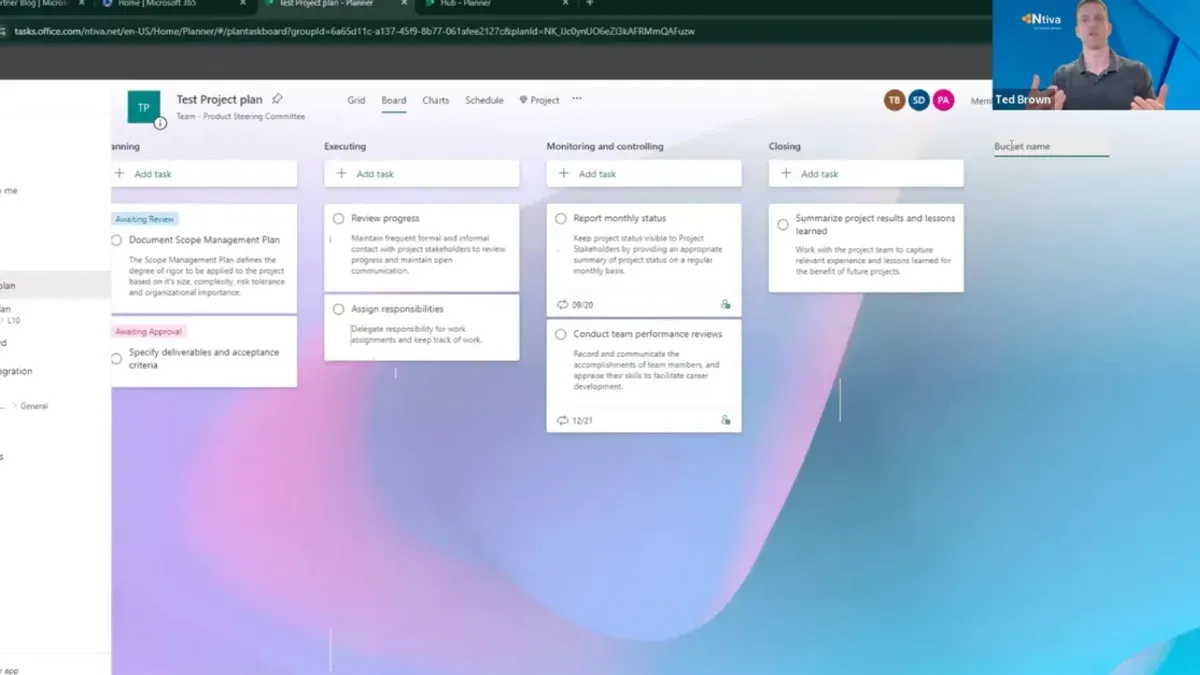
Premium unified plans unlock features like Goals view, Timeline view, custom fields, sprints, backlogs, task hierarchy, and dependencies. These tools are vital when managing multi-layered coaching projects that demand clear task relationships and progress tracking.
For example, if your coaching team runs a project with sequential tasks dependent on earlier completions, only premium plans support dependencies. Without these, task coordination can falter, causing delays and confusion.
| Feature | Basic Unified Plan | Premium Unified Plan (Plan 1 or Plan 3) | Planner MCP Server |
|---|---|---|---|
| Goals View | No | Yes | No |
| Timeline View | No | Yes | No |
| Custom Fields | No | Yes | No |
| Sprints & Backlogs | No | Yes | No |
| Task Hierarchy | No | Yes | No |
| Dependencies | No | Yes | No |
Planner MCP Server does not support premium capabilities such as dependencies, task history, or custom fields. If these are critical, unified premium licenses are necessary.
Select the plan type that matches your team’s needs and budget. For simple task tracking, the basic plan suffices. For managing complex coaching projects with layered tasks and timelines, premium plans are indispensable. Align your choice with the level of project management sophistication your coaching team requires.
Final Steps to Successful Microsoft Planner Integration
After selecting the Microsoft Planner version and rollout approach that fits your coaching team, focus on monitoring usage reports weekly to identify adoption bottlenecks. Maintain connected plans by updating task links as coaching projects evolve, and remember that any plan connections can be undone via the plan settings if priorities shift. Regularly review admin permissions to ensure they align with your rollout strategy and adjust as your team’s needs change.
Choose the full-featured Microsoft 365 license if your team requires robust integration and automation. Opt for the standalone Planner version when minimal admin control is available but basic task management is sufficient. When admin permission is limited, use the decision matrix to determine whether a phased rollout or pilot group introduction suits your environment best, ensuring you balance feature access with user readiness.
References
- Introducing unified tasks and plans for Copilot and Microsoft 365 | Microsoft Community Hub — TECHCOMMUNITY.MICROSOFT.COM
- What's new in Microsoft Planner | Microsoft Support — Microsoft
- Best Practices for Bottom-Up Microsoft Planner Rollout Without Admin Permissions - Microsoft Q&A — Microsoft



