
Move from Google Chat to Microsoft Planner Checklist Seamlessly
Learn how to move from Google Chat to Microsoft Planner checklist with a step-by-step guide to transfer and organize tasks seamlessly.

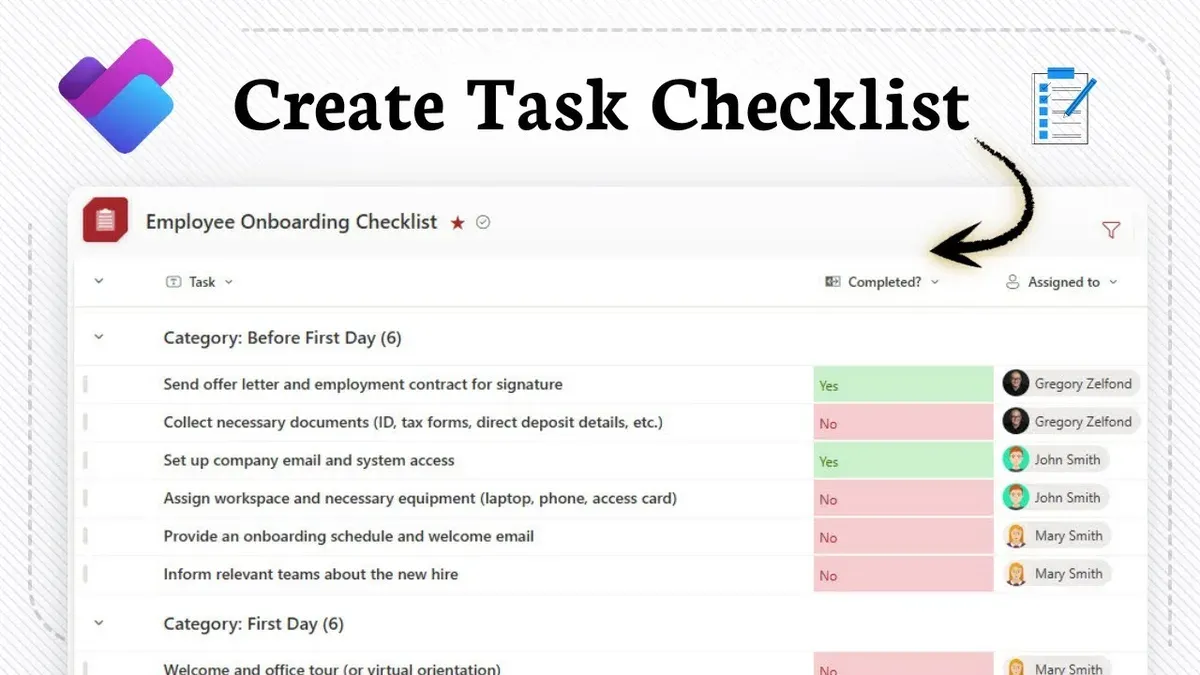
Google Chat’s task tracking is informal—tasks live inside messages with no dedicated structure. Microsoft Planner, on the other hand, organizes work into Plans and Buckets and supports detailed checklists with subtasks. This fundamental difference means you can’t simply export and import tasks; you must carefully extract, organize, and assign tasks to fit Planner’s framework.
Moving from Google Chat to Microsoft Planner checklist requires understanding the sequence of actions, from preparing your Planner environment to manually transferring task content and assigning responsibilities based on Microsoft 365 group permissions. This guide pinpoints what to do first, what to avoid, and how to maintain your Planner setup once the migration is complete.
Assess Your Current Task Tracking in Google Chat
Begin by understanding how your team currently manages tasks within Google Chat. Tasks often appear informally in chat messages, scattered across conversations rather than centralized. For example, a team member might type “Reminder: finalize budget report by Friday” in a chat thread without assigning it or adding a due date explicitly.
Check if your team uses pinned messages or starred items to highlight important tasks. While this helps visibility, it doesn’t structure tasks or subtasks. Some teams pair Google Chat with Google Tasks to supplement task tracking, but this integration is limited and not consistent across groups.
Identify what task details are recorded: do messages mention due dates, assignees, or attached files? Usually, this information is embedded in text and requires manual extraction. There’s no native support for structured checklists or subtasks, making it hard to track progress systematically.
This groundwork lets you plan for manual transfer and anticipate gaps.
Prepare Microsoft Planner for Your Incoming Tasks
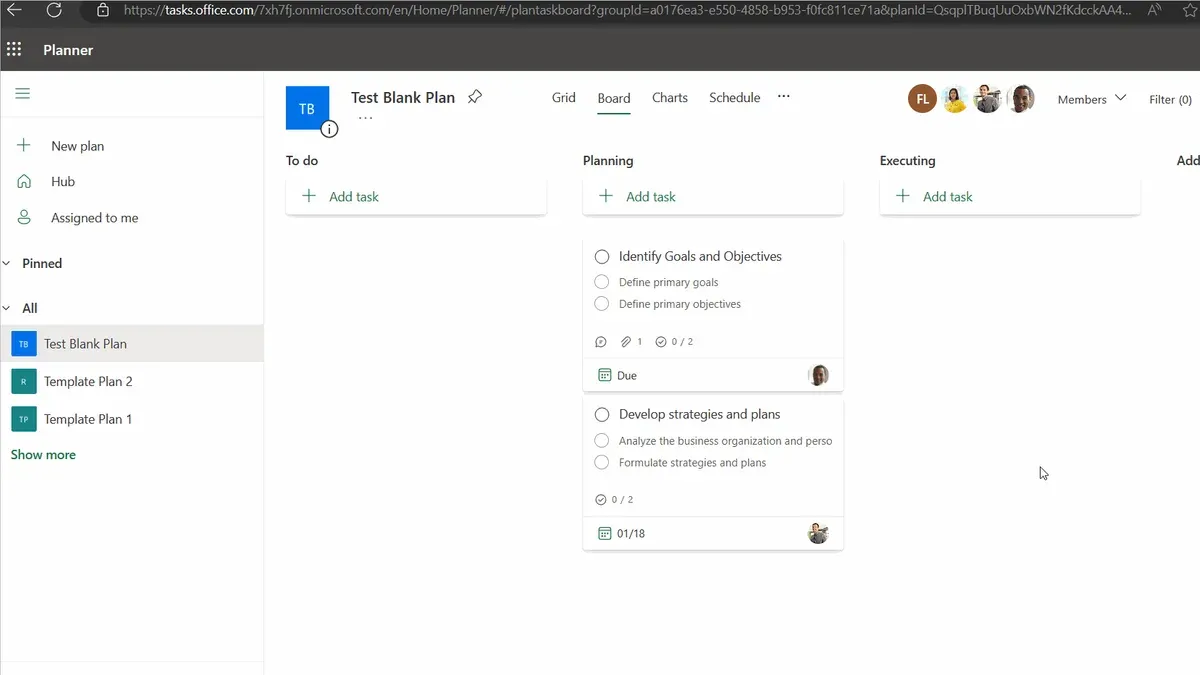
Before migrating tasks, establish Microsoft Planner’s framework by creating Plans that mirror your team’s major projects or functional areas. Within each Plan, set up Buckets to represent workflow stages like "To Do," "In Progress," and "Completed." This structure is essential because Google Chat lacks any concept of Plans or Buckets, so setting this foundation avoids later disorganization.
Familiarize yourself with Planner’s task fields: each task requires a clear title and can include descriptions, due dates, color-coded labels for categorization, attachments, and crucially, checklist items for subtasks. Unlike Google Chat, which embeds tasks informally in messages without subtasks or structured metadata, Planner supports detailed task breakdowns that improve clarity and tracking.
Only team members in the associated group can view or be assigned tasks. This contrasts with Google Chat’s open chat rooms where everyone sees messages. Assign users to the group early to ensure seamless task visibility and assignment after migration.
For example, if you manage a marketing team, create a "Campaigns" Plan with Buckets such as "Ideas," "Design," and "Launch." Then, configure group members who handle those phases.
Map and Transfer Task Details from Google Chat to Planner
Start by manually extracting task details hidden within Google Chat messages or through any Google Tasks exports you have. Since Google Chat stores tasks informally inside conversations, identify and copy each task’s core information—titles, descriptions, deadlines, and any comments—before moving to Planner.
Next, create corresponding tasks in Microsoft Planner with clear, concise titles and comprehensive descriptions. For example, a Google Chat message like “Finalize Q3 budget report by Friday” becomes a Planner task named “Finalize Q3 Budget Report” with the due date set accordingly and additional details added in the description field.
Use Planner’s checklist feature to break down complex tasks into subtasks. Google Chat lacks this, so reconstruct any step-by-step actions as checklist items under the main task. For instance, if the budget report involves data gathering, analysis, and review, list these as checklist entries within the task.
Attach all relevant files manually to each Planner task, as automatic file transfer from Google Chat is unavailable. Locate the original documents in your shared drives or email and upload them to the task’s attachment section.
Attempting to assign files or subtasks before creating the main task can cause confusion or data loss.
Avoid Common Mistakes When Moving from Chat to Planner
Transitioning from Google Chat’s informal task mentions to Microsoft Planner’s structured environment requires deliberate steps to prevent confusion and data loss. A common misstep is assuming that all task context embedded in chat messages will transfer automatically. Since Google Chat tasks often live within conversations, you must manually enter essential details into Planner to preserve clarity and completeness.
Skipping the setup of Planner Buckets leads to disorganized task boards. Buckets segment tasks logically within Plans, helping you and your team track progress efficiently. Without this structure, tasks can appear as a chaotic list, making prioritization and status updates difficult.
Neglecting to inform your team about the migration risks parallel task tracking, where some members continue using Google Chat for tasks while others switch to Planner. This split approach fragments accountability and causes missed deadlines.
| Symptom or Message | Cause | Fix |
|---|---|---|
| "Task not visible" or "Unable to edit task" | Permission mismatch due to Microsoft 365 group membership not aligned with Planner access | Verify that all team members are added to the correct Microsoft 365 group that owns the Planner Plan; adjust group membership as needed |
| Missing task details after migration | Assuming automatic migration carries over informal task data embedded in Google Chat conversations | Manually extract and input task descriptions, due dates, and context before finalizing task creation in Planner |
| Disorganized tasks with no clear status or grouping | Skipping Planner Bucket setup before task creation | Create Buckets that reflect phases or categories of work prior to importing tasks |
Imagine your team trying to find a critical subtask buried in chat threads that never made it properly into Planner. Without manual extraction and proper structuring, assignments become unclear and progress tracking fails.
Check and Maintain Your New Planner Setup After Migration
Confirm that all subtasks are present in the checklist feature and that attachments have been correctly linked. Missing details often surface only after initial use, so early detection prevents workflow disruptions.
Train your team on how to use Planner’s checklist functionality effectively, including updating task progress and adding comments. This ensures everyone maintains consistency and leverages Planner’s structure rather than reverting to informal chat habits.
Use Planner’s filtering and grouping features to identify overdue items or unassigned tasks that can be addressed promptly. These audits help maintain order and accountability over time.
For instance, once a task is deleted, restoring its subtasks or original messages is not straightforward. Consider creating backup copies or maintaining a separate log during the transition period to mitigate potential data loss.
For example, you might assign a team member to review newly created tasks against your original Google Chat notes within seven days, correcting any gaps. Simultaneously, hold a training session demonstrating how to add checklist items and update task statuses, reinforcing best practices. These steps solidify your team’s transition and prevent setbacks from unnoticed errors or unfamiliarity with the new system.
When Microsoft Planner Isn’t the Right Fit
If your team depends on capturing tasks directly within ongoing, real-time conversations, Microsoft Planner’s structured, static task environment may feel limiting. Planner requires you to create tasks separately from chat, lacking the fluid integration that Google Chat offers with its embedded task mentions and informal tracking.
These tools support custom rules and extensive integrations that Planner’s checklist and bucket system cannot replicate.
Moving directly to Planner forces manual task creation and assignment, interrupting their natural flow. This can save time and reduce errors compared to Planner’s manual extraction and setup process.
When any of these exceed Planner’s capabilities, selecting a platform that aligns better with those needs will prevent disruption and improve adoption.
Common Mistakes When Moving from Google Chat to Microsoft Planner
- Skipping Planner Bucket Setup: Omitting to create buckets before adding tasks leads to a cluttered, disorganized board. Always establish buckets reflecting your workflow categories before task import.
- Assuming Automatic Migration Captures All Details: Google Chat tasks are embedded in messages; no automatic tools extract subtasks or attachments. Manually extract and recreate these details to maintain task integrity.
- Ignoring Microsoft 365 Group Permissions: Tasks may appear invisible or uneditable if the right group memberships aren’t assigned. Verify that all team members are added to the correct Microsoft 365 groups before task assignment.
- Assigning Tasks Before Creating Them: Attempting to assign or attach files before task creation causes errors or lost data. Follow the proper sequence: create tasks and subtasks first, then assign and add attachments.
When This Transition Might Not Be Your Best Option
If your team relies heavily on automation or has large volumes of embedded chat tasks, consider consulting specialists or exploring dedicated migration services tailored to complex data extraction and synchronization.
This ensures you preserve task context and leverage Planner’s checklist and bucket features effectively from the start.



