
Move from Microsoft Planner to monday.com Checklist with Confidence
Learn how to confidently move from Microsoft Planner to monday.com checklist, handling data mapping, dependencies, and avoiding common migration pitfalls.

It covers preparing and mapping your Microsoft Planner data, handling quirks of monday.com’s import process, rebuilding dependencies and advanced scheduling, and avoiding common pitfalls to keep your projects running smoothly after migration.
Every limit and setting name below comes from Project Migrator, FluentPro Help Center, Work Management Hub (full list at the end), as of November 2026.
Understand why moving from Microsoft Planner to monday.com matters
Microsoft Planner offers basic task and checklist management, but monday.com elevates this with advanced project management capabilities and deeper checklist integration. If your team needs more than simple task lists, monday.com provides features like Timeline, Gantt, and calendar views available starting on the Standard plan, which costs $12 per seat per month billed yearly with a minimum of three seats. This plan includes 250 automation actions monthly to streamline your workflows.
For project managers requiring dependencies, private boards, and time tracking, the Pro plan at $19 per seat per month adds these critical capabilities along with 25,000 automation actions monthly. These features allow you to manage complex project schedules and resource allocations that Microsoft Planner cannot handle.
Checklists on monday.com are not just lists—they integrate with monday workdocs, enabling you to build checklist templates that include priority columns, time estimation, autosave, and real-time collaboration with your team. Unlike Microsoft Planner, where checklists are static and limited, monday workdocs allow you to connect checklists directly to project boards, ensuring tasks and priorities stay synchronized and visible.
With monday.com, you can visualize the launch timeline using Gantt charts, automate reminders for critical milestones, and collaborate on checklist templates that assign priority and estimate effort. This integration reduces manual follow-up and keeps everyone aligned, a significant improvement over Microsoft Planner’s simpler task lists.
Choose the right migration approach for your Microsoft Planner data
When deciding how to move your projects from Microsoft Planner to monday.com, your choice hinges on project complexity and the resources at hand. Automated migration using It covers data and user mapping and works directly from the web or Microsoft Teams, accelerating the process by about 80% compared to manual methods while minimizing data loss and errors.
This includes removing formatting, ensuring task names are unique, and adding necessary columns like Subitems.
Automated migration moves all of this intact, with minimal effort. Manual migration demands you spend hours tidying the export, then painstakingly reconstructing relationships and timelines in monday.com. If your projects have complex dependencies or resource calendars, expect to invest extra time in this rebuilding phase.
If your project setup is intricate and you prefer a hands-on approach or have limited access to automated tools, prepare for the manual Excel route with its necessary cleanup and reconstruction.
Prepare Microsoft Planner data and export it correctly
Begin your migration by deciding how to export your Microsoft Planner data. The most efficient method is using FluentPro Project Migrator, which automates migration from Microsoft Planner to monday.com. This tool handles task data transfer but does not migrate dependencies or advanced scheduling features automatically, so plan to rebuild those manually later.
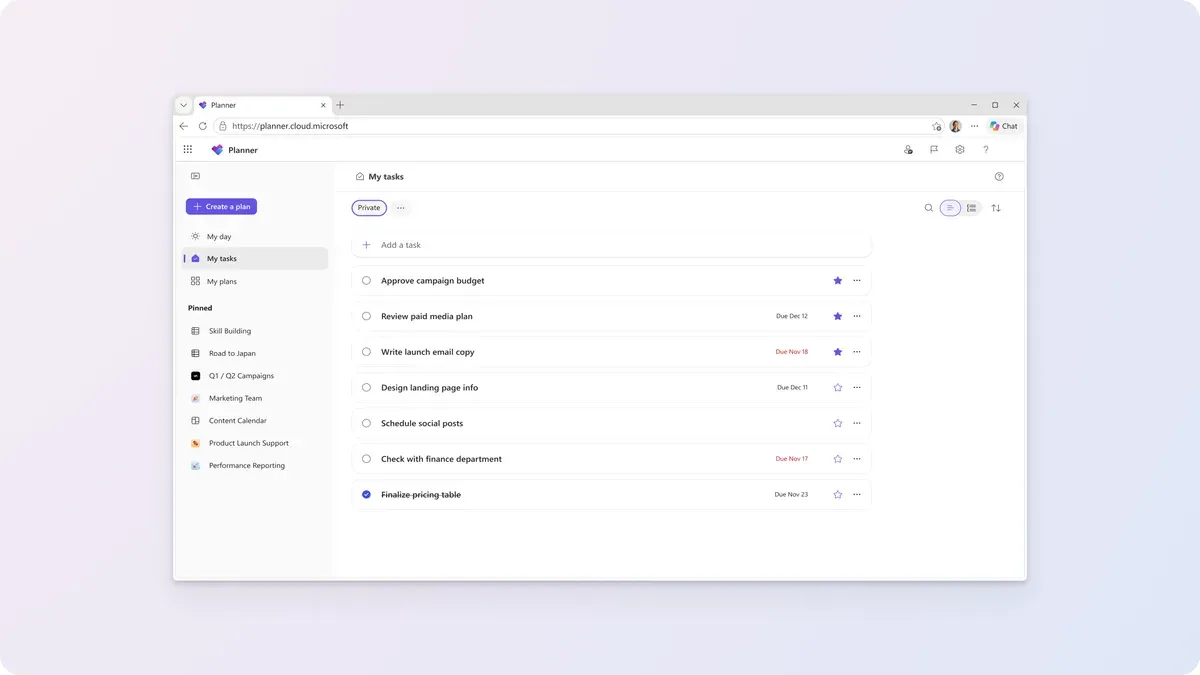
If you opt for a manual migration, export your Microsoft Planner tasks to Excel. Navigate to Microsoft Planner’s export options and save your task list as an Excel workbook. This export provides the raw data you’ll need for import into monday.com but requires careful preparation before the import.
In Excel, clean your data by removing any formatting and ensuring all task names are unique. Duplicate task names can cause import errors or confusion in monday.com boards. Add a column for Subitems if your project requires task breakdowns, as this is not included in the export by default.
Keep in mind that dependencies, resource calendars, and certain advanced scheduling details do not transfer during export. These elements must be reconstructed manually in monday.com after import. For example, if a task depends on another’s completion, you will need to recreate this linkage within monday.com’s dependency columns post-import.
This step sets the foundation for a smooth transition and avoids common data hiccups.
Map your Microsoft Planner data to monday.com fields accurately
Accurate mapping of your Microsoft Planner data to monday.com fields is critical to preserve task integrity and ensure smooth project continuity. The migration process involves four key steps: connecting your source and target systems, selecting the data to migrate, mapping objects such as fields and users, and launching the migration. Skipping or misaligning any step risks data loss or misrepresentation.
When using FluentPro Project Migrator, you’ll encounter intuitive Plan Field, Task Field, and User Mapping interfaces. These allow you to precisely align Planner fields with their monday.com counterparts. For example, you can map Planner’s task titles to monday.com’s Text columns and Planner’s due dates to monday.com’s Date columns. This tool also supports selective migration, enabling you to include only the tasks, plans, or users relevant to your current workflow rather than migrating everything indiscriminately.
By contrast, manual Excel import into monday.com requires you to prepare your data within the constraints of supported column types. monday.com’s Excel import accepts Numbers, Text, Date, Email, Dropdown, Timeline, and Phone columns. However, it does not automatically populate People, Status, or Dependency columns. You will need to convert these to supported types or plan to rebuild them manually after import. For instance, if your Planner tasks include assigned users and dependencies, you must extract or translate these fields into text or dropdown formats in your Excel file before import, then reconstruct People and dependency links directly on monday.com boards afterward.
FluentPro’s mapping interfaces let you link these Planner attributes to monday.com’s matching fields during migration, preserving the connections. Meanwhile, Excel import requires you to export these fields as text or separate columns, then use monday.com’s interface to manually reassign users and recreate dependencies after import.
- Select only the necessary plans and tasks for migration to avoid clutter.
- If importing via Excel, ensure data fits supported column types and plan to rebuild People, Status, and Dependency columns manually.
Import data into monday.com and rebuild missing elements
Begin your import by opening your monday.com board, then click the arrow next to New item and select Import items. Choose to upload your Excel or CSV file and carefully map your columns to the correct monday.com fields. Alternatively, you can add a new board and use the Import data option, selecting Excel as your source. This process ensures your task names, dates, and other basic fields transfer correctly.
However, be prepared to manually reconstruct key elements that do not import via Excel. People, Status, and Dependency columns remain empty after import. For example, assignees in Microsoft Planner will not populate the People column automatically, and task dependencies won’t appear in the Dependency column. You must recreate these manually within monday.com to maintain project integrity.
Planning your board structure before importing is crucial. Importing data without a defined board design often leads to many text columns and missing Timeline or Gantt views, which hinders effective project management. Visualize how your checklist and tasks will organize, which columns you need, and how dependencies will link before bringing in data. This foresight prevents a cluttered, inefficient workspace.
Once your data is imported, tackle rebuilding missing elements: assign team members in the People column, select appropriate Status labels, and manually recreate dependencies by linking tasks in the Dependency column. This step restores the dynamic project flow that Microsoft Planner had but did not transfer automatically.
- Plan and design your board layout including columns and views before importing
- Manually assign People, update Status fields, and rebuild Dependencies after import
Learn more about monday.com import steps
Rebuild dependencies and advanced scheduling features in monday.com
These elements require manual reconstruction to maintain project timelines and resource allocations accurately. Missing this step can cause scheduling errors and project delays, so plan to rebuild dependencies carefully after import.
To use dependencies and other advanced scheduling tools in monday.com, you must be on the Pro plan, which costs $19 per seat per month billed yearly. The Pro plan includes dependencies, private boards, time tracking, and a higher automation limit of 25,000 actions monthly. The Standard plan at $12 per seat per month offers Timeline, Gantt, and calendar views with 250 automation actions monthly but lacks dependencies and time tracking.
| Feature | Standard Plan ($12/seat/month) | Pro Plan ($19/seat/month) |
|---|---|---|
| Timeline, Gantt, Calendar Views | Included | Included |
| Dependencies | Not Included | Included |
| Private Boards | Not Included | Included |
| Time Tracking | Not Included | Included |
| Automation Actions Monthly | 250 | 25,000 |
For example, if your Microsoft Planner project had task A blocking task B, this dependency must be recreated in monday.com’s Gantt or Timeline view after import. Without this, task B could be scheduled to start prematurely, causing resource conflicts or missed deadlines. Similarly, resource calendars managing individual availability do not migrate and must be rebuilt manually to reflect accurate workload and time off.
Plan your migration timeline to include steps for rebuilding dependencies and resource calendars. Selecting the Pro plan beforehand ensures you have these advanced features available when reconstructing your project. This preparation prevents errors and aligns your project management workflow with your team's needs.
- Verify your monday.com subscription includes the Pro plan to access dependencies and time tracking.
- Manually recreate task dependencies in your board’s Timeline or Gantt view after data import.
- Rebuild resource calendars to reflect accurate team availability within monday.com.
Use monday workdocs to create and manage checklists integrated with your boards
These checklists support priority columns, time estimation, autosave, and real-time collaboration, ensuring your team stays aligned and productive.

Start by visiting the monday.com Template Center, navigate to the checklist section, and select a monday workdocs checklist template. Use the Use Template button to add it to your workspace quickly. This jumpstarts your checklist setup with structured columns for priority and estimated time, fields that help you manage task urgency and duration clearly.
Once created, these checklists integrate seamlessly with your monday.com boards. For example, you can link a checklist in workdocs directly to a project board, allowing tasks to sync visually and functionally. Team members can update priorities or time estimates in the workdoc, and these changes reflect in the project board, maintaining single-source integrity.
Multiple users can edit the checklist simultaneously, making it ideal for dynamic projects where task details evolve rapidly. This collaborative environment reduces version confusion and accelerates checklist completion.
You create a checklist for the marketing team using a monday workdocs template. You assign priorities such as High, Medium, or Low, and estimate hours needed for each task. As your team updates progress in the checklist, those changes feed into your monday.com project board, keeping everyone aware of deadlines and workload without manual updates.
Leveraging monday workdocs checklist templates enhances your checklist management efficiency and ties your task tracking tightly to your project boards. This approach eliminates duplication and supports clear, prioritized, and time-aware task progress.
Avoid common pitfalls and plan for post-migration maintenance
Start by designing your monday.com board structure before importing any data. Importing first often leads to many generic text columns and a lack of Timeline or Gantt views, which hinders effective project management. Taking time to plan your board layout ensures you use monday.com’s features optimally from the start.
Dependencies never migrate automatically from Microsoft Planner to monday.com, even when using the FluentPro Project Migrator. Overlooking this step causes broken workflows and confusion.
After migration, review your data and board functionality within a few days. Check that People, Status, and Dependency columns are correctly set up and that automations, if any, trigger as expected. Early detection of missing or incorrect elements prevents disruption in ongoing projects.
| Symptom | Cause | Fix |
|---|---|---|
| Imported board has too many text columns and lacks Timeline or Gantt views | Data imported before board structure was designed | Redesign board layout first, then re-import or manually reorganize columns |
| Dependencies missing or not working | Dependencies not migrated; Excel import does not support them | Manually rebuild dependencies using monday.com’s dependency column on Pro plan |
| People and Status columns appear empty or incomplete | Excel import does not populate these columns | Manually assign People and Status values after import |
Confirm that task assignments, statuses, and timelines reflect your project needs. Plan for regular maintenance such as updating automations and dependencies as projects evolve. If something goes wrong, monday.com allows you to undo recent changes via the board’s activity log or restore previous board versions, giving you control over your setup.
You then must spend extra time reorganizing or re-importing, delaying your project start.
References
- How to do Microsoft Planner Migration to Monday.com - Project Migrator — Project Migrator
- General Overview of Planner Basic -> Monday.com scenario - FluentPro — FluentPro Help Center
- Microsoft Project to monday.com Migration Guide — Work Management Hub
- List Template With monday workdocs — monday.com



