
Switching from Google Chat to Basecamp: A Clear Transition Plan
Discover a clear plan to switch from Google Chat to Basecamp, ensuring smooth migration of messages and files without data loss.

Quick overview of switching from Google Chat to Basecamp
- Google Chat message histories cannot be imported directly into Basecamp; archive them separately before migrating.
- Files shared in Google Chat remain in Google Drive and must be manually copied to Basecamp’s Docs & Files section.
- Basecamp’s message boards and campfire chats differ structurally from Google Chat’s rooms and direct messages, requiring a communication mapping plan.
- Google Workspace admin access is necessary to export Google Chat data for migration preparation.
Identify What You Need to Move and What Stays Behind
Google Chat stores all your conversations within Google Workspace, while Basecamp organizes communication into distinct message boards and campfire chats. This fundamental difference means you cannot directly import Google Chat message history into Basecamp; the formats and structures are incompatible. Therefore, chat histories must be archived or exported separately if you want to retain them for future reference.
Files shared in Google Chat are saved in Google Drive, not embedded within chats themselves. To transfer these files to Basecamp, you must manually download them from Google Drive and upload them into Basecamp’s Docs & Files section. There is no automated sync or import tool that moves these files along with conversations.
For example, suppose your team has months of critical discussions in Google Chat regarding a product launch, alongside key documents like design drafts stored in Drive. You should export the chat history via Google Workspace’s data export tools, archive it as needed, and separately relocate the project files into Basecamp’s file storage. This approach ensures no vital data is lost during the transition.
Map Your Team’s Communication Patterns to Basecamp’s Structure
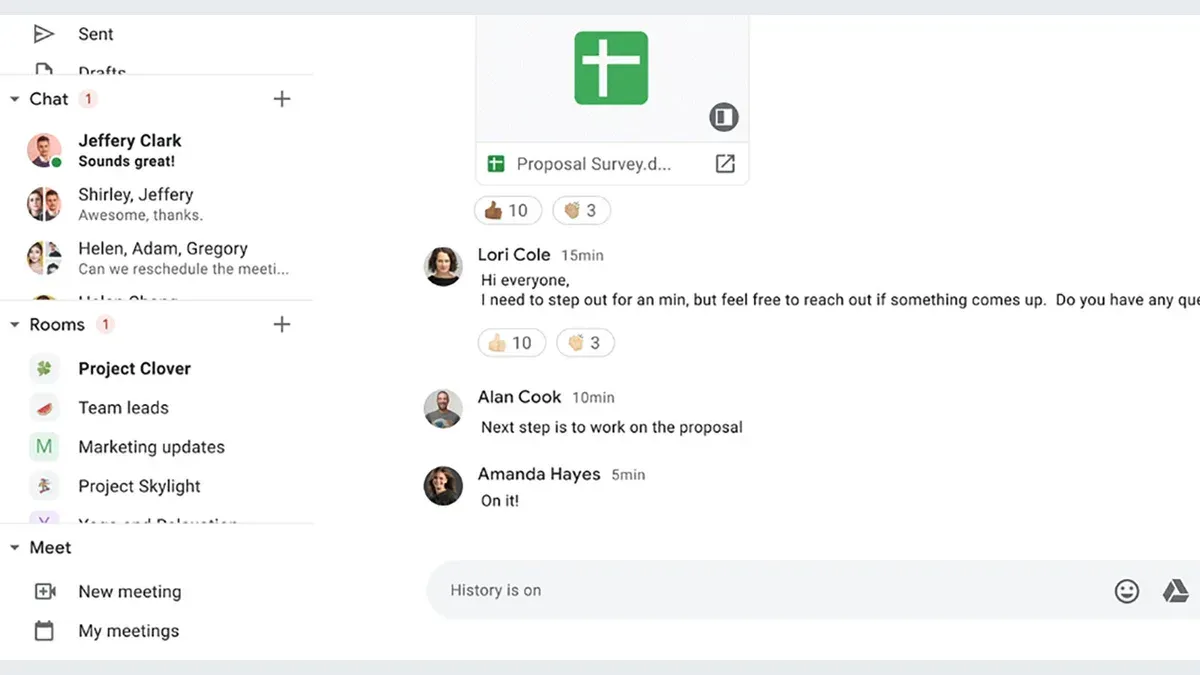
Google Chat organizes conversations primarily through direct messages and rooms. Direct messages are private, one-on-one chats, while rooms serve as persistent group conversations often centered around a specific team or topic. Basecamp, however, uses a different approach: message boards and campfire chats. Message boards host threaded, topic-focused discussions that resemble forums, suitable for organized, ongoing conversations. Campfire chats provide real-time, informal messaging similar to instant group chats.
When transitioning, identify which Google Chat rooms align with Basecamp projects and message boards. For example, your marketing team’s Google Chat room would become a Basecamp project with a dedicated message board for campaign discussions. Persistent group chats in Google Chat translate best to message boards when the conversation benefits from structure and history, or to campfire chats if the interaction is more spontaneous and brief.
Direct messages in Google Chat don’t have a direct equivalent in Basecamp but can be replaced by campfire chats for quick back-and-forth or private messages within Basecamp’s People section. Setting clear expectations with your team about these structural changes will help ease the transition and reduce confusion.
| Google Chat | Basecamp |
|---|---|
| Rooms (persistent group chats) | Message Boards (threaded discussions within projects) |
| Direct Messages (1:1 chats) | Campfire Chats (instant, informal group chats) or People section private messages |
- Identify Google Chat rooms to recreate as Basecamp projects and message boards
- Decide which conversations suit Basecamp campfire chats instead of message boards
- Communicate structural differences and new workflows clearly to your team
Prepare Your Google Workspace and Basecamp Accounts for Migration
This is essential since exporting Google Chat data and accessing shared files in Google Drive requires admin privileges through the Google Workspace Admin console's data export tools.
Create the necessary projects aligned with your team’s workflows and invite all relevant team members. Early invitations ensure smooth onboarding and minimize delays once your data starts arriving.
Plans differ in the number of projects allowed, user limits, and storage capacity. Ensure your chosen plan accommodates your team size and the volume of data you plan to migrate to avoid hitting limits mid-transition.
Choose off-peak hours or periods when your team has fewer active projects to reduce workflow interruptions. A well-scheduled migration helps prevent bottlenecks and allows time for troubleshooting.
Execute the Migration in the Right Order to Avoid Data Loss
Since Google Chat message history cannot be imported directly into Basecamp, preserving these records externally prevents accidental data loss during the transition.
Next, manually transfer your essential files stored in Google Drive to Basecamp’s Docs & Files area. This step is crucial because Basecamp does not sync with Google Drive, and files must reside within Basecamp to be accessible to your team.
This alignment preserves your team’s communication flow and project organization as they move to the new platform.
Provide them with training on using Basecamp’s message boards and campfire chats to ensure a smooth adjustment to the different communication tools.
Disabling or restricting Google Chat ensures all project communication consolidates within Basecamp, maintaining clarity and workflow continuity.
For example, if you move files before exporting chat archives, you risk losing context for conversations tied to those documents. Or, inviting users before setting up projects may cause confusion or incomplete onboarding.
Set Up Notifications and Integrations to Match Your Workflow
You can customize alerts by navigating to your profile settings under "Notifications" and adjusting preferences for email, mobile push, and desktop notifications. For instance, disabling campfire chat pings but enabling message board updates keeps conversations visible without constant interruptions.
Unlike Google Chat’s real-time alerts, Basecamp’s notifications focus more on digest-style summaries and selective pings. Preparing your team for this shift reduces missed messages and alert fatigue.
These allow you to connect Basecamp projects with tools your team already uses, maintaining workflow continuity. For teams relying on multi-channel alerts, integrating Basecamp with Slack via Zapier or Basecamp’s API can provide real-time notifications similar to Google Chat.
Consider this example: a team uses Google Chat and Slack simultaneously for communication. By setting up Slack notifications for new Basecamp message board posts using Zapier, the team receives timely updates in their preferred app, minimizing the need to switch platforms constantly.
- Adjust Basecamp notification settings to suit individual and team needs
- Set up integrations like Slack or email forwarding to maintain alert channels
- Train your team on Basecamp’s notification behavior differences
Confirm the Switch Worked and Plan for Ongoing Maintenance
This involves checking user permissions under each project's People section and confirming that everyone sees the appropriate message boards and campfire chats.
Next, verify that all critical files have transferred correctly to Basecamp’s Docs & Files. Open the key documents and folders to confirm accessibility and completeness, as missing files can disrupt ongoing tasks.
Observe how communication flows through Basecamp’s message boards and campfire chats. Test sending messages, tagging teammates, and using to-dos to make sure the team’s interaction replicates or improves upon the previous Google Chat setup.
It’s wise to schedule a follow-up review one week after the migration. This check helps identify overlooked access issues, gaps in file availability, or training needs that could hinder productivity.
Keep Google Chat archives accessible for reference but disable active use to prevent confusion and split communication channels. Remind your team where to find old conversations if needed and encourage exclusive use of Basecamp going forward.
When This Switch Isn’t the Right Move and Alternatives to Consider
In cases where messaging is the core of your team’s communication, consider maintaining a hybrid setup. Use Basecamp for project management and document storage while retaining Google Chat or another dedicated chat tool for instant messaging. Alternatively, explore platforms specifically designed for chat-centric collaboration if a full switch risks losing essential features.

Evaluating a phased or partial migration can also ease the transition, allowing your team to adjust gradually and avoid disruption. For example, migrate only project documents and boards first, while keeping chat active elsewhere until users adapt.
- Assess your team’s reliance on real-time, threaded chat before switching
- Evaluate integration needs with Google Workspace features
- Consider hybrid or phased migration strategies to maintain productivity
When This Transition May Not Suit Your Needs
This article does not cover automated data migration tools because Google Chat does not support direct exports compatible with Basecamp; manual export and archival is necessary. If your team requires real-time syncing of message histories or seamless migration of all chat content, consider maintaining Google Chat alongside Basecamp or exploring alternative platforms designed for direct interoperability.
Confirming the success of your switch involves checking that your Basecamp projects contain all manually transferred files under Docs & Files and that your team can access and use message boards and campfire chats effectively. Verify that all relevant users have been onboarded and can send notifications correctly from the Account Settings > Notifications menu.
If you find gaps in transferred data, revisit the Google Workspace admin console to ensure all export steps were completed, and confirm no files remain in Google Drive that were missed. Should communication workflows not align, consider additional training for your team or adjusting Basecamp’s notification and integration settings to better fit your needs.



