Your Expert Checklist for Moving from Interactive Flat Panel to Promethean Board
This checklist guides you through hardware, software, and training steps for a smooth move from interactive flat panel to Promethean board.

Short answer: Successfully transitioning from an interactive flat panel to a Promethean board requires a detailed, step-by-step approach that addresses hardware differences, software compatibility, and user training. This moving from interactive flat panel to Promethean board checklist guides you through practical considerations to avoid disruption and maximize classroom effectiveness.
This article covers everything from understanding key hardware distinctions and assessing your current setup to planning the installation workflow and optimizing software integration. You will also find actionable advice on training educators and support staff, sidestepping common pitfalls, and evaluating the transition’s impact to ensure your new Promethean board fully supports your educational goals.
Understand the Key Differences Between Interactive Flat Panels and Promethean Boards
Interactive Flat Panels (IFPs) typically feature sleek, all-in-one designs with edge-to-edge glass and multi-touch capacitive technology, allowing for smooth, precise input similar to smartphones. Promethean Boards, while also interactive, often use proprietary touch technologies such as ActivPanel’s hybrid touch system, which combines capacitive and electromagnetic inputs for enhanced stylus responsiveness. This difference affects how users interact: Promethean Boards excel in handwriting recognition and simultaneous pen and touch input, which can transform collaborative classroom activities.
Software ecosystems also diverge. IFPs commonly support a broad range of third-party apps but may lack tailored educational tools. Promethean Boards come with ActivInspire and ClassFlow, platforms designed specifically for education, offering integrated lesson delivery, student engagement features, and cloud-based content management. However, compatibility with existing educational apps on your current IFP may vary, requiring evaluation of your critical software before switching.
| Feature | Interactive Flat Panel | Promethean Board |
|---|---|---|
| Touch Technology | Capacitive multi-touch | Hybrid capacitive + electromagnetic |
| Stylus Support | Limited or generic | Advanced with pressure sensitivity |
| Software Ecosystem | General apps, varied education tools | ActivInspire, ClassFlow tailored for education |
| User Experience | Smooth touch, less handwriting focus | Enhanced pen input, better for annotation |
"The shift to Promethean’s ActivPanel made in-class annotations feel more natural, especially when multiple students collaborate using pens and touch at the same time." – a technology coordinator
"Our teachers noticed a learning curve as some apps they relied on weren’t fully supported, but the integrated lesson tools streamlined preparation." – an IT manager
Imagine a science classroom where multiple students annotate a diagram simultaneously. On a typical IFP, touch input may compete or lack precision, causing frustration. With a Promethean Board, the hybrid touch system allows smooth multi-user pen and touch input, improving engagement and workflow.
Assess Your Current Setup and Identify Transition Requirements
Begin by evaluating your classroom’s physical and technical infrastructure to ensure a smooth Promethean Board integration. Check mounting systems for compatibility; if your current interactive flat panel uses a VESA 400x400 mount, verify that the Promethean Board supports the same or plan for bracket replacements. Power requirements may differ—Promethean Boards often need a dedicated 120V outlet with surge protection, so confirm availability or arrange electrical upgrades.
Connectivity is critical: review network access points and ensure robust Wi-Fi or Ethernet connections are in place. Promethean Boards rely heavily on network communication for software updates and cloud services, so your existing network should support consistent bandwidth and stable device management via platforms like Microsoft Intune or Jamf Pro.
Training needs are frequently overlooked. Identify educators and IT staff requiring upskilling on Promethean’s ActivPanel software and device management tools, scheduling hands-on sessions before rollout.
For example, a typical classroom currently hosting a 65-inch flat panel with a single HDMI and USB-C input might need to add multiple USB ports and configure network credentials on the new board, plus train staff on ActivInspire software.
- Verify mounting compatibility or plan new hardware installation
- Confirm power outlet specifications and surge protection
- Assess network infrastructure for reliable wired or wireless connections
- Check device management system compatibility and update policies
- Identify and schedule training for educators and IT support
Plan Your Transition Workflow: From Decommissioning to Installation
Begin by scheduling the removal of your existing interactive flat panel during a non-instructional period, such as a weekend or school break, to prevent disruption. Ensure safe decommissioning by following manufacturer guidelines for power down and mounting removal, and arrange for secure handling and disposal or resale.
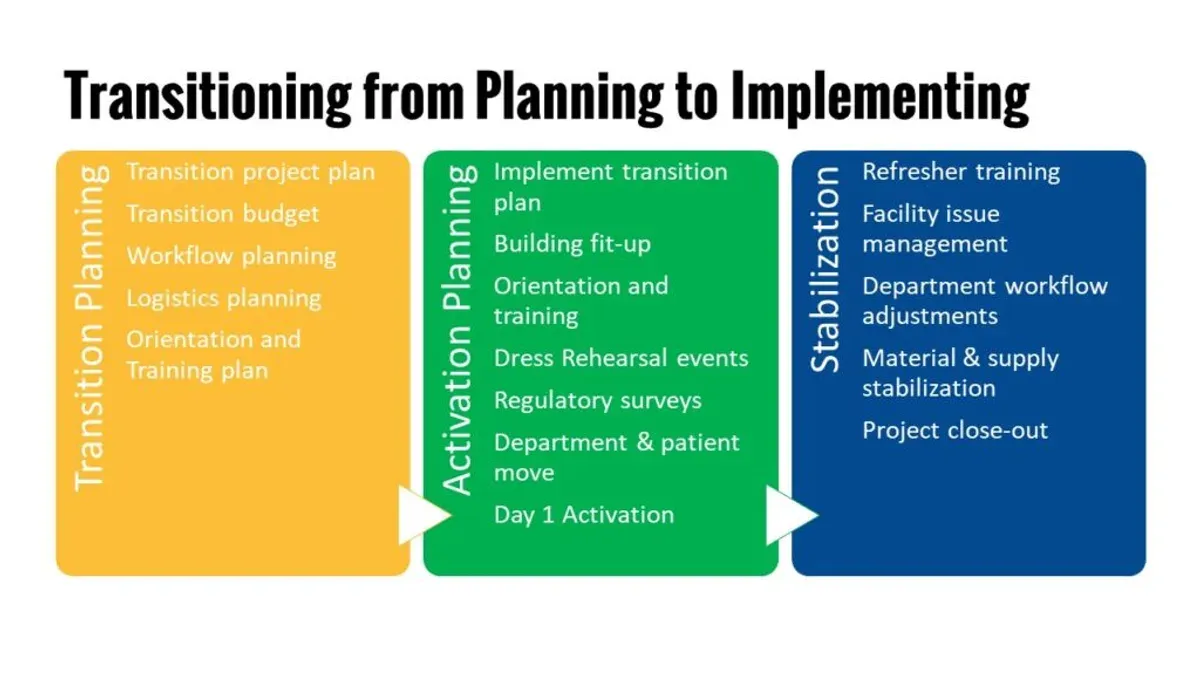
Coordinate the delivery of the Promethean Board to align with de-installation completion. Confirm installation logistics with your vendor, including wall mounting, power, and network connections. For example, a mid-sized school planned de-installation on Friday afternoon and installed the Promethean Board by Monday morning, minimizing classroom downtime.
Next, perform system setup by powering on the Promethean Board, connecting to the school network, and installing the ActivPanel software suite. Conduct calibration using the built-in calibration wizard found under Settings > Calibration, ensuring accurate touch and pen response. Initial testing should include pen input verification, multi-touch gestures, and network resource access.
Following this sequence creates a smooth transition that respects classroom schedules and technical integrity.
- Schedule removal during non-teaching hours
- Follow safe de-installation steps
- Coordinate delivery and mounting logistics precisely
- Set up network and install required software immediately
- Calibrate and test all input methods before use
Optimize Software Setup and Integration for Seamless Use
Begin by installing the latest version of Promethean's ActivPanel software through the official Promethean support site. Navigate to the Settings > System Update menu on the board to ensure automatic updates are enabled, keeping your software current with minimal effort.
When migrating lesson content, export existing files from your previous platform in compatible formats such as.pdf,.pptx, or.flipchart. Import these directly into the ActivPanel's lesson library via Content > Import. For example, a science lesson originally created on another platform can be imported as a.pptx and enhanced with Promethean's annotation tools, preserving core material while leveraging new interactive features.
Set up user profiles within Settings > User Management to assign differentiated permissions for teachers and students. Link these profiles to your school’s network credentials using Active Directory integration under Network > Account Management for seamless access and security.
- Download and install ActivPanel software from Promethean's support site.
- Enable automatic updates via Settings > System Update.
- Export lesson files from the old platform in compatible formats.
- Import lessons through Content > Import on the board.
- Create user profiles under Settings > User Management.
- Integrate user accounts with network via Network > Account Management.
Train Educators and Support Staff to Maximize the New Board’s Potential
Develop targeted training modules that focus explicitly on the Promethean Board’s unique features, such as ActivPanel’s Instant ON, dual-pen functionality, and the integrated ClassFlow software workflow. Structure these modules to cover both technical operation—like calibrating the board via Settings > Calibration—and pedagogical strategies that leverage interactive lesson design. For example, a training agenda might include a 30-minute hands-on session navigating the ActivPanel Launcher, followed by a 45-minute collaborative workshop on creating engaging ClassFlow lessons.
Schedule multiple hands-on workshops allowing educators to practice daily tasks, from annotating to managing student devices, paired with live Q&A sessions to address real-time concerns. This approach helps overcome initial hesitation and technical uncertainty.
Provide ongoing support through dedicated channels such as a shared resource portal with video tutorials, FAQs, and a helpdesk contact. Regularly update these resources as Promethean releases software updates or new features.
- Design training modules covering core features and classroom applications
- Host interactive workshops with practical exercises and Q&A
- Maintain accessible support resources and communication channels
Avoid Common Pitfalls During Your Transition
One frequent mistake schools report is neglecting compatibility checks before purchasing Promethean Boards. For example, failing to verify whether existing educational software licenses support ActivPanel can lead to unexpected delays and additional costs. This oversight often forces last-minute software purchases or workarounds, stalling classroom readiness.
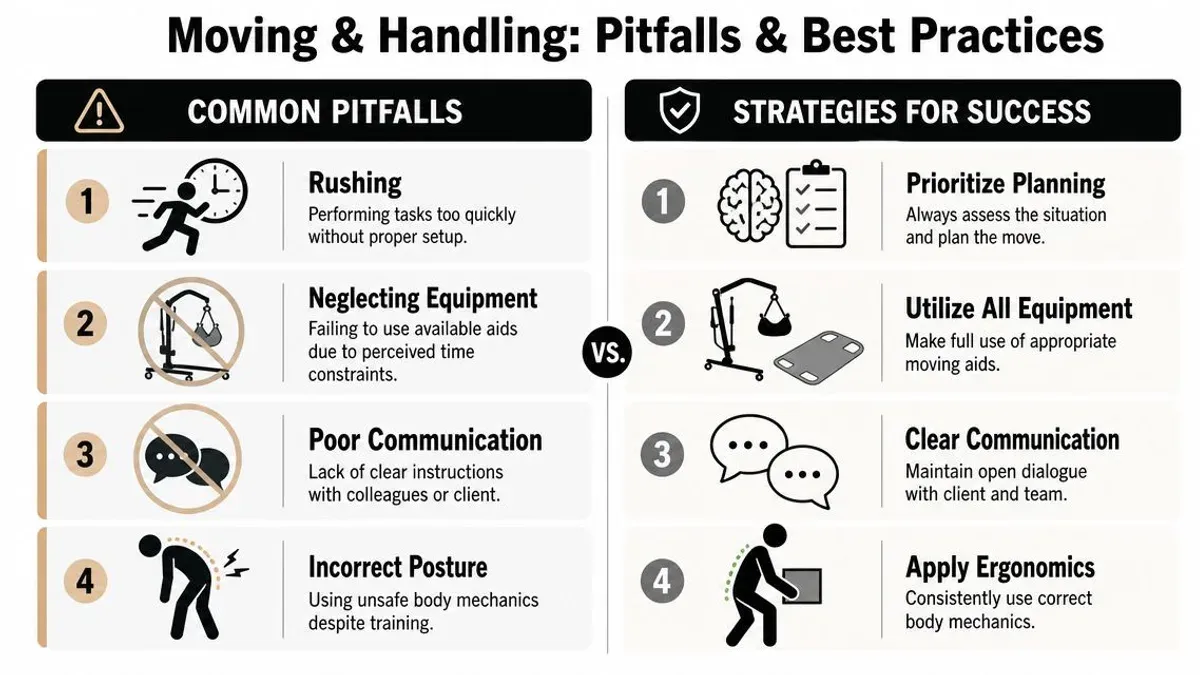
Underestimating the time and resources required for training compounds challenges. While training modules are available, schools have found that allocating fewer than three half-day sessions for educators and IT staff results in incomplete familiarity, reducing the board’s effective use and generating avoidable support tickets.
Overlooking network security configurations is another common pitfall. Without configuring firewall rules and enabling WPA3 encryption on school Wi-Fi, Promethean Boards may face connectivity issues or expose the network to vulnerabilities. One district experienced a two-week delay due to misconfigured VLAN settings that prevented proper board registration with central management.
- Perform thorough compatibility audits with existing software and licenses before purchase.
- Schedule dedicated, adequate training time for all user groups.
- Review and update network security settings, including firewall and Wi-Fi protocols, before installation.
Evaluate Post-Transition Performance and Gather Feedback
To ensure your move to Promethean Boards achieves your educational goals, establish clear key performance indicators (KPIs) focused on usage frequency, lesson engagement, and technical reliability. For example, track ActivPanel’s daily active usage via the management console compared to the previous interactive flat panel system to identify adoption trends.
Gather qualitative feedback from both teachers and students through targeted surveys. Sample questions include: "How intuitive do you find the Promethean Board’s interface?" and "Has the new board improved classroom interaction?" Collect responses anonymously to encourage candid input.
Use this data to guide iterative improvements. If teachers report difficulty accessing certain apps or students note reduced interaction, prioritize additional training or software adjustments. For instance, one school found that lesson sharing via ClassFlow was underused; addressing this with a quick refresher session increased usage significantly within a month.
- Define KPIs such as daily active users and lesson interaction rates
- Deploy anonymous surveys to teachers and students with specific usability questions
- Compare usage statistics pre- and post-transition to identify gaps
- Implement targeted improvements based on feedback and data analysis
Read next
- How to Roll Out Interactive Flat Panels for After-School Programs
- Moving from Classroom Projector to Promethean Board: Your Expert Checklist
- Promethean Board Rollout Plan for After-School Programs: A Practical Guide
Frequently asked questions
What are the main advantages of Promethean Boards over interactive flat panels?
Promethean Boards offer integrated ActivPanel software designed specifically for education, providing tailored tools like lesson delivery, assessment features, and classroom collaboration. Their multi-touch technology is optimized for simultaneous user interaction, and the boards often include built-in microphones and speakers enhancing multimedia use without extra peripherals. The ecosystem is also supported by Promethean’s dedicated education-focused content and cloud services, which streamline classroom management beyond what generic flat panels typically provide.
How long does the transition process usually take from start to finish?
The transition timeline varies based on school size and complexity but typically spans several weeks. Initial assessment and planning can take one to two weeks, followed by hardware decommissioning and installation over several days. Software configuration, network integration, and staff training may require an additional one to two weeks to ensure smooth adoption and minimize classroom disruption.
Can existing lesson content from flat panels be easily transferred to Promethean Boards?
Lesson content transfer depends on the original file formats and software compatibility. Promethean supports importing common formats like PDF, PowerPoint, and interactive files from some third-party platforms, but proprietary interactive flat panel files often require conversion or recreation within Promethean’s ActivInspire software. Planning for some content adjustment or redevelopment is advisable to maintain lesson quality.
What kind of ongoing support does Promethean offer after installation?
Promethean provides comprehensive support including software updates, access to an online knowledge base, and a customer service helpdesk reachable via phone or email. Professional development resources and webinars are regularly available to help educators maximize board features. Additionally, warranty coverage and optional extended service plans offer hardware repair or replacement support to minimize downtime.
This checklist’s scope and limitations
This checklist does not cover transitioning from other device types or specific brand models beyond Promethean Boards and interactive flat panels. If your setup involves multiple brands or hybrid technology environments, a customized assessment from a specialist is recommended. Additionally, network infrastructure upgrades or major AV system overhauls are beyond this guide’s scope and require dedicated planning.
Quick checklist
- Map existing interactive flat panel locations and confirm room dimensions for Promethean Board compatibility
- Review power and mounting requirements specific to your chosen Promethean Board model
- Plan a phased decommissioning schedule minimizing classroom disruption
- Download and install ActivPanel software and ensure integration with your school’s LMS and network
- Schedule hands-on training sessions focusing on ActivPanel’s unique features and classroom tools
- Establish a support channel for educators to report issues post-installation
- Collect structured feedback within the first two months to identify adjustment needs
Start your transition by conducting a thorough room-by-room audit comparing your current interactive flat panels to the technical and spatial requirements of the Promethean Board model you plan to deploy. This step sets a strong foundation for every decision that follows and prevents costly surprises during installation.