Plan and Execute an Effective Asana Rollout for Startup Teams
Learn how to plan and execute an effective Asana rollout for startup teams using a structured template that enhances collaboration and accountability.

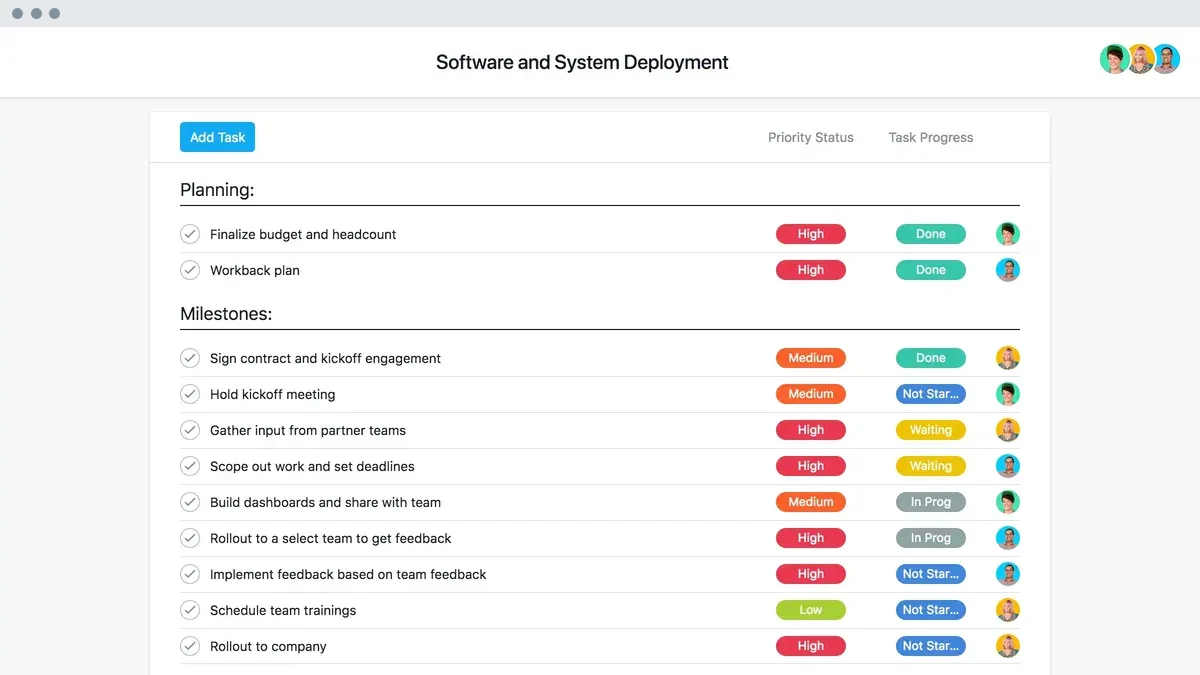
The key is following the Software Deployment Template, which breaks rollout into distinct phases: planning, testing, deployment execution, and post-deployment monitoring, each with assigned owners and deadlines to maintain accountability.
You’ll also learn how to tailor your rollout strategy to your startup’s risk tolerance and leverage seamless integration with Microsoft Teams to centralize collaboration.
Checked in November 2026 against Asana, Asana Academy, Joyfully Managed Life | Jessica Eastman Stewart; details like these change, so the date matters.
Create your startup team in Asana to organize work effectively
From there, click on the sidebar’s “Teams” section and select “Create Team.” This opens the team creation interface where you name your team and define its purpose.
For tighter control, choose “Private team” to limit access to select members. If transparency suits your culture better, select “Public to workspace” so everyone in your workspace can view the team.
Add each person by entering their email or Asana username. Define roles such as “Team Member” or “Team Admin” to establish accountability from the start. For example, designate a project lead as admin to manage settings and membership.
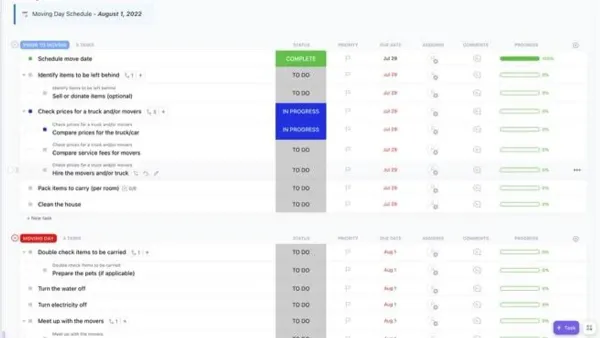
With your team created, you can next duplicate and customize the Software Deployment Template via Templates → Software Deployment Template → Duplicate to workspace → Customize tasks and phases → Assign owners and due dates → Invite stakeholders. This setup lets you organize work efficiently and track progress in a structure tailored to your startup’s needs.Software Deployment Template
Set up Asana with a proven rollout plan template
Start by duplicating the Software Deployment Template from the Templates menu in Asana. Navigate to Templates → Software Deployment Template → Duplicate to workspace to create your project copy. This template breaks down the rollout into clear phases: planning, testing, deployment execution, and post-deployment monitoring.
For example, in the planning phase, you might add tasks like "Define user roles" and "Map integration points." Assign task owners and set due dates to maintain accountability and ensure visible progress.
During testing, specify who will conduct QA checks and when those must be completed. In deployment execution, assign clear responsibilities for communication and technical rollout steps. Finally, in post-deployment monitoring, designate team members to track adoption metrics and report issues promptly.
By structuring your rollout this way, you create a transparent roadmap that guides your team through each critical step. Inviting stakeholders early to the project helps maintain alignment and fosters collaboration across functions. This approach keeps the Asana rollout organized, on schedule, and measurable. Learn more about the Software Deployment Template.
Choose the right Asana deployment strategy for your startup’s risk tolerance
Selecting the proper deployment strategy ensures your startup balances risk and efficiency during the Asana rollout. Four main approaches exist: Basic, Rolling, Blue-green, and Canary.
| Strategy | Description | Risk Profile | Typical Use Case |
|---|---|---|---|
| Basic (Big Bang) | Releases all features or updates simultaneously to the entire team. | High | Startups comfortable with swift, full deployment and ready to manage potential disruptions. |
| Rolling | Phased rollout in stages, releasing to subsets of users over time. | Low to Moderate | Teams prioritizing minimal disruption and early issue detection. |
| Blue-green | Maintains two identical environments; switches traffic seamlessly from old to new. | Low | Startups needing near-zero downtime and fast rollback capability. |
| Canary | Deploys updates to a small, controlled user group before full rollout. | Low | Teams aiming to catch issues early with limited exposure. |
For example, if your startup requires a cautious rollout to avoid interrupting ongoing projects, the Rolling or Canary strategies provide staged releases that let you identify and fix problems early. Conversely, if your team accepts higher risk for faster results, the Basic strategy delivers the entire update at once.
The Blue-green deployment is ideal when you must switch environments quickly without downtime, allowing you to revert instantly if the new release causes issues. This method suits startups with critical workflows that cannot tolerate disruptions.
Choose the strategy that matches your risk tolerance and operational needs to maximize Asana adoption while minimizing disruptions. More info.
Apply The Asana Way of Change to boost adoption and reduce resistance
This methodology guides you through six critical steps to ensure your team shifts smoothly and commits fully.
Start by assessing your current Asana usage to identify gaps and resistance points. For example, you might find some team members bypass project templates or avoid task comments, signaling unclear benefits or training gaps. Pinpointing these behaviors lets you tailor your next moves precisely.
Next, define clear usage guidelines that fit your startup’s unique workflows. Set explicit rules on task ownership, due dates, and project organization to reduce confusion and align everyone’s expectations.
Provide training sessions customized to your team's needs—this could mean hands-on workshops for those new to Asana or advanced sessions focusing on integration with Microsoft Teams for experienced users. Follow training with ongoing support, including regular check-ins to address questions and reinforce best practices.
For instance, after rollout, schedule biweekly reviews to revisit workflows and gather feedback, adjusting guidelines or training as adoption matures. This cycle of assessment, guidance, and support keeps resistance low and engagement high.
Applying The Asana Way of Change ensures your team moves beyond basic usage toward becoming proficient collaborators within Asana’s environment, boosting productivity and reducing friction. Learn more.
Integrate Asana with Microsoft Teams to centralize collaboration
To add Asana to Microsoft Teams, open the Teams app store and search for “Asana.” Click “Add” to install it to your workspace, then authenticate your Asana account to connect the two platforms.
Once installed, you can create, assign, and track tasks directly within Teams channels without switching apps. For example, in a project channel, you might create a task for a sprint deadline and assign it to a teammate while discussing progress—all within Teams.
Planner is a basic task tool integrated with Microsoft 365, suitable for simple task lists. Asana offers richer project management features: timelines, dependencies, workload views, and custom fields, making it better for complex startup workflows.
Asana’s integration with Teams is full-featured, enabling seamless task management alongside your conversations. This means you can keep your collaboration centralized, avoid losing track of tasks in chat, and maintain project visibility.
Avoid these common mistakes during your Asana rollout
For example, launching without a testing phase can cause unexpected errors that disrupt your team's workflow and delay adoption.
Without defined roles and usage protocols, some users may underuse features while others follow conflicting methods, fragmenting collaboration and undermining adoption.
Without continuous training and troubleshooting help, team members lose confidence, revert to old habits, and resist fully embracing Asana’s capabilities.
| Symptom | Cause | Fix |
|---|---|---|
| Errors at launch | Skipping testing phase | Include thorough testing before deployment to catch issues early |
| Confusion and inconsistent use | Lack of clear usage guidelines | Establish and communicate firm guidelines and expectations for Asana use |
| Stalled adoption after rollout | Neglecting ongoing support | Provide continuous training and accessible support resources |
Picture a startup that skips the testing step and jumps straight to rollout. Shortly after launch, users encounter errors and conflicting workflows due to unclear instructions. Without a support system, frustration builds, and many revert to email or spreadsheets, defeating your rollout effort.
Following the full deployment process, setting clear guidelines, and maintaining support are essential to avoid these pitfalls and ensure your Asana rollout gains traction and delivers value.
Follow the essential sequence of steps for a smooth Asana rollout
This foundation prevents confusion and misalignment once the rollout begins.
Next, customize the Software Deployment Template by duplicating it via Templates → Software Deployment Template → Duplicate to workspace. Tailor tasks and phases, assign owners and due dates before inviting stakeholders. Inviting stakeholders too early risks uncoordinated actions and missed responsibilities.
Skipping this increases the risk of launch failures and user frustration.
This sustains adoption, catches emerging problems, and improves future rollouts.
For example, if you invite stakeholders before customizing tasks and assigning owners, team members may not know their responsibilities, causing delays and errors. Maintaining this order enforces accountability and smooth progress throughout the rollout phases.
Follow this sequence strictly: planning → testing → deployment execution → post-deployment monitoring. Each step depends on the prior; skipping any causes higher failure risk and missed improvement opportunities. Learn more about this phased approach.
Confirm your Asana rollout success and troubleshoot if needed
Start by monitoring task completion rates and stakeholder engagement within Asana during the first week after rollout. Look for steady progress on assigned tasks and active participation in comments and updates as key indicators. For example, if 80% of tasks assigned to your team are marked complete and most members regularly contribute updates, your rollout is on track.
Schedule regular check-ins with your team to collect feedback and identify any pain points early. These conversations often reveal issues like unclear guidelines or technical difficulties that can hinder adoption.
If adoption lags or integration with Microsoft Teams causes disruptions, address these problems promptly. Retraining focused on specific challenges or troubleshooting technical issues within Asana’s settings can restore smooth workflow.
Over the first month, track metrics such as task completion trends, frequency of Asana usage per user, and the number of support requests. Use these to measure ongoing adoption and pinpoint areas needing reinforcement.
Effective rollout demands ongoing assessment of current Asana use, clear usage guidelines, tailored training, and continuous support with regular check-ins to ensure sustained success and minimize resistance.Learn more.
Read next
- Master the Asana Implementation Timeline for Project Success
- Moving from Airtable to Asana Checklist: Your Expert Transition Guide
- How to Plan and Execute a Successful Quizizz Implementation Timeline
- Airtable Rollout Plan for New Employees: A Practical Expert Guide
Frequently asked questions
How to create a team on asana?
To create a team in Asana, go to your sidebar and click the + button next to Teams. Then choose Create New Team, name it clearly for your startup’s structure, and set privacy options. This helps organize workspaces effectively and ensures only relevant members have access.
How to add asana to teams?
Add Asana to Microsoft Teams by navigating to the Apps section in Teams, searching for Asana, and selecting Add. Once installed, you can connect specific Asana projects or tasks to your Teams channels, enabling seamless task management within your existing communication flows.
How does asana integrate with teams?
Asana integrates with Microsoft Teams by allowing you to create, view, and update Asana tasks directly from Teams channels or chats. This centralizes collaboration, reduces app switching, and ensures everyone stays aligned on project progress without leaving the communication platform.
What is asana in teams?
Within Microsoft Teams, Asana appears as an app that embeds task and project management features. It lets you bring Asana’s structured workflows into Teams, providing task creation, status updates, and notifications without disrupting your team’s chat and meeting routines.
How to set up asana?
Start setting up Asana by duplicating the Software Deployment Template from Templates → Software Deployment Template → Duplicate to workspace. Customize tasks and phases, assign owners and due dates, then invite stakeholders. This structured setup ensures clarity and accountability from day one.
Avoid These Common Mistakes During Your Asana Rollout
- Skipping customization of the Software Deployment Template: Directly using the default template without duplicating and customizing tasks, phases, owners, and due dates leads to misaligned workflows. Follow the menu path Templates → Software Deployment Template → Duplicate to workspace → Customize tasks and phases → Assign owners and due dates → Invite stakeholders to tailor the plan to your startup’s needs.
- Ignoring your startup’s risk tolerance when choosing deployment strategy: Selecting a deployment method without assessing whether a phased rollout, pilot group, or full launch fits your risk appetite causes resistance or disruption. Use the differences table to match your startup’s version, platform, and plan to the ideal approach.
- Starting integration with Microsoft Teams too early: Initiating Teams integration before core Asana setup and adoption results in scattered collaboration and confusion. Complete team creation, rollout plan customization, and initial adoption before activating integration to centralize communication effectively.
- Overlooking essential step order: Changing the sequence of setup steps, such as inviting stakeholders before assigning owners or skipping task customization, leads to missed responsibilities and delayed progress. Stick to the essential sequence to maintain momentum and clarity.
- Failing to monitor and troubleshoot early: Not confirming rollout success or addressing issues like access errors or incomplete task assignments immediately allows problems to compound. Use the failure map to identify symptoms, causes, and fixes promptly.
Confirm Your Asana Rollout Success and Troubleshoot If Needed
Verify Microsoft Teams integration shows Asana tasks and comments seamlessly.
If you encounter access errors, ensure users are invited correctly and permissions match their roles. For incomplete task assignment, revisit the customized Software Deployment Template and assign missing owners. Address resistance by reinforcing The Asana Way of Change practices, such as clear communication and training.
When issues persist, revert to the rollout plan’s troubleshooting steps and adjust phases before scaling further to maintain steady adoption and collaboration.
Sources
- Software Deployment Template: Rollout Checklist [2026] • Asana — Asana
- 6 steps to rolling out Asana to your team — Asana Academy
- Best Practices for Implementing Asana in Your Team — Joyfully Managed Life | Jessica Eastman Stewart — Joyfully Managed Life | Jessica Eastman Stewart