How to Recognize and Secure a Hacked OneDrive Account
This guide helps you identify signs of a OneDrive account hacked and shows how to secure your account to protect your data and privacy.

This article explains how to recognize and secure a hacked OneDrive account with clear, practical steps. Identifying subtle signs of compromise is crucial because unauthorized access can lead to data loss or privacy breaches. A OneDrive account hacked often shows unusual file changes, unexpected sharing links, or unfamiliar devices logged in. Understanding how to verify account activity and strengthen security settings can prevent further damage and restore control quickly. This guide also clarifies common misconceptions about OneDrive’s security and addresses concerns about malware risks linked to the service.
What is OneDrive and why does its security matter?
OneDrive is Microsoft’s cloud storage and synchronization service that allows users to store files online and access them across multiple devices. It integrates tightly with Windows and Microsoft 365 applications, making it a central hub for both personal documents and professional data. Millions rely on OneDrive to back up files, collaborate on shared documents, and maintain continuity between devices.
Securing OneDrive is essential because it often holds sensitive information like financial records, personal photos, work projects, and confidential business files. Unauthorized access can lead to data theft, loss, or manipulation, which can disrupt personal life or business operations. For example, if a user’s OneDrive account is hacked, attackers might delete crucial files or spread malware through shared folders, causing significant damage.
Cloud storage breaches have affected various providers, highlighting risks even for well-established platforms. Weak passwords, reused credentials, or phishing attacks can compromise accounts despite built-in security features. Given OneDrive’s integration with other Microsoft services, a compromised account may also expose email, calendars, and contacts, amplifying the impact.
Understanding the importance of OneDrive security helps users prioritize protective measures. Protecting this data store safeguards privacy, prevents financial loss, and ensures uninterrupted access to vital information.
How safe is OneDrive from hackers?
OneDrive employs robust encryption to protect data both at rest and in transit. Files stored on OneDrive are encrypted using AES 256-bit encryption, a standard widely recognized for its strength. Data moving between devices and Microsoft servers is secured via TLS 1.2 or higher, preventing interception during transmission.
Microsoft’s security infrastructure underpins OneDrive with multiple layers of defense. Data centers are guarded by physical security measures and monitored continuously. Microsoft holds compliance certifications such as ISO/IEC 27001 and SOC 2, which attest to rigorous security controls and privacy safeguards. These certifications reflect adherence to industry standards rather than immunity to breaches.
Despite strong protections, common attack vectors target OneDrive accounts indirectly. Credential theft through phishing remains a primary risk. For example, a user might unknowingly enter Microsoft account credentials on a fake login page, granting attackers access without breaching Microsoft’s servers. Another risk is reuse of weak passwords or lack of multi-factor authentication.
A concrete example: a hacker gains entry to an account by capturing the user's password via a deceptive email link. Once inside, they can download, delete, or share files. This shows that OneDrive’s security depends heavily on user behavior alongside its technical safeguards.
Limitations to consider: OneDrive does not scan the content of personal files for malware before syncing, and the platform’s security does not extend to compromised devices. Users should enable multi-factor authentication and monitor account activity regularly to reduce risks.
Can OneDrive be hacked and what happens if it is?
OneDrive accounts can be compromised primarily through phishing attacks, credential stuffing, or malware infections. Phishing tricks users into revealing login details via fake Microsoft login pages or deceptive emails. Credential stuffing exploits reused passwords leaked from other breaches to gain unauthorized access. Malware, such as keyloggers or remote access Trojans, can harvest credentials directly from infected devices.
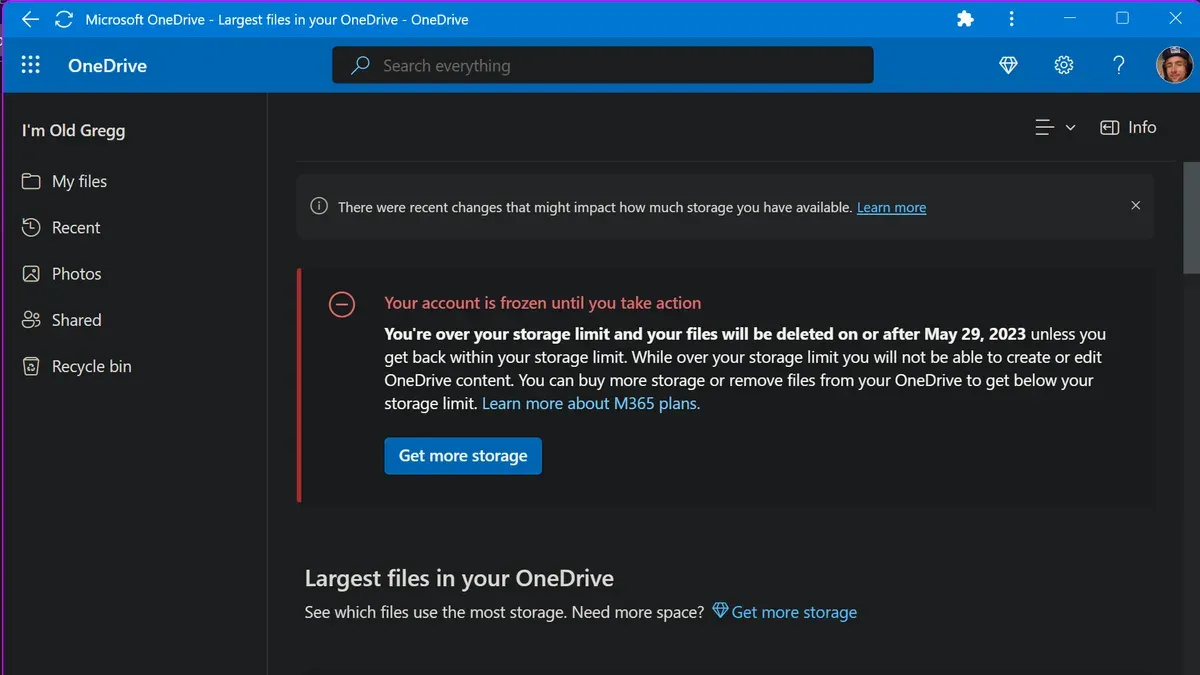
Signs of a compromised OneDrive account often include unexpected file deletions, additions, or modifications. Users may notice unfamiliar files appearing or standard folders missing. Account lockouts or password change notifications without user initiation are red flags. Suspicious login alerts from unusual locations or devices can appear in the Microsoft account security dashboard under “Recent activity.”
Once hacked, consequences can be severe. Attackers might steal sensitive data or intellectual property stored in OneDrive. They can also deploy ransomware by replacing or encrypting files, demanding payment to restore access. Account hijacking can lead to further attacks on linked Microsoft services or contacts via spam and malware distribution.
For example, a reported incident involved a financial consultant whose OneDrive was accessed after a phishing email captured credentials. The attacker deleted critical client files and uploaded ransomware, disrupting business operations. Detection was delayed because the consultant missed unusual login alerts and file change notifications.
Tip: Regularly review the “Recent activity” page in Microsoft account settings to spot unauthorized access early.
How to secure a OneDrive account effectively
Start with a strong, unique password for the Microsoft account linked to OneDrive. Use a password manager like Bitwarden or LastPass to generate and store complex passwords that are not reused across services. Avoid common mistakes such as simple variations of old passwords or personal information.
Enable multi-factor authentication (MFA) to add a critical security layer. Navigate to Microsoft Account > Security > Advanced security options and turn on MFA using the Microsoft Authenticator app or SMS codes. MFA blocks most unauthorized access attempts: Microsoft reports that accounts with MFA enabled see a significant drop in compromise risk.
Regularly review connected apps and devices by going to Microsoft Account > Devices and Apps > App permissions. Revoke access for unrecognized or unused apps and devices to prevent third-party breaches. For example, a rarely used app linked years ago might still have full access to files.
Configure account recovery options under Security > Advanced security options. Ensure recovery phone numbers and email addresses are current. Set alert notifications for unusual activity like sign-ins from new locations or devices, enabling quick response to suspicious behavior.
Periodically audit shared files and folder permissions within OneDrive. Check the Shared view to identify who has access. Remove any outdated or unnecessary shares, especially those with edit or full control rights, to limit exposure.
Tip: After enabling MFA, test sign-in from a new device to confirm the additional verification step is active and working.
How to fix a hacked or blocked OneDrive account
When suspicious activity is detected on a OneDrive account, immediate action is crucial. Begin by signing into the Microsoft account security page at account.microsoft.com/security. Review recent sign-in activity under the Sign-in activity section to identify unauthorized access. Change the account password immediately, selecting a strong, unique password. Next, revoke access for any suspicious third-party apps or devices via Apps and services and Devices tabs.
If the account is blocked or access is lost, use the Microsoft Account Recovery form available at account.live.com/acsr. Provide as much information as possible, including previous passwords, recovery email addresses, and phone numbers, to verify identity. This tool guides through a step-by-step process to regain access.
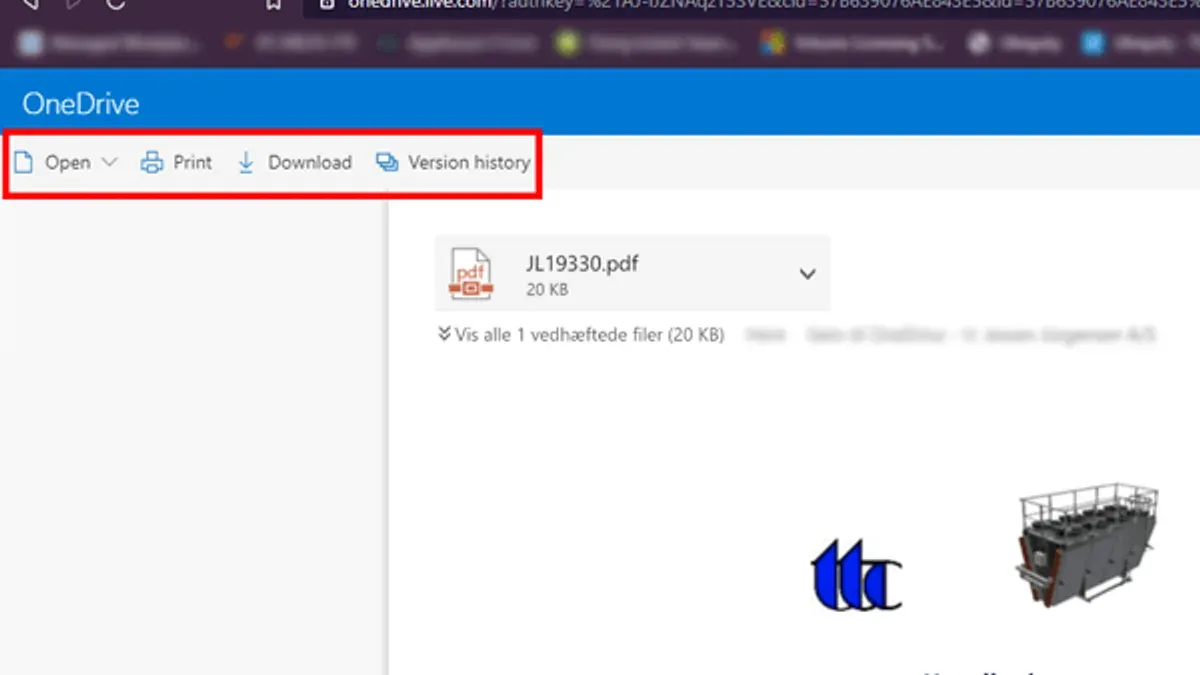
Once access is restored, check OneDrive’s version history and recycle bin for altered or deleted files. Version history allows restoring previous file states, accessible by right-clicking a file and choosing Version history. The recycle bin can be found on the left pane of OneDrive’s web interface, enabling recovery of deleted files within 30 days or longer if the account has extended retention settings.
For example, a user noticing strange file renames and missing documents first changed their password and revoked device access. After failing to sign in, they submitted a recovery request with detailed account info. Upon regaining access, they restored key files from version history and emptied suspicious shared links. This case underscores the importance of swift and thorough use of Microsoft’s tools.
Tip: Regularly export a list of shared files and active sessions to spot unauthorized changes early.
When suspicious activity involves ransomware or persistent unauthorized access, professional incident response may be necessary. Contact Microsoft support or cybersecurity experts to conduct a detailed account audit and prevent further damage.
Can OneDrive get a virus or is it a scam?
OneDrive itself cannot get a virus because it is a cloud storage service, not a device or software that executes files. Malware can spread through files stored or synced on OneDrive if those files are downloaded and opened on a vulnerable device. For example, a malicious executable or a macro-enabled document saved to OneDrive can infect a PC once downloaded and run, but this does not mean the OneDrive platform is infected.
Microsoft scans files uploaded to OneDrive for known malware using automated detection systems. Suspicious files are blocked or flagged to prevent spreading. This scanning reduces the risk of storing infected files but is not foolproof, so users should remain cautious about file sources.
Phishing and scam emails often impersonate OneDrive to trick users into revealing credentials or downloading malware. These emails might mimic Microsoft branding and send links to fake login pages. Legitimate OneDrive notifications come from addresses like [email protected] and direct users to official Microsoft domains. Users should verify sender details and avoid clicking links in unsolicited messages.
Tip: Hover over links in emails to check the actual URL before clicking. Access OneDrive only through official apps or microsoft.com to avoid scams.
In summary, OneDrive is not a virus carrier or scam platform, but malware can travel via shared or synced files. Vigilance with file sources and email authenticity is essential for safe use.
Why do users say OneDrive is terrible and how to avoid common frustrations
Many users report frequent syncing errors that disrupt workflow. These often arise from unstable internet connections, conflicting file names, or files open in other applications. Troubleshooting starts by pausing syncing via the OneDrive icon in the system tray, closing conflicting files, and restarting the app. Clearing the cache or resetting OneDrive through Settings > Apps > Microsoft OneDrive > Advanced options can resolve persistent issues.
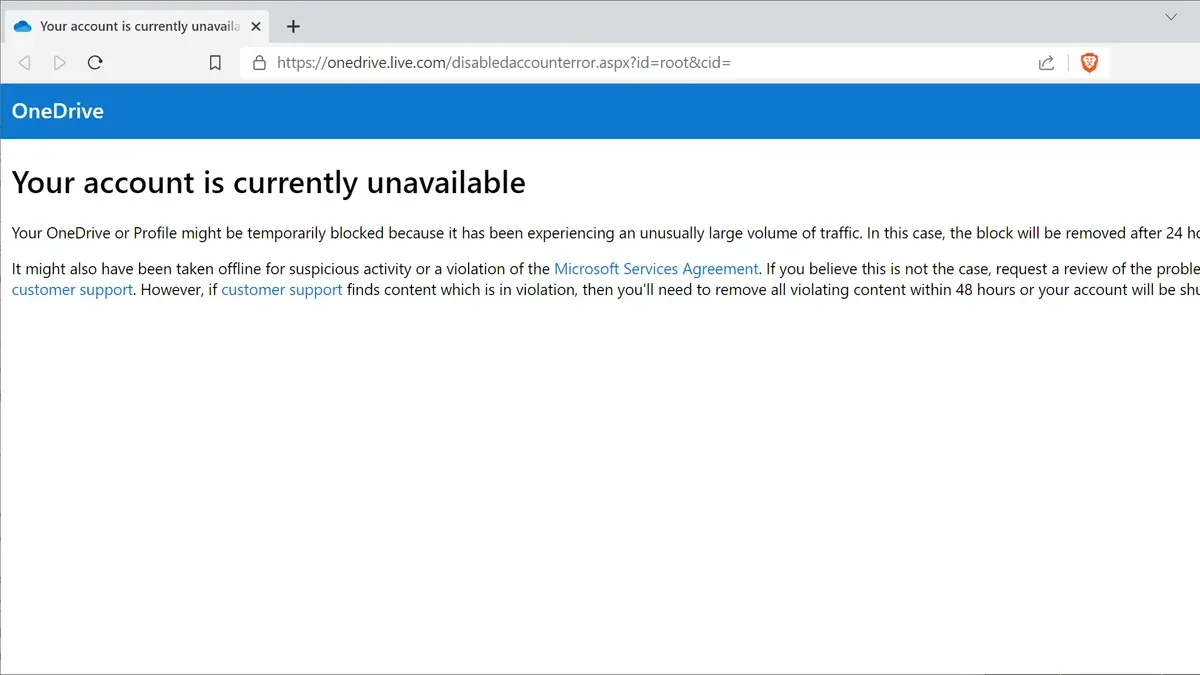
Account confusion is another common complaint. Users sometimes link multiple Microsoft accounts or switch between personal and work profiles without proper sign-out, causing access errors or unintended file sync. Managing accounts under the OneDrive app’s Settings > Account tab and staying signed in to the intended profile prevents overlap.
Storage limits frustrate users who hit their quota unexpectedly, especially with version history consuming space. OneDrive retains up to 25 versions per file, which can be manually trimmed by right-clicking a file in OneDrive online and selecting Version history. Users should regularly review storage under OneDrive Settings > Manage storage to delete obsolete files.
Optimizing OneDrive settings improves reliability. For example, enabling Files On-Demand in Settings > Settings > Files On-Demand conserves local disk space by downloading files only when accessed. Disabling automatic photo and video upload can reduce background syncing load. These adjustments help balance performance with convenience.
For instance, a user working on a shared project may face sync conflicts if multiple edits overlap. Pausing sync before major changes and resuming afterward reduces errors. Clear communication about version control among collaborators is essential.
Tip: Regularly update the OneDrive app via Microsoft Store to benefit from stability fixes and new features.
Frequently asked questions
Is onedrive secure from hackers?
OneDrive incorporates strong security measures like encryption in transit and at rest, multi-factor authentication (MFA), and continuous monitoring by Microsoft. However, no system is entirely immune to hacking, especially if user credentials are weak or compromised through phishing. Maintaining updated security settings and vigilance reduces risk significantly.
Is one drive safe from hackers?
Yes, OneDrive is designed with robust security protocols to protect user data from unauthorized access. The safety of an account largely depends on user practices, such as using strong passwords and enabling MFA. Account breaches often result from credential theft rather than vulnerabilities in OneDrive itself.
What happened to my onedrive?
Unexpected changes in OneDrive such as missing files, unauthorized sharing, or access issues may indicate account compromise or syncing errors. Reviewing recent activity via the OneDrive web interface under Settings > More Settings > View Account Activity helps identify suspicious actions. Restoring files from the Recycle Bin or OneDrive’s version history can recover lost data.
How to secure onedrive account?
Enable multi-factor authentication by visiting the Microsoft account security page and activating two-step verification. Regularly update passwords with strong, unique combinations and review connected devices and apps under Security settings to remove unfamiliar ones. Monitoring account activity and promptly responding to alerts enhances security.
Is onedrive a scam?
OneDrive is not a scam; it is Microsoft's official cloud storage service with millions of users worldwide. Beware of phishing scams pretending to be OneDrive login pages or support contacts. Always access OneDrive through official Microsoft websites or apps and verify suspicious emails before clicking links.
What this advice does not cover and when to seek professional help
This article does not cover enterprise-level OneDrive for Business security policies or advanced threat detection beyond user-controlled settings. Organizations relying on corporate OneDrive accounts should consult their IT departments or security teams for tailored protections and incident response. For suspected large-scale breaches or persistent unauthorized access, professional cybersecurity assistance is recommended to thoroughly investigate and remediate threats beyond basic user controls.
The single most effective next step for users concerned about their OneDrive account security is to enable two-step verification through the Microsoft account security settings. This adds an essential layer of protection that significantly reduces the risk of unauthorized access, even if passwords are compromised. Navigate to account.microsoft.com, select "Security," then "Advanced security options," and activate two-step verification to start securing the account immediately.
See also: Microsoft Teams Account Hacked: How to Respond and Stay Secure · How to Recover and Protect a Hacked iCloud Account · How to Recover and Protect a Minecraft Account Hacked or Compromised · How to Secure and Manage a Nextdoor Account After a Hack