How to Reopen a Closed Assignment in Brightspace: Step-by-Step
This guide shows how to reopen a closed assignment in Brightspace by adjusting due dates and availability with the right permissions.

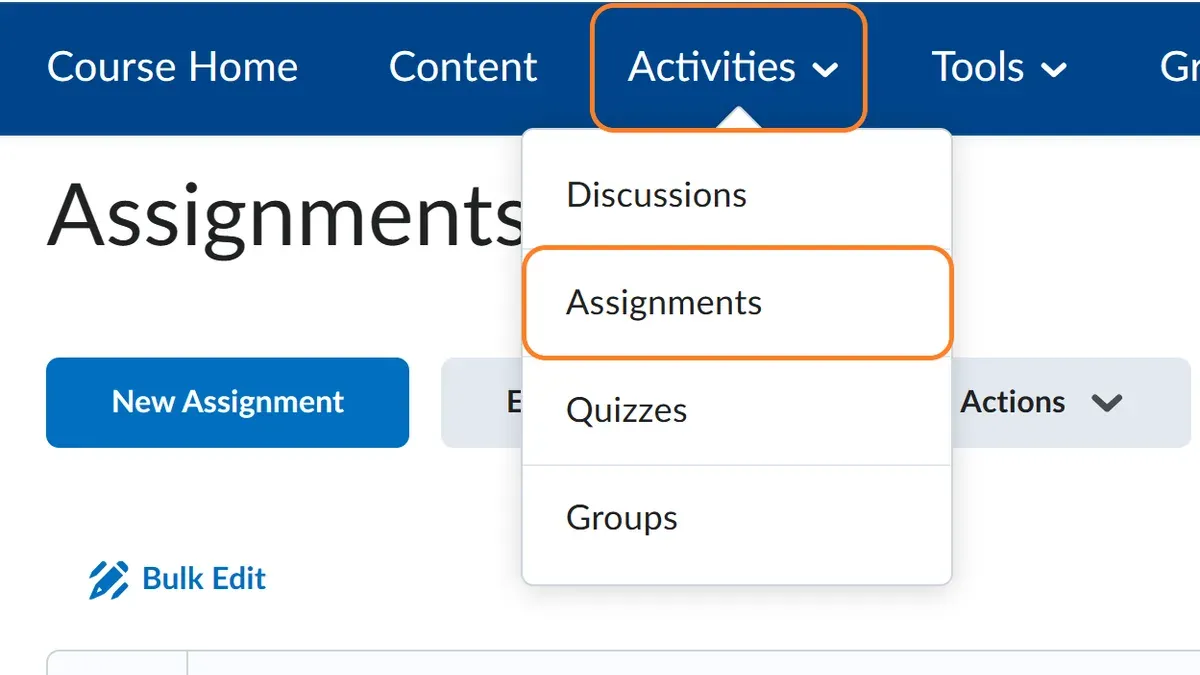
Short answer: You can reopen a closed assignment in Brightspace by extending the due date or adjusting the availability dates, provided you have the necessary editing permissions. This involves accessing the assignment’s settings under Course Tools > Assignments, then modifying the relevant date fields to allow submissions after the original deadline.
This article covers how to reopen a closed assignment in Brightspace with a focus on practical, permission-based methods. You’ll learn step-by-step instructions for extending due dates and changing availability, how to handle permission issues that prevent editing, and how to verify that the assignment is reopened successfully. Common problems and troubleshooting tips related to Brightspace’s permission model are included to help you avoid or fix typical pitfalls.
Before You Start: What You Need to Reopen an Assignment
To reopen a closed assignment in Brightspace, first confirm you have the required permissions. Typically, you must have an instructor or course administrator role that grants access to modify assignment settings. Without these permissions, you cannot change due dates or availability.
Identify the exact assignment you want to reopen and determine which students or groups need access restored. This ensures you adjust the correct settings without affecting other course components.
Review your institution’s policies on assignment reopening. Some schools restrict reopening to maintain academic integrity or require approval before changes. Knowing these policies prevents conflicts and ensures compliance.
Access to the Assignments tool is essential for modifying assignment parameters. Additionally, access to the Gradebook helps verify student submissions and track changes after reopening.
- Log in to Brightspace and navigate to your course.
- Open the Assignments tool from the course navbar; you should see a list of assignments.
- Confirm your user role shows as Instructor or Administrator in the top-right user menu.
- Locate the assignment you want to reopen and check the student or group access settings.
- Open the Gradebook tool to ensure you can view and verify submissions after reopening.
Checklist:
- Instructor or admin permissions to edit assignments
- Clear identification of the assignment and target students/groups
- Understanding of institutional reopening policies
- Access to Assignments tool and Gradebook for verification
How Do You Reopen a Closed Assignment Using Extended Due Dates?
To reopen a closed assignment for specific students or groups, use the Extended Due Date feature within the Assignments tool. This method lets you grant additional time without altering the original due date for the entire class.
- Navigate to the Assignments tool and open the closed assignment you want to modify. You should see the assignment details page.
- Click the Edit Assignment button to access the settings.
- Scroll down to the Extended Due Dates section. Here, you can add new due dates for individual students or groups.
- Click Add Users or Groups, then select the specific student(s) or group(s) who need extra time.
- Set the new due date clearly after the original close date, ensuring students have enough time to resubmit. For example, if the original due date was October 1, set the extension to October 10.
- Save the changes. You should see the new due date listed under Extended Due Dates.
- Notify the affected students about their new submission window to avoid confusion.
Using Extended Due Dates keeps the original deadline intact for other students and maintains the assignment’s submission history. Screenshots typically show the Extended Due Dates interface with a list of selected students and the new date input field.
Can You Reopen an Assignment by Changing Availability Dates?
You can reopen a closed assignment by adjusting the assignment’s availability window in Brightspace. To do this, go to the assignment’s Edit menu, then locate the "Availability Dates" section. Modify the "End Date" or "Close Date" to a future date and time. This change reopens the assignment for all students enrolled in the course, not just specific individuals.
This method is straightforward but lacks the flexibility of Extended Due Dates. It affects every student, which can cause confusion if some students do not need or expect the extension. You should communicate clearly to the entire class to avoid misunderstandings when reopening broadly.
- Navigate to the course's Assignments tool and select the assignment you want to reopen. You should see the assignment details page.
- Click "Edit Assignment" in the top right corner to open the editing settings.
- Scroll to the "Availability Dates" section. You should see fields labeled "Start Date," "Due Date," and "End Date."
- Change the "End Date" or "Close Date" to a future date and time that reopens the assignment. After saving, the assignment will be accessible to all students until that date.
- Save your changes. The assignment’s status should update immediately, allowing submissions from all students.
| Method | Flexibility | Students Affected | Communication Needed |
|---|---|---|---|
| Change Availability Dates | Low - applies to whole class | All students | High - notify all students of reopening |
| Extended Due Dates | High - individual or group specific | Selected students/groups only | Moderate - notify only affected students |
What If You Don’t Have Permission to Edit Assignments?
First, verify your Brightspace role in the course. Common roles include Instructor, Teaching Assistant, and Course Designer, each with different editing rights. Instructors generally have full access to assignments, while Teaching Assistants may have restricted permissions, such as grading but not editing assignments.
If you cannot edit assignments, contact your course administrator or IT support. Provide clear details: course name, assignment title, and the specific change you need. Here’s a sample message: "I am unable to reopen the assignment 'Midterm Essay' in [Course Code]. Could you please grant me the necessary permissions or reopen it for the specified students?" Keep a record of this communication for compliance.
If permission cannot be changed promptly, consider alternative workflows. Create a new assignment with adjusted due dates or set up a make-up assignment for affected students. This workaround maintains grading integrity while you resolve permission issues.
- Confirm your Brightspace role: Go to Course Admin > Classlist and check your role. You should see your role listed next to your name.
- If editing is restricted, contact your course admin or IT support with assignment details to request reopening or permission changes. You should receive confirmation or next steps.
- If permission changes are delayed, create a new assignment via Assignments > New Assignment, set new due dates, and notify students. The new assignment should appear in the course content.
- Document all communications and approvals in your course records for policy compliance.
How Do You Verify the Assignment Is Reopened Successfully?
After updating the assignment to reopen it, confirm the changes took effect to avoid confusion. Begin by checking the assignment’s status and due dates in the Edit Assignment area. The due date should reflect your recent changes, such as an extended due date for specific students or adjusted availability dates.
Next, use the Student Preview tool or a test student account to verify the assignment is accessible and that submission options are enabled. In Student Preview, the assignment should display as open, with the option to upload or resubmit work. This step confirms your changes apply from the student’s perspective.
Communicate with the affected students to confirm they see the reopened assignment on their course page. Ask them to verify that submission is possible and encourage them to notify you of any issues immediately.
Finally, monitor the assignment submissions in the Gradebook or Assignment Submissions area. Ensure new attempts by reopened students are recorded correctly. If submissions don’t appear, revisit permissions and assignment settings.
- Open Edit Assignment and verify the due dates reflect your reopening changes; the status should indicate the assignment is open.
Success: New due dates or availability dates are visible. - Activate Student Preview or log in as a test student and navigate to the assignment.
Success: Assignment is visible and accepts submissions. - Contact affected students and confirm they see the reopened assignment and can submit.
Success: Students confirm access and submission capability. - Check submissions in Assignments > Submissions or Gradebook after students submit.
Success: New submissions appear properly linked to reopened attempts.
What Are Common Problems When Reopening Assignments and How to Fix Them?
Extended Due Dates may not apply if students are not in the selected group or if the assignment settings override exceptions. Check that the student is correctly enrolled in the group assigned the extension. Verify that the "Allow users to submit assignment after the due date" option is enabled in Assignment Settings.
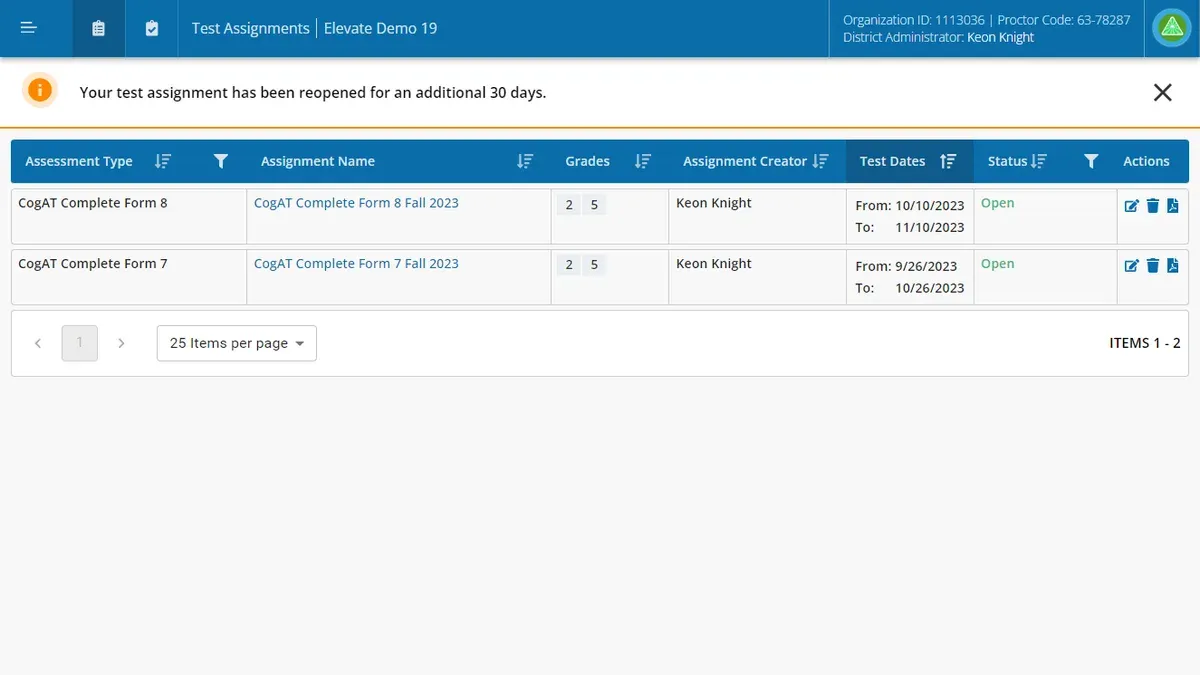
If students still see the assignment as closed, confirm the availability dates include the current date. Sometimes browser caching causes outdated views; advise students to clear cache or try a different browser. Ensure no conflicting availability restrictions block access.
Permission errors when saving changes often indicate insufficient role privileges. Confirm you are an instructor or admin with editing rights. If you see error messages like "You do not have permission to perform this action," contact your administrator to update your role or grant temporary access.
Gradebook synchronization issues after reopening can cause missing or delayed grade updates. Refresh the Gradebook manually via the Gradebook settings or use the "Sync Grades" option. If problems persist, resubmit the assignment or contact support to check backend sync logs.
- Verify student group membership matches the Extended Due Date assignment; you should see the correct group listed under exceptions.
- Check assignment availability dates include today; the assignment status should show as "Open" for targeted students.
- Attempt to save changes; absence of permission errors confirms sufficient access.
- Refresh the Gradebook and confirm reopened assignment submissions appear with updated statuses.
Frequently asked questions
Can I reopen an assignment after the final grade is posted?
Yes, you can reopen an assignment after the final grade is posted by adjusting the assignment’s availability or applying an extended due date. However, reopening does not automatically change the posted final grade; you must review and update grades manually if needed.
Will reopening an assignment affect existing grades or submissions?
Reopening an assignment does not delete or overwrite existing submissions or grades. Students can submit or resubmit work within the new availability window, but previous submissions and grades remain unless you explicitly override them.
How do I notify students that an assignment has been reopened?
Brightspace doesn’t send automatic notifications when you reopen an assignment. You should send a course announcement or an email via the communication tools in Brightspace to inform students about the change and any new deadlines.
Is it possible to reopen assignments for individual students but keep it closed for others?
Yes. Use the Extended Due Dates feature to grant specific students additional time. This setting allows you to reopen submissions individually without changing the assignment’s availability for the entire class.
Quick checklist
- Confirm you have the "Edit Assignments" permission in Brightspace.
- Use Extended Due Dates to reopen assignments for individual students without changing class-wide deadlines.
- Adjust Availability Dates cautiously; changing them affects all students.
- If you lack permissions, contact your Brightspace administrator or course owner.
- Verify reopening by previewing the assignment as a student and checking submission status.
- Address common issues like cached dates or conflicting settings promptly.
What this advice does not cover
This guide does not cover reopening assignments in third-party integrations with Brightspace or custom institutional configurations that may restrict editing permissions. If your institution uses external tools linked to Brightspace or has locked down assignment settings, you should reach out to your LMS support team or system administrator for specific instructions.
For complex scenarios involving bulk assignment reopenings or automated workflows, consider consulting your institution’s instructional technology specialists or Brightspace support resources.
The next step is to check your permissions now: navigate to Course Admin > Manage Roles > Your Role Settings to confirm you can edit assignments. If not, request access early to avoid delays when reopening assignments becomes urgent.
See also: How to Create and Manage Assignments in Brightspace: A Step-by-Step Guide · How to Grade Student Work in Brightspace: A Clear Step-by-Step Guide · How to Leave Clear, Effective Feedback on Student Work in Brightspace · How to Organize Units and Modules in Brightspace for Clear Course Navigation