Switching from Google Forms to Padlet: A Practical Guide for Seamless Transition
This guide explains how to switch from Google Forms to Padlet, preserving your data and boosting collaboration with practical steps.


Short answer: Switching from Google Forms to Padlet involves moving from a straightforward data collection tool to a versatile platform designed for dynamic, visual collaboration. You can export your Google Forms data to spreadsheets and integrate it into Padlet boards to preserve data management while enhancing engagement.
This guide covers the key differences between Google Forms and Padlet, practical steps to transfer your data without losing information, and how to adapt your workflow to leverage Padlet's collaborative features. It also explains converting Google Forms to PDFs for record-keeping and automating data updates via spreadsheets. Finally, it highlights common pitfalls to avoid during the transition to ensure a smooth switch.
What Are the Key Differences Between Google Forms and Padlet?
Google Forms is designed for structured data collection through surveys, quizzes, and standardized forms. It supports question types like multiple choice, checkboxes, and short answers, with automatic aggregation of responses into Google Sheets for easy analysis. Padlet, on the other hand, serves as a flexible visual collaboration platform that allows users to post a variety of content types including text, images, videos, and links on customizable boards.
The key difference lies in interactivity and data handling. Google Forms excels at collecting quantifiable data and maintaining organized response records. Padlet enhances participant engagement with open-ended, creative inputs and real-time collaboration but lacks built-in spreadsheet-style data aggregation.
Consider a teacher collecting quiz results: Google Forms provides clear score tracking and export options. If the teacher wants students to brainstorm ideas visually or share multimedia projects, Padlet offers a more dynamic space. Switching makes sense when you need more interactive, visual collaboration without losing sight of your data’s structure.
| Feature | Google Forms | Padlet |
|---|---|---|
| Response Types | Text, multiple choice, checkboxes, scales | Text, images, videos, links, drawings |
| Data Export | Direct export to Google Sheets, CSV | Manual export of boards (PDF, CSV), no automatic aggregation |
| Collaboration | Form editing shared with collaborators | Real-time posting and commenting by participants |
| Typical Use Cases | Surveys, quizzes, registrations | Brainstorming, group projects, visual storytelling |
How to Transfer Your Google Form Data to Padlet Without Losing Information?
Start by exporting your Google Forms responses to a Google Sheet. Open your form, click "Responses," then click the green Sheets icon to create or open the linked spreadsheet. This spreadsheet contains all collected data in rows and columns, making it easy to manage and export.
Next, export the Google Sheet as a CSV file by going to "File" > "Download" > "Comma-separated values (.csv, current sheet)". Padlet allows you to import CSV files directly into a board, turning each row into a post. Alternatively, you can copy-paste rows from the spreadsheet into Padlet posts manually if you want more control over formatting.
Remember, Padlet posts are visual and less structured than spreadsheets. You lose spreadsheet functions like filtering and formulas when data becomes posts. To maintain analysis capabilities, keep your spreadsheet updated separately or embed the spreadsheet link in your Padlet for easy access.
For example, if your form collects event registrations with columns for "Name," "Email," and "Preferences," export these to CSV and import into Padlet. Each registrant becomes a post with their details visible, enhancing collaboration. Meanwhile, keep the original spreadsheet for sorting or exporting data later.
- Export responses to Google Sheets from Google Forms.
- Download the sheet as a CSV file.
- Import the CSV into Padlet or copy-paste data manually.
- Keep original spreadsheets for data analysis and embed links in Padlet if needed.
- Adjust expectations: Padlet posts are less structured than spreadsheets.
How to Modify Your Workflow When Switching From Google Forms to Padlet?
Padlet requires a shift from linear form completion to a flexible, visual interaction model. Instead of multiple pages of questions, create columns or walls on your Padlet board to represent each section or topic from your Google Form. For example, a multi-page customer feedback form becomes a board with columns labeled "Product Experience," "Customer Service," and "Suggestions." Each column holds posts where respondents add text, images, or videos.

Use Padlet’s multimedia support to encourage richer contributions. Invite collaborators to add photos or voice notes alongside text, which fosters engagement beyond checkbox or text input fields. This method suits brainstorming, open-ended feedback, and real-time interaction.
To maintain data tracking, integrate Padlet with spreadsheets using export options or Zapier automations. Export Padlet posts as CSV files or connect Padlet updates directly to Google Sheets for ongoing data management. This preserves structured data handling without losing Padlet’s dynamic interaction benefits.
Example workflow: Recreate a multi-page survey by setting up a Padlet with three columns matching the form’s sections. Add example posts in each to guide users. Collect responses visually, then export to CSV weekly for analysis.
- Create Padlet columns mirroring form sections
- Encourage multimedia and open-ended posts
- Export or automate data transfer to spreadsheets
- Use example posts to guide respondents
How to Change Google Form to PDF and Why It Matters During Transition?
Exporting your Google Form to PDF creates a static snapshot of questions and responses, useful for review, archiving, or sharing with stakeholders who do not interact directly with the form. To export, open the Google Form, click the three-dot menu at the top right, and select Print. In the print dialog, choose Save as PDF as the destination. This captures the form layout and any submitted answers if you access the Responses tab and print from there.
For example, if you run a customer feedback survey, converting it to PDF lets you distribute a clean, uneditable copy to your team for offline review or compliance documentation. Formatting remains consistent, but PDF lacks the interactive features of Padlet boards, such as multimedia posts or real-time collaboration.
To improve formatting, use add-ons like Form Publisher or third-party tools such as PDFmyForm that automate conversion and customize layouts. These tools help maintain readability by adjusting spacing, fonts, and question ordering.
- Open Google Form and go to Responses for submitted data
- Click the three-dot menu and select Print
- Set destination to Save as PDF and confirm layout
- Consider add-ons like Form Publisher for enhanced formatting
- Distribute PDFs to teams for offline review or archival
How to Transfer Google Form to Spreadsheet and Automate Updates?
Google Forms natively links responses to a Google Sheets spreadsheet, updating it automatically with each new entry. This seamless integration ensures real-time data tracking without manual intervention, making it easy to analyze and manage responses. When switching to Padlet, you lose this direct syncing because Padlet doesn't update spreadsheets automatically.
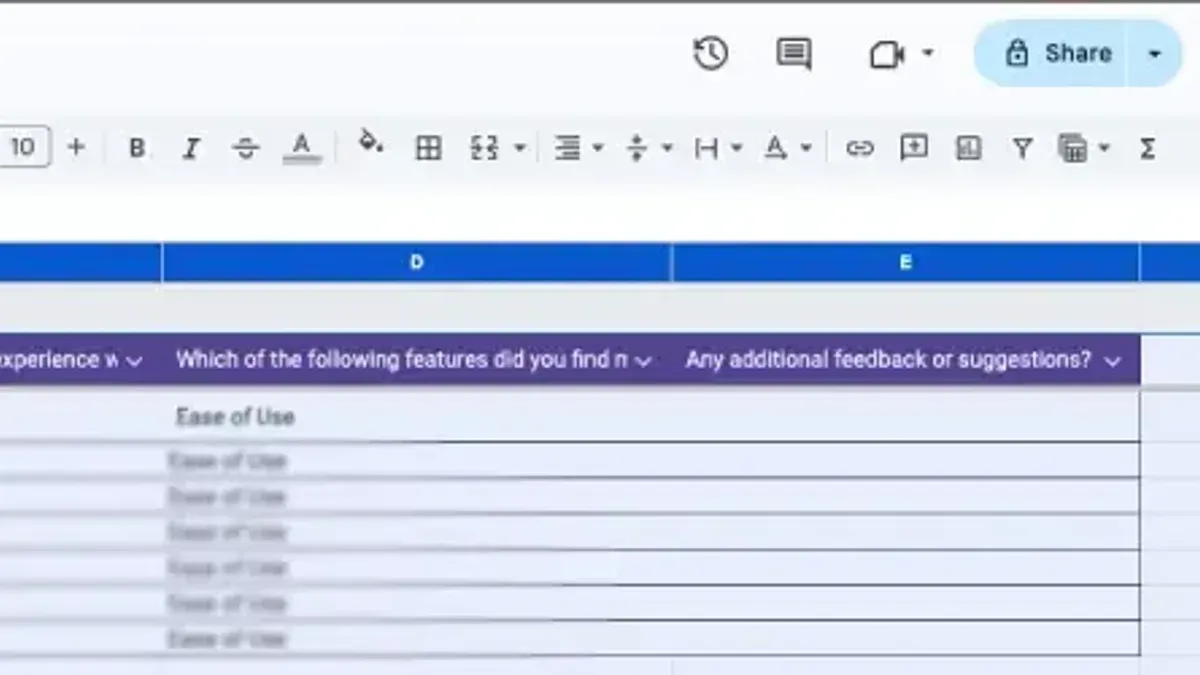
To replicate this functionality, use third-party automation platforms like Zapier. For example, set up a Zap that triggers when a new Padlet post is created, then appends the post’s content to a Google Sheets row. This workflow mimics Google Forms’ automatic updates but requires initial setup and may have slight delays depending on polling frequency.
Best practices include clearly defining which Padlet columns map to spreadsheet fields, regularly testing the Zap to prevent data loss, and maintaining a backup of your spreadsheet. Remember, unlike Google Forms’ native feature, Zapier workflows depend on external services and may require ongoing monitoring.
- Link your Padlet board to Zapier by selecting the "New Post" trigger.
- Connect Google Sheets as the action app and choose "Create Spreadsheet Row."
- Map Padlet post fields (e.g., title, description, attachments) to appropriate columns in Sheets.
- Test the Zap and activate it for continuous syncing.
- Regularly review spreadsheet and Zapier logs for errors or missed updates.
Common Mistakes to Avoid When Switching From Google Forms to Padlet
You cannot expect Padlet to replicate Google Forms’ built-in data analysis tools. For example, a team leader who relied on Google Forms’ summary charts found Padlet’s lack of automatic analytics disrupted their reporting schedule. Plan to use separate spreadsheet tools or integrations for analysis.
Neglecting participant training on Padlet’s interface often causes confusion and reduces engagement. An educator who switched without briefing students noticed incomplete responses and delayed collaboration. Schedule a quick walkthrough or share a tutorial link to ease the transition.
Overlooking data export before migration risks permanent data loss. A small business owner who moved their survey data into Padlet without exporting a backup lost some historical responses during reformatting. Always export your Google Forms data as CSV or Sheets before making any changes.
Failing to set up automation or backups for Padlet content creates workflow gaps and data vulnerability. One team that didn’t configure Zapier automation missed updates in their tracking spreadsheet, causing delays and manual catch-up work. Establish automated syncing and regular backups immediately after setup.
- Don’t assume Padlet replaces Google Forms’ analytics.
- Train participants on Padlet’s interface before switching.
- Export and back up all Google Forms data first.
- Set up automation and backups for Padlet content promptly.
Frequently asked questions
How to modify google forms?
Open your Google Form, then click the pencil icon or select "Edit form" from the three-dot menu. You can add, delete, or rearrange questions by using the toolbar on the right. Adjust question types and settings in the panel to the right, including required fields and validation rules.
How to change Google Form to PDF?
Google Forms itself doesn’t export directly to PDF. Instead, open the form preview, press Ctrl+P (or Cmd+P on Mac), and choose "Save as PDF" in the print dialog. This creates a static snapshot useful for offline sharing or archiving.
How to transfer Google Form to spreadsheet?
In your Google Form, click the "Responses" tab and then the green Sheets icon. This links your form to a Google Sheets spreadsheet where new responses appear automatically. You can also unlink and link it to another spreadsheet if needed for organization.
How to modify Google Forms?
To modify a Google Form, access the form via Google Drive and click "Edit." Use the side menu to add new questions or sections, edit existing ones, and change question types. Remember to save changes before closing to keep updates.
Can Google Forms write to different sheets automatically?
Google Forms natively writes all responses to a single linked sheet. To distribute data across multiple sheets automatically, you need to use Google Sheets formulas like QUERY or Apps Script for custom automation. This requires setting up triggers or scripts beyond the default form settings.
What this advice does not cover
This guide does not cover highly specialized Google Forms features like advanced quiz grading or third-party add-ons that Padlet cannot replicate. If your workflows depend heavily on these capabilities, switching may require additional tools or maintaining Google Forms alongside Padlet. Also, this guide assumes you have basic familiarity with both platforms; those new to either may need introductory tutorials first.
Quick checklist
- Export Google Forms responses as CSV or Excel for easy import into spreadsheets or Padlet.
- Create a Padlet board tailored for collaboration using column or grid layouts to organize data visually.
- Convert important Google Forms into PDFs via the print-to-PDF option for offline reference or sharing.
- Set up automated spreadsheet syncing using Google Sheets’ built-in notifications or third-party automation tools.
- Test your new Padlet workflows with a small group before full rollout to catch any issues.
- Avoid expecting Padlet to replace Google Forms’ data validation and structured input features fully.
The most useful next step is to start by exporting your existing Google Forms data and setting up a Padlet board that matches your team’s collaboration style. This immediate action helps you see how Padlet complements your current data while letting you adapt workflows gradually and confidently.
See also: Switching from Google Forms to Formative: A Clear, Practical Guide · Switching from Google Forms to Edpuzzle: A Practical How-To Guide · Switching from Google Forms to Blooket: A Practical Guide for Educators · Moving from Formative to Padlet: Your Step-by-Step Checklist