Switching from Google Forms to Formative: A Clear, Practical Guide
This guide explains practical steps and tips for switching from Google Forms to Formative, focusing on editing, formatting, and data management differences.

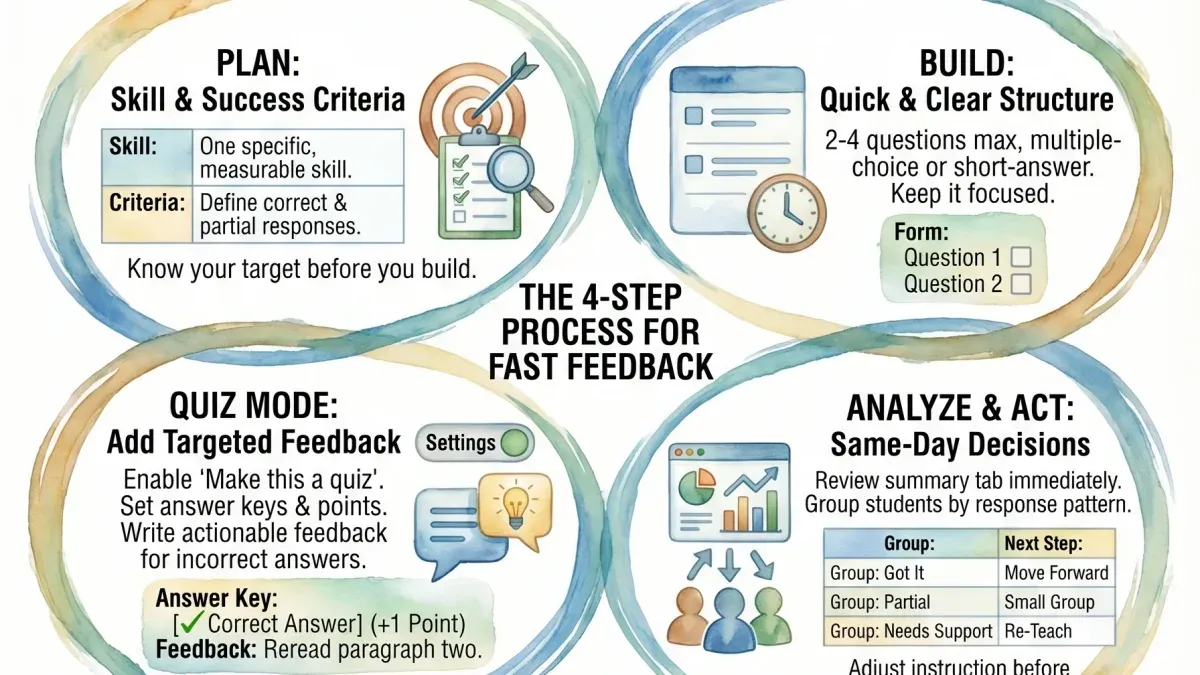
Short answer: Switching from Google Forms to Formative involves adjusting to different editing interfaces and formatting options. You won’t find a direct import feature, so you’ll need to rebuild your forms and adapt to Formative’s question types and layout controls. Understanding these differences upfront saves time and prevents common pitfalls.
This guide breaks down the practical challenges you face when switching from Google Forms to Formative. You’ll learn how editing works after submission, what formatting changes to expect, and how data management differs. The focus is on real workflow tips and detailed steps that typical tutorials miss, helping you make an informed migration decision without surprises.
How to edit Google Forms after submitting and why it matters when switching
Google Forms allows you to make limited edits to a form after responses start coming in, but these changes rarely affect already submitted answers. For example, if you add or remove questions, responses tied to previous versions won’t update retroactively, which can cause data inconsistencies. You can change form settings, edit question text, or adjust options, but these edits mainly impact new respondents. This limitation means you must carefully finalize your form before deployment or accept partial data alignment.
In contrast, Formative lets you update assignments even after students have started submitting answers, and those changes can reflect immediately in their ongoing responses. You can add questions, change instructions, or modify answer options, and students working on the assignment will see the updated version. This flexibility helps maintain data integrity and improves the student experience by reducing confusion and the need for resubmissions.
To edit a live Google Form, open the form from your Google Drive, then modify questions directly in the editor. Changes save automatically but won’t affect prior answers. For example, if you delete a question, its responses remain in the linked spreadsheet but are no longer visible in the form interface. To track impact, periodically review your response spreadsheet after edits.
In Formative, open the assignment dashboard, select the live assignment, and enter edit mode. Changes save and sync with all active student sessions. If you add a multiple-choice question midway, students who haven't submitted can answer it seamlessly. This dynamic editing requires less caution but monitor changes carefully to avoid confusion.
- Open your Google Form from Drive and edit questions; note changes affect only new submissions.
- Review response spreadsheet to understand how edits impact existing data.
- In Formative, select the assignment and enter edit mode to update questions live.
- Communicate significant changes to students to ensure clarity.
How to format a Google Form vs Formative: What changes and what stays the same
Google Forms offers basic formatting options such as font style choices (Arial, Roboto, etc.), limited color themes, and the ability to upload a header image. You can set the date format indirectly through the linked Google Sheet or by adjusting the form’s language to affect regional date display, but there is no direct control over the date format within the form itself. Changing the language setting is straightforward via Settings > General > Presentation > Language, which also influences date formatting and other locale-specific behaviors.
Formative approaches formatting with more flexibility but also some important differences. It allows more granular control over question layout and styling, including text size, bolding, and background color for each question block. Date inputs in Formative automatically adapt to the user’s device locale or can be set manually under Settings > Form Options, providing a clearer way to manage date formats than Google Forms. Language settings in Formative affect the interface and some question types but do not control spreadsheet exports, which require separate configuration.
For example, if you want dates displayed as DD/MM/YYYY instead of MM/DD/YYYY, in Google Forms you must change the form’s language to a region using that format or adjust the linked spreadsheet. In Formative, you can set this more directly in form settings, simplifying consistency across responses. When migrating, anticipate reformatting date inputs and double-check language settings to maintain clarity.
To replicate or improve form appearance after switching, use Formative’s question block coloring and text formatting to highlight key sections, and leverage its direct date format controls. This can enhance user experience beyond what Google Forms allows, but expect to spend time adjusting these elements post-migration.
| Formatting Feature | Google Forms | Formative |
|---|---|---|
| Font Options | Limited set (Arial, Roboto, etc.) | Customizable per question (size, weight, color) |
| Color Themes | Pre-set themes and header images | Individual question block background colors |
| Date Format Control | Indirect via language or spreadsheet | Direct setting per form or auto by locale |
| Language Settings | Form-wide, affects UI and date format | UI and question language, separate export settings |
Checklist for formatting when switching:
- Review and note your Google Form’s current language setting
- Check how dates appear and whether the format matches your needs
- Plan to adjust Formative’s date format setting under Settings > Form Options
- Use Formative’s text and color formatting to replicate or improve form look
- Test form appearance on multiple devices to confirm consistent formatting
How to modify and update Google Forms versus Formative after deployment
After launching your form, you'll need to handle updates like editing questions, adding or removing items, and changing where responses go. In Google Forms, edits to questions are straightforward—just open the form, make changes, and save. However, if you change the structure significantly, especially removing questions, response data in the linked spreadsheet may misalign, causing confusion. Google Forms stores all responses in the linked Google Sheet automatically, but if you change the spreadsheet destination via Responses > Select destination, old data stays in the original sheet unless you move it manually.

For example, if you add a new question after collecting 100 responses, the spreadsheet adds a new column at the end. Removing a question deletes its column but does not remove historical data, which may lead to gaps.
Formative handles updates differently. When you modify questions or add new ones, changes sync immediately for ongoing assignments, affecting live student submissions. Formative automatically updates connected gradebooks or export spreadsheets without manual relinking. This means that adding or removing questions reflects in your gradebook columns, but removing questions can shift data positions, requiring careful review.
For instance, if you add a question mid-assessment, students see it immediately, and the gradebook adds a new column. If you remove a question, the gradebook column disappears, and you must check that scoring calculations remain intact.
To avoid data loss or confusion during updates, keep these best practices in mind:
- In Google Forms, avoid deleting questions after responses start; instead, mark them as "Not used" or add clarifying text.
- When changing response destinations in Google Forms, export existing data first to prevent loss.
- In Formative, preview changes before releasing updated forms to students to check the impact on live data.
- Regularly back up linked spreadsheets or gradebooks before major edits in either platform.
Can I convert Google Forms to Formative? Practical migration steps
There’s no direct import or export tool to convert Google Forms into Formative. You’ll need to migrate content manually or use semi-automated methods like exporting questions and responses as CSV or Sheets files, then rebuilding the form in Formative. This process requires careful attention to formatting differences and data flow.
Exporting your Google Form content
Start by exporting your Google Form’s questions and response data. Open the form, go to the Responses tab, and select the green Sheets icon to link or export responses. For questions, you’ll need to manually copy them or use an add-on like Form Builder for Sheets to extract question text and types into a spreadsheet. This step helps you have a structured reference when recreating the form.
Recreating the form in Formative efficiently
In Formative, create a new assessment and use the exported questions as a guide. Formative’s interface requires entering questions one by one, but you can speed this up by preparing question text and options in a spreadsheet to copy-paste quickly. For question types like multiple choice or short answer, Formative supports most Google Forms equivalents but check for unsupported types such as file uploads, which need alternative approaches.
When rebuilding, group questions logically to match your Google Form layout. Use Formative’s rich text editor to format instructions and questions clearly. This recreation typically takes roughly 15–30 minutes for a 10-question form, depending on complexity.
Handling linked spreadsheets and grade updates
Google Forms automatically link responses to Sheets, but Formative syncs responses and grades within its platform, updating gradebooks live. To migrate data, export existing Google Sheets responses as CSV files, then import or reference them in your learning management system separately. Plan for some manual data reconciliation during the transition.
Example: Migrating a 12-question quiz involving multiple choice and short answers took one administrator about 45 minutes to export data, rebuild the form in Formative, and test grading accuracy before deployment.
- Export Google Form responses to Sheets via the Responses tab
- Extract questions manually or with an add-on to a spreadsheet
- Create a new assessment in Formative and copy-paste questions
- Adapt question types and formatting to Formative’s capabilities
- Export Google Sheets responses as CSV for data backup
- Plan manual data reconciliation for grades and responses
- Test the new Formative assessment before full rollout
How to change Google Forms language and why it’s important when switching
In Google Forms, language settings are tied to your Google Account or browser preferences rather than inside the form itself. To change the form’s language, you must adjust your Google Account language under Settings > Data & Personalization > General Preferences for the Web > Language. This affects the interface and default validation messages but not question content or form labels, which remain static unless manually translated. This limitation means users filling out the form see system prompts in their account language, which can cause inconsistent experiences in multilingual settings.

Formative handles language differently. You can set the form’s language directly within the form settings under Settings > Language, choosing from a list of supported interface languages. This setting affects all system-generated text, including error messages and grading feedback, ensuring a consistent user experience across devices and accounts. Additionally, you can customize question text and feedback in multiple languages, making Formative better suited for multilingual classrooms.
Imagine you run a bilingual classroom where students speak English and Spanish. In Google Forms, you’d need to duplicate forms or manually translate questions, while system prompts shift with each user’s account language, causing confusion. In Formative, you set one form language and add multilingual question versions, maintaining coherence and simplifying grading.
To maintain consistency during migration, export your Google Forms questions and translate system messages or feedback manually in Formative. Plan ahead for language needs—migrating without addressing this can disrupt student understanding and data quality.
Checklist:
- Change Google Account language to adjust Google Forms interface language.
- Set Formative form language in form settings for consistent system messages.
- Manually translate question content for multilingual use in both platforms.
- Test forms with users in target languages before full deployment.
- Document language settings to ensure ongoing consistency.
Google Forms automatically update spreadsheet: What changes with Formative
Google Forms links directly to a Google Sheets spreadsheet, automatically appending each new response as a row. This real-time sync is seamless but can complicate formatting. For example, if you color-code answer columns or add formulas, new responses can disrupt these layouts or cause formula errors. Also, question edits in the form may change column headers or order, breaking spreadsheet references.
Formative handles data differently. Instead of a live spreadsheet feed, it integrates with gradebooks and allows exports to CSV or direct LMS syncs. Responses are stored in Formative’s platform, where you can view, analyze, and grade before exporting. This removes the risk of spreadsheet formatting breaking but requires manual data export or connection setup for spreadsheet updates.
Consider a use case: with Google Forms, you set up a spreadsheet to calculate average scores per question using formulas. New submissions update instantly, but if you rename or reorder questions in the form, your formulas misalign. With Formative, grading happens inside the platform, and you export finalized data to a spreadsheet, ensuring stable columns. However, you lose the immediate auto-update feature.
To keep data clean when switching, export Google Forms data before migration, and plan your Formative exports around your reporting needs. Use Formative’s LMS integrations if available to automate grade syncing. Avoid relying on live spreadsheet formulas with Formative; instead, perform calculations post-export or within the platform.
- Backup your Google Forms spreadsheet before migrating.
- Map Formative’s export columns to your spreadsheet templates.
- Use Formative’s gradebook or LMS sync to reduce manual data handling.
- Rebuild necessary calculations or formatting after export, not live.
Common mistakes to avoid when switching from Google Forms to Formative
Assuming all Google Forms features map directly to Formative is a frequent error. For example, Google Forms’ checkbox grid questions do not have a one-to-one equivalent in Formative, which uses a different question type structure. This leads to confusion and extra rework if you don’t plan ahead. One user reported spending hours reformatting complex branching logic that simply didn’t translate automatically.
Neglecting to plan for reformatting and data migration causes avoidable delays. Formative’s interface demands different question setup and response handling, so importing data without adjusting formatting or grading logic can result in lost responses or inaccurate scores. A common scenario is skipping the step of rebuilding answer keys, which leads to grade mismatches.
Overlooking language and date format differences creates inconsistent user experiences. Unlike Google Forms, where system language settings control display text, Formative requires explicit language selection per form. Ignoring this can confuse students if instructions appear in unexpected languages. Similarly, date inputs must be reconfigured to match regional formats, or submissions might be misread.
Failing to test forms thoroughly before full deployment is costly. Test every question type, grading setting, and export function with a small group first. One educator shared that skipping this step led to a full-class rollout with broken question logic and missing data exports, forcing them to revert to Google Forms temporarily.
Frequently asked questions
How to modify google forms?
Open your Google Form, then click the pencil icon or select the form from Google Drive and choose "Edit." You can add, delete, or rearrange questions using the toolbar on the right. Changes are saved automatically, so no need to manually save after modifying content or settings.
How to change formatting in google docs?
Highlight the text you want to format, then use the toolbar for options like font type, size, color, alignment, and spacing. For more options, go to the "Format" menu where you can adjust paragraph styles, line spacing, and add bullets or numbering. Remember, Google Docs doesn’t support advanced page layout like desktop software.
How to change format on google sheets?
Select the cells you want to format, then use the toolbar to change number formats (currency, date, percentage), font styles, background colors, or borders. For detailed options, go to "Format" in the menu and choose from number formatting, conditional formatting, or cell alignment. Formatting applies instantly and can be cleared via "Format" → "Clear formatting."
Can i edit google form after sending?
Yes, you can edit the form after sharing the link; open the form in edit mode and make changes. However, edits won't affect responses already submitted. For major changes, inform respondents since question order or text may shift, impacting their answers.
How to edit an existing google form?
Locate the form in Google Drive and double-click to open it in editing mode. Use the question panel on the right to add new questions or edit existing ones by clicking on them. You can also adjust settings like confirmation messages or response collection under the "Settings" gear icon.
Quick checklist
- Confirm you have export access to your Google Forms responses and settings before migrating.
- Review and recreate question types carefully; some Google Forms formats don’t have direct Formative equivalents.
- Adjust form language in Formative under Settings > Language to match your audience.
- Set up new data export or gradebook connections in Formative since it doesn’t auto-update Google Sheets.
- Test each form thoroughly on Formative before full deployment to catch formatting and functionality changes.
- Train your team on Formative’s editing interface to avoid workflow slowdowns.
What this guide does not cover
This guide does not cover switching from Google Forms to other platforms besides Formative, nor does it address advanced scripting or API-based integrations. If you rely heavily on Google Forms’ Apps Script extensions or automated workflows, consider consulting a developer or a specialist before migrating. This advice focuses strictly on the core form editing, formatting, and data management differences between Google Forms and Formative.
The single most useful next step is to start building a test form on Formative right now. Use a copy of your most common Google Form and try to replicate it exactly. This hands-on approach reveals the subtle differences and lets you identify formatting or data-handling adjustments early, ensuring a smoother transition when you switch fully.
See also: Switching from Google Forms to Edpuzzle: A Practical How-To Guide · Switching from Google Forms to Blooket: A Practical Guide for Educators · How to Create an Effective Formative Implementation Timeline · Switching from Blooket to Formative: A Practical How-To Guide