
Switching from Notion to Asana: A Practical Migration and Setup Guide
Learn how to switch from Notion to Asana smoothly, maintaining data integrity and improving your team’s project management workflow.

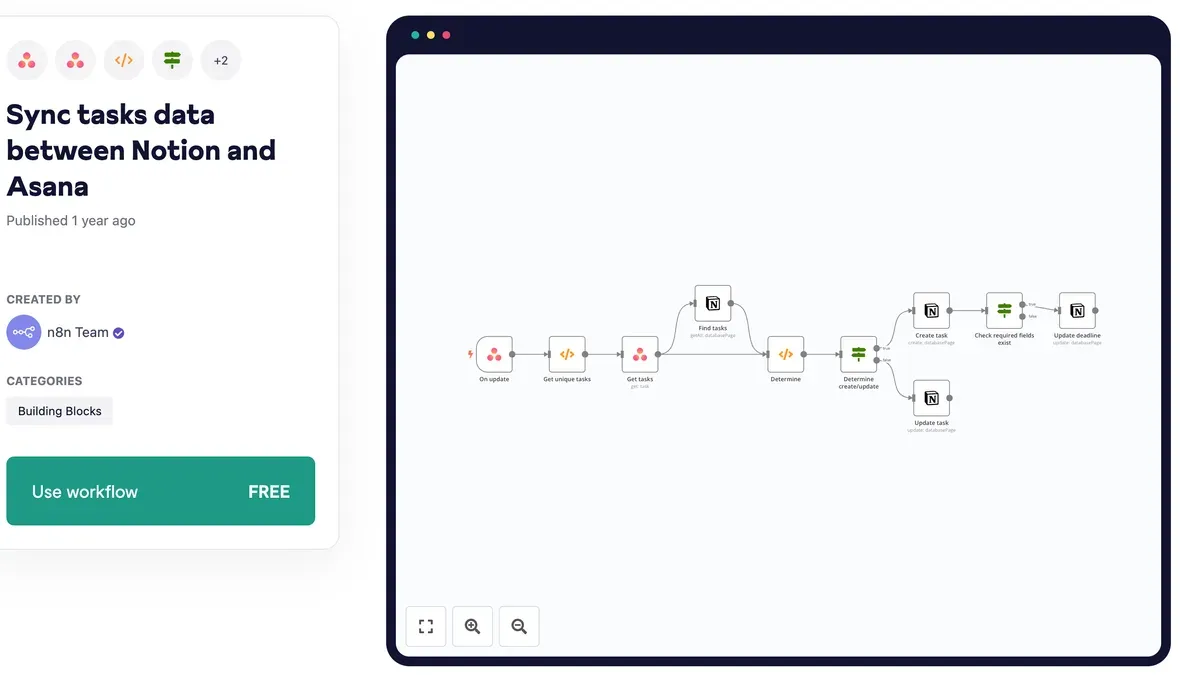
Switching from Notion to Asana is a strategic choice to gain clearer project views and streamline task tracking without losing existing information.
Many teams stumble not on the migration itself but on how to maintain work continuity and avoid data loss during the transition.
Running Notion in read-only mode for two weeks alongside Asana reduces risk and provides a safety net while your team adjusts.
Last verified November 2026 against ToolStack, Notion, AIToolPick (full list at the end).
Understand why switching from Notion to Asana matters
However, this flexibility can lead to over-engineered setups that confuse users and slow down workflows. When teams build complex Notion databases from the start, they risk overwhelming members with unnecessary fields and navigation challenges.
It delivers structured project management with multiple built-in project views—list, board, timeline, calendar, and Gantt—available even on the free tier. This means your team can visualize work in the way that fits best without paying extra or adding plugins.
Another key advantage is Asana’s native Goals feature. It supports robust OKR tracking, aligning company-level objectives down to individual tasks. Notion does not provide this capability natively, requiring manual setup or third-party tools to mimic the same effect.
The biggest adjustment you’ll face is adapting to Asana’s sprint ceremony workflow and learning the new UI terminology. For example, instead of custom databases, you’ll organize work into projects and tasks with clear statuses. This shift encourages consistent cadence and team alignment.
This clarity reduces confusion and increases delivery speed.
Asana’s free tier covers core workflows and multiple project views, making it a strong platform for structured team management.
- Recognize the limits of Notion’s flexible databases and avoid over-engineering before migrating.
- Explore Asana’s built-in views to decide which fit your team’s workflow best.
- Prepare your team for the sprint ceremony workflow and Asana’s terminology changes.
Map your Notion content to Asana’s structure before migrating
Notion organizes information as pages and databases, while Asana structures projects as tasks and sections. When migrating, each Notion page or database entry becomes an Asana task, and parent pages or folders translate into sections or project headers. To ensure accurate data mapping, recreate any custom fields from Notion within Asana before importing your data; without this, custom field values may be lost or misaligned.
Automations and workflow rules set up in Notion do not transfer during migration. You must rebuild these in Asana using its native automation tools to maintain workflow continuity. Similarly, comments, activity history, and file attachments remain behind in Notion and require manual handling—either downloading and re-uploading files or copying essential comments manually.
For example, if your Notion database includes a custom "Priority" select field, create a matching custom field in Asana first. Then, when you import the CSV export from Notion, the priority levels will map correctly onto the corresponding Asana tasks. If you skip this step, the imported data will lack this critical context, and you’ll need to reclassify tasks manually.
- Export Notion pages and databases as CSV for import
- Plan to manually transfer comments, attachments, and rebuild automations post-migration
Tip: Maintain a clear mapping document listing your Notion fields and their Asana equivalents to avoid confusion during import.
Run Notion read-only in parallel to avoid disruption
This parallel run prevents data loss and confusion by allowing your team to reference historical information easily while adapting to the new system. It acts as a safety net during onboarding, ensuring that no critical details are missed or overwritten.
For example, if a project deadline or task detail is unclear in Asana during the first days, your team can quickly look it up in Notion without interrupting workflows. Maintaining read-only access reduces the risk of disruption by giving team members confidence to transition at a steady pace instead of rushing a full switch.
Avoid making Notion fully editable to prevent conflicting updates. Once the team is comfortable and Asana reflects all necessary data, you can retire Notion. This approach minimizes operational risk and supports continuity.
The recommended two-week parallel run is a practical safeguard that balances safety with progress.
- Communicate the parallel phase clearly, emphasizing Notion is archival only during this time
- Monitor progress in Asana and plan to fully switch after two weeks, retiring Notion access
Use CSV import and native integrations to move your data
Asana supports importing tasks and projects via CSV files, which allows you to transfer bulk data efficiently. Begin by exporting your Notion content through its Settings sidebar under Import > Third party imports > Asana. Here, you sign in and select the workspace and projects you want to export. This export produces CSV files that can be directly imported into Asana.
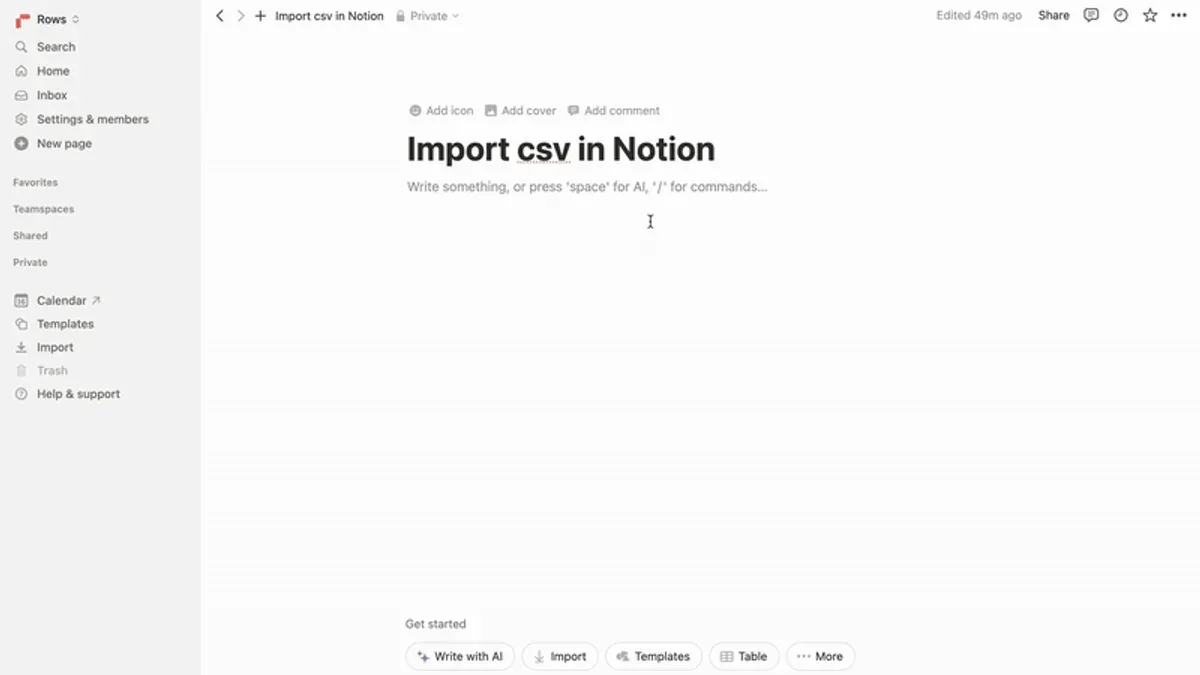
Before importing, recreate any custom fields and sections in Asana to ensure your data aligns correctly. Without this preparation, imported tasks may lack the structure or metadata necessary for seamless project management.
Additionally, Asana offers over 20 native integrations that can assist with migration or ongoing synchronization from various tools. While not all are specific to Notion, they can automate parts of your data transfer process or keep systems linked if you choose to run both platforms in parallel temporarily.
For example, if your team tracks tasks with custom statuses in Notion databases, export these as CSV, set up corresponding custom fields in Asana, then import the CSV. This preserves status data and task grouping. Skipping the setup of custom fields first leads to misaligned or lost information.
Set up Asana effectively after migration
Asana’s free tier includes list, board, timeline, calendar, and Gantt views without extra add-ons, letting you visualize tasks in ways that suit different projects. For example, use the timeline view to plan deadlines visually, then switch to board view to track progress through stages.
Next, rebuild workflow rules and automations directly in Asana. These do not transfer from Notion, so recreate essential rules such as task assignments, status updates, or notifications under the “Customize” menu within each project. Without this step, your team won’t benefit from the automated task flows that keep projects moving smoothly.
Time tracking requires manual setup or third-party integrations since Asana lacks native time tracking. Integrate tools like Toggl or Harvest to add time entries linked to tasks. This lets you monitor effort without disrupting your new workflows.
Lastly, adjust your team to Asana’s terminology and sprint ceremony workflow. Asana uses terms like "tasks," "sections," and "projects," replacing Notion’s pages and databases. Also, adopt Asana’s sprint cadence and ceremonies for planning and reviews to maintain team alignment and leverage Asana’s strengths.
Troubleshoot common issues: why Asana isn’t working and what to do
Check Asana’s status page first if the platform is inaccessible or slow, as outages affect all users.
| Symptom | Cause | Fix |
|---|---|---|
| Asana is down or unresponsive | Platform-wide outage or maintenance | Visit Asana’s status page to confirm outage and wait for resolution |
| Data sync fails or shows errors | Expired or incorrect authentication tokens in integrations like Notion Workers | Regenerate personal access tokens and reauthorize integrations |
| Notifications missing or delayed | Rules or integrations misconfigured or disabled | Review and enable notification rules; verify connected apps are authorized |
| Dependency dates not shifting as expected | Task dependencies not properly linked or updated after import | Manually check and correct task dependency links in Asana |
For instance, if your team stops receiving task update alerts, it’s usually due to disabled rules or broken app connections in Asana. You must navigate to the project’s Rules settings and verify each is active. Similarly, importing tasks via CSV without reestablishing dependencies causes timeline shifts to fail, forcing manual repairs.
Tip: Since Asana’s free tier includes multiple project views without add-ons, leverage these to cross-check data visually if workflows seem off.
Decide whether to keep Notion and Asana synced or fully switch
If your team needs to keep both tools updated in real time, use Notion’s synced databases feature. This lets you connect Asana projects to Notion with customizable sync intervals, including hourly updates, ensuring your data stays current across platforms.
On the other hand, if you want a full migration, Notion’s import function duplicates Asana data into Notion but does not keep it synced. This process is a one-time transfer, so changes in Asana won’t reflect in Notion afterward. Consider this if you plan to use Asana as your primary workspace and Notion only occasionally for reference.
Also evaluate how much your team depends on Asana’s advanced features like automations and portfolio views. These are less developed or absent in Notion, which may limit your workflow if you try to keep both tools actively synced. Running Notion in read-only mode during onboarding helps reduce confusion and eases the decision to switch fully or keep syncing.
Imagine your team manages complex projects with automated task triggers and detailed portfolio tracking. Keeping both apps synced may cause delays or incomplete data in Notion, disrupting work. Fully switching to Asana and running Notion read-only for two weeks eliminates this risk and streamlines your processes.
- Decide if live updates between Notion and Asana are necessary for your team’s workflow.
- Use Notion’s synced databases to connect projects if live sync is required.
- Run Notion in read-only mode during onboarding to minimize confusion before fully switching.
Avoid common migration pitfalls when switching from Notion to Asana
Begin with a simple setup in Asana and introduce additional fields or properties only when necessary to keep workflows manageable.
Notion’s import and export functions do not transfer comments, activity history, or file attachments automatically. Prepare to manually move these elements to maintain context and continuity in your projects.
Expect the loss of subtask structure during migration. Asana subtasks export as separate entries, which do not automatically convert into Notion’s nested pages or checklists. Plan to restructure subtasks manually after import to preserve task hierarchy.
Ensure all your projects are properly assigned to teams within Asana before exporting data for migration. Projects not linked to teams will be omitted by Notion’s importer, causing potential data gaps.
Take this example: a project with complex databases, attached files, and nested subtasks in Notion. Migrating it without simplifying databases or manually handling attachments will result in missing context, broken subtasks, and confusion. This disrupts team workflows and increases onboarding time.
- Start with a simple project structure in Asana before adding complexity
- Manually transfer comments and file attachments after migration
- Rebuild subtask hierarchies manually post-import
- Assign all projects to teams before exporting from Asana
Read next
- How to Roll Out Notion for Team Leads: A Practical Plan
- Build and Manage a Notion Implementation Timeline Effectively
- Seamlessly Move Your Tasks from Asana to Notion
- Moving from Basecamp to Asana: A Step-by-Step Checklist
Frequently asked questions
How to use asana effectively?
Take advantage of Asana’s multiple project views like List, Board, and Timeline, which are all available on the free tier without add-ons. Set clear task assignees and due dates, and use tags or custom fields to track priorities. Running Notion in read-only mode alongside Asana during transition helps maintain continuity while your team adapts.
How to use asana?
Add tasks with deadlines and assign them to team members. Use Asana’s built-in templates or customize your own to fit your processes. The import of CSV files from Notion can help populate your projects quickly after mapping content structures.
How to edit rules in asana?
From there, you can modify existing automation or add new triggers and actions to streamline repetitive tasks. Note that advanced rule customization may require a paid plan, so verify your plan’s capabilities before attempting complex edits.
Why isn't asana working?
Common issues include login failures, missing projects, or import errors. Login problems often stem from incorrect credentials or workspace selection during sign-in. Missing projects could be due to incomplete data import if the CSV format was incorrect or the order of operations during migration was not followed. Import errors may happen if you try to skip steps like exporting from Notion’s import/export menu before importing into Asana. Consult the troubleshooting failure map section to match symptoms with fixes.
Why is asana down?
Check Asana’s status page or official social media channels for real-time updates. If the service is down, wait until the vendor resolves the issue before resuming work.
How to add time to asana?
Asana does not include native time tracking, but you can add time data by integrating third-party apps or using custom fields to log estimated or actual time spent. Alternatively, attach time logs in task comments or descriptions. This approach keeps your time tracking flexible without disrupting Asana’s core project management features.



