Switching from Quizizz to Google Forms: A Confident Educator’s Guide
Discover practical tips for switching from Quizizz to Google Forms and creating versatile, engaging quizzes with detailed data insights.

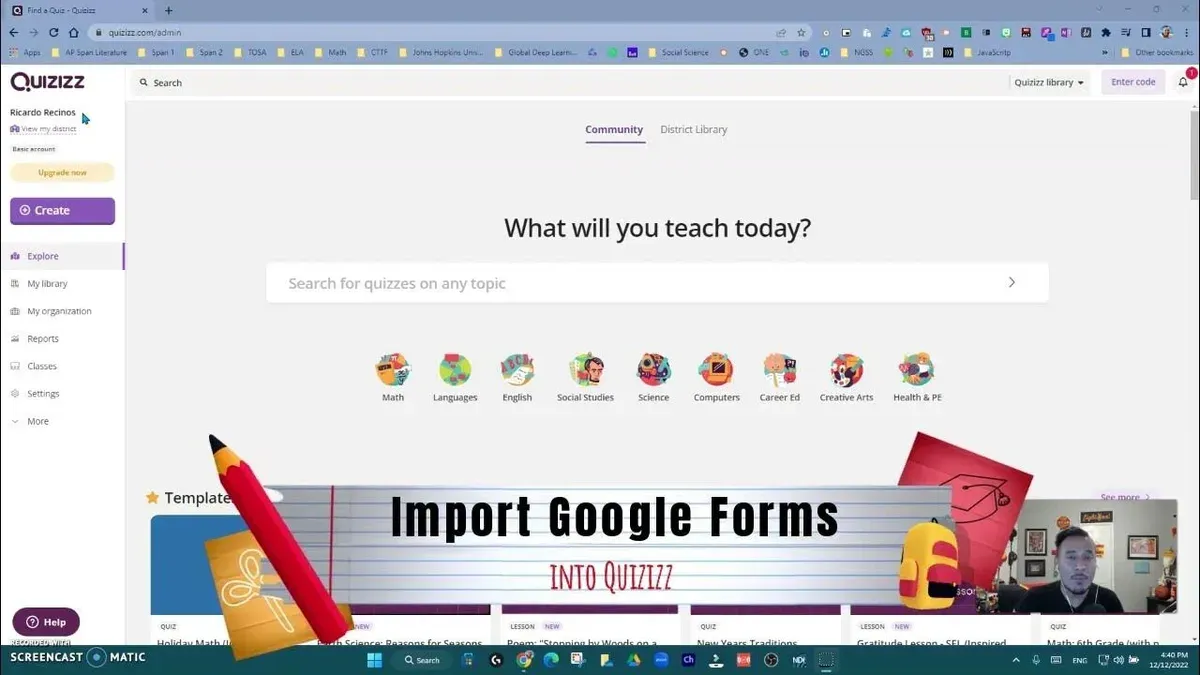
Short answer: Switching from Quizizz to Google Forms means moving from a gamified, interactive quiz platform to a highly customizable, data-centric tool. You gain control over question types, branching logic, and detailed response analysis, but you’ll need to adapt your approach to engagement and quiz deployment accordingly.
This guide covers the practical challenges and mindset shifts involved in switching from Quizizz to Google Forms. You’ll learn how to create and manage quizzes within Google Forms effectively, convert existing Quizizz content, and avoid common pitfalls. The focus is on actionable steps tailored for educators and instructional designers seeking a smooth transition to a more versatile quiz environment without losing learner motivation.
Understand why switching from Quizizz to Google Forms matters
Quizizz excels as a gamified quiz platform designed to engage students through timed questions, leaderboards, and instant feedback. Its core strength lies in motivating learners with a game-like experience, making it ideal for quick formative assessments and lively classroom interaction.
In contrast, Google Forms prioritizes flexibility and robust data collection. It supports a broad spectrum of question types—including multiple choice, short answer, checkboxes, and even file uploads—allowing you to design assessments that go beyond simple quiz formats. Integration with Google Sheets and other Google Workspace tools offers powerful analysis and record-keeping capabilities.
You might find that Quizizz’s game-driven features, while engaging, limit your ability to customize assessments or gather detailed data needed for in-depth analysis. For example, if you want to combine quizzes with essay responses, collect research files, or automate grading workflows linked to your Google Classroom, Google Forms provides the necessary adaptability.
Consider a scenario where you need a quiz that includes a mix of multiple-choice questions, a short essay prompt, and an option for students to upload a project file. Quizizz cannot accommodate this variety, but Google Forms handles it smoothly, and you can view all responses in a structured spreadsheet for further evaluation.
| Feature | Quizizz | Google Forms |
|---|---|---|
| Quiz Types | Multiple choice, true/false, polls, timed questions | Multiple choice, short answer, paragraph, checkboxes, dropdown, file upload |
| Reporting | Basic score reports, immediate feedback, leaderboard | Detailed response sheets, customizable summary charts, export to Sheets |
| Customization | Limited to themes and question order | Full control over question types, sections, logic branching |
| User Engagement | Gamification with avatars, power-ups, music | No gamification features; focuses on content and data |
How to create a quiz in Google Forms
Start by opening forms.google.com and clicking the blank form to create a new quiz. Name your form clearly, such as "Science Basics Quiz," to keep it organized.
Next, enable quiz features by clicking the Settings gear icon at the top right, selecting the Quizzes tab, and toggling on Make this a quiz. Here you can choose options like releasing grades immediately or later, and whether respondents can see missed questions or correct answers.
To add questions, click the plus (+) button. Google Forms supports multiple question types suitable for quizzes: Multiple choice, Checkboxes (for multiple correct answers), and Short answer for open-ended responses.
Assign point values by clicking on each question, then the Answer key link. Set the number of points, select correct answers for objective questions, and add answer feedback if desired. For example, for a multiple choice question "What is the boiling point of water?" select "100°C" as correct and assign 5 points.
Continue adding questions as needed. For each, define clear correct answers and point values to automate scoring. Preview your quiz by clicking the eye icon to ensure everything appears as expected.
- Create new form and name it
- Enable quiz mode in Settings > Quizzes
- Add questions using multiple choice, checkboxes, or short answer
- Assign points and correct answers in the Answer key
- Add answer feedback where appropriate
- Preview quiz before sharing
How to use Google Forms for quizzes effectively
Google Forms lets you design quizzes that adapt to learners' responses and provide instant feedback. Use sections to break your quiz into parts, then apply branching logic by clicking the three dots on a question and selecting “Go to section based on answer.” For example, if a student answers a question incorrectly, you can direct them to a review section before moving on, creating a personalized learning path.
Automatic grading is enabled by turning on Make this a quiz under Settings > Quizzes. Assign point values and mark correct answers to let Forms score responses instantly. You can choose to release scores immediately after submission or later manually. This gives you control over feedback timing and allows you to add personalized comments if desired.
Enhance engagement by inserting images and videos directly into questions using the image and video icons. For instance, include a diagram in a science quiz or a short video clip for a listening comprehension question. This multimedia approach supports diverse learning styles and clarifies complex content.
When sharing your quiz, use the Send button to distribute via email or generate a shareable link. Enable Limit to 1 response in Settings > Presentation to prevent multiple attempts and ensure data integrity. Responses are collected in Forms and can be exported to Google Sheets for detailed analysis.
- Use sections and branching for adaptive quiz paths
- Enable quiz mode for automatic grading and score release
- Insert images and videos to enrich questions
- Share quizzes securely with response limits
- Monitor and analyze responses via Google Sheets
How to do a Google Form quiz: deployment and management tips
Start by distributing your quiz link directly or embed it within your Learning Management System (LMS) using the embed code found under the Send button’s <> tab. Embedding keeps students in your LMS environment, which can reduce distractions. For live monitoring, open the Responses tab in Google Forms to see incoming answers in real time. Enable response validation to prevent incorrect formats, such as requiring numeric answers or limiting text length, which helps maintain data quality.
Once responses are collected, click the green Sheets icon in the Responses tab to export all data to Google Sheets. Here you can analyze scoring trends and identify common mistakes. For example, a teacher noticed that Question 3 had a 70% incorrect response rate, indicating a concept needing review. Using conditional formatting, errors were highlighted in red to quickly spot patterns across students.
After analysis, communicate results by sharing individual scores via email or LMS announcements. Google Forms allows you to send automatic feedback upon submission, but for personalized comments, consider exporting scores and using mail merge tools. This approach balances automation with the personal touch students appreciate.
- Distribute quiz via direct link or LMS embed code
- Monitor live responses in the Responses tab
- Use response validation settings to ensure answer quality
- Export data to Google Sheets for detailed analysis
- Highlight scoring trends and common errors with Sheets tools
- Share results through automated feedback or personalized communication
Convert Quizizz quizzes to Google Forms: practical strategies
When migrating quizzes from Quizizz to Google Forms, start by manually recreating your questions, recognizing that Quizizz’s gamified formats often require simplification. For instance, Quizizz allows for timed questions with animated power-ups, which Google Forms does not support; convert these into straightforward multiple-choice or short answer questions without the game mechanics.
Consider this example: a Quizizz question might read, "What is the capital of France?" with a power-up option to double points. In Google Forms, recreate the question as a multiple-choice item titled "What is the capital of France?" with options "Paris," "Madrid," "Berlin," and "Rome," assigning the correct answer and point value without any gamified enhancements.
To streamline bulk conversion, use Google Forms templates designed for quizzes or explore scripts like Google Apps Script that can automate question import from spreadsheets. Export your Quizizz quiz data into CSV or Excel format, then map questions and answers into a Google Sheet structured for script processing. This reduces manual entry and preserves question accuracy.
Key tips include checking for question type compatibility—matching Quizizz’s multiple-choice, true/false, and open-ended to Google Forms’ options—and removing elements like leaderboards or timed incentives that Google Forms doesn’t support. Focus on clarity and assessment integrity rather than game features.
- Manually recreate questions focusing on format compatibility
- Simplify gamified elements into clear quiz questions
- Use templates or Google Apps Scripts for bulk imports
- Export Quizizz data to spreadsheet for structured conversion
- Review and adjust point values and correct answers in Google Forms
Avoid common mistakes when switching from Quizizz to Google Forms
One common mistake is expecting Google Forms to replicate Quizizz’s gamification features. Google Forms lacks built-in leaderboards, timed questions with countdowns, and immediate game-style feedback. An educator reported students initially disengaged when their quizzes didn’t feel as interactive, highlighting the need to adjust expectations and emphasize the strengths of Google Forms, such as detailed data analysis and customization.
Neglecting to test your quiz thoroughly before deployment is another frequent issue. For example, failing to preview the quiz flow or check automatic grading settings can lead to confusion or incorrect scoring. Testing the entire form, including branching logic and point values under Settings > Quizzes > Release Grade, ensures smooth student experience and accurate results.
Overcomplicating quizzes with excessive branching or diverse question types can overwhelm both you and your students. One instructional designer shared that a quiz with multiple sections and conditional paths caused students to lose track of their progress, reducing completion rates. Keep branching minimal and question types purposeful to maintain clarity.
Ignoring accessibility and device compatibility is a critical pitfall. Google Forms works across devices, but multimedia-heavy quizzes may not render well on all student devices, especially older models or those with limited bandwidth. Testing on various devices and simplifying media use prevents access barriers and technical issues.
- Adjust expectations: focus on Google Forms’ strengths beyond gamification
- Test quiz flow, grading, and branching before launch
- Limit branching and use question types judiciously
- Ensure accessibility and device compatibility by testing on multiple platforms
Explore alternatives to Google Forms for quizzes
Google Forms stands out for its simplicity, seamless integration with Google Workspace, and straightforward quiz creation. However, when your quizzes demand advanced gamification, interactive elements, or specialized analytics, other free tools may better suit your needs.
| Platform | Key Features | Ease of Use | When to Choose |
|---|---|---|---|
| Google Forms | Quiz mode with automatic grading, sections and branching, multimedia support, integration with Sheets | Very easy | Customizable quizzes without heavy gamification, data-driven assessments |
| Quizlet | Flashcards, game-like quizzes, study modes, class sharing | Easy | Learning through gamification and memorization |
| Microsoft Forms | Similar to Google Forms, with real-time collaboration, branching, and analytics | Easy to moderate | Users embedded in Microsoft 365 ecosystem |
| Kahoot! | Live game-based quizzes, leaderboards, interactive challenges | Moderate | Engaging live quiz sessions with strong gamification |
| Socrative | Real-time questioning, instant feedback, quizzes and exit tickets | Moderate | Formative assessments with immediate feedback |
For example, if you want to host a live quiz session with a leaderboard to boost classroom engagement, Kahoot! offers built-in game mechanics that Google Forms does not provide. Conversely, if you need a quiz tightly integrated with your data analysis workflow, Google Forms remains a strong choice.
To explore more options, visit educational technology review sites or forums dedicated to instructional tools. Trying a few alternatives firsthand can help you identify the platform that aligns best with your instructional goals and workflow.
- Compare quiz features like gamification, analytics, and integration
- Consider the learning environment: live sessions vs. asynchronous
- Test user interfaces for ease of quiz creation and student participation
- Review community resources and support for each platform
Read next
- Switching from Quizizz to Gimkit: A Step-by-Step Educator’s Guide
- Switching from Quizizz to Formative: A Practical Educator’s Guide
- Switching from Quizizz to Edpuzzle: A Practical Educator’s Guide
- Switching from Quizizz to Blooket: A Step-by-Step Educator’s Guide
Frequently asked questions
How to make quiz on google forms?
Start by opening Google Forms and selecting a blank form. Click the gear icon to enable "Quizzes" under the "Quizzes" tab. Add your questions using multiple choice, checkboxes, or dropdowns, then assign point values for correct answers in the "Answer key". Finally, customize feedback if desired and share the quiz link with your students.
How to do google form quiz?
Access the quiz link you received and answer each question as it appears. Submit the form when finished to receive instant feedback if enabled. Your responses are automatically recorded, allowing your educator to track your results and analyze the data.
How to create quiz in google forms?
Open Google Forms, click the settings gear, and turn on "Make this a quiz." Add questions with the "+" button and choose question types like multiple choice or short answer. Use the "Answer key" option to set correct answers and assign points, then save and distribute your quiz.
How to make quizzes in google forms?
Begin with a new form and activate the quiz option in settings. Build your quiz by adding questions and specifying correct answers and point values. Use sections to organize content and enable features like shuffle question order or release grades immediately after submission for better control.
Can you make quizzes on google forms?
Yes, Google Forms supports creating quizzes by enabling the quiz mode in settings. This feature allows you to assign points, provide answer feedback, and automate grading, making it a versatile tool for educators seeking customizable assessment options.
Quick checklist
- Review your Quizizz quizzes and identify core question types and content to migrate.
- Create a new Google Form and set it to "Quizzes" mode under Settings > Quizzes.
- Use Google Forms’ question banks and answer feedback features to replicate gamified elements thoughtfully.
- Configure response collection options: email collection, limit to one response, and shuffle question order if needed.
- Test the quiz by submitting sample responses to verify scoring and feedback accuracy.
- Share the quiz link with clear instructions and set deadlines if applicable.
- Monitor responses via Google Forms’ built-in analytics and export data for deeper analysis.
- Identify any features missing from Google Forms that were in Quizizz and evaluate if third-party tools are necessary.
What this advice does not cover
This guide does not cover advanced scripting or third-party add-ons for Google Forms which may be necessary for complex quiz needs like adaptive questioning, detailed analytics beyond basic summaries, or intricate gamification features. If your quizzes require these capabilities, consider exploring Google Apps Script solutions or specialized assessment platforms designed for those functions.
Switching from a gamified platform to Google Forms means embracing a different kind of flexibility and control but also accepting some trade-offs in user engagement style. The single most useful next step is to create a simple practice quiz in Google Forms using the "Make this a quiz" toggle, experiment with settings like answer feedback and question shuffling, then test it with a small group to understand how the tool can serve your specific instructional goals.