
How to Switch from Slack to Asana Without Losing Workflow Momentum
This guide explains how to switch from Slack to Asana smoothly, maintaining workflow momentum and preventing common migration issues.

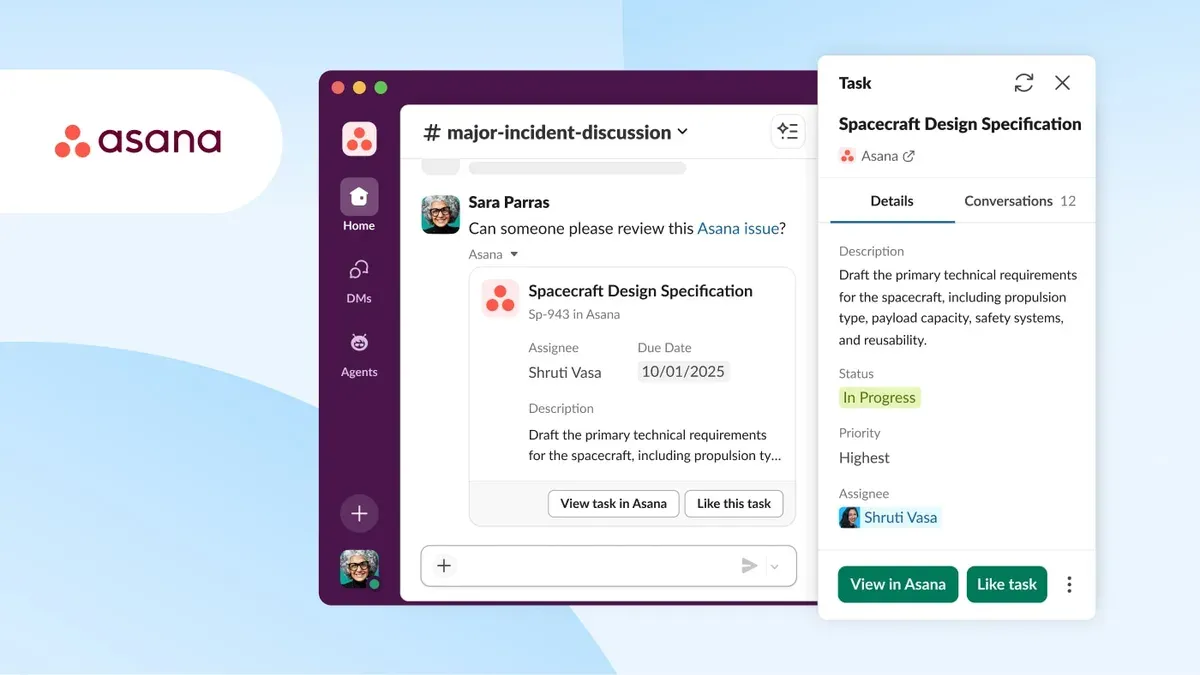
Asana, by contrast, focuses on task and project management, offering multiple project views—list, board, timeline, calendar, and Gantt—even on lower-tier plans. This difference shapes how your team interacts with work.
You must carefully prepare Slack for migration, run it in read-only mode while adopting Asana, and integrate the two to maintain seamless task communication. This guide maps out these critical steps and explains what typically breaks and how to prevent it.
Checked in November 2026 against ToolStack, Slack, Asana (full list at the end); details like these change, so the date matters.
Understand what Slack and Asana do differently
It organizes conversations into channels and threads, enabling seamless communication. Its strength lies in integrating with over 2,600 third-party apps, which centralizes notifications and collaboration in one place. This design keeps onboarding simple and intuitive, helping teams get started quickly without complex setup.
It provides multiple views—list, board, timeline, calendar, and Gantt charts—to plan, assign, track, and automate work efficiently. However, Asana demands upfront configuration, such as setting rules, defining dependencies, and customizing fields, which requires more initial effort than Slack.
Slack’s paid plans start under $10 and go up to about $20 per user per month. Asana’s paid plans generally start higher, from around $10 up to $25 per user per month, reflecting its specialized project management capabilities.
In Asana, you create a detailed task, assign it, set a due date, and visualize its progress on a timeline. Switching means shifting from a communication-first approach to a structured work management system.
| Feature | Slack | Asana |
|---|---|---|
| Primary Function | Messaging (real-time and asynchronous) | Task and project management |
| Views Available | Channels, threads | List, board, timeline, calendar, Gantt |
| Third-party Integrations | 2,600+ apps | Integrations but fewer than Slack |
| Onboarding Complexity | Low friction, intuitive chat | Moderate, requires configuration (rules, dependencies, custom fields) |
| Pricing Range (Paid Plans) | Under $10 to ~$20/user/month | $10 to $25/user/month |
This fundamental difference shapes what you will need to adjust in your workflows.
Prepare your Slack workspace and export data for migration
Begin by exporting your Slack workspace data to ensure you retain important information during the switch. Navigate to Settings > Export within your Slack workspace and select Export full CSV backup. This generates a comprehensive CSV file containing messages and files from your channels.
Keep in mind, Asana does not support automatic migration of Slack conversations or threads as tasks. Instead, you will use the exported CSV data to manually import relevant tasks and projects into Asana, using its CSV import feature available through its project setup tools. This process requires reviewing the Slack export to identify actionable items suitable for task creation.
Plan for your Slack chat history to remain accessible in Slack itself for reference. Since conversation threads don’t convert into Asana tasks automatically, maintaining Slack as a read-only archive during migration helps avoid data loss and confusion.
For example, if a team discussion in Slack resulted in a list of deliverables, you will extract those from the CSV export and import them as tasks into Asana. This manual step is essential because direct conversation threads cannot become Asana tasks with a single import.
- Export a full CSV backup from Slack via Settings > Export
- Identify task-relevant information in the exported CSV
- Import selected data into Asana using its CSV import tool
Set Slack to read-only and run both tools in parallel during migration
To avoid losing new work or creating confusion during your transition, set Slack to read-only mode for two weeks while your team actively uses Asana. This strategy ensures that any ongoing conversations remain accessible for reference but prevents new messages in Slack, which could cause task tracking gaps or duplication if not mirrored in Asana.
Running Slack in parallel but read-only allows your team to consult historical context without fragmenting updates between two platforms. For instance, if a team member needs to review a previous discussion about a project, they can find it in Slack without new messages distracting or conflicting with tasks already managed in Asana.
It is crucial to communicate this change clearly to your team to maintain discipline during the migration period. Without clear communication, users might continue adding new Slack messages, which risks losing essential task information or creating duplicate efforts.
The recommended order of operations is to first enable Slack's read-only mode, then encourage active task management in Asana. If you reverse this order—starting with Asana use before restricting Slack—it can lead to confusion about where to post updates and cause missing or duplicate tasks.
- Inform your team about the read-only period and expected workflow changes
- Encourage task creation and updates primarily in Asana during migration
Official recommendation for two-week read-only period
Integrate Asana with Slack to maintain communication and task flow
Start by enabling the Asana icon in Slack through User Preferences → Navigation → App agents. This adds quick access to Asana features without leaving Slack. Once enabled, you can use the /asana command in Slack's message input to create new tasks, list your existing ones, mark tasks complete, or add comments directly from conversations.
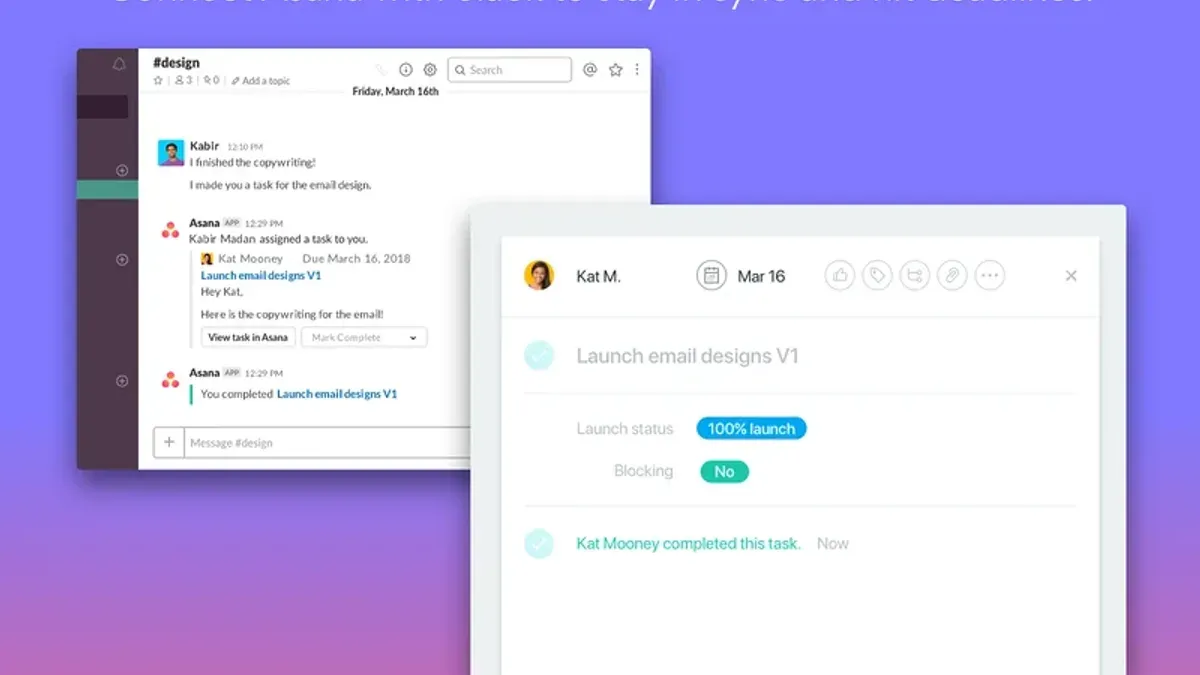
Clicking the Asana icon in the top-right corner of your Slack workspace launches a chat with Asana AI. This AI assistant provides task summaries and insights, helping you stay informed on project status without switching apps. Remember, while Asana AI is a powerful tool, always verify its outputs as it may occasionally provide inaccurate summaries.
To automate communication further, set up Asana rules that trigger Slack messages to channels or teammates based on task or project changes. For instance, when a task moves to "Completed," a notification can automatically post to the relevant Slack channel, keeping everyone updated in real time.
Be cautious with updates from private projects: they may appear in Slack channels that include members not part of those projects, which can expose sensitive information unintentionally. Review your Slack channel memberships and notification settings to manage this risk effectively.
Adjust workflows to fit Asana’s task and project management model
Slack’s flexible, chat-driven workflows don’t translate directly to Asana’s structured task system. Asana requires upfront configuration of projects with custom fields, dependencies, and rules to operate effectively. Unlike Slack’s channels and threads, which are designed for ongoing conversation, Asana organizes work through projects, tasks, and subtasks with clear owners and deadlines.
Expect terminology mismatches: what you called a “thread” in Slack might become a task with subtasks in Asana. For instance, a Slack thread discussing a product launch would be best represented as an Asana project with tasks for each discussion point, and subtasks for related action items. You can convert tasks to subtasks or move subtasks between tasks to reflect evolving priorities and dependencies.
Take advantage of Asana’s multiple project views — list, board, timeline, calendar, and Gantt — to visualize workflows beyond Slack’s linear chat format, adapting processes instead of replicating them. This shift demands upfront setup but enables clearer accountability and progress tracking.
- Define your projects in Asana with custom fields and dependencies before migrating workflows.
- Map Slack channels and threads to Asana projects, tasks, and subtasks thoughtfully.
- Use Asana’s multiple views to design workflows that leverage task management strengths instead of mimicking chat patterns.
Handle common issues when Asana is not working as expected
When migrating from Slack to Asana, you may encounter issues like missing tasks, failed integrations, or incorrect task statuses. These often stem from misconfigured Slack-Asana integrations, permission mismatches, or incomplete CSV imports. Recognizing the exact symptom helps diagnose the cause and apply the right fix.
| Symptom | Cause | Fix |
|---|---|---|
| Tasks created from Slack messages do not appear in Asana | Slack-Asana integration disabled or misconfigured | Enable the Asana icon via User Preferences → Navigation → App agents in Slack; verify integration settings |
| Task status updates in Slack do not reflect Asana changes | Permissions missing for users or webhook errors | Check user permissions in Asana; reconnect Slack integration |
| Private project updates leak into Slack channels with non-members | Slack-Asana integration broadcasts updates without respecting project privacy | Restrict integration notifications to relevant channels or disable private project updates in Slack |
| AI-generated task summaries in Slack are inaccurate or misleading | AI summaries are not verified and can contain errors | Manually verify all AI-generated summaries before acting on them |
| Imported CSV data missing tasks or fields | CSV format incompatible or incomplete import | Review and correct CSV file format; re-import using Asana’s CSV import tool |
For instance, if you notice that typing /asana in Slack does not create or update tasks, first ensure the Asana app is enabled in Slack’s User Preferences under Navigation > App agents. Without this setup, task creation commands won’t work, halting your workflow integration.
Decide if fully replacing Slack with Asana fits your team’s needs
Evaluate your team’s core needs before committing to Asana as a full replacement for Slack. If your work depends heavily on real-time messaging and collaborating with external partners, Slack remains indispensable as your communication hub. Asana excels when your priority is structured project planning with clear task ownership, deadlines, and automation.
On top of this, manual task bridging between Slack and Asana can consume 20 to 45 minutes daily for those managing both tools, adding hidden labor expenses.
For example, a team lead coordinating a marketing campaign might find Slack essential for quick approvals and external conversations, while the project manager needs Asana’s task tracking. In such cases, keeping both and integrating them makes sense unless cost reduction or workflow simplification is critical.
| Your Team’s Situation | Best Fit | Key Factor |
|---|---|---|
| Heavy real-time communication and external collaboration | Slack as communication hub | Slack’s superior real-time messaging and external sharing |
| Structured project planning with clear task ownership and deadlines | Asana for task and project management | Asana’s task structure and automation capabilities |
| Desire to reduce subscription costs and remove manual bridging | Integrated alternative like Convoe | Combining tools lowers cost and manual work |
| Deeply customized Asana automations or enterprise compliance needs | Maintain Slack and Asana | Migration complexity and compliance constraints |
- Assess your team’s communication versus structured task needs
- Calculate total subscription and labor costs for current tools
- Explore integrated platforms if cost and manual bridging are concerns
Complete the migration and maintain your new Asana workspace effectively
After running Slack in read-only mode for two weeks and transitioning your team primarily to Asana, start by thoroughly reviewing all imported tasks and projects. Check for completeness and accuracy to ensure no critical work was missed during import. This step avoids surprises later and helps you catch any gaps early.
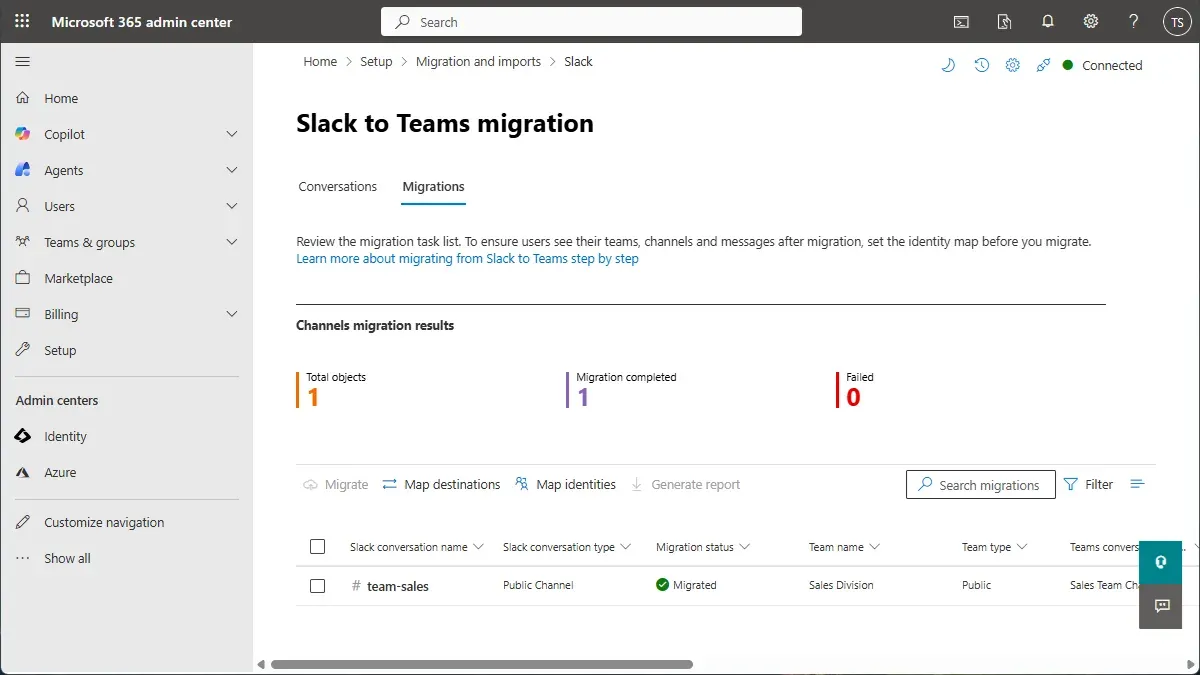
Next, train your team on key Asana features like rules, dependencies, and various project views. These capabilities optimize task management and replace Slack’s conversational updates with structured workflows. For example, teaching your team to set task dependencies can prevent bottlenecks that Slack’s chat-based system doesn’t address.
Monitor your Slack-Asana integration activity closely. Keep Slack’s read-only status until you confirm all communications and task updates flow smoothly through Asana. Gradually phase out Slack channels once your team fully adapts, but retain the ability to reactivate channels or re-export Slack data if needed for reference.
Establish a routine of weekly workflow reviews. Assess how well your Asana configuration supports your team’s productivity goals, and adjust project setups, custom fields, or automation rules as necessary. Continuous refinement prevents stagnation in your new system.
Read next
- Effective Slack Rollout Plan for Volunteer Teams
- Plan and Manage Your Slack Implementation Timeline Effectively
- Moving from ClickUp to Asana: A Complete Migration Checklist
- Moving from Basecamp to Asana: A Step-by-Step Checklist
Frequently asked questions
How to use asana in slack?
Enable the Asana icon in Slack via User Preferences → Navigation → App agents to access Asana features within Slack. Use the /asana command in Slack message input to create and manage tasks directly from Slack messages, streamlining task management without leaving your conversations.
What is slack and asana?
Slack is a communication-centric platform designed for real-time messaging, channels, and collaboration. Asana focuses on task and project management, organizing work into projects, tasks, and timelines to track progress and responsibilities.
How to work with slack?
Slack organizes communication through channels and direct messages, supporting integrations and commands like /asana for external tools. Staying active in relevant channels and customizing notifications helps maintain workflow clarity.
How to set slack to always active?
This article does not cover setting Slack to always active; refer to Slack’s own settings for presence and status management.
Why is asana not working?
The “Handle common issues when Asana is not working as expected” section maps specific symptoms to causes and fixes, such as private project updates appearing in Slack channels due to permission mismatches or integration errors requiring reauthentication.
How to work with Slack effectively?
Effective Slack use involves managing channels wisely, using integrations like Asana’s app agents, and setting Slack to read-only mode during migrations to avoid losing new work or causing confusion. Combine Slack’s messaging strengths with a task-focused tool to maintain productivity.
Complete the migration and maintain your new Asana workspace effectively
Once your team has fully transitioned to Asana, finalize your migration by disabling Slack's read-only mode and archiving legacy Slack channels to prevent confusion. Continually monitor integrations, especially notifications from private projects that may leak updates to unintended Slack channels, and adjust permissions accordingly. Establish routine check-ins to refine workflows within Asana’s task-focused environment, ensuring your team maintains momentum and clarity.
Enable the Asana icon within Slack by navigating to User Preferences → Navigation → App agents to keep communication seamless. Use the /asana command in Slack for quick task creation without leaving conversations, bridging the two platforms during the transition period and beyond.
Your next step
Begin by exporting your Slack data and setting Slack to read-only to avoid losing new work during migration. This order is crucial: exporting first preserves your data, and read-only mode prevents conflicting updates, keeping your migration smooth and your team aligned.



