
How to Switch from Slack to Microsoft Planner Without Losing Workflow
Ensure a smooth transition by exporting Slack data and importing it into Microsoft Planner without disrupting your team’s workflow.

Slack’s workspace data migration demands exporting channels and files, uploading them to Azure Blob Storage, then importing via the Microsoft 365 Teams Migration app to ensure channel content and memberships transfer correctly. Overlooking the order or scope of these steps is a common pitfall that leads to data gaps or failed imports. Understanding these intricacies upfront secures your team’s workflow and prevents disruption during the transition.
Checked in November 2026 against Microsoft, GAX Online (full list at the end); details like these change, so the date matters.
Prepare your Slack data and workspace for migration
Begin by confirming your Slack plan’s export capabilities. Free Slack plans allow you to export only public channel history and files. To include private channels and direct messages in your export, you must have a paid Slack plan and submit an additional request for approval. Without these permissions, private conversations won’t be available for migration.
Ensure you have the required workspace admin permissions to access the export settings. Navigate in Slack’s web interface to Settings & administration > Workspace settings > Import/Export Data. From there, select Export to generate a ZIP archive of your workspace data. This file contains conversation history and files limited by your plan and export permissions.
Next, prepare an Azure Blob Storage account to upload your Slack export package. In the Azure portal, go to Storage accounts > Create. Fill in your subscription, resource group, storage account name, region, performance, and redundancy options, then create the storage account. This step is essential as the Microsoft 365 Teams Migration tool uses Azure Blob Storage to access your Slack data during migration.
For example, if you lead a 50-person team on a paid Slack plan, ensure your workspace admin exports the full ZIP archive including private channels. Upload this ZIP to your configured Azure Blob Storage account before running the migration tool. Missing this step or lacking permissions will halt the migration or exclude sensitive data.
Map Slack users and channels to Microsoft 365 for a smooth transition
Mapping Slack users to their Microsoft 365 counterparts is a critical step to ensure your workspace data imports correctly. You can complete this mapping either through the migration tool’s user interface or by preparing CSV files that clearly associate each Slack user with the corresponding Microsoft 365 user account.
Similarly, Slack channels must be carefully mapped to Microsoft Teams channels to preserve your team’s communication structure. This step is essential to avoid misaligned conversations and ensure that project teams remain intact after migration.
Keep in mind that direct messages and some private content in Slack do not have a direct equivalent in Microsoft Teams and therefore may not transfer during migration. Plan accordingly to manage any private data separately.
Without these roles, migration tasks will fail due to insufficient permissions.
For example, when mapping a Slack channel named “Marketing Project” to a Microsoft Teams channel, you ensure all team members are correctly linked to their Microsoft 365 identities. This alignment avoids data loss and maintains workflow continuity.
Proper user and channel mapping is non-negotiable. Skipping this leads to import errors or orphaned data that disrupts your team's productivity. Use the migration tool’s mapping features or CSV uploads to handle this step deliberately and systematically.[source]
Use the Slack to Teams Migration Tool to import workspace data
Begin by uploading your exported Slack workspace ZIP file to Azure Blob Storage. This step is mandatory as the migration tool pulls the Slack data package from Azure during import. Without this upload, the tool cannot access your Slack content.
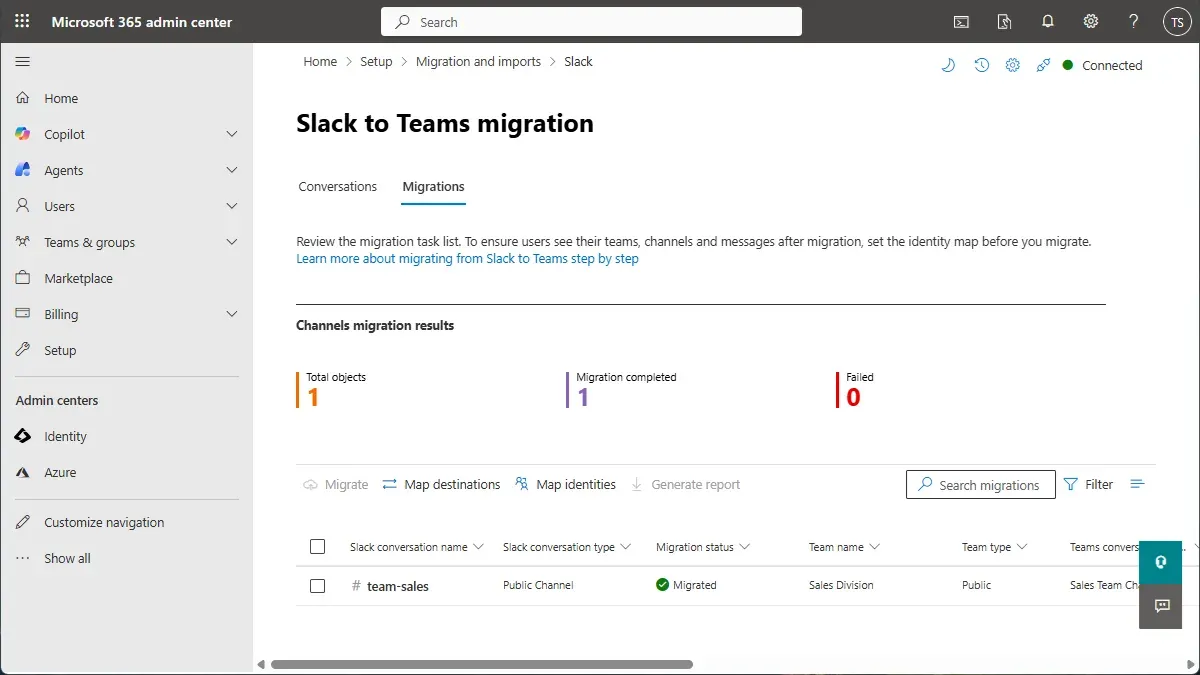
Next, navigate to the Microsoft 365 admin center. Follow the path: Microsoft 365 admin center → Teams Migration Tool. Here, you will upload the Slack export package you stored in Azure Blob Storage and start configuring the migration.
The migration tool supports importing public and private Slack channels along with their messages, files, and membership lists. It transfers these elements directly into Microsoft Teams channels, preserving much of your team’s conversation history and shared files.
Be aware that Plan to archive or back up these conversations separately if you need to retain them, as they won’t appear in Teams.
Start the migration once the users and channels are correctly mapped. The tool then processes the data in sequence; altering this order risks incomplete imports or errors. Monitor the migration progress through the admin center dashboard closely. If errors occur, address them promptly—common issues often relate to user mapping or file access permissions.
For example, if a private channel’s membership list isn’t accurate in Microsoft 365, messages and files for that channel may not import correctly. Correct user mapping before retrying migration to avoid this failure.
This process integrates Slack workspace data into Teams channels, laying the foundation for task management with Microsoft Planner inside the Microsoft 365 ecosystem.
Learn more about the migration tool
Set up Microsoft Planner for task management after migration
Microsoft Planner is your new hub for managing both personal and team tasks within Microsoft 365. As Microsoft To Do retires for work and school accounts, Planner will take over managing your daily to-dos alongside assigned group tasks. This shift means you should start organizing tasks in Planner to avoid disruption when To Do apps stop working.
Create Plans to group related tasks and assign them to your team members. Each Plan acts as a shared workspace where everyone can update progress, add checklists, and set due dates. Keep in mind that in new private Planner plans, tasks cannot include file attachments, so you’ll need to store files elsewhere and link to them if necessary.
You can access Planner either through the Microsoft Teams app or directly in the web browser. Within Teams, navigate to the Planner tab or open the Tasks app to track your workload. Note that Planner does not have native desktop applications for Windows or Mac and lacks offline usage capabilities. This means you must be connected to the internet to view and update your tasks.
For example, after migration, your project team can create a Plan named “Q4 Product Launch” in Teams, assign tasks like “Finalize design mockups” and “Schedule review meeting,” and track completion status collectively. Meanwhile, your personal task list previously in To Do will soon appear under My Tasks in Planner, consolidating your responsibilities in one place.
Start exploring Planner now to familiarize yourself with its interface and limitations ahead of the full transition. This proactive step ensures your team maintains task visibility and accountability without interruption. Learn more about Planner replacing To Do.
Integrate Microsoft Calendar with Slack during the transition
Maintaining visibility of your team’s schedule is crucial when moving from Slack to Microsoft Planner and Teams. To bridge communication and calendar management during this transition, you can link Microsoft Calendar directly into Slack.
Start by adding the Microsoft Calendar app through Slack’s App Directory or via Slack’s integration settings. This process requires authenticating your Microsoft 365 account to grant Slack permission to access your calendars. Once connected, you select which calendars to sync, typically your work or team calendars.
With this integration enabled, calendar updates, event reminders, and meeting notifications appear within Slack channels or direct messages. This keeps your team aware of upcoming deadlines or meetings without switching platforms constantly.
For example, if your project team uses a shared Microsoft Calendar for sprint planning, having notifications pop up in Slack channels helps keep everyone aligned on timing even before the full migration to Teams and Planner is complete. This setup supports continuity by allowing you to manage scheduling inside Slack while gradually shifting task management responsibilities to Microsoft Planner.
Integrating Microsoft Calendar with Slack is a practical step to prevent scheduling disconnects, ensuring your team stays informed during workflow migration. This approach complements the broader move to Microsoft 365 tools, preparing your team for Planner’s role in personal and assigned task tracking as Microsoft To Do phases out.
Manage Slack workspaces and channels during migration
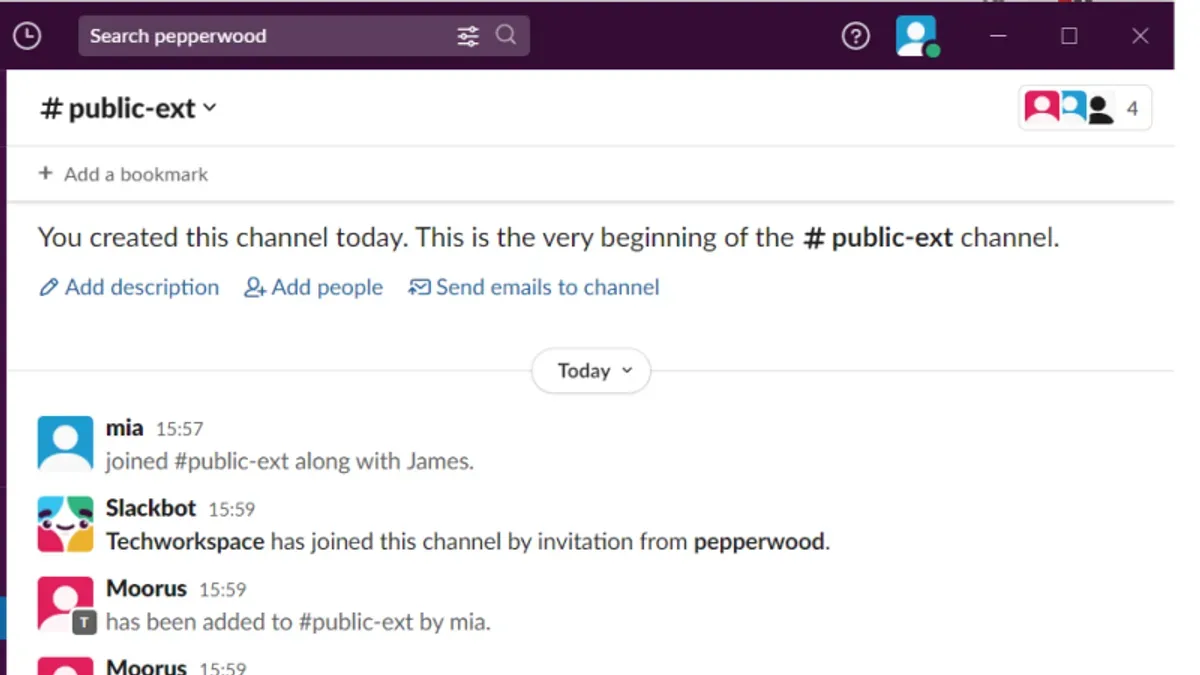
Switching between Slack workspaces is done through the Slack interface by clicking your workspace name in the upper-left corner, then selecting the desired workspace from the dropdown list or adding a new one. Inside a workspace, channels organize conversations; you switch channels by clicking their names in the sidebar. Remember, a Slack workspace is a container for users and channels, while channels are individual communication streams within that workspace.
If you have multiple Slack workspaces, you must export data from each workspace separately and then import it into the corresponding Microsoft Teams environment. This means that moving a channel from one Slack workspace to another without export-import steps is not possible.
During the migration, managing Slack admin roles is crucial. Ensure that the person performing exports has the necessary permissions to access all required data, especially for private channels and direct messages, which require a paid Slack plan and additional approval requests. If your organization's primary Slack workspace ownership needs to change during transition, update it through Slack’s workspace settings under Settings & administration > Workspace settings > Primary owner.
For example, if your team uses two Slack workspaces—one for development and another for marketing—you cannot move a development channel directly into the marketing workspace. Instead, export the development workspace data, upload it for migration, and set up corresponding Teams channels. Meanwhile, keep workspace roles clear to avoid export failures caused by insufficient permissions.
Understanding these distinctions and Slack’s export limitations helps you plan the migration effectively and prevent delays caused by permission issues or unsupported direct channel transfers. Slack export capabilities depend on your service plan, so verify your plan and permissions before starting.
Common mistakes to avoid when switching from Slack to Microsoft Planner
They do not. You must export To Do tasks separately because Microsoft To Do continues operating independently until June 30, 2027. Ignoring this leads to lost task data or duplication.
Another pitfall is expecting all Slack apps and integrations to have direct counterparts in Microsoft Teams and Planner. Many Slack integrations are unavailable or require rebuilding in Teams. For instance, a custom Slack bot won’t function in Teams without redevelopment or alternative solutions, which can disrupt workflows.
Insufficient Slack export permissions also cause migration failures. If you lack the required Slack plan or permissions, you cannot export private channels or direct messages. This restriction leads to incomplete data imports and frustrated users expecting full history.
Underestimating the learning curve is another common mistake. Microsoft Teams’ interface and structure differ significantly from Slack’s. Teams requires formal user training and adaptation time, or adoption falters, reducing productivity.
Expecting Microsoft Planner to support file attachments on tasks in new private plans is a known source of frustration. Unlike some earlier tools, Planner’s new private plans do not allow attachments on tasks. Additionally, Planner lacks native desktop apps and offline capabilities, unlike Microsoft To Do, limiting flexibility.
Address these issues early to avoid delays and user dissatisfaction. Plan your export permissions, prepare users for Teams’ environment, manage expectations about integrations, and handle To Do tasks separately. This approach prevents common migration failures and smooths the transition to Microsoft Planner.
What this guide does not cover and when to consider alternative approaches
This guide excludes migrating Slack direct messages into Microsoft Teams because current migration tools do not support their import. If your team relies heavily on informal, spontaneous conversations typical of Slack’s direct messaging, recognize Teams’ structure differs significantly and may alter your communication flow.
If offline desktop task management is a priority, Microsoft Planner may not meet your needs. Unlike Microsoft To Do, Planner lacks native desktop applications and offline functionality, which can disrupt workflows that depend on offline access to tasks and updates.
Complex scenarios involving apps and bots used in Slack need specialized assessments. Not all Slack apps have equivalents in Teams, and custom integrations often require redevelopment or alternative solutions. For example, a custom Slack bot that automates team alerts will not transfer automatically and must be rebuilt within Teams or replaced.
Consider alternative approaches when your team’s communication culture, offline requirements, or app ecosystem exceed Planner and Teams’ current capabilities. Matching your workflow needs to product limits avoids costly disruptions and ensures a smoother transition. For detailed technical constraints on direct message migration, see this Microsoft documentation.
Confirm your migration success and next steps to maintain productivity
After completing your migration, start by verifying that all Slack channels—both public and private—appear correctly in Microsoft Teams. Check that messages and files have transferred intact and that team memberships reflect your original Slack workspace. Missing data often indicates issues with export permissions or incomplete uploads to Azure Blob Storage, so be prepared to rerun export and import steps if necessary.
Next, review Microsoft Planner to confirm that all plans and task assignments are set up properly. Use the Planner web or the Teams app to view 'My tasks' and ensure personal and assigned tasks are visible and correctly organized. Note that Microsoft Planner does not support file attachments on tasks, so verify that your teams understand this limitation.
Test your Microsoft Calendar integration within Slack to ensure schedule updates and reminders flow smoothly during the transition. This maintains visibility and coordination for your team while they adapt to new tools.
One concrete step: one day after migration, ask team leads to confirm channel membership and message access inside Teams. A week later, verify task progress in Planner and calendar sync status. If any discrepancies appear, revisit export permissions or migration steps, then communicate fixes promptly to avoid disruption.
Ensuring these checks and support are in place maintains momentum and helps your team fully embrace Microsoft 365 tools after leaving Slack behind. Learn more about Slack to Teams migration.
Common mistakes to avoid when switching from Slack to Microsoft Planner
- Attempting to migrate Microsoft To Do tasks automatically: Microsoft To Do tasks for work accounts do not transfer to Planner. Avoid expecting seamless task migration; plan task recreation or export-import manually.
- Uploading Slack data to the migration tool in the wrong order: Export Slack workspace data first and upload it to Azure Blob Storage before starting the Teams Migration app. Skipping or reversing these steps causes import failures.
- Expecting file attachments on new private Planner plans: Unlike some older tools, private Planner plans don’t support attaching files to tasks. Prepare alternate file-sharing solutions to maintain access.
- Relying on offline access with Planner: Planner lacks native desktop apps and offline functionality. Don’t plan to work offline with Planner; ensure consistent internet connection for task management.
Sources
- Moving from Microsoft To Do to Microsoft Planner | Microsoft Support — Microsoft
- Migrating from Slack to Microsoft Teams - Microsoft Teams — Microsoft
- Switching from Slack to Microsoft Teams: Your 4-Week Kit | GAX Online — GAX Online
- Migrate from Slack to Microsoft Teams - Microsoft Teams — Microsoft



