
Switching from Slack to Notion: A Practical Migration Guide
Discover how to migrate essential information when switching from Slack to Notion while keeping workflows efficient and organized.

Switching from Slack to Notion requires more than just moving messages; you must adapt from Slack’s rapid, flowing conversations to Notion’s structured, information-stocked environment. Moreover, Notion’s starting price is significantly higher, at $12 per user per month compared to Slack’s $8.75, which impacts budgeting decisions.
It focuses on managing the unique challenges of Notion’s Slack integration, auditing Slack content, setting up workflows, and understanding pricing and feature limits that influence how smoothly your migration will proceed.
Checked in November 2026 against ToolStack, Qureco, Notion (full list at the end); details like these change, so the date matters.
Understand the difference between Slack and Notion for team communication
Slack excels at handling real-time, ephemeral conversations—quick chats, side discussions, and immediate updates that drive daily flow. Its design supports dynamic back-and-forth messaging but limits long-term message retention. On Slack’s free plan, only messages from the past 90 days remain searchable, and messages older than one year are deleted entirely. This means critical decisions or commitments shared in Slack risk being lost or buried under ongoing chatter.
Notion, on the other hand, is built for stock information: content that must persist, like documented decisions, commitments, project plans, and detailed reasoning. Its database structure supports organized, searchable records that teams refer back to over time, making it the right place to store knowledge that outlasts immediate conversations.
When migrating, a wholesale transfer of Slack messages into Notion is neither practical nor useful. You must selectively migrate only the valuable stock information—decisions, commitments, and reasoning—while leaving ephemeral flow content like questions, brainstorming, and quick updates in Slack. For example, a decision made in a Slack thread about a project deadline should be captured in Notion, but the side banter or quick clarifications around it should remain in Slack.
This selective migration preserves your team’s valuable knowledge without cluttering your Notion workspace with transient chatter that belongs in Slack’s fast-moving environment.
Audit and export Slack workspace content before migration
Begin by conducting a thorough audit of your Slack workspace, focusing on channels, messages, files, and pinned items that capture key decisions and commitments. This step ensures you identify the valuable stock information worth migrating to Notion, separating it from transient flow data better archived in Slack.
Next, export your Slack data as CSV files. Slack’s export tool allows you to generate backups of channels and messages in a format cleanly importable into Notion databases. Prioritize exporting data from channels that hold strategic project details and essential team knowledge.
Plan which content remains archived in Slack, such as ephemeral conversations or informal chats, and which you will replicate in Notion for long-term reference and structured collaboration. For example, project milestones and final decisions stored as CSV can be imported into Notion tables, preserving them as persistent stock information.
Follow this order strictly: first audit to identify what matters, then export to capture those items, and finally prepare your Notion workspace for import. Changing this sequence risks losing critical data or importing irrelevant content that clutters your new system.
This process lays the foundation for a successful migration, aligning your Slack data structure with Notion’s information system. Without this disciplined approach, your migration will struggle to preserve knowledge and may overwhelm Notion with unnecessary flow communication.
Set Slack to read-only mode during migration to reduce disruption
Running Slack in read-only mode for about two weeks is essential to ensure a smooth transition to Notion. This period lets your team reference historical Slack conversations without adding new messages that could conflict with the evolving knowledge base in Notion.
During this time, direct your team to perform most of their communication and collaboration within Notion. This practice reduces confusion and prevents data loss caused by parallel updates in two systems.
For example, if your team is discussing project updates, they should post these in Notion rather than Slack. Meanwhile, Slack remains accessible for looking up past conversations, but no new messages or files are added.
This approach minimizes risk by locking Slack’s state while the migration completes, allowing your team to build workflows and gather information in Notion confidently. The recommended two-week duration balances enough time to adapt without unnecessarily stalling communication.
Set up Notion’s Slack integration for selective message transfer and notifications
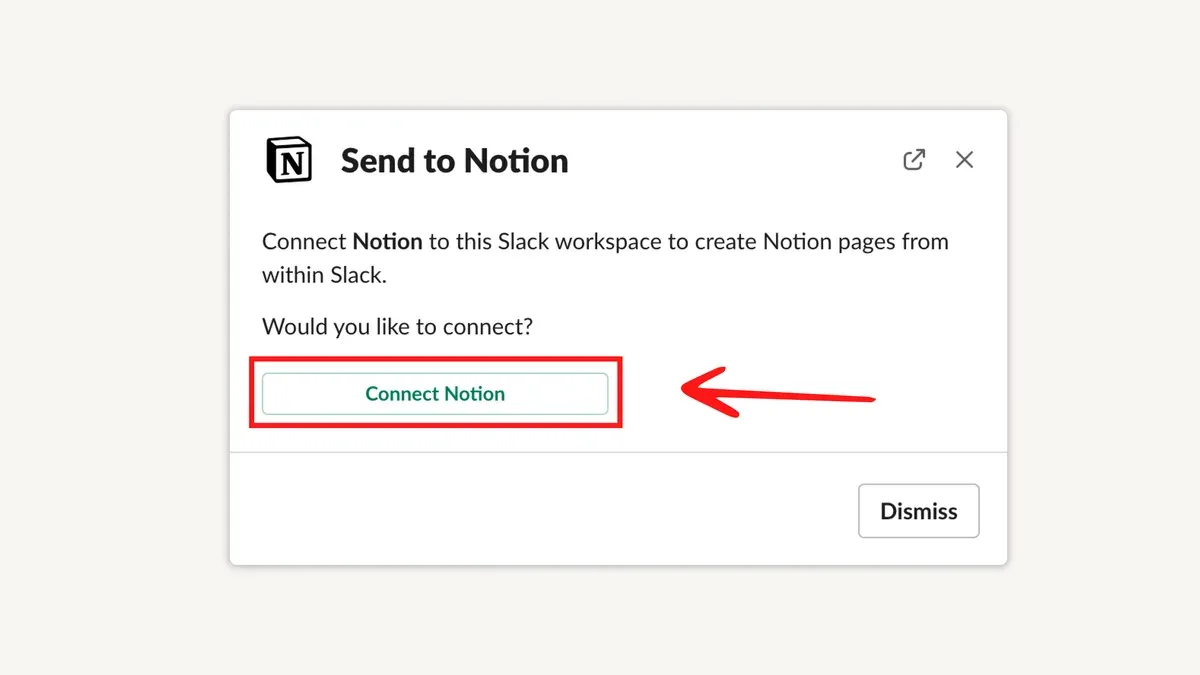
To fully leverage Notion’s Slack integration, you must install the complete integration; partial installations that enable only some features will not work. Begin by connecting your Slack workspace via Notion’s desktop or web app under Sidebar → Settings → My Notifications & Settings → Slack workspace dropdown, then toggle notifications on.
Within Slack, you can send messages directly to Notion databases using the /notion create and /notion task commands. These commands function only in Slack channels, not in threads. For instance, when you see a key message in a project channel, use /notion create to convert it into a Notion page in the appropriate database, adding properties before saving.
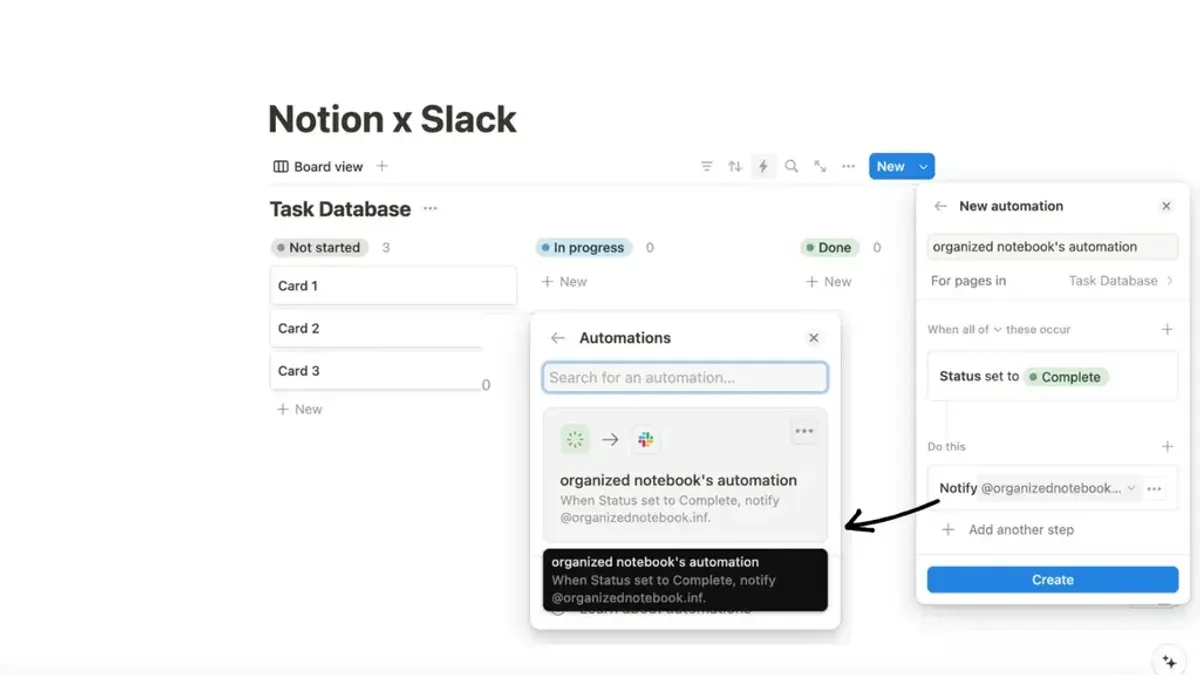
To receive updates from Notion in Slack, set up database automations. Open your Notion database, click the three dots in the top right, select Automations, then add a trigger based on property changes or new pages. For actions, choose to send a Slack notification and select a public Slack channel as the recipient. Note that Notion cannot send these notifications to private Slack direct messages, only channels.
Customize Slack notifications with rich text, hyperlinks, @-mentions, emojis, and dynamic variables to provide context and clarity. This customization makes alerts actionable and easy to understand for your team.
Manage the practical limits and pitfalls of migrating Slack content to Notion
Attempting to forward every Slack message into Notion creates an overwhelming, unsorted flood of data. This duplicates information across platforms and makes it harder to locate key content. Notion is designed to store organized, persistent knowledge—not nonstop conversation streams.
Manual migration demands human judgment and consistent effort. The official Notion Slack integration requires you to send messages individually, and it does not support sending from Slack threads. Without setting aside dedicated time, manual transcription usually stops within a few weeks, leaving gaps in your knowledge base.
Automation tools like Zapier can forward tagged Slack messages to Notion automatically, but they introduce ongoing costs and maintenance overhead. Weigh the convenience against these factors before relying on such solutions.
Recording meeting notes directly in Notion rather than routing them through Slack avoids loss during transcription. This approach keeps critical decisions and commitments directly in your knowledge repository, aligned with Notion’s strengths.
Consider this example: forwarding all Slack chatter to Notion without filtering results in a cluttered workspace where vital project decisions get buried under daily banter. Instead, selectively migrate only tagged or summarized messages to preserve clarity and usefulness.
| Symptom | Cause | Fix |
|---|---|---|
| Unsorted message dump in Notion | Forwarding all Slack messages indiscriminately | Limit migration to key messages only |
| Manual transcription stops prematurely | Requires human action without dedicated time | Schedule regular migration sessions or automate selectively |
| Missing Slack thread content in Notion | Manual send commands do not support threads | Manually summarize thread content before sending |
| Increased cost and upkeep | Using Zapier or similar automation tools | Assess cost-benefit and maintain automation regularly |
| Loss of meeting notes during transfer | Routing notes through Slack instead of direct entry | Record meeting notes directly in Notion |
- Avoid forwarding all Slack messages automatically to Notion
- Plan dedicated time for manual migration or use selective automation
- Record meeting notes directly in Notion rather than passing through Slack
Rebuild your workflows and automations in Notion after migration
After moving your data, replicate your Slack project structures as Notion databases and pages to maintain clarity. Use Notion’s desktop or web app to open your database, then access the ••• menu in the top right corner, select Automations, and add triggers by choosing a property and condition. For example, you might set an automation to send a Slack notification to a designated channel whenever a task’s status changes. This maintains real-time updates without returning to Slack manually.
Adding interactive buttons in Notion pages enhances workflow efficiency. Insert a button by editing the page, then under Do this, add an action to send a Slack notification to a specific channel. Each button can be configured within database properties as a Button type, allowing direct Slack alerts from Notion entries.
To collaborate seamlessly, invite your Slack contacts directly into Notion. Open the page’s Share settings, search for contacts from Slack, select individuals, and send invites. This integration simplifies team coordination by bridging communication and documentation.
For instance, a project manager can create a Notion database with task statuses and deadlines, set automations to notify the Slack project channel when tasks update, and use buttons in task pages to alert Slack instantly. This replaces Slack’s flow communication with persistent, actionable stock information in Notion.
Remember, these automations and buttons work within Slack channels only, not threads or private messages. Configure your setup accordingly to avoid missed notifications.
Learn more about Notion Slack integration features.
- Set up Notion database automations to send Slack notifications based on key property changes.
- Add buttons in Notion pages and databases to trigger Slack alerts directly.
- Invite relevant Slack contacts into Notion via the page sharing settings for collaboration.
Work with Slack and Notion side-by-side during and after migration
Use Slack for transient, flow communication such as quick chats, brainstorming, and informal side conversations. These messages are ephemeral and best kept within Slack’s environment to maintain team agility and real-time engagement. Reserve Notion for storing decisions, commitments, and documented reasoning that require long-term accessibility and structured retrieval.
Remember, these commands operate only within Slack channels, not threads, so plan your message selection accordingly to preserve context. This selective approach avoids cluttering Notion with ephemeral chatter and focuses on knowledge worth retaining.
During the transition, leverage Slack’s workspace and channel switching features to stay organized. For example, you might keep channels dedicated to ongoing discussions active in Slack while using Notion’s databases for finalized project plans and documentation. Adjust your Slack notification settings through Notion’s desktop or web app sidebar under Settings → My Notifications & Settings → Slack workspace dropdown to toggle alerts on or off, ensuring you receive updates relevant to your current focus.
Picture your team brainstorming new ideas live in Slack, then capturing key decisions and assigned tasks in Notion. This complementary usage lets you maintain communication flow without losing critical information over time. If your team needs to preserve decisions, commitments, and reasoning for long-term reference, store that information in Notion and keep Slack for transient, flow information like chat and updates.[source]
- Use Slack for real-time chats and informal discussions only
- Send important messages to Notion manually using Slack channel commands
- Manage Slack notifications via Notion’s notification settings to stay focused
Compare Slack and Notion pricing and feature limits relevant to migration
This can significantly affect what historical communication you can migrate to Notion. In contrast, Notion offers a free tier as well, but its pricing for paid plans starts at $12 per user per month, which is $3.25 higher than Slack’s entry-level plan.
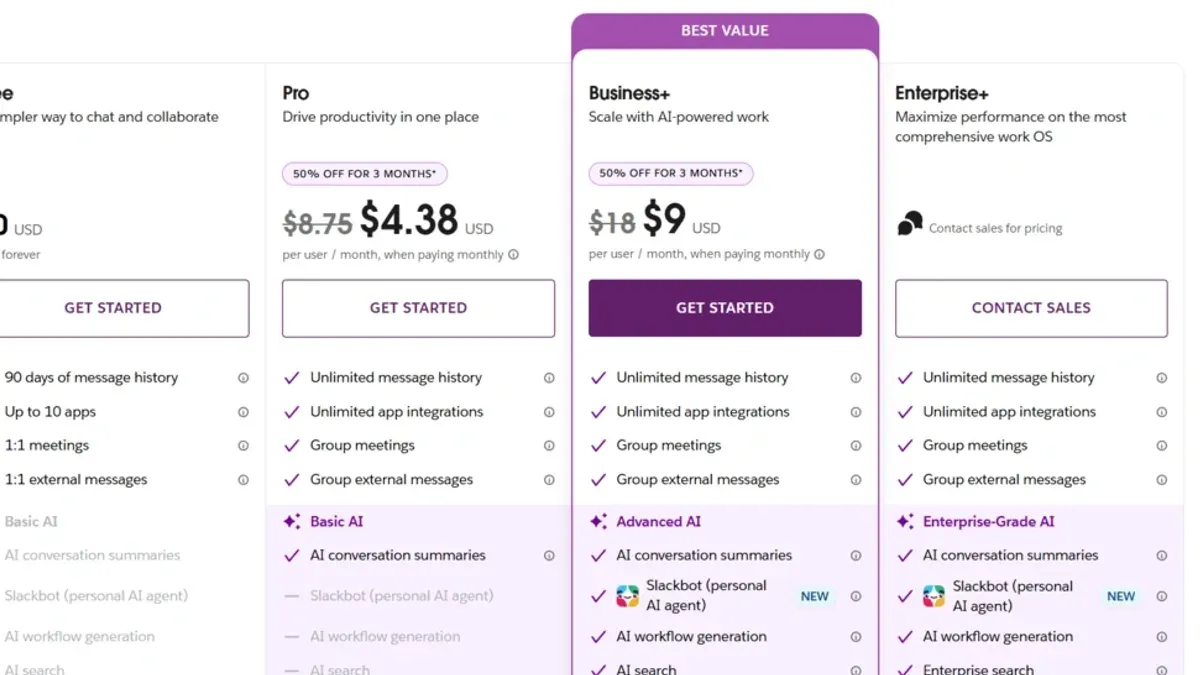
Slack’s paid plan begins at $8.75 per user per month and includes longer message retention and more advanced features. Notion’s starting paid plan at $12 per user per month centers on structured content management and collaboration. You should consider this price difference when planning your migration scale and ongoing use, especially if message retention and historical data access are critical.
For example, if your team relies on retrieving messages older than 90 days for important decisions, staying on Slack’s free plan limits this ability and may force early migration or a paid Slack plan. Meanwhile, paying for Notion’s plan offers persistent storage but at a higher monthly cost per user.
| Feature | Slack Free | Slack Paid ($8.75/user/mo) | Notion Free | Notion Paid ($12/user/mo) |
|---|---|---|---|---|
| Searchable Message History | Last 90 days only; messages deleted after 1 year | Unlimited | Unlimited storage for content | Unlimited storage with advanced features |
| Monthly Price per User | Free | $8.75 | Free | $12 |
| Primary Use | Flow communication with limited history | Full feature Slack workspace | Basic content/personal use | Full team collaboration and content management |
Plan your migration with these differences in mind. For teams prioritizing long-term access to communication archives, Slack’s paid plan or early export is necessary. For structured knowledge storage and project management, Notion’s paid plans offer value despite the higher cost.
- Evaluate your team’s need for message history retention before choosing plans
- Consider Slack’s 90-day message search limit on free plans when planning exports
- Factor in the $3.25 per user per month price gap between Slack and Notion paid plans
Read next
- Switching from Notion to Asana: A Practical Migration and Setup Guide
- Switching from Notion to Miro: A Practical Migration and Setup Guide
- Switching from Notion to ClickUp: A Clear Migration and Setup Plan
- How to Roll Out Notion for Team Leads: A Practical Plan
Frequently asked questions
How to link slack with notion?
To link Slack with Notion, install the Notion app from the Slack App Directory and authorize it to access your workspace. Then, configure the integration by connecting specific Slack channels to Notion databases or pages using Notion’s Slack commands and automation settings. Remember, the /notion create and /notion task commands only work in Slack channels, not in threads, and Notion Slack notifications triggered by database automations can only be sent to channels, not private direct messages.
How to shift in slack?
For migration purposes, focus on exporting, setting Slack to read-only mode, and using the Slack-to-Notion integration to shift your collaboration workflows.
Does slack automatically set away?
This behavior is controlled by Slack's own idle detection and cannot be customized within Notion or during the migration process.
Finishing your migration journey
Keep Slack in read-only mode during migration to prevent data loss, and use Notion’s Slack integration to maintain critical notifications without duplicating noise.
Project managers focusing on task workflows will find rebuilding automations in Notion essential, while IT decision makers must weigh pricing and feature limits carefully to align with team size and needs.
Pages this guide relies on
- Migrating from Slack to Notion (4.7 vs 4.5 on G2) — Step-by-Step Guide | ToolStack — ToolStack
- How to Move Meeting Notes From Slack to Notion Without Copy-Pasting | Qureco Blog — Qureco
- Connect Slack to Notion | Notion Help — Notion
- Migrating from Notion to Slack — Step-by-Step Guide | ToolStack — ToolStack
- Unleashing productivity with Notion's Slack integration — Notion



