How to Use the Brightspace Mobile App with Students: A Step-by-Step Guide
Discover step-by-step how to use the Brightspace mobile app with students for course setup, communication, and assignment management.

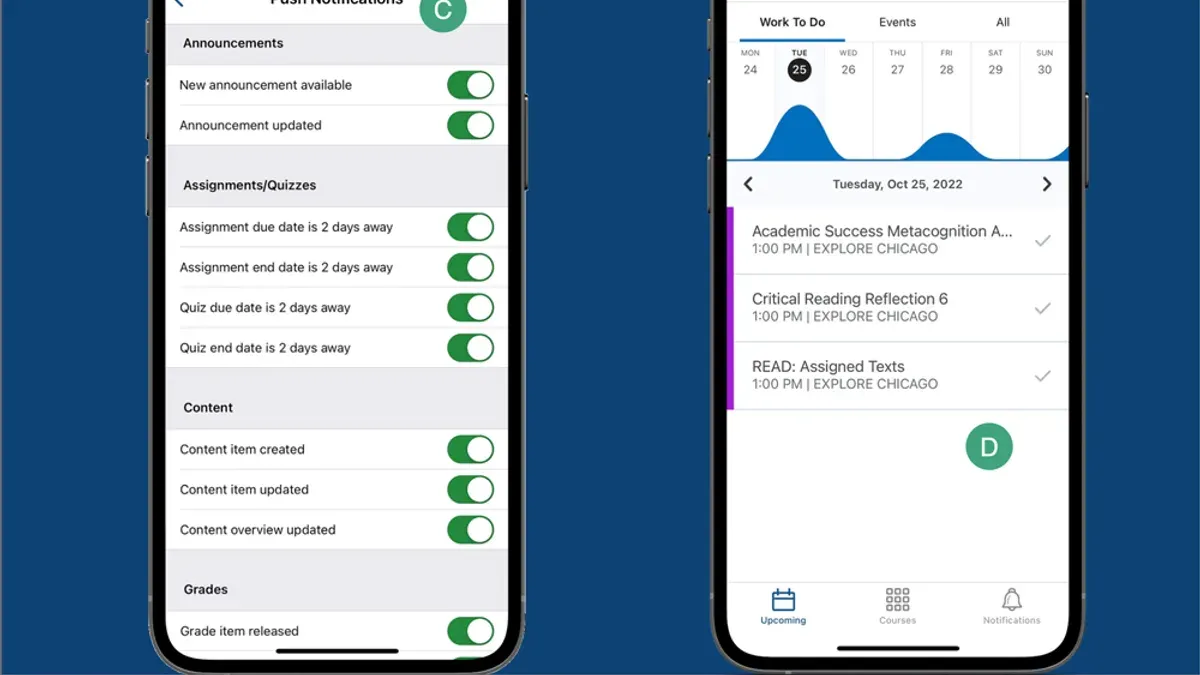
Short answer: You use the Brightspace Mobile App with students by setting up your courses within the app, then leveraging its communication tools and submission management features to engage and monitor student progress. The app provides streamlined access to discussions, announcements, grades, and assignment feedback, all optimized for mobile devices.
This article covers how to use the mobile app with students in Brightspace through clear, step-by-step instructions. You will learn how to prepare your account, set up courses, communicate effectively, review submissions on the go, assist students with common problems, and apply best practices to enhance mobile learning experiences in both classroom and remote scenarios.
Before you start: What you need to use the Brightspace Mobile App with students
Confirm your institution’s Brightspace environment allows mobile app access. Some institutions restrict mobile features or require specific permissions. Check with your IT department or Brightspace administrator to verify mobile compatibility and any necessary approvals.
Ensure your students have compatible devices. The Brightspace Mobile App supports iOS 13 and later, and Android 8.0 and above. Students must download the app from the Apple App Store or Google Play Store. Verify that most students meet these requirements to avoid accessibility issues.
Have your instructor Brightspace login credentials ready. These credentials give you access to course management features within the app. If you use single sign-on (SSO), confirm it works smoothly on mobile devices.
Review your institution’s policies on mobile device use in classrooms and remote learning. Some schools require specific security settings or restrict certain app functionalities. Knowing these policies upfront prevents unexpected disruptions.
Understand the app’s core functions related to student interaction — announcements, discussions, assignment submissions, and grade viewing. Familiarize yourself with these features before deploying the app in your courses.
- Check with your IT or Brightspace admin for mobile app access approval. You should see confirmation of mobile environment support.
- Verify the list of supported devices and OS versions matches your students’ devices. Confirm the app is available in your region’s app store.
- Test logging into the app with your instructor credentials. You should access your course dashboard and student interaction tools.
- Review institutional mobile use policies. Confirm any required settings or permissions are in place.
- Explore the app’s main student engagement features to understand available tools.
How do you set up the Brightspace Mobile App for your courses?
- Download and install either the Brightspace Pulse app for student-oriented features or the Brightspace Instructor app for teaching controls. After installation, launch the app to begin setup.
- Log in using your institutional credentials. If your institution uses multi-factor authentication, complete the required verification. Successful login displays a confirmation screen with your institution's name.
- Sync your courses by selecting the refresh button or navigating to the course list. The app will download current course data and student rosters. You should see all active courses listed with accurate enrollment counts matching your LMS.
- Customize notification settings by opening the app menu, selecting "Settings," then "Notifications." Choose which activities to monitor such as assignment submissions, discussion posts, or grade updates. Each option shows a toggle switch and a brief description to help you decide.
- Adjust course content visibility and permissions by accessing the course settings from the app. Enable or disable mobile access for specific modules or activities to control what students can see and interact with on their devices. Changes save automatically and reflect immediately in the app.
How can you use the app to communicate and engage with students?
Use the Announcements tool to send updates and reminders. After posting, track read receipts to confirm which students have seen your message. This helps identify who may need follow-up. Direct Messaging allows you to address individual questions swiftly; responses typically occur within hours, improving student satisfaction.
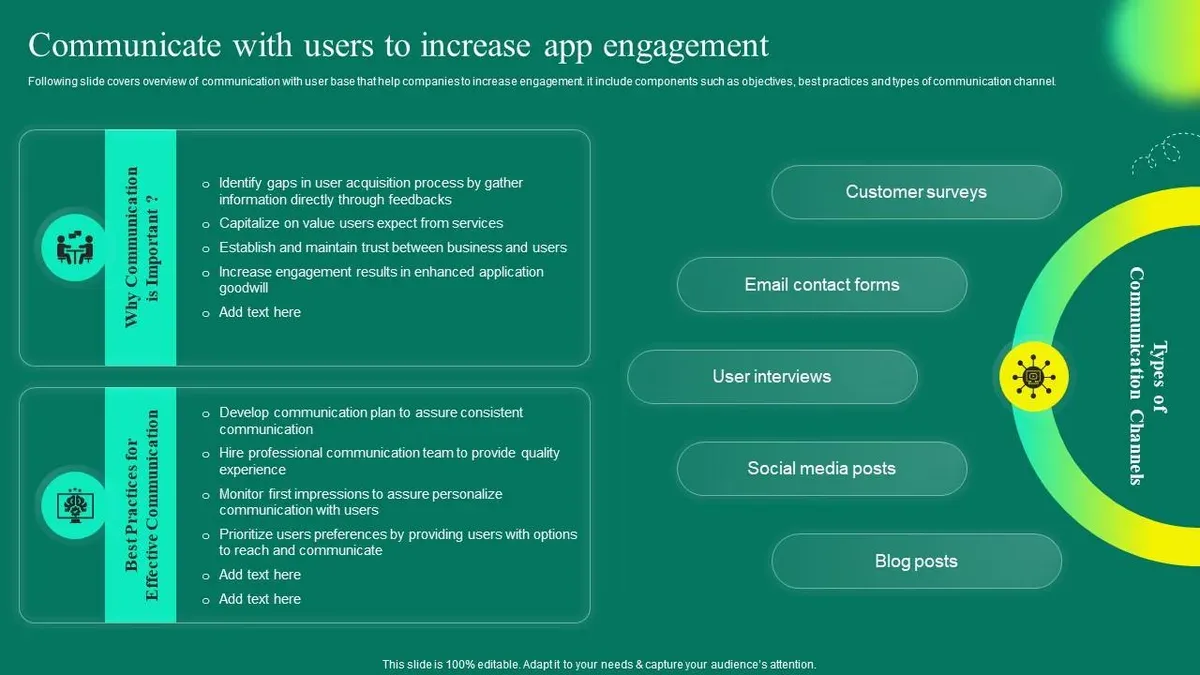
Monitor Discussions regularly on your mobile device to stay connected to course conversations. Participate actively to encourage deeper engagement. Prompt students to submit questions or feedback through the app’s Question tool, creating a direct line for ongoing interaction.
Enable push notifications for deadlines and new content alerts. This keeps students informed and reduces missed tasks. Feedback from educators shows quicker communication turnaround and more consistent student participation when push alerts are used.
- Open Announcements, create a new post, and send it to your course. You will see a read receipt summary indicating student engagement.
- Access Direct Messaging, select a student, and send a personalized message. Confirm the message status as sent.
- Navigate to Discussions, review threads, and add your comments. Your input appears immediately in the conversation.
- Encourage students to use the Question feature by posting a prompt. Check submitted questions in the app’s Question area.
- Turn on push notifications in app settings to receive alerts on your device. Confirm notifications are active by receiving a test alert.
How do you manage and review student submissions on the mobile app?
Access submitted assignments and quizzes by navigating to the specific course, then tapping on "Assessments" followed by "Assignments" or "Quizzes." You will see a list of tasks with submission statuses indicated. Tap any assignment or quiz to view individual student submissions.
Review submissions using the app's built-in preview tools, which support common file types like PDFs, Word documents, and images. This allows you to evaluate work without leaving the app. To grade, open the submission, then tap "Grade" to enter scores and provide inline feedback where applicable.
You can track submission status in real time, including who submitted on time, late, or not at all. The app supports rubrics and grading schemes; select the rubric associated with the assignment to apply it while grading. Completing grading on the app is often faster than desktop workflows due to streamlined navigation and mobile-optimized input.
- Open your course and tap "Assignments" or "Quizzes." You should see the list of submissions with status icons.
- Select a student submission to open the preview pane. Confirm that the file loads fully.
- Tap "Grade," enter the score manually or select a rubric level. Add inline comments if needed.
- Save the grade and feedback. You will return to the submissions list showing updated status.
- Repeat for other submissions. Use the filter option to view late submissions quickly.
How do you help students troubleshoot common app issues?
Start by guiding students through resolving login and authentication errors, which often display messages like "Invalid credentials" or "Session expired." Advise them to verify their username and password, reset their password if needed, and ensure their institution's single sign-on (SSO) services are operational. Common syncing problems with course content and grades can cause outdated information; instruct students to pull down to refresh the course list and check their internet connection.
Notification delivery issues vary by device settings. Have students check that notifications are enabled both in the Brightspace Mobile App under Settings > Notifications and in their device’s system notification settings. For app crashes or slow performance, recommend clearing the app cache, closing background apps, or reinstalling Brightspace Mobile. When issues persist, advise switching to the desktop Brightspace environment for tasks like detailed grading or content uploads.
Refer students to official support resources like the D2L Brightspace Help Center (community.brightspace.com) for troubleshooting guides and updates. Common issues tend to cluster around login problems and syncing delays, so addressing these first saves time.
- Confirm student login credentials and reset password if "Invalid credentials" appears. Success: student accesses the app home screen.
- Have students refresh course list by pulling down; sync completes when latest content is visible.
- Check app and device notification settings; test by sending a test announcement. Success: student receives notification.
- Clear app cache or reinstall if crashes occur; success: app launches without error.
- Advise use of desktop Brightspace for complex tasks when mobile app limits are reached.
What are the best practices to maximize mobile app use with students?
Set clear expectations for app use by defining response times and preferred communication windows. Students perform better when they know when to expect feedback or announcements. Encourage everyone to keep the Brightspace Mobile App updated through the app store to ensure access to the latest security patches and features. Integrate app notifications into your overall course communication plan by aligning them with deadlines and key activities, so students stay informed without feeling overwhelmed.

Use mobile-friendly content formats such as short videos, PDFs optimized for small screens, and concise text. Design assignments that are easily completed on mobile devices, avoiding complex file submissions or software requirements. Monitor engagement analytics via the Brightspace Instructor Dashboard to identify patterns in student app usage and participation, then adjust your strategies accordingly. For example, a course that incorporated daily push notifications and mobile-friendly quizzes saw a marked increase in timely submissions and discussion participation.
- Define and share your response time policy in the course syllabus and announcements. Students will understand when and how you engage.
- Remind students to update the app weekly via push notifications or announcements. This reduces technical issues and improves performance.
- Schedule notifications around major course events using the app’s notification settings to maintain consistent communication.
- Review app engagement reports weekly to identify inactive students or low participation periods. Adjust your interaction methods based on these insights.
- Test all content and assignments on a mobile device to confirm accessibility and ease of use before releasing to students.
Frequently asked questions
Can students submit all types of assignments through the Brightspace Mobile App?
Students can submit most assignment types via the Brightspace Mobile App, including file uploads, text entries, and links. However, some specialized assignments, such as those requiring complex file formats or integrations, might require submission through the desktop platform. Encourage students to check assignment instructions for any specific submission requirements.
Is there a difference between Brightspace Pulse and Brightspace Instructor apps?
Yes, Brightspace Pulse is designed primarily for students to track courses, assignments, and deadlines, while the Brightspace Instructor app focuses on course management, grading, and communication from the educator’s perspective. Each app offers features tailored to its user role, so educators should use the Instructor app to manage courses and students should use Pulse to stay organized.
How do I ensure student privacy and data security when using the app?
To protect student privacy, enable institution-provided single sign-on (SSO) when available and ensure app updates are installed promptly. Use Brightspace’s built-in privacy controls to limit data sharing and avoid downloading or sharing student data outside the platform. Also, remind students to secure their own devices with passwords and avoid using public Wi-Fi for sensitive tasks.
What should I do if a student reports they cannot receive notifications?
First, confirm the student has enabled notifications for the Brightspace app in their device settings. Next, have them check notification preferences within the app under Settings > Notifications to ensure alerts are enabled for important events. If issues persist, advise clearing the app cache or reinstalling the app, and verify their device’s operating system is up to date.
Quick checklist
- Confirm your Brightspace Mobile App is updated to the latest version via your device’s app store.
- Verify course enrollment and access permissions before guiding students through the app.
- Set up push notifications for announcements and assignment alerts to stay connected with students.
- Use the Grades tool within the app to monitor student progress and provide timely feedback.
- Encourage students to report app issues using the in-app support or your institution’s helpdesk.
- Regularly review discussion boards and private messages to foster engagement.
What this advice does not cover
This guide does not cover institution-specific customizations or integrations that may affect app functionality. If your institution uses customized workflows, third-party LTI tools, or modified Brightspace environments, refer to your institution’s IT support or Brightspace administrator. This advice also does not address advanced analytics or backend course management features accessible only on desktop.
The most effective next step is to pilot the Brightspace Mobile App with a small group of students in your course. Use this trial to identify specific communication patterns, troubleshoot access issues, and adapt your course settings for mobile use. This hands-on experience will reveal practical adjustments and improve your confidence managing student interactions on the app.
See also: How to Leave Clear, Effective Feedback on Student Work in Brightspace · How to Create and Manage Assignments in Brightspace: A Step-by-Step Guide