How to Convert Voice Memo to Text on Mac: A Step-by-Step Guide
Discover practical methods to convert voice memos to editable text on your Mac for easier editing and sharing.

You have a voice memo filled with important ideas or meeting notes, and now you want to turn that audio into editable text on your Mac. Whether it's for easier editing, sharing, or archiving, knowing how to convert voice memo to text on Mac can save you time and effort.
This guide walks you through the most practical methods, comparing built-in Mac features and third-party apps. You'll learn about accuracy differences, privacy implications, costs, and how to export your transcriptions effectively. By the end, you'll be equipped to choose the best tool that fits your workflow and needs.
Key takeaways
- Use the Voice Control dictation feature or Notes app for basic built-in transcription without extra cost.
- Third-party apps often provide higher accuracy but may involve subscription fees and data privacy considerations.
- Exporting text files in formats like.txt or.rtf is straightforward once transcription is complete.
- Ensure your Mac’s microphone and permissions are enabled for smooth transcription.
- Consider the sensitivity of your audio before using cloud-based transcription services.
Before you start: What you need to convert voice memos to text on Mac
To convert voice memos to text effectively on your Mac, ensure your device meets specific hardware and software requirements. Your Mac must be running macOS versions that support built-in dictation and speech recognition, such as macOS Catalina or later. These versions include enhanced speech-to-text capabilities that help improve transcription accuracy.
Audio quality plays a crucial role in transcription. Clear recordings with minimal background noise yield the best results. For improved audio capture, consider using an external microphone instead of relying solely on the Mac’s built-in microphone. This is especially important if you are recording new voice memos specifically for transcription.
If you plan to use online or cloud-based transcription services, a stable internet connection is necessary. Online services often leverage powerful servers for better accuracy but require data upload, which depends on connection speed and reliability.
Before converting, check your macOS version by clicking the Apple menu > About This Mac. If your version supports built-in dictation, you can use native tools; otherwise, third-party apps will be required. Keep in mind that poor audio quality, such as muffled speech or background noise, can lead to errors in the transcription, regardless of the method used.
- Check your macOS version via Apple menu > About This Mac. You should see macOS Catalina or later for built-in speech-to-text support.
- Prepare your voice memo recording ensuring it's clear and free from background noise. Play it back to confirm quality.
- Confirm you have a stable internet connection if you plan to use online transcription services. You should be able to browse the web without interruption.
- If possible, connect an external microphone and test it by recording a short voice memo. Playback should be clearer compared to the built-in mic.
How to convert voice memo to text using built-in Mac features
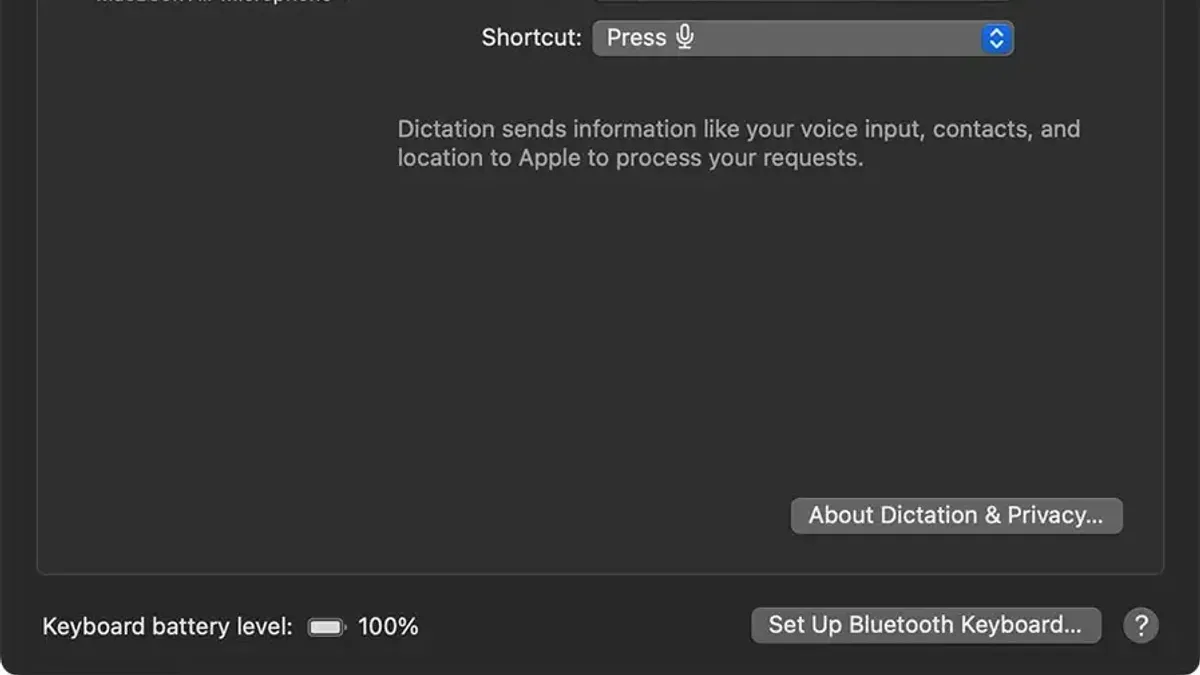
You can transcribe voice memos using the native Voice Control dictation feature on your Mac without installing extra software. This method works by playing the voice memo aloud and letting Voice Control convert the spoken words into text in real time.
To improve accuracy and allow offline use, enable Enhanced Dictation in your Mac’s system preferences. Keep in mind this approach may be less accurate and slower compared to dedicated transcription tools, especially with complex audio or background noise.
- Open System Settings and go to Accessibility > Voice Control. Turn on Voice Control and ensure Enable Dictation is checked. You can also enable Enhanced Dictation if available for offline use.
- Launch the Voice Memos app and select the recording you want to transcribe.
- Open a text editor such as Notes or TextEdit and create a new document.
- Play the voice memo aloud on your Mac’s speakers at a clear volume.
- With Voice Control active, place the cursor in the text editor and say “Start Dictation” or press the dictation shortcut (usually pressing the Fn key twice).
- Voice Control will attempt to transcribe the audio it hears from the memo playback into text in the open document.
- Once the memo finishes playing, say “Stop Dictation” or press the shortcut again to end transcription.
- Review the transcribed text and make any necessary manual corrections for accuracy.
For example, transcribing a short voice memo with clear speech typically yields reasonable initial text but may miss punctuation or misinterpret some words. Compared to third-party transcription services, this built-in method requires more manual effort and provides lower accuracy, especially for longer or noisy recordings.
How to convert voice memo to text using Notes app on Mac
The Apple Notes app on Mac offers a practical way to transcribe voice memos by leveraging the built-in dictation feature. This method involves playing your voice memo aloud while dictation captures the audio and converts it into text directly inside a new note.
- Open the Notes app on your Mac and create a new note where your transcription will appear.
- Place your cursor in the note to ensure the dictation text will be entered there.
- Enable dictation by pressing the Fn key twice or selecting Edit > Start Dictation from the menu. You should see a microphone icon indicating dictation is active.
- Play the voice memo aloud at a moderate volume near your Mac’s microphone. The spoken words will start appearing as text in the note.
- Once the voice memo finishes, stop dictation by pressing the Fn key twice again or clicking Done in the dictation bar.
- Review the transcribed text and make any necessary edits for accuracy and formatting.
This approach can yield clearer transcription than using macOS Voice Control dictation because Notes app dictation is optimized for continuous speech recognition. However, transcription quality depends on the clarity of the audio and the absence of background noise.
Copying and editing the text in Notes is straightforward, allowing you to export or save the transcription as needed. Keep in mind that this method requires you to play the recording aloud, which may be less convenient than automatic transcription tools.
Using the Notes app for transcription is practical for short recordings or when you want a quick editable text version without installing third-party software. For longer or more complex voice memos, dedicated transcription apps typically provide better accuracy and time efficiency.
How to convert speech to text on MacBook with third-party apps
Several third-party transcription apps offer more accuracy and convenience than built-in Mac features. Popular options like Otter.ai, Descript, and Rev support Mac through web or desktop applications, providing automated transcription with useful editing tools.
- Choose and install your preferred app: Visit the official website or the Mac App Store to download Otter.ai, Descript, or similar software. After installation, open the app and create an account if required; you should see a dashboard or main interface.
- Upload your voice memo: Use the upload or import feature within the app to select your voice memo file from Finder. Once uploaded, the app will process the file and generate a transcript, usually shown in a text editor window.
- Review and edit the transcript: Check the generated text for accuracy and make corrections within the app’s editor. Most apps highlight uncertain words or phrases for easy editing.
- Export your transcript: Save or export the text as a plain text file, Word document, or PDF depending on available options.
Subscription costs vary; Otter.ai offers a free tier with limited transcription hours per month and basic features, while Descript’s paid plans unlock higher accuracy and advanced editing. Cloud-based services require uploading audio to external servers, which raises privacy considerations—review each service’s data policies to ensure they meet your security needs.
| App | Cost | Accuracy | Key Features | Privacy Notes |
|---|---|---|---|---|
| Otter.ai | Free tier with limited minutes; paid plans available | High for clear audio | Live transcription, searchable notes, collaboration | Cloud-based; audio stored on servers |
| Descript | Free trial; subscription for full features | High with speaker identification | Transcription, audio/video editing, overdub | Cloud and local options; data encrypted |
| Rev | Pay per minute for automated and human transcription | Very high (human option) | Fast turnaround, captions, subtitles | Cloud-based; strict confidentiality |
Sample transcript excerpt from Otter.ai: "Today’s meeting focused on project milestones and next steps. We agreed to finalize the report by Friday."
Sample transcript excerpt from Descript: "The quarterly sales figures show a 15% increase compared to last quarter, indicating strong growth."
How to convert voice memo to text file and export it
Once you have transcribed your voice memo into text using built-in or third-party apps, saving and exporting the text file ensures you can use it elsewhere efficiently.
Exporting from built-in apps like Notes or TextEdit
- Open the Notes or TextEdit app where your transcription is saved. You should see your transcribed text displayed.
- Go to the File menu and select Export as PDF or Save As to choose different formats like TXT or RTF. A dialog box will appear prompting you to name your file and choose its location.
- Name your file clearly, for example, "MeetingNotes_April15" or "InterviewTranscript," to help with organization.
- Choose the destination folder, such as Documents or Desktop, then click Save. Your file is now ready for use in other apps or for sharing.
Exporting transcripts from third-party apps
- Open your transcription app (e.g., Otter.ai or Descript) and select the voice memo transcription you want to export.
- Locate the export or download option, usually found under File, Export, or a similar menu.
- Select the desired file format, typically TXT, DOCX, or PDF. Some apps allow exporting with timestamps or speaker labels if required.
- Choose the export location on your Mac, then confirm to generate the file.
Organizing and automating export workflows
Use clear, descriptive filenames and consistent folder structures to keep your transcripts easy to find. For frequent exports, macOS Shortcuts or AppleScript can automate saving and naming files, streamlining repetitive tasks.
For example, create a Shortcut that takes the current text, prompts you to enter a filename, and saves it in a predefined folder. This automation reduces manual steps and helps maintain organized records.
How to convert iPhone voice memo to text on Mac
To convert voice memos recorded on your iPhone into text on your Mac, you first need to transfer the audio files. You can do this efficiently via iCloud or AirDrop, depending on your preferences and file sizes.
- Ensure voice memos on your iPhone are synced with iCloud by going to Settings > [your name] > iCloud > Apps using iCloud and confirming Voice Memos is enabled. On your Mac, open the Voice Memos app to see your synced recordings. Successful sync means your iPhone memos appear automatically on your Mac.
- Alternatively, for manual transfer, open the Voice Memos app on your iPhone, select the memo you want, tap the Share icon, and choose AirDrop. Select your Mac from the AirDrop list. On your Mac, accept the incoming file; it will save to your Downloads folder or the location you specify.
- Check the audio format after transfer; iPhone voice memos typically use.m4a, which is compatible with most transcription apps and macOS built-in tools. If you encounter format issues, convert the audio to a supported format like.wav using QuickTime Player or a conversion app.
- Open the transferred voice memo in your chosen transcription app (such as Otter.ai or Descript) or use macOS Voice Control dictation by playing the memo aloud near the Mac’s microphone.
- For handling multiple or large voice memos, batch transfer using iCloud syncing is more efficient, as it avoids repeated manual steps. You can then transcribe memos one by one or import them into transcription software that supports batch processing.
For example, syncing a 3-minute memo via iCloud made it instantly accessible in Mac’s Voice Memos app, which was then played aloud while using dictation for transcription, providing a quick editable text output without manual file transfers.
Troubleshooting common issues when converting voice memos to text
Poor audio quality is a frequent cause of inaccurate transcriptions. Background noise, low volume, or muffled speech can reduce recognition accuracy. Ensure recordings are clear and consider using noise reduction tools before transcription.
If speech recognition does not activate or experiences lag, check that your Mac’s microphone permissions are enabled under System Preferences > Security & Privacy > Microphone. Also, verify your internet connection for online services, as delays often stem from connectivity issues.
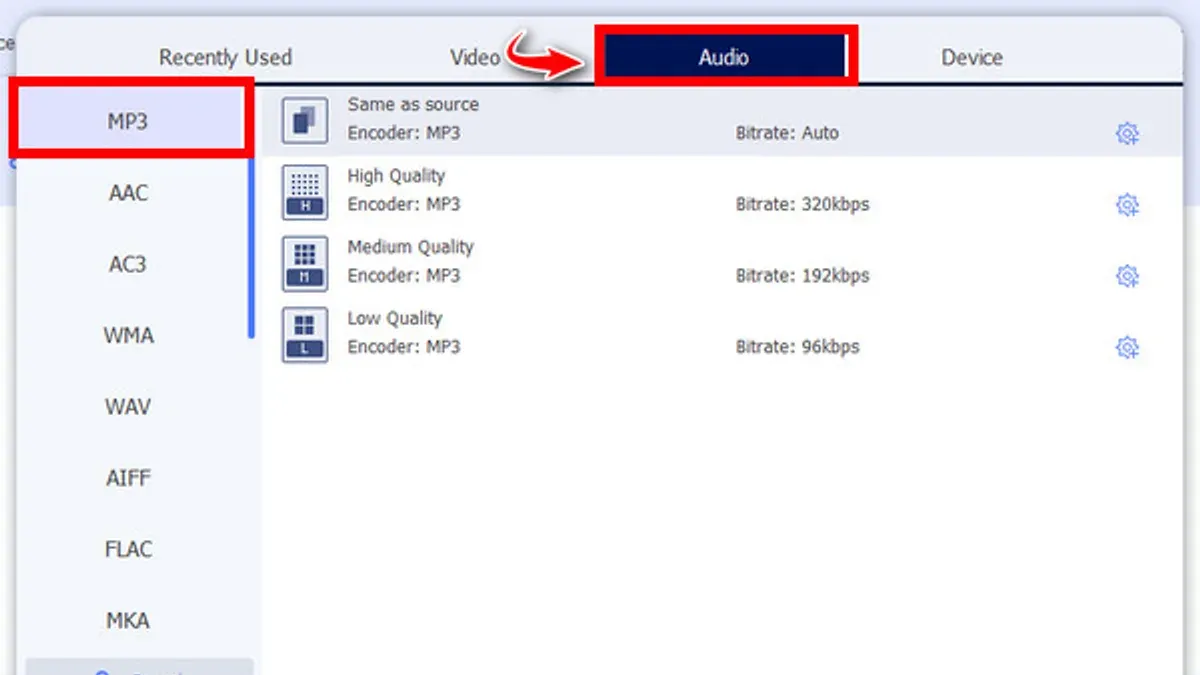
Third-party transcription apps may show upload errors or crash unexpectedly. Common error messages include "Upload failed" or "File format not supported." To fix these, confirm the audio file format is compatible (usually M4A, WAV, or MP3), and restart the app or your Mac. Updating the app to the latest version can also resolve bugs.
Text formatting and punctuation errors in transcripts are typical. Automated transcriptions often omit commas or misinterpret homophones. You will usually need to proofread and manually correct transcripts for clarity and accuracy.
Privacy and data security concerns arise when using cloud-based transcriptions. Check the app’s privacy policy to understand data handling. For sensitive content, consider offline transcription tools or macOS’s built-in dictation methods to keep your data local.
- Verify audio clarity by playing the recording on your Mac; clear speech should be easily understood. If not, re-record or enhance audio quality.
- Open System Preferences > Security & Privacy > Microphone and ensure transcription apps have permission. Successful setup allows the app to access audio input.
- If the app shows upload errors, convert your voice memo to a supported format using QuickTime Player (File > Export As). Confirm the file uploads without error.
- After transcription, compare the text to the original audio. If punctuation is incorrect, manually edit the transcript to improve readability.
- Review the privacy settings and data policies of your chosen transcription tool to ensure your comfort with how your data is managed.
When converting voice memos to text may not be the best solution
Transcribing voice memos is not always practical or accurate, especially when recordings contain highly technical language or jargon. Automated transcription tools often struggle with specialized terms, leading to frequent errors that require extensive manual correction. For example, medical or legal recordings may produce text filled with misspellings or misunderstood phrases, reducing usability.
Audio recorded in noisy environments also poses challenges. Background noise, overlapping speech, or poor microphone quality can cause transcription software to misinterpret words or omit parts of the recording. Such inaccuracies can make the resulting text unreliable for important tasks.
Privacy considerations are another factor. Cloud-based transcription services send audio to external servers, which may not comply with confidentiality requirements for sensitive information. In such cases, manual transcription or using offline tools that store data locally is often safer.
When transcription accuracy or privacy is insufficient, alternative workflows can be more effective. Instead of full transcription, manually summarizing key points or taking notes during playback can capture essential information without depending on error-prone automated text. This approach is particularly useful for complex or confidential recordings.
Consider these alternatives when your voice memos involve specialized vocabulary, noisy backgrounds, or sensitive content that automated transcription cannot reliably or securely handle.
- How to Convert Image to Text on Mac: A Clear Step-by-Step Guide
- How to Convert Text to Speech Audio on Mac: Step-by-Step Guide
Frequently asked questions
How to turn voice memo into text?
You can turn a voice memo into text by using transcription features built into your Mac or third-party apps. One common method is to play the voice memo while using the Mac's Dictation feature to capture the audio as text. Alternatively, you can import the voice memo into a transcription app that converts audio files directly into editable text.
How to transcribe voice memo to text?
To transcribe a voice memo to text, you can upload the audio file to transcription software or services that support Mac, such as Otter.ai or Dragon. These apps analyze the audio and generate a text transcript. Some built-in options include using the Voice Control or Dictation tools while playing the memo aloud for automatic conversion.
How to turn speech to text on mac?
Turning speech to text on Mac can be done by enabling Dictation in System Preferences under Keyboard or Accessibility. Once activated, press the dictation shortcut (usually pressing the Fn key twice) and speak directly or play audio near the Mac's microphone to convert speech into text in any text field.
How to turn speech to text on macbook?
On a MacBook, enable Dictation from System Preferences > Keyboard > Dictation. With Dictation on, open a text editor, then activate dictation by pressing the Fn key twice and start speaking. The MacBook converts your speech or spoken audio nearby into editable text in real time.
How do i convert voice memos to text on mac?
To convert voice memos to text on Mac, you can export the memo from the Voice Memos app and use built-in Dictation or third-party transcription software to generate text. Playing the memo aloud while dictation is active lets you capture the audio as text, or you can use apps designed for accurate transcription by importing the audio file directly.
What this guide does not cover and who should look elsewhere
This guide does not cover professional transcription services or specialized software designed for legal, medical, or other fields requiring certified accuracy. Such services often use human transcribers or highly specialized AI tuned for jargon and compliance, which go beyond the built-in and third-party tools discussed here.
If your workflow demands guaranteed error-free transcripts for official records or compliance, consider dedicated transcription providers or software specifically built for your industry.
The most useful next step is to try the built-in Voice Control dictation feature or the Notes app’s speech-to-text capabilities with your own voice memos to evaluate transcription accuracy and convenience firsthand. Testing these methods will help you decide if you need third-party apps for better precision, privacy options, or export flexibility tailored to your specific needs.