
Moving from Quizizz to Kahoot Checklist for Educators
This checklist guides educators through moving from Quizizz to Kahoot, covering quiz creation, session setup, and engagement tips.

Short answer: Moving from Quizizz to Kahoot checklist involves understanding key platform differences, mastering Kahoot's quiz creation and settings, and preparing to manage live and self-paced formats effectively. This ensures you maintain engagement and quiz functionality without disruption during your transition.
This article covers a step-by-step guide to switching from Quizizz to Kahoot, focusing on creating and customizing Kahoot quizzes, setting up sessions for different play modes, and troubleshooting common issues. You will find practical advice on leveraging Kahoot’s unique features such as question timing, leaderboard settings, and multimedia integration, while avoiding pitfalls that Quizizz users often face when adapting to Kahoot’s environment.
Understand the key differences between Quizizz and Kahoot
Switching from Quizizz to Kahoot often stems from the desire to leverage Kahoot’s distinctive engagement and quiz delivery styles. While both platforms support live and self-paced quiz modes, Kahoot emphasizes a highly interactive live experience with host-controlled pacing, whereas Quizizz allows more flexibility for asynchronous play with automatic question timing.
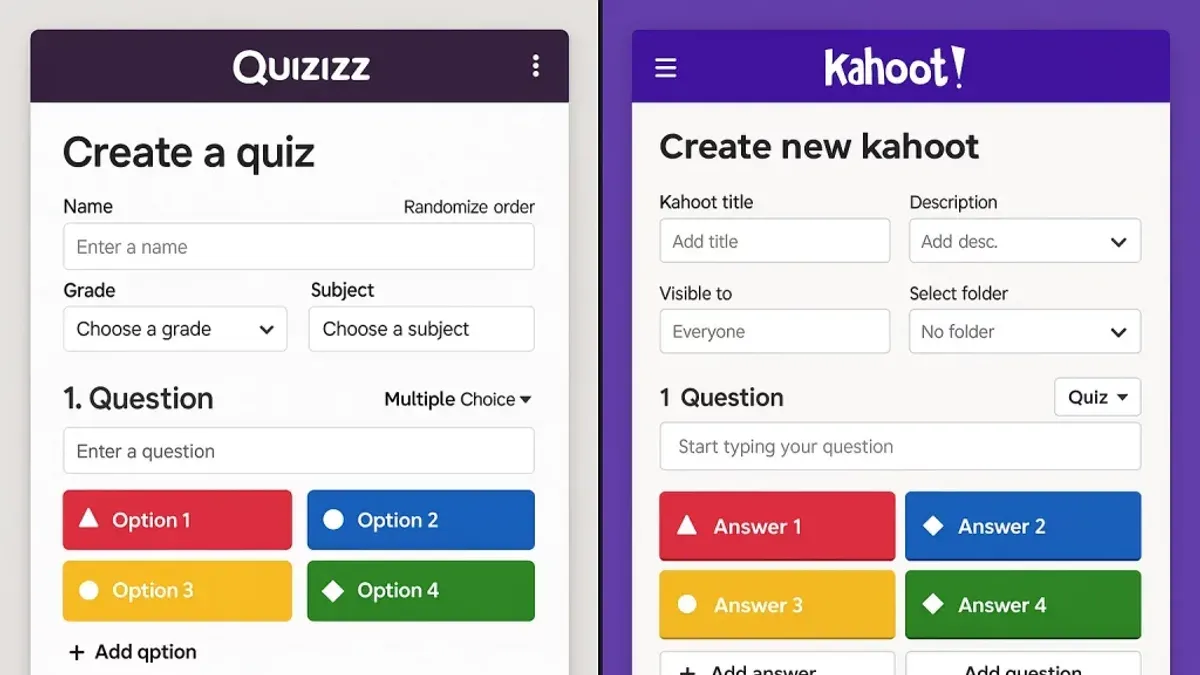
The quiz formats on Kahoot are designed around a game-show style interface, with features like a visible leaderboard that updates after each question to boost competition. Quizizz also offers leaderboards but tends to focus more on individualized pacing and instant feedback. Kahoot’s user interface prioritizes simplicity in quiz creation through its “Create” menu, where you can add questions, images, and videos using drag-and-drop and preset templates, which some users find more intuitive than Quizizz’s multi-step editor.
One key difference lies in question randomization. Kahoot allows you to enable question order randomization per game session, enhancing replay value, while Quizizz randomizes questions by default but offers fewer customization options. Multimedia support in Kahoot is robust, letting you embed YouTube videos directly into questions and add GIFs or diagrams, which can increase engagement for visual learners.
For example, when creating a science quiz, Kahoot lets you insert a short video clip explaining a concept before asking related questions, maintaining live audience attention. Quizizz users often note that switching to Kahoot enhances group involvement during live sessions but may require adjusting to the host-controlled flow.
| Feature | Quizizz | Kahoot |
|---|---|---|
| Quiz Modes | Live and self-paced with automatic timings | Live with host pacing & self-paced |
| Question Randomization | Default randomized order | Optional randomization per game |
| Multimedia Support | Images and audio uploads | Images, audio, YouTube videos, GIFs |
| Leaderboard Style | Individual pace-based | Live, dynamic leaderboard |
| Quiz Creation UI | Multi-step editor | Drag-and-drop, templates |
User satisfaction surveys generally show Kahoot favored for live classroom engagement and ease of use during presentations, while Quizizz is preferred for homework and asynchronous quizzes. Understanding these differences helps you adapt your teaching style to Kahoot’s strengths, ensuring a smooth transition without losing student involvement.
How to create quiz in Kahoot
Begin by logging into your Kahoot dashboard. Click the Create button at the top right to start a new quiz. You will enter the quiz editor where you can add questions and customize settings.
To add a question, click Add question and select Quiz for multiple choice questions, the most common type. Enter your question text and up to four answer options, marking the correct one. You can also add other question types such as True/False or Puzzle to diversify your quiz.
Organize your quiz by dragging questions into the desired order. Set an appropriate time limit per question—typically 20 to 30 seconds works well for knowledge checks, but adjust based on complexity. Avoid overly short limits that frustrate participants or long limits that reduce engagement.
Enhance questions by adding images, videos, or diagrams. Click Media inside the question editor to upload files or embed YouTube videos. For example, you might add a diagram to a science question or a short video clip for a history quiz. Visuals improve engagement and clarify complex questions.
As an example, for a geography quiz, start with a multiple choice question like “What is the capital of France?” Add four options, mark “Paris” as correct, set 30 seconds, and include a map image. This concrete setup helps you picture the process and the value of multimedia.
- Log into Kahoot dashboard and click Create
- Add multiple choice or other question types via Add question
- Enter question text, answers, mark correct options
- Arrange question order and set time limits per question
- Add images, videos, or diagrams to enhance questions
How to set up a Kahoot quiz for live and self-paced play
Kahoot offers two primary modes to deliver quizzes: Live game mode and Challenge (self-paced) mode. Live mode is host-controlled, ideal for synchronous sessions, while Challenge mode allows participants to complete quizzes at their own pace within a set timeframe.
Configuring Live Game Mode
To set up a live quiz, select your Kahoot and click Play, then choose Teach. This launches the lobby, where you can customize settings such as nickname generator options under Lobby options. For example, enabling the automatic nickname generator helps maintain anonymity and avoids duplicate names.
Game options include toggling Randomize questions to shuffle question order each time the quiz runs, ensuring varied gameplay. You can also enable Classic mode (individual players) or Team mode depending on your session format.
Configuring Challenge (Self-Paced) Mode
For self-paced quizzes, after selecting your Kahoot, click Assign. Set a clear deadline and choose whether participants can see correct answers during or after the quiz. Unlike live mode, you can’t randomize questions in challenge mode, so plan your question order accordingly.
The nickname settings here allow participants to enter their own names, which is useful for tracking individual progress but requires clear instructions to avoid confusion.
Using Reports and Analytics
After the quiz, access detailed reports via the Reports tab. For live games, you get instant summaries of player responses and question performance. Challenge mode reports provide individual completion times and scores over the deadline period.
These insights help identify difficult questions or content gaps, informing your future quiz adjustments.
Example: If you run a live review session on biology, enable randomization to keep the quiz fresh for repeat groups. For homework quizzes, assign a challenge with a 48-hour deadline and allow participants to see correct answers after submission to reinforce learning.
- Select Play > Teach for live mode; customize nickname and game options
- Enable Randomize questions in live mode to vary gameplay
- Use Assign for self-paced challenges; set deadlines and answer visibility
- Instruct participants clearly on nickname entry in challenge mode
- Review Reports after sessions to analyze performance and adapt quizzes
How to launch and run a Kahoot quiz effectively
To start a live Kahoot session, locate your quiz in the Kahoot dashboard and click the Play button. Select Teach to launch a live game. This opens the game lobby where you monitor player join via the displayed Game PIN and participant list. Allow adequate time—typically 2-3 minutes—for all players to enter before starting.
Managing pacing is crucial. For a 20-question quiz, allocate approximately 20-30 seconds per question to balance speed and thoughtful responses, totaling around 10 minutes. Use the Next button to manually advance questions, giving you control over timing rather than automatic progression. This helps accommodate discussions or technical delays.
Kahoot’s leaderboard appears after each question, boosting engagement by showing top scorers. Use this feature to encourage friendly competition. Additionally, take advantage of Kahoot’s live reactions and chat (if enabled) to maintain energy and interaction throughout the session.
After the quiz, click End Game to access detailed reports. Share results immediately with participants by selecting Share results, which generates a link or PDF. This transparency reinforces learning and lets you highlight key takeaways or common errors.
- Start quiz via Play > Teach and monitor player join
- Allow 2-3 minutes for player entry
- Manually advance questions, pacing ~20-30 seconds each for 20 questions
- Use leaderboard to maintain engagement
- Share post-quiz results with participants promptly
Tips for creating interesting Kahoot quiz questions and answers
Craft clear, concise multiple-choice questions that focus on a single concept to avoid confusion. For example, instead of asking, "Which of these countries, rivers, and mountains is the longest or highest?" ask separate questions like, "Which river is the longest in South America?" This clarity helps learners focus and respond quickly.
Use Kahoot’s multimedia features by adding relevant images, GIFs, or videos to questions. Visuals not only capture attention but also support understanding. For instance, including a map snippet for geography questions or a short clip demonstrating a science experiment can boost engagement and retention.
Balance difficulty and pacing by mixing easy, medium, and challenging questions. Start with simpler questions to build confidence, then gradually increase complexity to maintain motivation. Kahoot allows setting individual time limits per question; consider longer times for harder questions and shorter for easier ones to keep the game dynamic.
Incorporate fun facts or hints in the answer explanations after each question to enrich learning. For example, after a question on the water cycle, add a note like, "Did you know that the water cycle continuously renews Earth's freshwater supply?" This adds educational value beyond scoring.
Well-designed Kahoot quizzes often show higher engagement when questions are visually supported and paced thoughtfully. A quiz on world capitals with images of landmarks and staggered difficulty keeps players active and attentive throughout.
How to handle common issues when moving from Quizizz to Kahoot
Transitioning from Quizizz to Kahoot often reveals challenges around quiz migration and adapting to a new interface. Quizizz does not support direct quiz export to Kahoot, so you must manually recreate quizzes. This can be time-consuming but ensures you tailor questions to Kahoot’s format, which emphasizes live interaction and multimedia.
Adjusting to Kahoot’s terminology and layout is another hurdle. For example, Quizizz’s “weekly quiz” feature doesn’t have a direct Kahoot equivalent; instead, use Kahoot’s “challenge” mode to assign quizzes for asynchronous play. If you experience issues like the weekly quiz not working or player connectivity drops, check the following: ensure stable internet, advise participants to use supported browsers, and verify that game options like nickname filters are properly set under Settings > Game options.
A practical case comes from a school that faced data loss when attempting to bulk import questions via Kahoot’s CSV upload. The school avoided this by breaking quizzes into smaller segments and validating each upload before proceeding. They also trained educators on Kahoot’s report export options to retain participant data and performance insights.
Best practices include backing up quizzes outside of Kahoot in spreadsheets, confirming quiz visibility settings (public or private), and running a test session with colleagues before going live. These steps prevent data loss and maintain participant engagement during the transition.
- Manually recreate quizzes in Kahoot due to no direct import from Quizizz
- Use challenge mode for asynchronous play instead of Quizizz’s weekly quiz
- Ensure stable internet and correct game option settings to avoid connectivity issues
- Break large question imports into smaller batches and validate uploads
- Back up quizzes externally and run test sessions before live use
Checklist for a successful transition from Quizizz to Kahoot
Switching from Quizizz to Kahoot requires a structured approach to maintain engagement and avoid workflow disruptions. Begin by auditing your existing Quizizz quizzes: list all active and frequently used quizzes, then decide which ones to migrate directly and which to recreate to leverage Kahoot’s unique features. For example, a 20-question Quizizz quiz may need a trimmed 15-question Kahoot version to fit live play pacing.
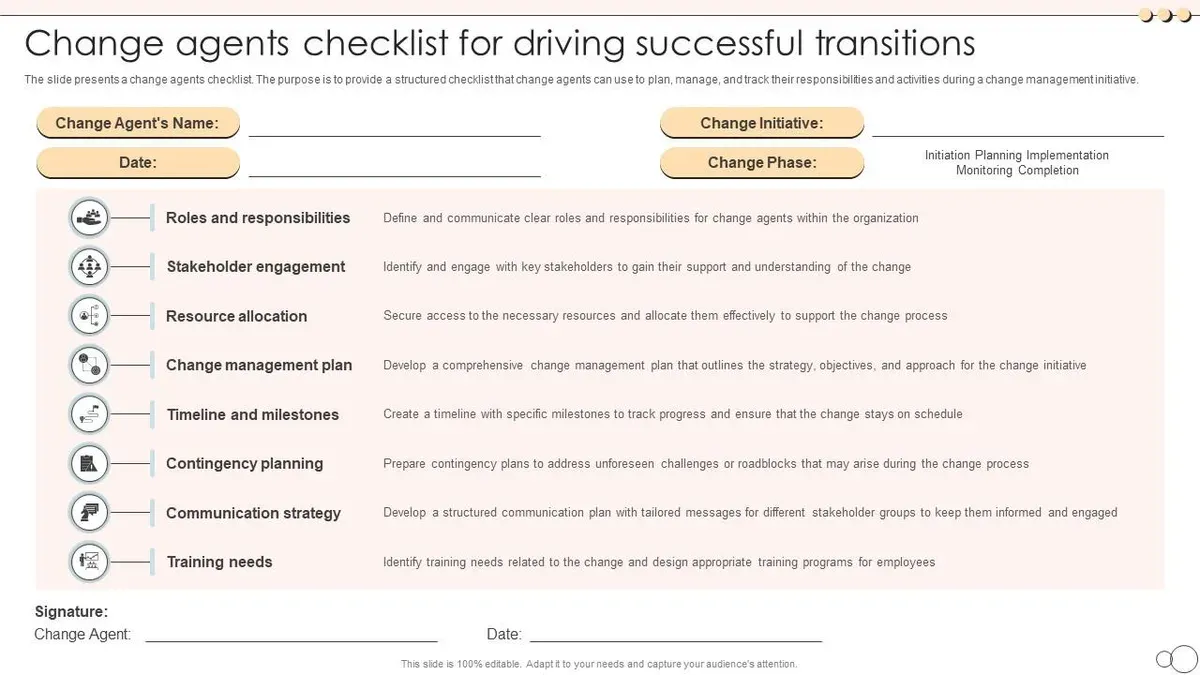
Next, set up educator and student accounts on Kahoot. Ensure all participants have access and understand their login credentials, especially if using Kahoot’s Classroom or Premium plans that offer enhanced features. Creating and testing sample Kahoot quizzes before full rollout is crucial; run at least one live and one challenge mode quiz internally to identify timing or interface issues.
Train participants on Kahoot’s interface and game modes. A brief walkthrough session or video tutorial highlighting how to join games, use nicknames, and navigate question types reduces confusion during live sessions. Schedule the first Kahoot quiz session with clear communication on date, time, and technology requirements, then collect feedback immediately afterward to adjust future quizzes.
Printable checklist with timeline suggestions
- Week 1: Audit Quizizz quizzes and choose migration strategy
- Week 2: Create educator and student Kahoot accounts; distribute credentials
- Week 3: Develop and test sample Kahoot quizzes (live and challenge)
- Week 4: Conduct training session or share tutorials with participants
- Week 5: Schedule and run initial Kahoot quiz; gather and review feedback
This timeline balances thorough preparation with timely implementation. Typically, preparing a live Kahoot quiz takes less time per quiz than a Quizizz setup due to its streamlined interface, but factor in extra time for familiarizing participants with new features.
Read next
- Switching from Quizizz to Gimkit: A Step-by-Step Educator’s Guide
- Switching from Quizizz to Blooket: A Step-by-Step Educator’s Guide
- Moving from Nearpod to Kahoot: Your Expert Transition Checklist
- Your Expert Checklist for Moving from Microsoft Forms to Kahoot
Frequently asked questions
How to do kahoot quiz?
To do a Kahoot quiz, first log in to your Kahoot account and select or create a quiz. Choose whether to play live with participants or assign it as a self-paced challenge. Share the game PIN or link with your audience so they can join the session and answer questions in real time or at their convenience.
How to launch kahoot quiz?
Launching a Kahoot quiz begins by opening the quiz you want to run and clicking the “Play” button. Select either “Teach” for live play or “Assign” for self-paced sessions. For live games, display the game PIN prominently so players can enter it on their devices to join.
How to start a kahoot quiz?
Start a Kahoot quiz by clicking “Play” on your chosen quiz and selecting your preferred mode. For live quizzes, after choosing “Teach,” you’ll see a lobby with a game PIN; wait for participants to join, then press “Start” to begin the quiz. For self-paced, set the deadline and assign it, then participants start on their own.
How to conduct quiz in kahoot?
Conducting a Kahoot quiz involves managing the flow of questions and monitoring participant responses. Use the timer settings to control question duration and the leaderboard to maintain engagement. For live quizzes, provide clear instructions and use Kahoot’s screen sharing or projector mode to keep everyone focused.
How to run a kahoot quiz?
Running a Kahoot quiz effectively means preparing your quiz settings beforehand, such as enabling random question order or answer shuffling to prevent predictability. During the game, pace your delivery to allow participants to answer comfortably. Use Kahoot’s in-game reports afterward to review results and identify areas for improvement.
What this advice does not cover
This guide does not cover enterprise-level Kahoot features or integrations that may require additional subscriptions or IT support. If you need advanced analytics, single sign-on (SSO) setup, or integration with learning management systems at scale, consult Kahoot’s enterprise resources or your IT department. This checklist is tailored for educators and trainers managing individual or small-group quiz transitions.
Quick checklist
- Review and export existing Quizizz quizzes and results to ensure no data loss.
- Create a Kahoot account and familiarize yourself with the quiz creation interface.
- Set up quiz questions using Kahoot’s question types, paying attention to time limits and media uploads.
- Configure game options separately for live play (with host control) and self-paced challenges.
- Test the quiz in preview mode to catch formatting or timing issues.
- Prepare clear instructions for participants on how to join using the Kahoot game PIN or challenge link.
- Plan your launch method: live session or asynchronous challenge, adjusting settings accordingly.
- Have backup questions or slides ready to maintain engagement if connectivity issues arise.
- Gather participant feedback after the quiz to refine future Kahoot sessions.
Start by creating a simple Kahoot quiz with a few questions and running it with a small group. This hands-on approach helps you master Kahoot’s unique features and avoid common pitfalls before scaling up to larger sessions.



