Switching from Asana to Basecamp: Expert Steps and Insights
Discover expert tips to switch from Asana to Basecamp, ensuring smooth data migration and workflow adaptation for your team.

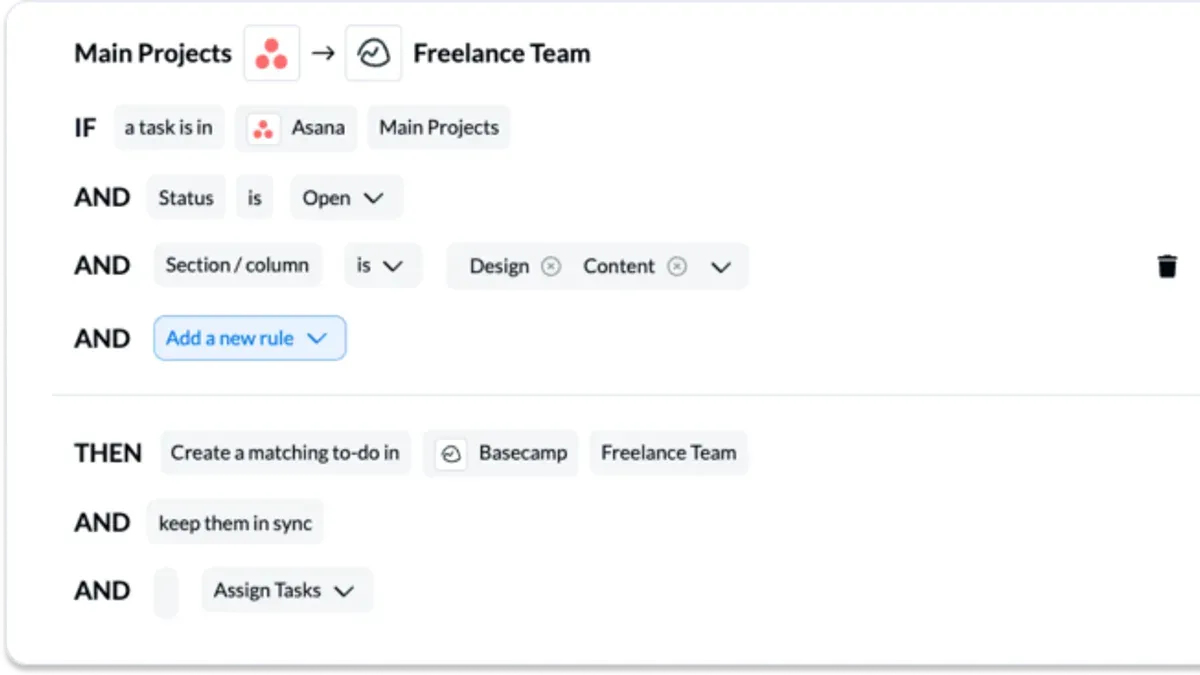
When you’re switching from Asana to Basecamp, the challenge isn’t just moving data; it’s adapting to a different workflow and pricing structure. Asana supports over 300 integrations, far more than Basecamp’s 75+, which can disrupt processes relying on connected tools.
Yet Ignoring the integration gap or pricing impact often leads to stalled transitions and frustrated teams.
At a glance
- Asana has extensive integrations; Basecamp offers fewer but built-in communication tools.
- Export your full Asana data via the web app’s Settings → Export for a complete CSV backup.
- Basecamp’s flat-rate pricing benefits large teams but may limit automation options.
- Planning the migration order and workflow mapping prevents data loss and confusion.
Every limit and setting name below comes from ToolStack, SelfManager.ai, Lark Suite (full list at the end), as of November 2026.
Recognize why switching from Asana to Basecamp matters
Switching between Asana and Basecamp is more than a simple platform swap; it reflects a shift in how your team collaborates and manages projects. This difference means Basecamp can be dramatically more cost-effective for larger teams, with plans starting at $29/month for freelancers and capping at $199/month for unlimited users billed annually. Asana’s pricing starts at a free Personal tier and moves to $10.99 per user per month for Starter, then up to $24.99 for Advanced plans.
Beyond cost, these tools serve distinct team needs.
Imagine a marketing team juggling multiple campaigns with complex task dependencies. Asana’s automation and reporting capabilities keep everything on track. Conversely, a small agency working closely with clients may value Basecamp’s all-in-one communication and flat-rate pricing, avoiding per-user costs while simplifying team conversations.
Understand how Asana and Basecamp differ in core features
Asana offers multiple project views that include list, board, calendar, timeline, and Gantt charts, which provide a variety of ways to visualize task progress and dependencies. Basecamp’s views center around to-dos, a card table layout, schedules, and message boards. However, Basecamp lacks Gantt and dependency views, which means complex project timelines and task dependencies need to be managed differently or tracked externally.
Workflow automation is another critical difference. Asana includes a powerful no-code workflow builder and rules on its paid plans, enabling you to automate task assignments, status updates, and notifications with precision. Basecamp’s automation is limited to basic automatic check-ins and relies heavily on third-party tools like Zapier for more complex workflows.
Basecamp’s interface emphasizes built-in communication tools such as Campfire chat, message boards, and automatic check-ins, designed to reduce reliance on external communication apps like Slack or email. For example, where you might have used Slack alongside Asana, Basecamp integrates chat and status updates directly, streamlining team interaction within the same platform.
| Feature | Asana | Basecamp |
|---|---|---|
| Project Views | List, Board, Calendar, Timeline, Gantt charts | To-dos, Card Table, Schedule, Message Boards (No Gantt or dependencies) |
| Workflow Automation | Strong no-code builder, rules on paid plans | Basic automatic check-ins, limited automation, relies on Zapier for complex workflows |
| Communication Tools | External apps like Slack often required | Built-in Campfire chat, message boards, automatic check-ins |
Picture this: In Asana, you can set a timeline with task dependencies clearly outlined and automate task handoffs as soon as a prior task completes. In Basecamp, you would manage tasks via to-dos and schedules, use message boards for discussion, and rely on automatic check-ins for status updates, but you’ll need to adjust expectations around visualizing dependencies and automations.
Export and prepare your Asana data for migration
Begin by auditing your Asana projects thoroughly. Review all tasks, sections, custom fields, automations, integrations, and team permissions to understand what must transfer and what requires reconfiguration in Basecamp.

To export your data, use Asana’s web app and navigate to Settings → Export. Select the option to export a full CSV backup. This CSV contains not only tasks and sections but also custom fields and automation data, which are crucial for a comprehensive migration.
Custom fields and automations often create challenges because Basecamp lacks direct equivalents. Missing these in your export means losing critical workflow elements or facing complex manual workarounds post-migration. For example, if you have a status custom field driving task progress tracking, ensure it is included in the export so you can plan how to replicate or adjust it in Basecamp.
Check that all integrations and team permissions are documented before export. Some integrations may require new setups in Basecamp, while permissions settings can affect access control and collaboration.
Avoid these by running a detailed audit and exporting only after confirming every element is accounted for.
Once exported, prepare your CSV for import into Basecamp by cleaning up any irrelevant data and planning how to map fields and automations to Basecamp’s simpler structure.
Export via Settings → Export (Asana web)
Set up Basecamp workspace and import your data
Begin by creating a new Basecamp workspace dedicated to your migrating team. Within this workspace, set up projects that mirror your Asana structure to maintain clarity. Use Basecamp’s CSV import feature to bring over tasks and project details precisely; this is found in the project settings under the "Import CSV" option.
Ensure your exported CSV from Asana is clean and matches Basecamp’s format requirements to avoid import errors. For example, if you had a marketing campaign project in Asana with tasks and custom fields, organize your CSV so Basecamp can assign tasks correctly during import.
Basecamp has over 20 native integrations, but it lacks some of Asana’s automation capabilities. To bridge these gaps, employ Zapier or Make. These tools connect your new Basecamp workspace to other apps and automate workflows that Basecamp doesn’t support natively.
For instance, if your Asana setup automatically notifies Slack when a task is completed, replicate this using a Zapier automation between Basecamp and Slack. This approach prevents workflow disruption and smooths team adaptation after import.
Run Asana in read-only mode while transitioning teams
Set Asana to read-only mode for two weeks as your team starts using Basecamp. This controlled overlap prevents data divergence by ensuring no new changes occur in Asana during migration. If edits continue in both tools, confusion arises over which platform holds the current project state, risking lost or conflicting updates.
Begin by auditing and exporting your Asana data, then importing it into Basecamp and onboarding your team. Only after these steps should you restrict Asana to read-only. Doing this prematurely can stall tasks, while delaying it invites data conflicts.
During the two-week parallel run, your team primarily works in Basecamp but can still reference all historical tasks, comments, and files in Asana. This access eases the switch by preserving context and reducing the need to recreate information immediately.
For example, if a project’s timeline or discussion threads are not yet fully transitioned, the team can verify details in Asana without risking updates that won’t transfer. After the parallel period, archive Asana data to finalize the move and fully commit to Basecamp.
Skipping this step or shortening the overlap often leads to confusion and data loss.
Map your workflows and automations from Asana to Basecamp
Asana’s no-code workflow builder and rich rules set on paid plans enable complex automation that Basecamp’s core lacks. Basecamp only offers basic automatic check-ins and simple task notifications, so replicating Asana automations often requires third-party tools like Zapier or Make to fill gaps.
Custom fields are another challenge. Asana supports multiple field types—dropdowns, dates, text—that don’t have direct counterparts in Basecamp’s simpler task structure. You must audit all custom fields before export. Some will translate to task notes or tags, but many require workaround processes or loss of detail.
For example, if you use Asana to automatically assign tasks based on a dropdown field, Basecamp cannot natively replicate that logic. You’ll need a Zapier integration triggered by new tasks in Basecamp to assign team members accordingly. Without this, your workflow breaks.
To avoid surprises, export a full CSV backup including all fields and automations. Then map each automation to either Basecamp’s limited native options or a Zapier/Make workflow. Accept that complex rules and triggers may need redesign.
This detailed mapping and workaround planning prevents workflow gaps and ensures your team maintains productivity after migration. More on automation differences.
Decide if Basecamp fits your team's needs after migration
Choosing between Basecamp and Asana hinges on your team’s workflow complexity and communication style. Basecamp offers a simple interface and centralized communication tools like Campfire chat and automatic check-ins, with predictable flat-rate pricing ideal for teams valuing ease of use and straightforward collaboration.
However, Basecamp does not support advanced project management features such as roadmapping, sprint planning, or backlog management. If your team relies on detailed project control, multiple views, task dependencies, or workflow automations, these capabilities remain exclusive to Asana.
To clarify your choice, consider this decision matrix:
| Your Team's Situation | Recommended Tool | Deciding Factor |
|---|---|---|
| Needs structured project management with dependencies, multiple views, and automation | Asana | Supports advanced features like sprint planning and backlog management |
| Prioritizes ease of use, communication centralization, and flat-rate pricing | Basecamp | Simple interface with built-in communication tools and predictable cost |
| Requires detailed workflow automation and custom fields | Asana | Advanced automation options and custom field support |
| Prefers minimal setup and integrated team communication | Basecamp | Built-in chat and automatic check-ins replace external tools |
For example, if your team manages software development sprints with dependencies and detailed tracking, Asana remains necessary. Conversely, a small team focused on clear communication and project updates without complex workflows will find Basecamp’s simplicity and communication features a better fit.
Assess these factors carefully to ensure the tool matches your operational needs after migration. Learn more about these decision factors.
After migration: what to check and maintain
Once you complete the migration, start by verifying that all your Asana data—tasks, custom fields, and attachments—have imported correctly into Basecamp. Spot-check projects and ensure no critical details were lost during CSV import or automation mapping. Missing data here can disrupt workflows and must be addressed immediately.
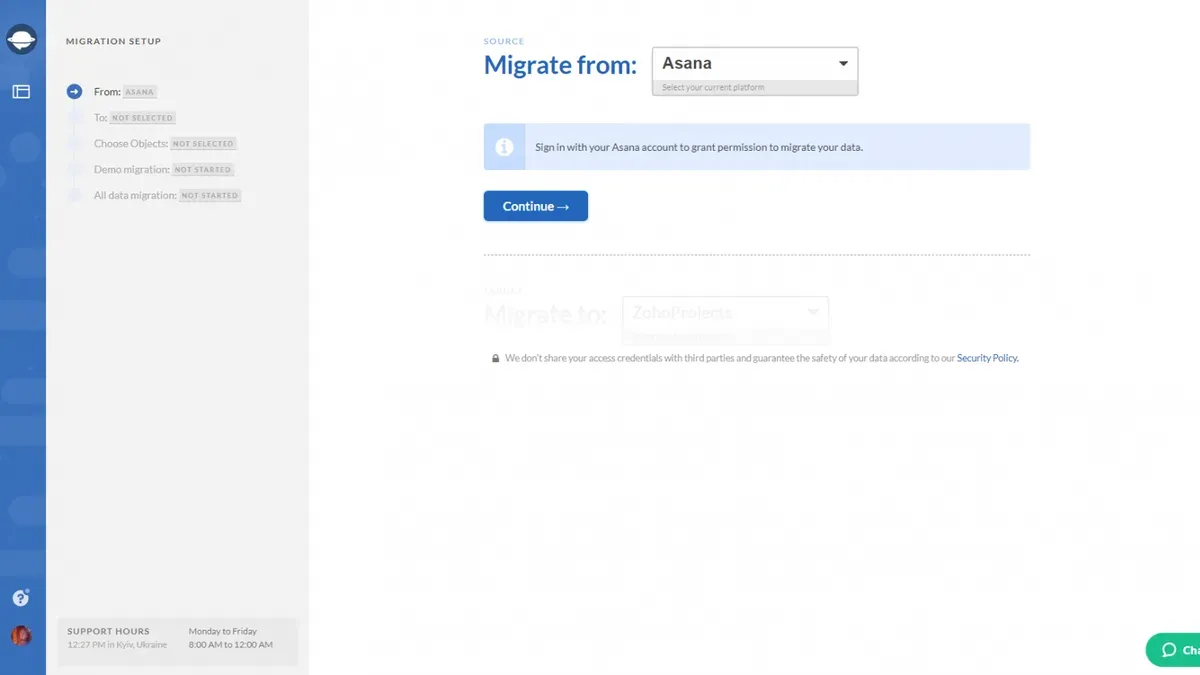
Continue running Asana in read-only mode for up to two weeks post-migration. This parallel period allows your team to reference historical data easily and adapt to Basecamp’s environment without pressure. Abruptly disabling Asana risks data divergence and confusion, so maintain this overlap until the switch is firm.
Monitor how your team uses Basecamp’s communication tools and task management features. Watch for workflow bottlenecks due to missing Asana automations, and maintain any third-party integrations like Zapier or Make that replicate those functions. These bridges require regular checks to keep processes smooth.
Finally, once confident no further referencing or data updates occur in Asana, archive your Asana workspace. Archiving preserves historical records without cluttering active tools. For example, a project manager might archive Asana projects after two weeks of stable Basecamp use, freeing the team to focus fully on the new platform without losing past context.
Neglecting any step can result in lost data or stalled workflows.
Common challenges during migration and how to overcome them
Missing data often signals that not all custom fields and automations were exported from Asana. Basecamp lacks many native equivalents, so failing to audit and export these means losing critical functionality. The fix is to re-export a full CSV backup via Settings → Export, ensuring all custom fields and automations are included, then re-import and rebuild missing automation with tools like Zapier.
Broken automations during migration usually stem from skipping the parallel run phase where Asana operates in read-only mode. Without this, data diverges between platforms causing confusion and inconsistent project states. To fix this, immediately set Asana to read-only for two weeks, allowing your team to adjust and preventing conflicting updates.
Confused team members and data conflicts happen when the order of migration steps is reversed—importing into Basecamp before freezing Asana or stopping parallel runs prematurely. This disrupts workflow and risks overwriting new data. The correct order is to export all data, import into Basecamp, then run Asana read-only while monitoring team adoption before fully switching off Asana.
| Symptom | Cause | Fix |
|---|---|---|
| Missing custom fields or lost automations | Incomplete export from Asana, neglecting custom fields and automations | Re-export full CSV backup from Settings → Export including all fields; re-import; supplement with Zapier automations |
| Data divergence and conflicting project versions | Asana not set to read-only during migration; parallel runs skipped | Activate Asana read-only mode for two weeks; ensure team uses only Basecamp for updates |
| Workflow confusion and overwritten data | Migration steps performed out of order, especially importing before freezing Asana | Follow strict order: export → import → set Asana read-only → monitor and finalize switch |
For example, if your team notices tasks disappearing or automations not triggering after import, it's often because the original Asana export lacked custom fields or automation rules. Without re-exporting and re-importing with those included, Basecamp cannot replicate your full workflow. Similarly, if multiple team members update tasks simultaneously in both Asana and Basecamp without read-only mode, you’ll see conflicting versions and lost updates.
This prevents costly confusion and ensures your switch to Basecamp is smooth and reliable.a few words.
Read next
- Plan and Execute an Effective Asana Rollout for Startup Teams
- Master the Asana Implementation Timeline for Project Success
- Moving from Airtable to Basecamp Checklist: A Clear Expert Guide
- Moving from Airtable to Asana Checklist: Your Expert Transition Guide
Frequently asked questions
How to add asana to teams?
Enter the email addresses of the people you want to add, assign appropriate permissions, and send the invitations. This process integrates individuals directly into your team’s projects and communications.
How to go back in asana?
To go back to a previous view or page in Asana, you can use the browser’s back button since Asana operates within a web interface. Additionally, Asana supports keyboard shortcuts like Shift + Tab to move between tasks or views depending on your current context. Navigating through the sidebar’s project or home links can also return you to earlier screens.
How to set up asana?
Then, establish teams under that organization, and create projects within each team. Customize project templates, add tasks, assign due dates, and invite team members to collaborate. Adjust notification and permission settings to fit your team's workflow.